- RAM is essential for the operation and stability of your PC, and failures can cause serious errors.
- Windows It includes its own tool (mdsched.exe) that allows you to analyze RAM easily and without additional installations.
- In addition to the Windows test, there are advanced alternatives such as MemTest86 or AIDA64 for more comprehensive diagnostics.
Is your computer getting slower, freezing unexpectedly, or displaying strange error messages? After hours of use, do you suddenly encounter a blue screen or does your PC restart for no apparent reason? You might be facing a more common problem than you think: RAM failures . This directly impacts your computer's performance and stability , causing everything from minor errors to the dreaded loss of files.
In this article, I'll explain in detail, clearly and concisely, how to identify symptoms of faulty RAM , use the Windows mdsched.exe tool to test your memory, and what steps to take if the diagnostic reveals a problem. We'll also explore free and paid alternatives for in-depth memory testing and offer tips for interpreting the results. If you want to eliminate any doubts about the condition of your RAM and keep your PC running like new, keep reading.
Why is it essential to check the status of RAM?
Random Access Memory ( RAM ) is key to the optimal functioning of any computer . All the programs, processes, and data you work with daily pass through this component. If it malfunctions, the system may exhibit symptoms as varied as:
- Blue screens or type errors BSOD (Blue Screen of Death).
- Unexpected crashes, reboots, and noticeable slowdowns, even having a good processor and storage fast as SSD.
- Problems loading the operating system or opening specific applications.
- File access failure, detected as corrupt for no apparent reason.
- Beeps when turning on the PC, warned by the BIOS, or that the memory recognized by Windows is less than the installed memory.
Having damaged or faulty RAM can cause anything from data loss to preventing you from working normally. Sometimes, the cause of the errors isn't the software or the system, but the hardware . Before you resort to formatting your computer or reinstalling Windows, it's worth running a memory diagnostic to rule out physical problems.
Clear symptoms that RAM may be failing
Identifying if your RAM is malfunctioning isn't always easy, but there are signs you should pay attention to. Take note of the most common symptoms that indicate a RAM failure :
- Beeps when starting the computer, especially if your motherboard has an internal speaker. If not, it may indicate this via LED lights.
- start very slow, even using NVMe SSD drives.
- The computer becomes increasingly slower as the hours pass, forcing a reboot to restore some fluidity.
- Sudden blue screens when running programs or games, highlighting errors such as MEMORY_MANAGEMENT.
- Problems accessing certain files, marked as corrupt without logical explanation.
- In System Information, Windows doesn't recognize all the installed RAM (for example, you have 16 GB but only 8 GB appears).
These signs, although they can be confused with failures in other components such as the hard drive, usually point directly to the memory. When the RAM fails, the entire system can become unstable, and only a memory test will give you a definitive answer.
Using Windows Memory Diagnostics (mdsched.exe): The Built-in Tool
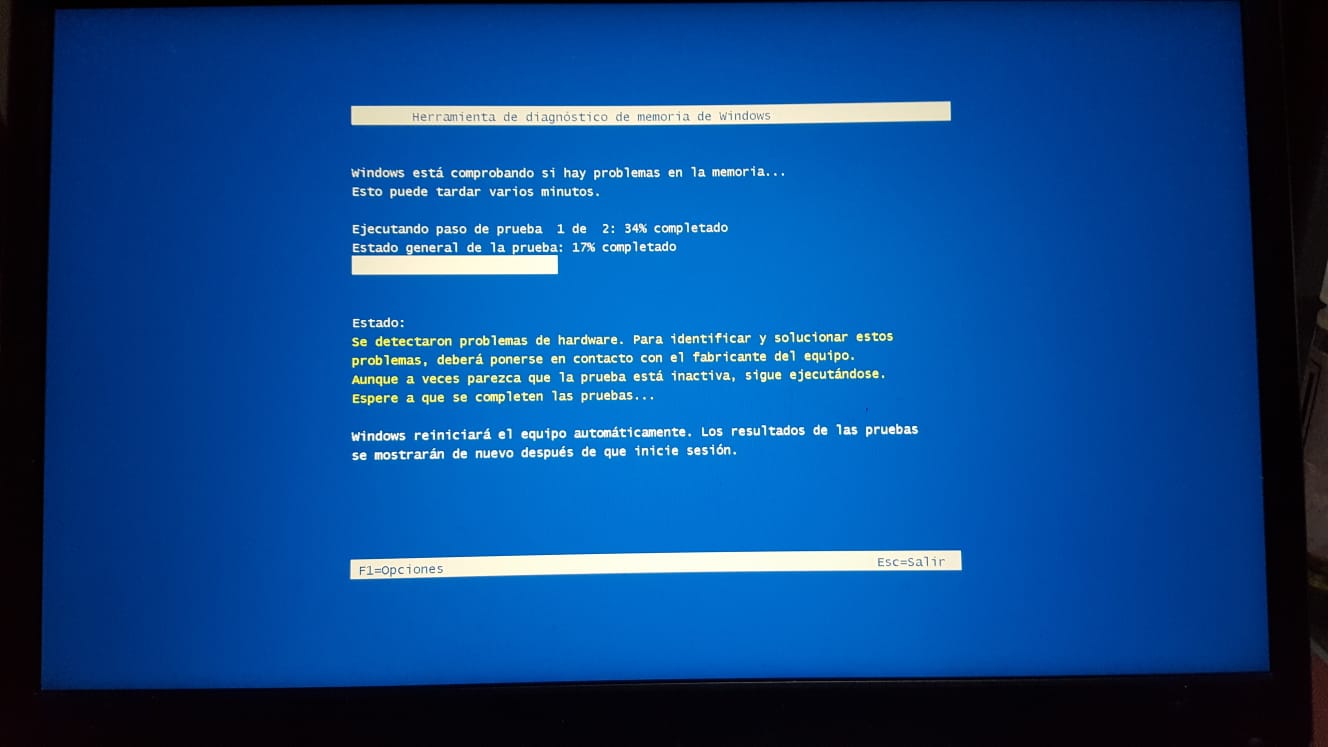
Since Windows 7, Microsoft has included a robust tool for checking RAM without requiring third-party software. It's called Windows Memory Diagnostic and is very easy to use, even for non-technical users. Running this test is an essential first step in quickly detecting RAM errors.
How do I access this utility? There are several very simple ways:
- Balance Windows + R to open the Run window and type mdsched.exe, then press Enter.
- Type 'memory diagnostics' in the Windows search bar and select the appropriate option.
- From the Control Panel, go to 'Administrative Tools' and then select 'Diagnose your computer's memory problems.'
When you run the tool, Windows will present you with two main options:
- Reboot now and check for any issues (recommended): The computer will restart and begin the memory test.
- Check for problems the next time your computer starts: Useful if you still have tasks open, the diagnostic will run at the next restart.
Before you begin , close all programs and save your work , as your PC will restart automatically and you could lose unsaved data.
How the Windows Memory Test Works and What Tests It Performs
Once the computer restarts, the Windows Memory Diagnostic tool boots into a special mode and begins analyzing the RAM for errors. On the blue screen that appears, you can choose between three types of tests by pressing the F1 key:
- Basic: Quick scan that runs essential tests.
- Standard: adds more checks, detecting less obvious errors.
- Extended: The most comprehensive test, it includes all the checks and can take a long time if you have a lot of RAM.
After selecting the test type you prefer using the arrows, press F10 to start the test.
Keep in mind that the basic tests are quick , but if you really suspect a serious problem, it's best to run the extended scan. This can take anywhere from several minutes to several hours, depending on the capacity and speed of your installed memory.
Once the diagnostic is complete, the PC restarts automatically, and if any problems are detected, Windows usually displays a notification in the lower right corner with a summary of the results. However, sometimes it's necessary to manually check the results in the Event Viewer.
How to view memory diagnostic results
To find out in detail if the tool has found errors , follow these steps:
- Open the Start menu and type events viewer or press Windows + R and writes eventvwr.msc.
- Within the Event Viewer, access Windows Logs > System.
- In the sidebar, click 'Search' and type MemoryDiagnostics-Results.
- Double-click on that record to view the full report.
This report will allow you to determine if errors have occurred and in which area of memory, helping you decide whether you need to replace the RAM or check individual modules.
What to do if the test indicates errors in the RAM?
If the diagnostic identifies problems, it's most likely that one or more memory modules are failing . In this situation, you have several options:
- If the RAM has warranty, contact the manufacturer to process the replacement.
- Find a new module compatible with your motherboard and replace it.
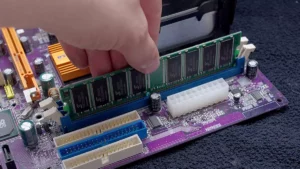
- Check that the modules are properly seated and anchored to the board, as sometimes a simple poor connection can cause errors.
- If you have advanced knowledge, you can adjust the write and read times from the BIOS, but only if you know what you're doing.
- Test the modules individually to identify which one is faulty if you have more than one installed.
It's not always necessary to replace the entire computer . If you can replace only the faulty module, your PC will work normally again.
Advanced alternatives for testing RAM: MemTest86 and AIDA64
If you want to perform a more thorough and professional RAM memory check , there are specialized tools such as MemTest86, MemTest86+ and AIDA64 that are usually used by computer technicians.
MemTest86 and MemTest86+ :
- They are free programs (with paid versions for advanced features) that They perform multiple low-level tests on the RAM.
- They run from a USB or CD and do not require Windows to be loaded, allowing memory analysis without interference.
- They offer detailed reports and detect errors that the Windows test may miss.
- They are ideal if your system won't even boot or if you have intermittent errors.
Quick guide to using MemTest86:
- Download MemTest86 from its official website.
- Burn the ISO image to a flash drive using tools like Rufus.
- Configure the BIOS to boot from USB and perform the test.
- The process can take hours, depending on the amount of memory and speed of your computer.
- If you detect errors and they persist across multiple modules, you'll need to replace them.
AIDA64 :
- It is a professional diagnostic program with a limited trial version.
- Allows you to perform benchmarks and stress tests in RAM, as well as providing advanced hardware information.
- To use it, go to the Benchmark menu and select the memory test.
Practical tips for analyzing and maintaining RAM memory
To keep your computer in good condition and prevent problems, keep these tips in mind:
- Performs periodic RAM checks if you notice symptoms or have doubts about its functioning.
- When installing new modules, check that they are compatible and properly seated.
- When experiencing unusual errors, avoid formatting without first ruling out physical problems with the RAM.
- If your hardware is older and you're having trouble finding parts, consider secondhand modules, ensuring compatibility and condition.
- Increasing the amount of RAM can offer a significant improvement in performance.
Maintaining healthy RAM is essential for ensuring the stability, speed, and security of your computer. Understanding and using diagnostic tools, as well as exploring more advanced options, will allow you to detect problems early, protect your data, and optimize your PC's performance. For more tips on improving RAM performance, see how to optimize your browser and reduce RAM usage.

Table of Contents
- 1 Why is it essential to check the status of RAM?
- 2 Clear symptoms that RAM may be failing
- 3 Using Windows Memory Diagnostics (mdsched.exe): The Built-in Tool
- 4 How the Windows Memory Test Works and What Tests It Performs
- 5 How to view memory diagnostic results
- 6 What to do if the test indicates errors in the RAM?
- 7 Advanced alternatives for testing RAM: MemTest86 and AIDA64
- 8 Practical tips for analyzing and maintaining RAM memory