- Combines Registry, GPO and hardware to control access to USB according to your needs.
- Policies allow you to deny read/write or all access to storage removable.
- DevCon and lightweight utilities offer automation and speed without touching BIOS.
- Includes rollback and troubleshooting to prevent your system from being locked out.

If you want to control the use of external storage devices and USB drives on your computer, here's a complete guide to blocking USB ports in Windows using regedit and other options . You'll see methods to completely disable removable storage or limit it (read-only), along with alternatives using Group Policy, Device Manager , BIOS/UEFI, and third-party utilities.
Before we get started, keep in mind that some methods can prevent USB peripherals like your keyboard and mouse from working . If you're going to aggressively disable ports, consider using a Bluetooth keyboard and mouse while you're making changes. And be careful with the Registry: messing with things you shouldn't can make Windows unstable , so proceed responsibly and create a backup or restore point.
What does blocking USB ports in Windows 10 and 11 mean?
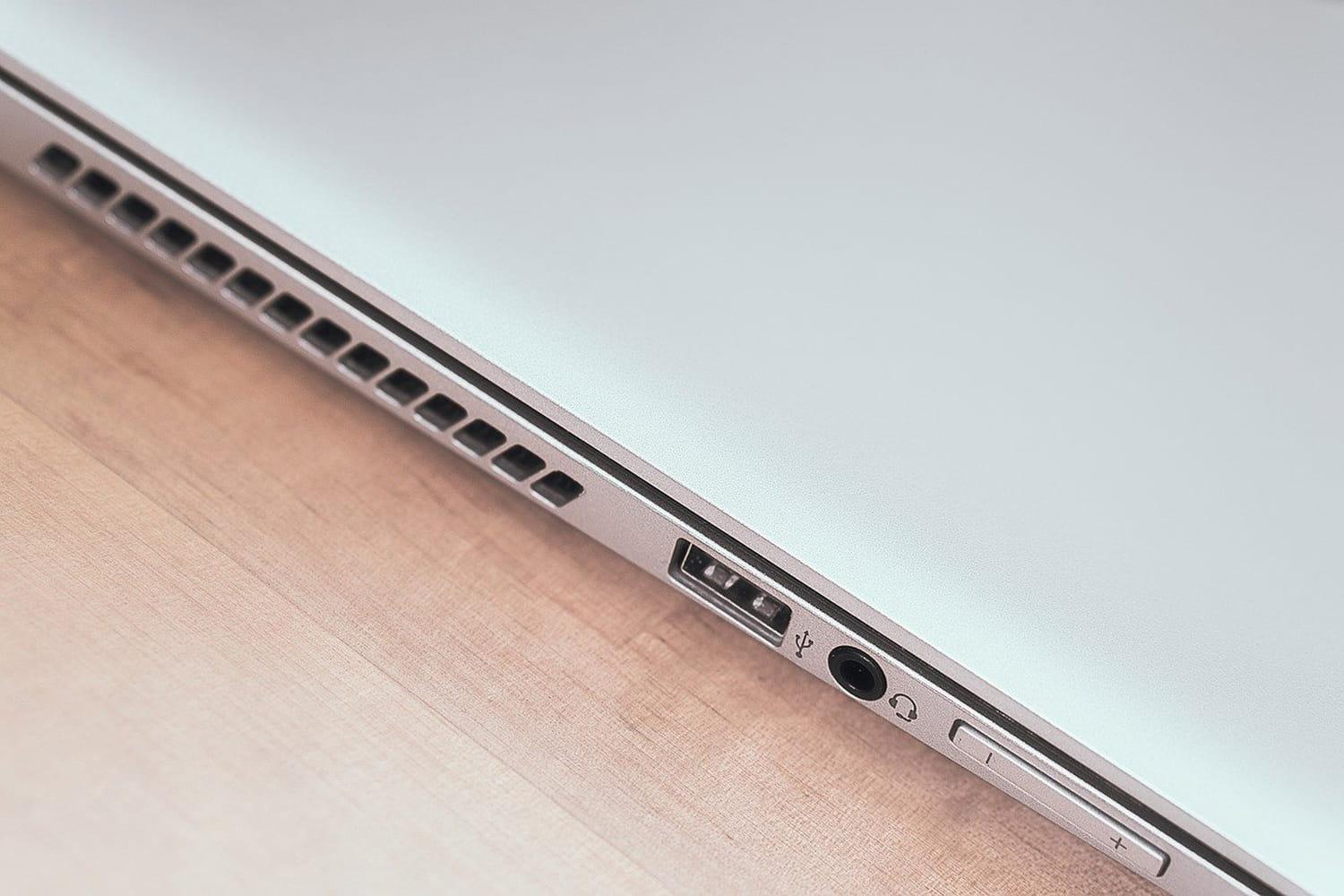
There are several ways to "block USB," and each has different effects. Modifying the mass storage service (USBSTOR) in the Registry specifically blocks storage devices (USB flash drives, external hard drives, some SD cards), but not other USB devices like webcams or printers . In contrast, disabling controllers in Device Manager or from the BIOS/UEFI can disable all USB ports , including keyboards and mice.
Another approach is using group policies or their registry equivalent, which allow you to deny access to all types of removable storage or to restrict read/write access to removable disks only. These options are ideal for corporate or educational environments because they are more granular and manageable.
As you can see, there is no single "magic switch." Choosing the right method depends on whether you need to completely block the port or just prevent data from being copied to/from external drives.

Block USB storage with Registry Editor (regedit)
This method disables the service that allows Windows to mount USB storage devices. It's quick and effective, and easily reversed. Even so, make a backup of the Registry or a system restore point before you begin.
- Balance Win + R, writes regedit and accept to open the Registry Editor. Don't touch entries you don't know..
- Navigate to the key:
HKEY_LOCAL_MACHINE\SYSTEM\CurrentControlSet\Services\UsbStor. Make sure you are on the right path to avoid errors. - In the right panel, double-click Start. Change the value of 3 a 4 (Hexadecimal base) and press OK. This disable USBSTOR.
- Restart the computer to apply the changes. USB drives will be rendered unusable (they will not be mounted).
To revert this, return to the same path and change Start to 3 , then restart. If it still doesn't work, check the policies in the next section, as they may be denying access through another method.
Deny access to all removable storage with policies (GPO)
If you're using Windows Pro or Enterprise, Group Policy is the cleanest and most centralized method. It allows you to block all types of removable storage with just a couple of clicks and is ideal for multiple machines.
- Opens Win + R, writes gpedit.msc and enter the Local Group Policy Editor. You need administrator permissions.
- Navigate to:
Configuración del equipo > Plantillas administrativas > Sistema > Acceso de almacenamiento extraíble. This centralizes the access rules. - Activate the directive “All removable storage classes: Deny access to all”. Apply and Accept. With that Windows will deny access to USB flash drives, external disks, CD/DVD and other removable media.
Optionally, you can use specific policies for "Removable disks: deny read access" and "Removable disks: deny write access" . With these, the user can read but not write, or vice versa, depending on your needs.
Do the same via Registry: RemovableStorageDevices
The previous directives create entries in the Registry that you can review or manipulate manually. If you notice that, even after reverting other changes, Windows continues to deny access , check this key:
HKEY_LOCAL_MACHINE\SOFTWARE\Policies\Microsoft\Windows/RemovableStorageDevices
- Opens regedit with Win + R and search for the previous route. If the key exists and you don't need the restrictions, you can remove it.
- Right click on Removable Storage Devices and choose Delete. Confirm carefully; you are touching system policies.
- Close the Registry and reboot. This should remove the policy blocks and re-enable USB.
Remember this warning: Incorrectly modifying the Registry can cause serious problems . If you're unsure, consult your IT department or create a system restore point first.
Restrict writing to USB drives only (read-only mode)
Another strategy is to allow the drives to be mounted but prevent data from being written , useful if you want to prevent information from being copied from your PC to a USB drive.
Method from Registry:
- Opens regedit and go to:
HKEY_LOCAL_MACHINE\SYSTEM\CurrentControlSet\Control\StorageDevicePolicies. If the key does not exist, create it with that name. - Inside, create a value DWORD (32 bit) called WriteProtect with data 1 to activate write protection. With 0 you allow it again.
- Restart the computer to apply. The user will be able to read, but You may not record or modify content on removable drives.
GPO Method (Pro/Enterprise): Go to Configuración del equipo > Plantillas administrativas > Sistema > Acceso de almacenamiento extraíble and enables “Removable disks: deny write access”. Is a way clean and centralized to implement the policy.
Disable USB ports from Device Manager
If you prefer to manage the issue through hardware, Device Manager allows you to disable specific USB controllers . This is useful when you want to block certain ports but keep others accessible.
- Balance Win + X and open Device administrator. This console displays the hardware tree.
- Unfolds Universal Serial Bus (USB) ControllersYou'll see hubs, controllers, and sometimes specific ports.
- Right click on the device you want to limit and choose Disable device. Confirm. From that moment on, Windows won't load drivers for that element.
- To revert, right click and Enable device. Reversal is immediate upon enabling.
Keep in mind that disabling the driver that controls your keyboard or mouse can disable them. Proceed with caution and document what you change so you can revert the changes.
Other advanced and alternative techniques
In addition to the more well-known routes, there are several complementary methods that can be adapted to more specific scenarios or corporate restrictions.
Uninstall USB Mass Storage Drivers
In shared environments (school, office), you can uninstall the USB mass storage drivers . When someone connects a USB drive, Windows will prompt them to reinstall the drivers. This is a useful barrier if the user doesn't have permission to install them.
In Device Manager, under USB controllers, locate the mass storage device , right-click it, and select Uninstall. Upon reconnection, the system will prompt you for drivers, delaying immediate access.
DevCon: Managing USB via the command line
DevCon (devcon.exe) is a Microsoft utility included in the Windows Driver Kit (WDK) that allows you to list, enable, and disable devices from the command line. Install the WDK to use DevCon.
- List USB devices:
devcon find usb*. With this you identify the hardware ID of the device to be treated. - Disable a specific device:
devcon disable ID_DE_TU_DISPOSITIVO. Change it to the correct ID for block that specific USB. - To reverse:
devcon enable ID_DE_TU_DISPOSITIVO. A) Yes you reactivate the device when you need it.
DevCon is ideal for scripts and automations, for example, applying policies when starting up or logging off without manual intervention.
Deny permissions to USBSTOR installation files
If no USB storage devices are already installed on your computer, you can prevent their installation by denying read permissions to usbstor.inf and usbstor.pnf . This is a classic approach that blocks driver installation.
- Open Explorer and go to
%SystemRoot%\Inf. This is where the .inf driver files live. - En Usbstor.inf y Usbstor.pnf, open Properties > Security. Add the target users or groups and the account SYSTEM, marking Deny: Full control.
- After this, users will not be able to install USB storage devices on that team.
Warning: Denying access to "SYSTEM" can create side effects. Document and test on a test system before implementing it on a large scale.
Unmount/eject drives to temporarily block their use
If you only want to prevent its use while it remains connected , you can eject it from File Explorer ( This PC > right-click on the drive > Eject). The system will stop mounting it even if it's connected, rendering it inoperable until you reconnect it.
Disable ports from BIOS/UEFI
Some motherboards allow you to disable USB ports at the firmware level. Consult your motherboard or computer's manual and, if available, disable the desired ports in the BIOS/UEFI settings. This is a robust method, although more delicate and advanced ; avoid using it if you're unsure.
Physical disconnection of front ports
On PC towers, sometimes simply disconnecting the cable that connects the front panel ports to the motherboard is enough. This isn't usually feasible for all ports, but it reduces unauthorized access to the most accessible ones.
Third-party applications to block USB
If you prefer a user-friendly solution with minimal hassle, there are lightweight utilities that enable or disable USB with one or two clicks , without needing to access the Registry or BIOS. However, their design may be basic and offer few advanced options.
Nomesoft USB Guard
A lightweight and easy-to-use tool for blocking USB devices , designed to prevent infections from flash drives. It consumes few resources and is very simple to use , making it ideal for inexperienced users. On the downside, its interface looks somewhat outdated.
USB Drive Disabler
A portable application that lets you disable access to all USB ports with a single click and re-enable them just as quickly. Being portable, it doesn't install or permanently modify the Registry and leaves no trace upon removal. The downside: it offers limited customization options for advanced users.
Reasons, risks and good practices
Blocking or limiting USB usage helps protect sensitive data and the network . A simple flash drive can introduce malware or facilitate data leaks in corporate environments.
- Prevent data theft: Unauthenticated devices are a blind spot in many enterprises.
- Reduce infections: USB malware remains a classic attack vector.
- Control the flow of information: Restrict read/write limits exposure.
Common causes of data loss on USB drives include accidental deletion , formatting without a backup, physical damage, sudden disconnections, and infections. Maintain regular backups and clear policies regarding the use of removable media.
Remember that aggressive measures (disabling controllers, BIOS) can break peripherals . If you plan a complete shutdown, have alternatives like a Bluetooth keyboard/mouse and a local administrator account on hand to revert the changes safely.
Troubleshooting and reverting changes
If after applying changes your computer does not recognize USB drives or disks , review these points before giving up:
- In Registry, check
HKEY_LOCAL_MACHINE\SYSTEM\CurrentControlSet\Services\UsbStorand put Start = 3 to enable. Reboot and try again. - Review the policy key:
HKEY_LOCAL_MACHINE\SOFTWARE\Policies\Microsoft\Windows\RemovableStorageDevices. If it exists, delete it (right click > Delete) and reboot. - In GPO, set “Not Configured” or “Disabled” to “All removable storage classes: Deny access to all” and in the read/write ones.
- In Device Manager, enable any USB controller that you accidentally disabled.
If you receive a "denied" message when connecting, or if the computer doesn't even respond, it's most likely that a policy or the USBSTOR service is still blocking access. First, adjust the policies and registry entries, restart, and try again.
Recovering data from a USB: options and steps
When data on a USB drive disappears due to deletion, formatting, or corruption, it's crucial to act quickly: avoid writing anything new to the device to prevent overwriting. Recovery tools like Wondershare Recoverit can simplify the process.
- Connect the USB drive and make sure the system detects it. If not, try other ports or a different adapter and consult USB power solutions.
- Open the recovery tool, choose the USB drive and press Start to perform a full scan. The scan may take several minutes According to the size.
- Preview the results (photos, videos, documents) and mark the files that you need to recover
- Balance Recover and save to a location other than the source drive for avoid overwriting.
This type of software supports a wide range of formats and scenarios, but remember: the sooner you attempt recovery, the better the results will be.


Passionate writer about the world of bytes and technology in general. I love sharing my knowledge through writing, and that's what I'll do on this blog, show you all the most interesting things about gadgets, software, hardware, tech trends, and more. My goal is to help you navigate the digital world in a simple and entertaining way.