- Reels' automatic scrolling offers a seamless, hands-free viewing experience, unlike traditional manual scrolling.
- Instagram rolls out new features gradually and in groups, which is why some users have auto-scroll and others don't, even with the app updated.
- It is possible to emulate automatic scrolling with browser extensions, external apps, and accessibility features on Android and iOS, assuming certain risks.
- Reels creation must adapt to this passive consumption, optimizing covers, first few seconds, and analyzing metrics such as viewing time and rate.
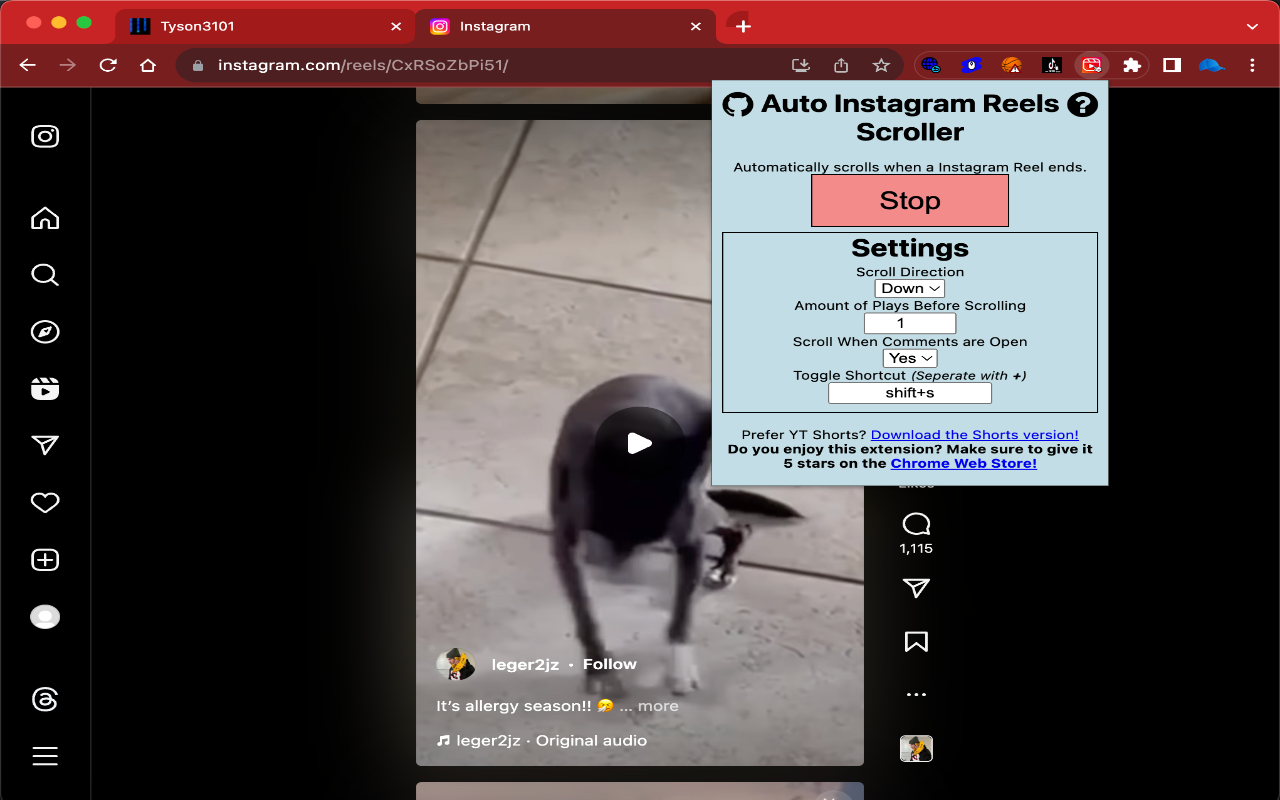
If you use Instagram daily, you've probably noticed that the app is constantly changing. Suddenly, one day your brother discovers a new feature in Reels, like auto-scroll , and you, no matter how many times you update, are still seeing the same thing. This isn't a coincidence or a one-off glitch: it's how Instagram launches and tests its new features.
In this article you'll see everything related to automatic scrolling in Instagram Reels : what it is exactly, how to activate it when the app includes it, what alternatives you have if it doesn't appear yet, how to use external tools (with their risks), and how to adapt your Reels to take advantage of the fact that we increasingly consume more content passively and with our phones barely touching them.
What is auto-scrolling in Instagram Reels and what is it used for?

The feature called auto-scroll, or automatic scrolling, allows Instagram to advance from one Reel to another without you having to swipe . In other words, you play a video, watch it at your leisure, and when it finishes, the app automatically moves to the next video.
This idea isn't new: platforms like TikTok and YouTube Shorts already base much of their experience on continuous consumption, stringing short videos together one after another . Instagram has simply been catching up so that users can have that same feeling of an endless flow of content in Reels as well.
When auto-scrolling is active, the behavior of the Reels feed changes quite a bit, because you stop depending on the swipe gesture and go into an almost "hands-free" mode , designed to watch videos without having to interact with the screen in each clip.
The main goal of this feature is to make consumption easier, more convenient, and more continuous : you just look, the app does the rest. This, of course, also helps Instagram increase the time you spend within the app, a metric the platform monitors meticulously.
How to turn auto-scroll on and off in Instagram Reels (when the feature appears)
On profiles and app versions where Instagram has already enabled auto-scroll natively, turning it on is quite simple. The problem is that not all users have the option visible at the same time , something we'll discuss later.
If your account already has the feature, the steps to activate auto-scrolling in Reels are very straightforward: everything is done from the Reels player itself without having to mess with advanced settings.
To activate it, the usual flow is:
- Open Instagram and go to the Reels tab from the bottom bar or the corresponding icon.
- Play any Reel and, on the video screen, tap on the three-dot icon (…) that appears on one side.
- In the pop-up menu, locate the option called “Automatic scrolling” or similar and activate it.
The moment that switch is turned on, the Reels feed will start switching between videos automatically . If you want to jump to the next Reel before it finishes, you can still swipe up or tap the screen to stop playback.
If you try the feature and it doesn't quite convince you, or you prefer to have manual control over when to skip to the next video, the process to disable it is the same but in reverse: go to a Reel, open the three-dot menu, and turn off the auto-swipe button . Once you do this, everything returns to the classic "one swipe, one video" mode.
Why your brother has Reels' auto-scroll and you don't: gradual releases and A/B testing
One of the most frequent complaints is something like: “My brother has new features on Instagram, I update the app, clear the cache, reinstall, and I don't see anything new at all . Is this version of Instagram garbage or what's going on here?”
The reality is that, technically speaking, your version of Instagram isn't faulty; rather, the company employs a strategy of gradual rollouts and testing with groups of users . Not everyone receives the same new features at the same time, even if they share the same phone, country, or operating system version.
Some of the reasons why a feature like auto-scrolling might take years to reach certain accounts (or even never arrive at all) are:
- A/B testingInstagram activates the feature only to a percentage of users to see how they behave (usage time, retention, interaction, complaints, etc.) before extending it.
- Differences by region or countrySome new features are first tested in specific markets where the platform wants to experiment or has less reputational risk.
- Account type (personal, creator, company): Sometimes, the tools appear earlier in creator accounts or profiles with a certain history of activity.
- App and system versionEven if you have the app up to date, there are features that depend on internal components or Android/iOS APIs that are rolled out in stages.
Therefore, if someone in your circle has a feature and you don't, even for years, it doesn't mean your Instagram is broken , but rather that you are part of another test group or directly of a segment that has not yet received that specific new feature.
While frustrating, there's no foolproof way to force these features. Updating the app, restarting your phone, or logging out sometimes helps when the change is already server-side, but if Instagram hasn't enabled the option on your account, it won't appear no matter how much you try.
Methods to enable automatic scrolling in Instagram Reels on a computer
When the native function is not available in the mobile app, an intermediate solution is to use browser extensions in the web version of Instagram , especially if you use Chrome or browsers compatible with the Chrome Web Store.
These extensions are responsible for controlling page scrolling or automatically launching the gesture equivalent to swiping to the next Reel after a certain time, offering an experience quite similar to the official autoscroll.
The typical way to use a Reels auto-scroll extension in Chrome is usually as follows:
- Enter in the Chrome Web Store and search for an auto-scroll extension compatible with Instagram Reels.
- Click on “Add to Chrome” and accept installation and the permits you request.
- Open Instagram in your browser, log in and activate the extension from the browser icon.
- Adjust parameters such as scroll speed, time on each Reel, or scroll type according to your preferences.
Once set up, the extension automatically moves to the next Reel or scrolls the page without you having to do anything. It's very useful for viewing content while doing other things on your computer , taking notes, working remotely, or simply using Instagram on a secondary screen.
However, it's important to remember that these tools are not official: you should carefully review the reviews, permissions, and privacy policy before installing any extension, because some may collect more data than necessary or behave in a less than transparent way.
How to achieve automatic scrolling of Reels on mobile using external apps
If you want a hands-free mode on your mobile and the Instagram app doesn't yet show you the official autoscroll, there are third-party applications and accessibility tools on Android and iOS that can simulate the swipe gesture on your screen.
These types of apps can work on Instagram, TikTok, YouTube Shorts, Facebook Reels, and almost any short-video platform. Essentially, they repeat a programmed gesture or automatically scroll through the content after a set time limit.
One of the best-known apps is Auto Scroll. Its general purpose is to automate scrolling in different applications, and it's widely used for reading websites, browsing social media, or, in this case, letting your phone automatically scroll from one Reel to another without you having to touch the screen every few seconds.
The usual process for using something like this on Android is:
- Download and install “Auto Scroll” (or another similar app) from Google Play or, in some cases, from the App Store if there is an iOS version.
- Open it for the first time and grant the necessary permissions, such as on-screen overlay access or accessibility, which are key to enabling it to simulate gestures.
- Configure the time interval or the speed at which you want the content to scroll in apps like Instagram.
- Go to Instagram, open Reels, and let the external app... automatically switch between videos according to the duration you have set.
Another much-discussed alternative is Auto Next Video, originally designed for TikTok, but which also works for Instagram Reels, YouTube Shorts, and other short video formats . It uses a timer that, when it runs out, triggers an upward swipe to jump to the next video.
In this type of tool, normally:
- You install the app and You enable accessibility and overlay permissions.
- A floating window or small panel is displayed on the screen, from where You adjust the duration of each video. (for example, 10, 15 or 30 seconds).
- Open Instagram, start playing Reels, and tap "Home" or something similar in that floating window to begin. the automatic scrolling at the pace you have set.
It's important to keep in mind that any gesture automation app requires sensitive permissions. Therefore, it's advisable to download only well-known apps with positive reviews from trusted developers , and to accept that there is some risk of security or unexpected behavior.
Automatic scrolling of Reels on iPhone: voice control and shortcuts
In the Apple ecosystem, in addition to third-party apps, there are built-in system tools that allow you to achieve something very similar to autoscroll without installing anything extra. The most interesting one for this purpose is iOS Voice Control, combined with custom gestures.
Voice Control lets you operate your iPhone by speaking commands that are associated with specific actions, such as tapping a button, opening an app, or performing a swipe gesture . For example, saying "Next" can make your phone swipe up in Instagram Reels.
The general scheme for configuring it would be as follows:
- Ir a Settings > Accessibility > Voice control and activate the function by following the basic setup instructions.
- Enter the commands section and create a new custom voice command with an easy-to-remember phrase, such as "Next Reel" or "Scroll".
- Associate that command with the option “Execute custom gesture"and draw on the screen the quick upward swipe motion, which is what moves on to the next Reel."
- Save the command and make sure it's enabled while using Instagram.
From then on, when you're watching Reels, simply saying your chosen phrase will trigger the iPhone to mimic the swipe gesture without you having to physically touch the screen. It's not a fully automatic, time-based swipe, but it does allow for very convenient and virtually hands-free use.
Another interesting feature on iOS is the Shortcuts app combined with Safari . On the web version of Instagram (instagram.com), you can use an auto-scroll shortcut that scrolls down the page at a speed you define.
The idea is simple: you install a specific auto-scroll shortcut for Safari, open Instagram in the browser, and launch the shortcut from the share menu . After configuring the speed and granting the necessary permissions (including the option to run scripts), the shortcut starts scrolling the page automatically.
Advantages and disadvantages of automatic versus manual movement
Every user has their own quirks and ways of consuming content. Automatic scrolling can be wonderful for some and a nuisance for others, especially if the time between Reels doesn't match your viewing rhythm.
When comparing both methods, several dimensions come into play: control, convenience, effort, accuracy, and overall user experience . Understanding these differences helps you decide whether enabling auto-scroll is truly worthwhile or if you prefer to stick with the classic method.
In manual scrolling, every Reel change is up to you: you decide when to move to the next one, whether you want to rewatch something, pause, or skip half the video . With auto-scroll, the experience is more like watching TV: you look and the content scrolls by without you having to touch anything.
In terms of convenience, it's clear that automatic mode saves effort, especially during long sessions or when your hands are occupied (traveling, lying on the sofa, killing time, etc.). However, this same feature can become a drawback if the Reel changes just before you finish watching it or reading the entire text on the screen.
In terms of precision, manual scrolling always wins: you stop exactly where you want, you can go back if something interests you, and you have complete control over the pace . Autoscroll, however configurable it may be, will always have a margin of error, because not all Reels are the same length or require the same level of attention.
Finally, from an experience standpoint, automatic scrolling is ideal for passive, almost background consumption while you do other tasks. However, if your intention is to learn, analyze content, or focus on specific details , you'll likely find it more beneficial to use manual scrolling to maintain complete control.
When is auto-scrolling especially useful in Reels?
Beyond the purely technological aspects, the success of this feature is closely linked to how we consume content today: we often use social media while doing other things and with our attention span only partially engaged . That's where auto-scroll truly shines.
Some situations where automatic scrolling fits like a glove are very common: journeys on public transport, downtime in the waiting room, breaks on the sofa after eating, or even while you have the TV on in the background.
In these cases, you don't want to be constantly scrolling; you simply want the content to flow. That's why, for many users, auto-scroll becomes a kind of "TV mode" on Instagram, where Reels play by and you decide when to stop or interact.
From the platform's own perspective, this functionality has a direct impact on its key metrics: it makes navigation more convenient, increases the time you spend inside the app , and puts Instagram on par with other networks that were already exploiting this type of sequential consumption.
It also helps Instagram keep pace with TikTok and YouTube Shorts, which have been promoting this continuous viewing style for some time. Competing on a level playing field is vital to prevent users from permanently migrating to other apps for this type of content.
How to adapt your Reels to auto-scrolling consumption
If you're a content creator, a brand, or you simply want your Reels to perform well, you have to accept that more and more people are watching them passively , almost on autopilot . This means adjusting how you design and structure your videos.
The first thing is to really work on the Reel's thumbnail or cover image. Even though the feed scrolls automatically, you need an image that visually stops the scrolling , that hooks the user, makes them want to watch your video again, share it, or comment on it. A flat or illegible thumbnail gets lost in the flow.
The second key lies in the first few seconds of the video. You need to use superimposed text, clear titles, or direct messages that convey the main idea right from the start. In an auto-scrolling environment, if you don't grab their attention quickly, the viewer won't even realize what your Reel is about.
Visually, it's best to use contrasting colors, clear compositions, and elements that stand out . Remember that many people watch Reels without sound or with little attention, so the message needs to be easily grasped at a glance, almost like a slide.
It's also important to avoid lengthy introductions, long logos, or cumbersome opening animations . All of that might work in a long YouTube video, but in Reels, with auto-scrolling, you'll only bore viewers and make them skip to the next clip before you get to the interesting part.
Ultimately, although the format changes, the goal remains the same: to capture attention from the very first moment and hold it for as long as possible . Automatic scrolling only makes this challenge even more demanding.
Measure the performance of your Reels when auto-scrolling is enabled
With an experience based on continuous, automatic scrolling, analyzing how your Reels perform becomes even more important. Classic metrics are still useful, but you should pay special attention to statistics related to watch time and percentage of video viewed.
The view rate lets you see how many people who come across your Reel actually end up watching it . In an auto-scroll environment, where many clips play almost as background noise, this data tells you if your thumbnail and intro are compelling enough to keep the user engaged.
Average viewing time is another key metric, because it tells you how long users stay within your video . If they consistently leave after two seconds, it's likely that your opening isn't engaging or that the content isn't aligned with what the title or text promises.
Comparing Reels with each other helps you detect patterns: what types of covers, durations, or structures retain more , what themes work better with passive consumption, or which ones generate more interactions (likes, comments, shares, saves) even when played with auto-scroll.
Analytics tools like Metricool and other social media analytics platforms allow you to group these metrics and view them clearly, so you don't have to go through them one by one. The idea is that you can iterate your strategy based on real data and not just intuition.
Ultimately, automatic scrolling doesn't change the fundamental issue: if your content isn't engaging, the user will move on to the next video just as quickly . What it does do is increase the speed at which that decision is made, because scrolling doesn't stop unless something truly catches their attention.
This entire ecosystem of auto-scrolling, accessibility features, third-party apps, and browser extensions is redefining how we use Instagram Reels: we're consuming more clips in quick succession, putting less physical effort into swiping, and consequently, we have even less patience for content that doesn't get straight to the point from the very first second . Understanding how to leverage these tools, accepting that not all features reach all users at the same time, and adapting your Reels to this type of consumption is key to enjoying the user experience and standing out as a creator in a feed that never stops moving.

Passionate writer about the world of bytes and technology in general. I love sharing my knowledge through writing, and that's what I'll do on this blog, show you all the most interesting things about gadgets, software, hardware, tech trends, and more. My goal is to help you navigate the digital world in a simple and entertaining way.