
Have you recently encountered a problem with World War 3 not opening ? – If so, you're not alone. Many players have been unable to access the beta version of the game because it won't launch. They report that, in some cases, the game doesn't start at all, while in others, it runs in the background.
Most of the time, these types of crashes tend to occur when the process running in the background interferes with the natural launch of the game or when there is a missing file. Regardless of the cause, in this article, we will show you how to get the game up and running, so read on.
What causes World War 3 not opening error?
As it turns out, World War III is currently in its closed beta access phase, where a certain number of users are able to play the game so that the developers have a chance to polish the game for when its release date finally arrives.
Now, since the game is in closed beta, it's obvious that there will be issues that you'll encounter when trying to play it. When the game won't launch at all, it can usually be connected to the game files being missing on your system, which can be fixed by verifying the integrity of the game files.
On the other hand, third-party programs often run in the background, which can cause the "World War III won't open" problem. If this happens, you'll have no choice but to deal with background issues. With that in mind, let's start analyzing the solutions that can help you resolve this annoying problem in World War III.
How can I fix World War 3 won't open error?
In order to fix the World War won't open error, you can try the following solutions:
Verify game integrity
One of the first things you should try when you encounter this problem is to make sure that the game files are intact. In case the game files are missing from your computer, the game will not be able to launch.
Of course, this doesn't mean you'll have to do a complete reinstallation of the game, but there is an interesting, albeit small, feature within Steam that helps you run an integrity check on each of the game files.
This means that if any files are missing or corrupted, they will be downloaded again and replaced on your system to fix any existing issues. To achieve a full game scan, you need to make sure to follow the instructions below.
- First, open the client Steam.
- Then at the top, navigate to the Library.

- From the list of games provided on the left side, right click on World War 3 and then choose Properties
- Now on the left side click on the option Local archives provided.
- Finally, click on the option Verify integrity of game files provided and wait for it to complete.
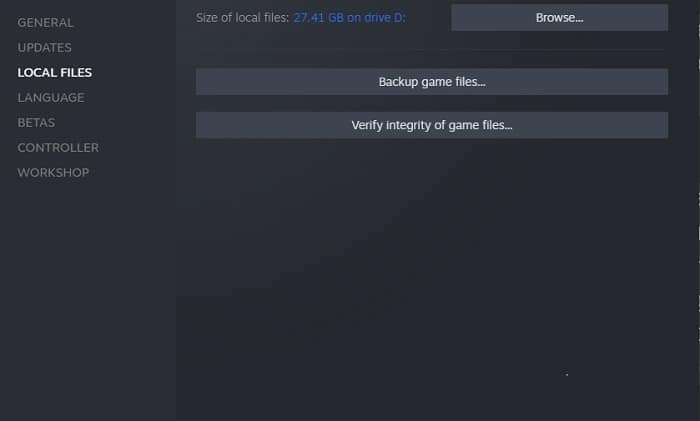
Once the verification is complete, try launching the game to see if the issue persists.
Disable third-party antivirus
Having an antivirus program on your system may not seem like a bad thing. However, more often than not, these security programs can cause you problems that could have been avoided otherwise.
This usually happens when the antivirus installed on our computer detects a false positive and deletes files belonging to the game, ignoring their importance. In other words, if these elements are not present, the game will not be able to start correctly.
Furthermore, this failure can also occur when the antivirus interferes during the game's startup process , and therefore, the game will not be able to start correctly as it used to.
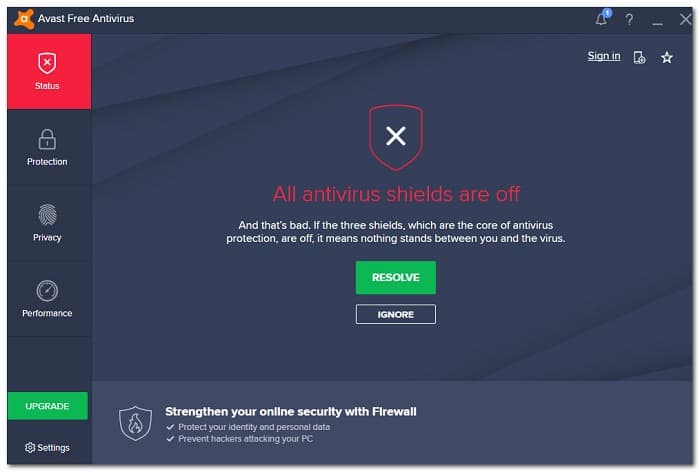
If this applies to you and you have third-party antivirus software installed on your computer, you should proceed to disable it. We even recommend a complete uninstallation of the security program, as Windows Defender has become quite effective over the years and does a good job of keeping your computer clean of malware . If the problem persists even after doing this, simply continue with the next method explained below.
Close MSI Afterburner and RivaTuner
MSI Afterburner and RivaTuner are very popular software programs for overclocking computer hardware . However, many users have reported that these applications were causing problems with the game. They were also preventing the game from launching correctly, and many discovered that closing both applications resolved the issue.
So, if this case is applicable to you and any of these apps are installed on your computer, go ahead and make sure that they are not running in the background before you try to launch the game. Once you have done that, go ahead and open the game to see if the problem persists.
Perform a clean boot
Finally, if none of the options listed above helped you solve the World War 3 won't open error, it's time to try a clean boot. This method allows you to see if there is an application running in the background that is causing the problem in question.
A clean boot is usually one of the best ways to put an end to these types of problems caused by other applications, in part because your computer starts up only with the services it needs to run in the background.
This means that all third-party applications and other software that is not essential to Windows will be disabled and not allowed to run at startup, contrary to the default behavior.
For this reason, when the problem is caused by third-party applications, the most sensible thing to do is to perform a clean boot to solve the problem once and for all. If the problem disappears when you perform a clean boot, it is clear that a third-party application on your computer is causing the problem.
In this scenario, it is important that you locate the application that is causing the failure by enabling the services individually. Similarly, you can apply the fastest method by removing all the applications that you do not want to have on your computer to see if the problem is fixed.
To perform a clean boot, follow the instructions below:
- First, press the Windows key + R on your keyboard to open the dialog box Run.
- Then, in the Run dialog box, type the command msconfig and then press the key Intro.
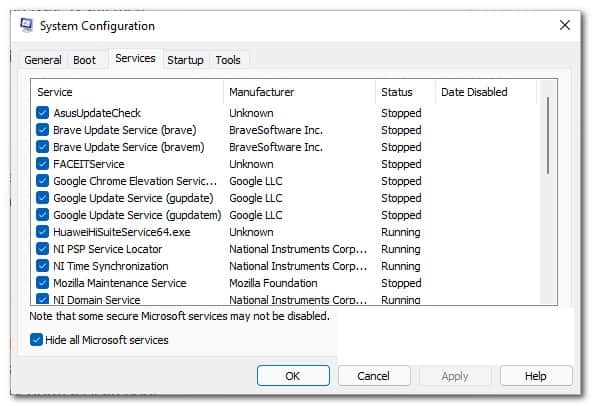
- This will open the window Configuration of the work. Switch to the tab Services.
- Click the checkbox Hide all Microsoft services.
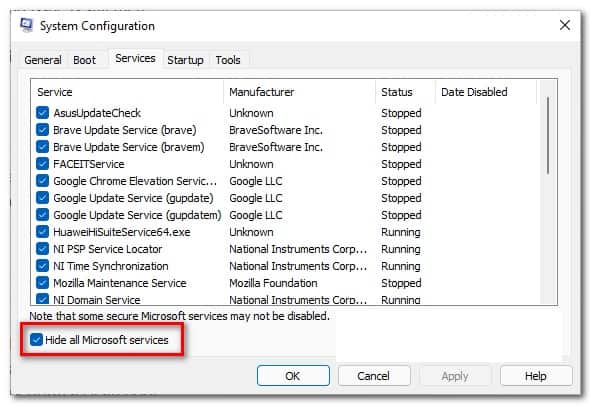
- Then click on the button Disable all and then press the button that says Apply.
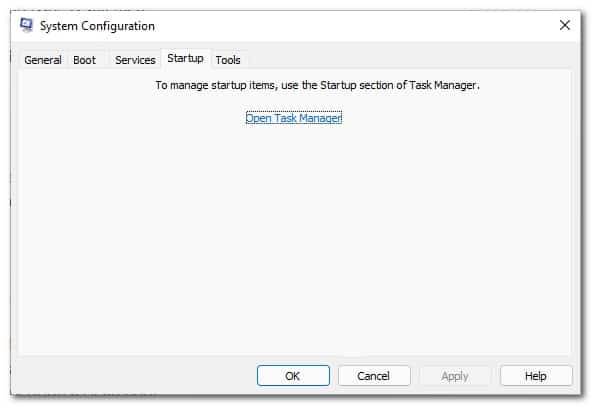
- Once you've done that, switch to the tab Home and click on the option OPEN Task Manager provided.
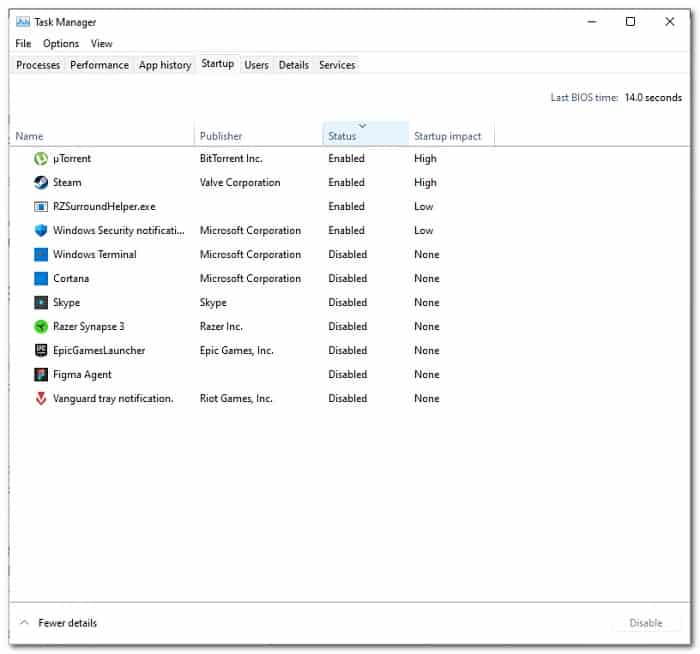
- In the Task Manager window, in the list of applications, click each application and then click the button Deactivate provided to prevent them from running at startup.
- After doing this go ahead and restart your computer you should now be doing a clean boot.
- Once your PC starts up, see if the problem persists.
We hope that with each of these recommendations you can fix the World War does not open error. Thank you for always visiting our portal, until next time.

My name is Javier Chirinos and I am passionate about technology. Ever since I can remember, I have been interested in computers and video games, and that passion has turned into a job.
I have been publishing about technology and gadgets on the Internet for over 15 years, especially in mundobytes.com
I am also an expert in online marketing and communication and have knowledge in WordPress development.