- Windows Protected Print Mode improves security by eliminating third-party drivers.
- Only allows printing with Mopria-certified printers.
- Reduces compatibility issues and simplifies printer installation.
- It can be activated or deactivated from the settings. Windows 11.

Microsoft has announced a new printing system for Windows 11, which will be installed by default and which seeks to offer greater security, since it prevents the installation of third-party drivers in order to reduce vulnerabilities in the printing system.
RESEARCH AND TECHNOLOGY POLICY
PEXELS
Windows Protected Print Mode is a new feature implemented in Windows 11 that introduces significant improvements in print security and management. This feature is designed to prevent the use of third-party drivers, allowing printing only through Mopria-certified printers, thus reducing vulnerabilities and ensuring a more secure environment.
What is Windows Protected Print Mode and why is it important?
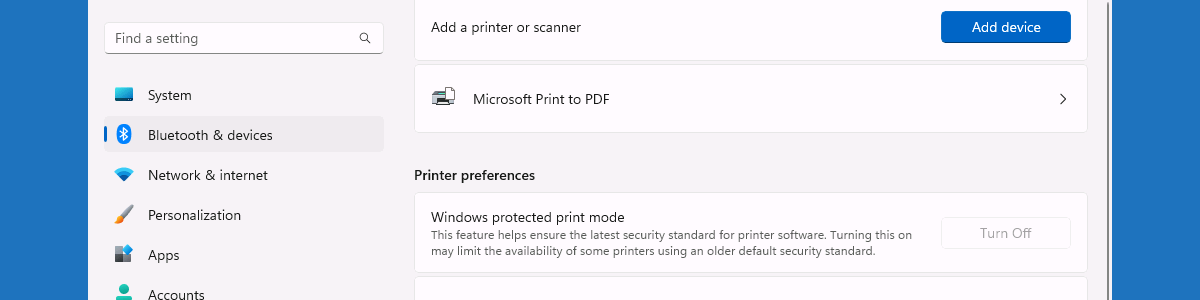
Windows Protected Print Mode ( WPP) is based on the Internet Printing Protocol (IPP) stack. Its main goal is to eliminate reliance on third-party drivers, a recurring security issue in Windows. For years, print drivers have been an entry point for malicious attacks , such as Stuxnet and Print Nightmare.
Enabling WPP blocks the installation of third-party drivers and only allows the use of certified Mopria printers. This not only improves security but also simplifies the user experience by preventing driver compatibility conflicts and reducing technical issues related to operating system updates.
If you want to better understand the current printing context, we recommend exploring how an image is printed on multiple sheets , as this also reflects the importance of efficient print management.
Advantages of enabling Windows Protected Print Mode
- Greater security: By removing third-party print drivers, system vulnerabilities are reduced.
- Simplifying the printing process: Native integration with Mopria printers allows for hassle-free installation.
- Improved system stability: Compatibility issues are avoided after Windows updates.
- Reduced maintenance: There is no need to manage multiple drivers from different manufacturers.
How to enable Windows Protected Print Mode
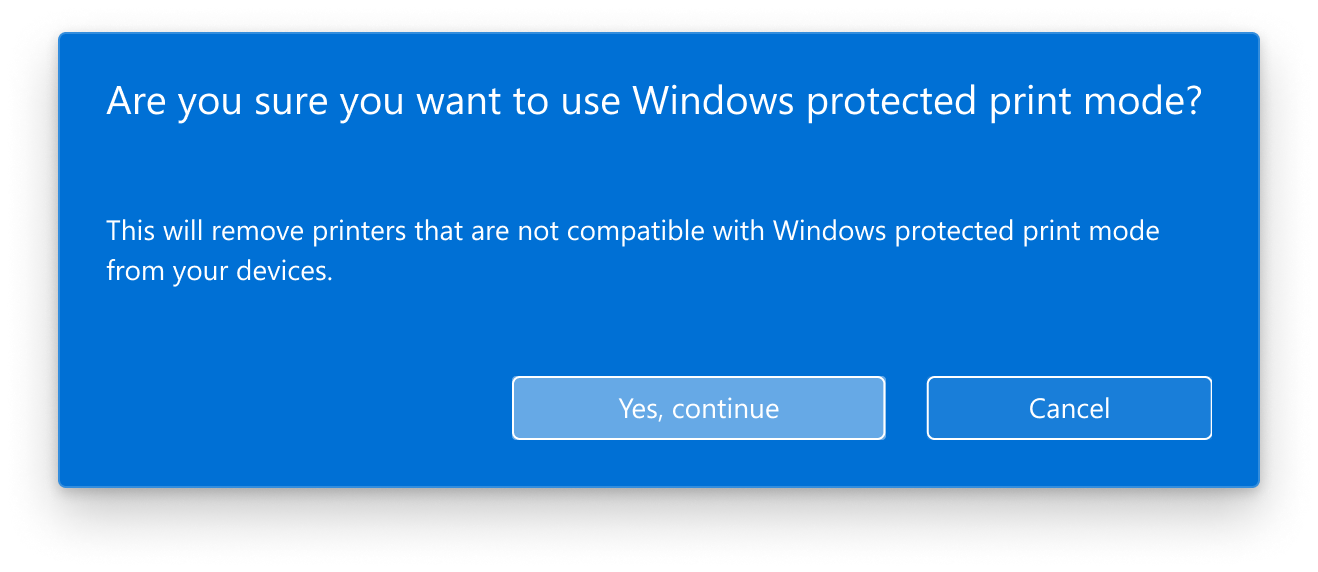
To enable this feature in Windows 11, follow these steps:
- Opens Configuration on Windows 11.
- Go to Bluetooth & Devices > Printers & Scanners.
- Scroll down to the section Printer preferences and select Setup in the Windows Protected Print Mode option.
- Accept the prompts and confirm activation.
Please note that by enabling this option, Windows will automatically remove all third-party printers and drivers from the system. If any printer is not compatible with WPP, it cannot be reinstalled while this feature is enabled.
If you ever encounter problems related to the print queue, you can refer to our article on how to clear the print queue in Windows for more details.
Disable Windows Protected Print Mode
If you need to print to a printer that does not support Mopria, you can disable WPP by following these steps:
- Opens Configuration and go to Bluetooth & Devices > Printers & Scanners.
- En Printer preferences, Select Deactivate Windows Protected Print Mode.
- Confirm the deactivation and reinstall your printer drivers manually if necessary.
Printer Compatibility with Windows Protected Print Mode
For a printer to work with WPP, it must be Mopria certified . Many printers already meet this standard, and more manufacturers are expected to adopt this technology in the future.
If you are unsure whether your printer is supported, you can check the list of certified devices on the official Mopria website.
The implementation of Windows Protected Print Mode represents a significant advancement in the world of printing, offering greater security and stability to Windows 11 users. While some current printers may not be compatible, the trend is clear: Microsoft is committed to a future without third-party drivers. If your printer is a Mopria, enabling WPP is a smart move to reduce risks and improve your printing experience.


Passionate writer about the world of bytes and technology in general. I love sharing my knowledge through writing, and that's what I'll do on this blog, show you all the most interesting things about gadgets, software, hardware, tech trends, and more. My goal is to help you navigate the digital world in a simple and entertaining way.