- Windows 11 It collects diagnostic and usage data through various levels of telemetry that can be reduced from the configuration and registration.
- Disabling optional data, personalized experiences, activity tracking, and advertising trackers significantly limits the information sent to Microsoft.
- Advanced control through services, the AllowTelemetry value, and group policies allows for further strengthening of telemetry without resorting to third-party programs.
- Reducing telemetry slightly improves performance and data consumption, at the cost of the system having less information to detect errors and incompatibilities.
If you've just made the leap to Windows 11 and the first thing that worries you what data does your PC send to MicrosoftYou're not alone. Many users prefer to avoid third-party tools like this. O&O ShutUp10 or applications from independent developers, and they want to be in control by touching each setting themselves, without installing anything extra.
The idea is clear: You don't want Windows 11 to read, analyze, or upload your documents to the cloud, notes in Notepad, files of Word or your activity history. You want a stable, functional system, but with as little telemetry as possible. In this article, we'll see, step by step and in detail, how to manually review and harden Windows 11 telemetry, what can be disabled, what limitations it has, and how to do it without breaking the system.
What is Windows 11 telemetry and why does it affect you?
In Windows 11, telemetry is the set of diagnostic and usage data that the system collects and sends to MicrosoftIt includes everything from basic device information (model, hardware(controllers) to how applications behave, what errors appear, how often something crashes, or what functions you use most often.
Microsoft uses this telemetry to Improve stability, detect errors, and refine new featuresFor example, if a driver is causing problems on millions of computers, the company can detect it earlier and block a conflicting update. They also use this data to optimize overall performance and prioritize improvements in Windows and other applications. apps that come with the system.
The problem is that, from the user's perspective, these data transmission routines can resemble a digital "Big Brother" that It gathers more information than you'd like to shareAlthough Microsoft claims that anonymization and protection techniques are applied, some members of the community are uncomfortable with the volume of data and the idea of it constantly leaving the computer.
Furthermore, all that collection and shipping machinery operates in the background, which means CPU, memory, and network usageOn a modest PC, or with limited or measured data connections, every service removed can make a small difference in smoothness and bandwidth consumption.
Telemetry levels and types of data collected
Windows classifies diagnostic data into several levels, which determine How much information can leave your computer and go to Microsoft servers?In business environments, this is controlled through group policies, but these levels are also relevant for home users who want to understand what they are disabling.
The standard levels that Microsoft documents for Windows 10 and Windows 11 are as follows, and they define from the bare minimum to the maximum diagnostic detail:
- 0 - SecurityInformation strictly necessary to help protect Windows and some Microsoft solutions, such as Windows DefenderThis level focuses on security data and configuration for the user experience and telemetry component. This includes certain System Center functions or the Malicious Software Removal Tool.
- 1 – Required (basic)This includes basic device information, app compatibility, system quality, and also the information already covered in the Security level. It's the minimum level required in many consumer scenarios.
- 2 – ImprovedIt provides additional information about how Windows, Windows Server, System Center, and other Microsoft apps are used, how they perform and fail, and incorporates more comprehensive reliability data, in addition to everything from the previous levels and security.
- 3 – Optional (complete): Collects all the necessary data to help identify and solve problems in detail, including advanced events, specific traces and the rest of the information from the Security, Required and Enhanced levels.
In a home environment, your real options involve Minimize the data sent, lower the level of telemetry, and disable all "personalized experiences" that feed on that data, rather than by turning absolutely everything off, since the system still requires a certain level of basic information.
Reasons to disable or reduce telemetry in Windows 11
The primary reason for many people is the privacy and control over what leaves the computerAlthough in theory private content such as the full text of your documents should not be sent, metadata, usage statistics, identifiers and other information that some users consider excessive are indeed transmitted.
Another factor is the system performance, especially on low-end or older equipmentDiagnostic services, activity tracking, user experience features, and scheduled telemetry-related tasks consume resources, even if only in small amounts. Disabling many of these functions can result in a slight improvement in performance and response times.
Also comes into play bandwidth consumptionIf you're using a metered connection, a 4G/5G link with limited data, or a tight rural connection, every process that uploads data to the cloud adds up. Reducing telemetry and cloud-based personalization helps contain these periodic uploads.
In any case, it's best to be realistic: Not everything can be turned off completely without accessing advanced options. (registration, services, policies) and, in some contexts, a certain level of telemetry is recommended to keep the equipment updated and protected.
Disable optional diagnostic data and personalized experiences
The first front is in the Windows 11 Settings app itself, where many options are concentrated. privacy and user-controllable diagnostic dataIt is the most accessible step for those who want to start limiting telemetry without getting bogged down in directives or scripts.
To minimize what the system sends voluntarily, you need to enter Settings > Privacy and security > Diagnostics and feedbackFrom there, it is possible to control various sections related to additional data, personalized experiences, and cleaning of already stored information.
- Send optional diagnostic dataThis option, if enabled, allows Windows to send additional data about device usage and performance beyond what is strictly necessary. If you want to strengthen telemetry, it's recommended to disable it, leaving only the minimum required.
- Personalized experiencesThese are functions that use your diagnostic data to show ads, recommendations, suggestions, and personalized content in the system, the Store, and other areas. Disabling it reduces tracking for personalization purposes.
- Delete diagnostic dataFrom here you can delete the diagnostic data already collected and associated with your device. It's a good idea to use this option after adjusting the settings for clean up historical telemetry stored on Microsoft servers.
With these initial changes, you are already significantly limiting the amount of information that Windows 11 shares about your daily usage, without needing to access internal services or the registry.
Other key privacy and tracking options in Windows 11
Beyond diagnostic data, Windows 11 includes several features that also send or process personal information for improve voice recognition, handwriting recognition, activity history, or personalized adsAll of these can be reviewed under Privacy and Security.
In the Windows permissions section, you will find different sections that allow Turn off features you don't trust or that simply don't benefit you. in the day-to-day use of the PC.
- online speech recognitionIn Settings > Privacy and security > Voice, you can disable this option. This prevents dictation and other voice services from using the Microsoft cloud, reducing the possibility of audio fragments being processed outside the computer.
- Handwriting and typing customizationIn Privacy and security > Handwriting and typing customization, you can disable the personal dictionary and learning your writing styleThis limits the system's ability to collect patterns from how you write in order to refine suggestions.
- Activity historyFrom Privacy and security > Activity history, you can uncheck “Store my activity history on this device” and delete the history. With this, Windows will stop recording and syncing recent actions across devices., such as open documents or used apps.
Reviewing these options allows you to put a stop to features that, while practical for some users, rely on fairly constant monitoring of your interaction with the systemIf privacy is your priority, it's best to turn them off.
Reduce advertising and device location trackers
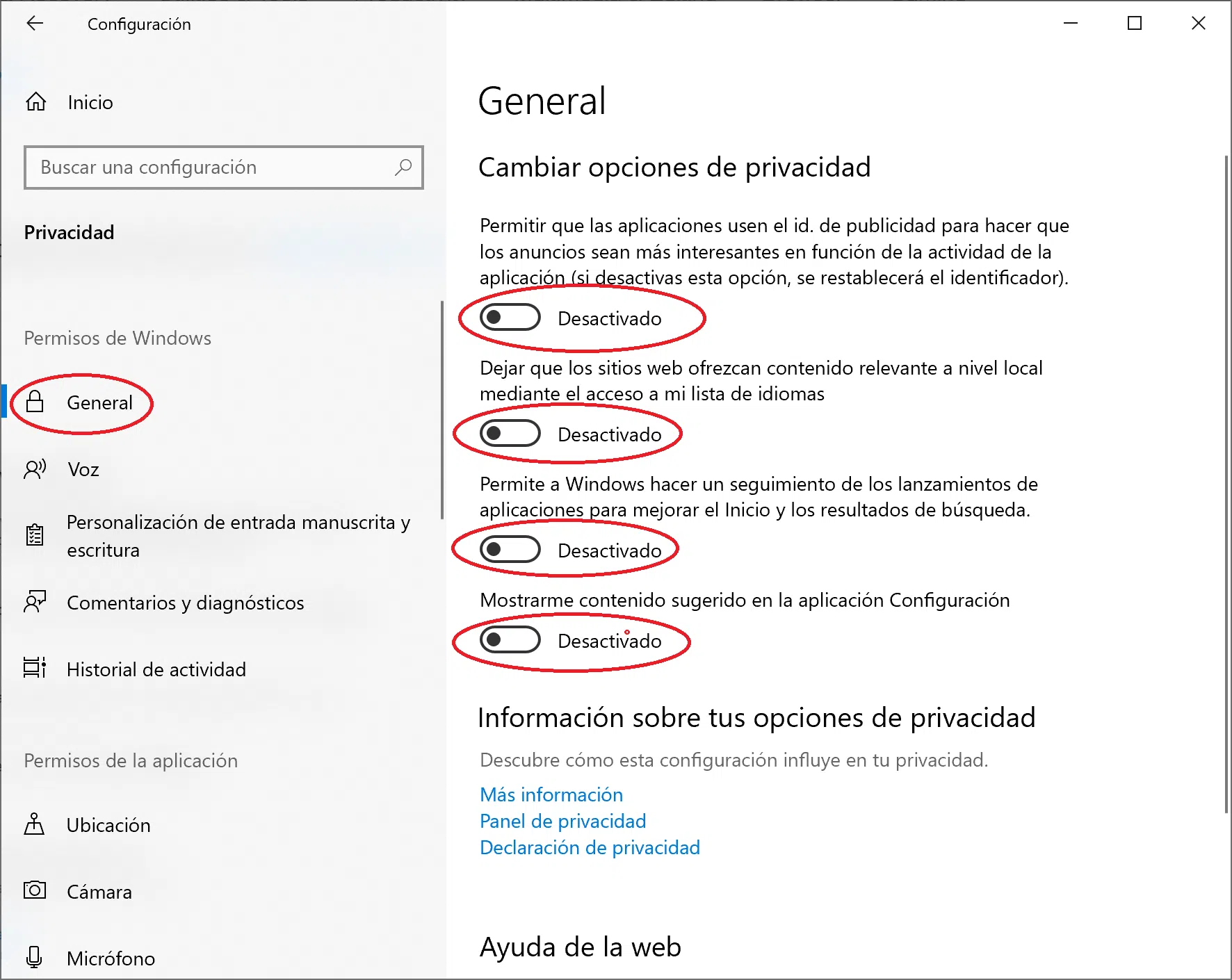
Another important set of settings is found in the section Privacy and security > GeneralThis is where the options for ads, app tracking, and recommended content are grouped within Windows 11. This is where you should be especially aggressive if you want to minimize telemetry.
In this section you can disable the advertising identifier and various forms of tracking your activitywhich are used to show more relevant ads or personalized suggestions.
- Disable the option related to the use of an advertising identifier specific to your devicewhich allows apps to build a usage profile.
- Disable permission for websites to display relevant content based on your language list or your habits, if you don't consider it necessary.
- It prevents Windows from performing tracking how applications are launched to improve the Start menu or internal recommendations.
- Disable the display of Suggested content in the Settings appso that the panel itself stops personalizing so many commercial alerts and recommendations.
Regarding the location, in Privacy and security > Find my device You can turn off this feature if your computer is a desktop or laptop that you don't mind physically recovering. By disabling it, You prevent Windows from periodically sending the approximate position of the device. to the associated Microsoft account.
Once these settings are adjusted, your Windows 11 installation will have significantly reduced the amount of data captured for advertising, recommendations and general usage trackingleaving active only the functions strictly necessary for basic operation.
Strengthen telemetry by editing the Windows registry (AllowTelemetry)
If you want to go a step further and force the telemetry level at the system levelYou'll need to modify the Windows Registry. This part is more delicate, so it's recommended to create a system restore point or a registry backup before making any changes.
The key value here is AllowTelemetry, which is located in a specific path in the registry and allows you to indicate the maximum level of data collection that is applied to the system, even above some graphical settings in Configuration.
To modify it, you have to open the Run menu (with Win + R), write regedit and click OK. Once inside the Registry Editor, navigate to the following path, where data collection policies are managed:
HKEY_LOCAL_MACHINE\SOFTWARE\Policies\Microsoft\Windows/DataCollection
Within that key, if it doesn't exist, you can create a new DWORD (32-bit) value called AllowTelemetryRight-click on DataCollection, choose “New > DWORD (32-bit) Value” and enter the name. The value 0 usually represents the lowest level (security), while higher values (1, 2, 3) correspond to higher telemetry levels.
By setting AllowTelemetry to 0, you are indicating that the system should operate with telemetry reduced to the minimum technically possibleSince this key is located under HKEY_LOCAL_MACHINE, it is mandatory to restart the computer for the changes to be applied correctly to the entire system.
Once you've verified that your Windows 11 boots and works correctly with this configuration, you can export that registry branch to a .reg file so you can run it on other computers. automate the same low telemetry policy across multiple computers without having to repeat each step manually.
Disable background telemetry services
In addition to visible settings and registry entries, Windows 11 runs several services related to user experience, data collection, and information deliveryDisabling them reduces even more so telemetryHowever, it must be done carefully so as not to affect other functions that may depend on them.
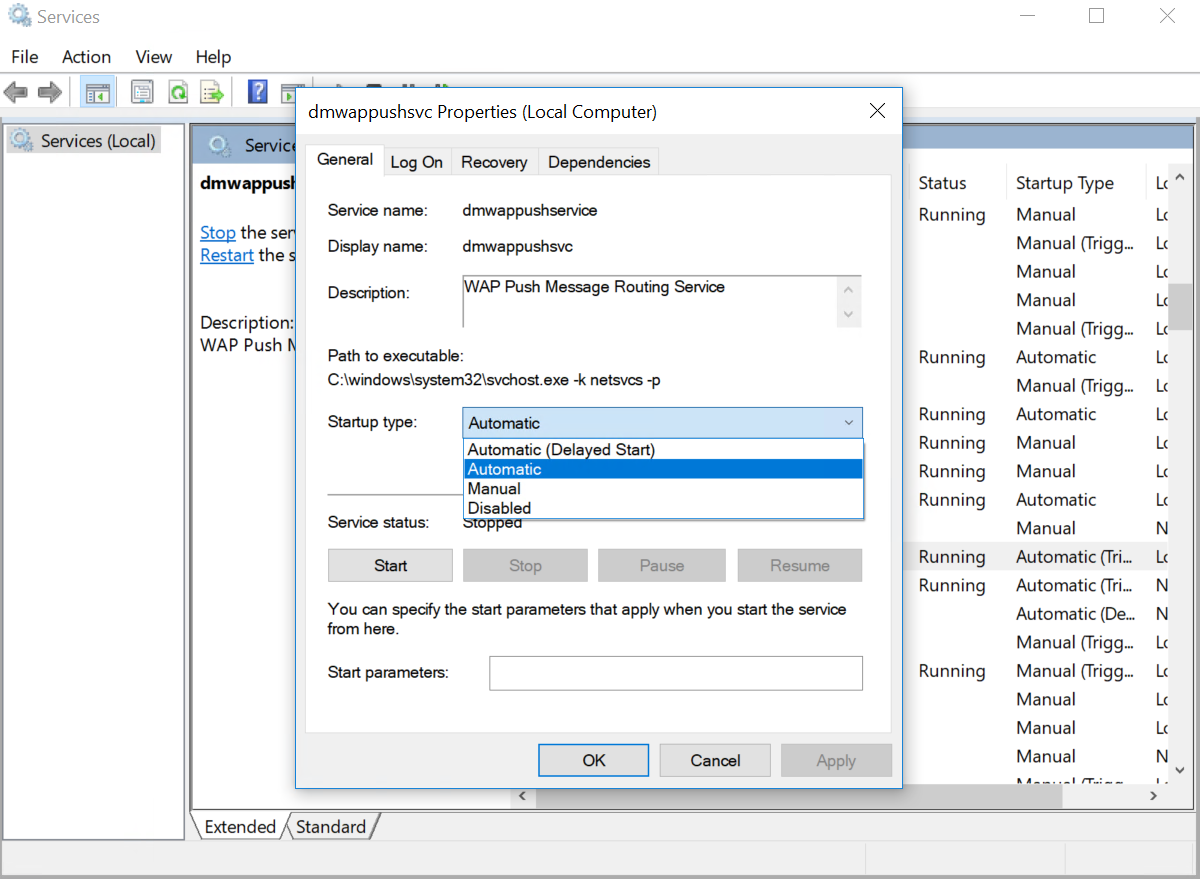
To manage these services, the Run window (Win + R) is used again, typing services.msc and pressing Enter. The Services console will open, where you can view and change the startup type of each service installed on the system.
One of the best known is “User experiences and associated telemetry”, whose internal name is DiagTrackDouble-clicking on it opens its properties window, where you can change the startup type to “Disabled” and, if it is active at that moment, press "Stop" to cut it off immediately.
Another service that is often recommended to be disabled to limit telemetry is the “Wireless Application Protocol (WAP) Device Management Push Message Routing Service”, with internal name dmwappushserviceAgain, you can change its startup type to Disabled to prevent it from starting automatically.
If at any time an application or system component needs any of these services, you can always Go back to services.msc and restore its startup type to Manual or AutomaticThe important thing is to note what you have touched so that you can revert changes in case of strange behavior.
Advanced control using group policies (gpedit.msc)
In Windows 11 editions that include the Local Group Policy Editor (for example, Pro and Enterprise) it is possible to configure stricter telemetry policies These policies apply to all users of the computer. They internally write the same registry values, but in a more organized way and with integrated descriptions.
To access the policy editor, open Run (Win + R), type gpedit.msc and press Enter. The Group Policy Console will open, with separate branches for computer configuration and user configuration. The one we're interested in for telemetry is the section for Equipment setup.
Within it, you have to navigate to: Administrative Templates > Windows Components > Data Collection and Pre-BuildsThis section includes several options related to the collection of diagnostics and participation in Insider or business analysis programs.
The main directive to review is “Allow telemetry”Double-clicking opens its settings panel. If marked as “Disabled,” the policy effectively sets a very low telemetry level (equivalent to AllowTelemetry = 0)Enabling it with a different value can increase the collection level.
The description of this policy indicates that, in Windows 10 and Windows 11, when setting a telemetry configuration, End users will not be able to manually select a higher data level from the Settings app. That is, the organization (or the advanced user) sets the maximum allowed, and the rest of the options are limited.
In addition to this central directive, in the same "Data Collection and Preliminary Compilations" block there are other recommended policies For those who wish to further tighten the system:
- Toggle user control over Insider builds: leave it disabled to prevent a user from signing up for the Insider program, which increases telemetry.
- Allow channeling of commercial data: disabled, to prevent sending additional data to corporate analytics services.
- Enable desktop analytics processing y Configure the business ID: disabled, blocking integrations with advanced analytics solutions.
- Allow the device name to be sent along with the diagnostic data: disabled, reducing direct identification of the equipment in telemetry.
- Enable WUfB cloud processing (Windows Update (for Business): disabled, if you do not use these business capabilities.
- Disable downloads from OneSettings: enabled, to cut off certain cloud configuration communication.
- Enable OneSettings auditing: disabled, so that these additional events are not recorded.
- Configure associated telemetry user experiences: disabled, reducing connected experiences.
- Stop showing comment notifications: enabled, to limit feedback requests that rely on usage data.
- Configure exploitation data collection for Desktop Analytics: disabled, preventing additional submissions.
These directives, being within the branch of Equipment setupThey require a Windows 11 restart to be fully applied. Their advantage is that They centralize the privacy policy and telemetry in one place., being especially useful in shared or managed equipment.
Telemetry and performance: real impact on Windows 11
Beyond the privacy aspect, many users seek to reduce telemetry in order to give a boost to system performanceWhile you won't double your PC's speed just by tweaking these options, you can notice a slight improvement in smoothness, especially if your hardware is struggling.
Every service that is deactivated, every scheduled diagnostic task that is removed, and every personalized experience module that is left inactive represents less background processing loadOn computers with limited RAM or modest processors, reducing that constant workload makes a difference in the long run.
There's also a noticeable difference in the internet connection, where the Periodic uploading of diagnostic and usage data no longer interferes with your browsingDownloads or online games. If you also use metered or pay-per-volume connections, minimizing telemetry helps avoid wasting data on transmissions that don't benefit you.
However, it's important to keep in mind that excessively cutting certain data, Microsoft may have less information available to detect incompatibilities and correct errors that affect your specific equipment model. That's why many guides recommend finding a middle ground: minimizing non-essential data, but maintaining basic security telemetry.
For everyday use, a good approach is First, adjust everything from the Settings app.Check the behavior for a few days, and only then move on to deeper changes in services, logging, or policies if you still want to tighten the screws even further.
Are third-party programs necessary to disable telemetry?
Tools like O&O ShutUp10, GitHub utilities, or small scripts show promise Disable most telemetry and tracking options in WindowsThey are popular because they concentrate in one click what would otherwise have to be configured manually in several places.
However, if you prefer to have total control and you don't like it granting elevated permissions to external applications that you don't know in detailYou can achieve very similar, or even finer, results by applying the steps we have seen: Configuration settings, registry, services, and group policies.
The advantage of doing it manually is that You know exactly what you're changing and what you're leaving as it comes from the factory.You are not dependent on a predefined profile that sometimes disables things you might need (such as specific network functions, updates, or diagnostic features useful for repairing the system).
For many advanced users, these technical guides are ideal for support. create your own recipe for privacy and performance, tailored to their needs, instead of applying “mass blocking” with third-party tools without reviewing each setting.
Ultimately, whether you choose to do it manually or use a specialized app, the important thing is that understand which features you are disabling and what impact they may have in stability, support and future updates of your Windows 11.
With all these adjustments, Windows 11 can be much more restrained in terms of telemetry, advertising, and personalized experiences, while retaining the system's core functions, resulting in a somewhat lighter environment. greater sense of control over your privacy and a small performance boost without the need to install additional software.


Passionate writer about the world of bytes and technology in general. I love sharing my knowledge through writing, and that's what I'll do on this blog, show you all the most interesting things about gadgets, software, hardware, tech trends, and more. My goal is to help you navigate the digital world in a simple and entertaining way.