Apex Legends players are consistently reporting that voice chat is not working on their Xbox consoles . When they try to use voice chat in the lobby or while playing, they find that the audio isn't being recorded and they can't hear anything from their teammates. Sometimes, the screen shows that voice chat is enabled, but it doesn't work at all.

What causes the voice chat not working issue in Apex Legends?
This error has existed for a long time on all Xbox consoles on which this game is available (Xbox One and Xbox Series X).
After many Apex Legends users made many reports that they were affected by this error, we inspected the issue closely and made a list of all the causes that could trigger it:
- Address error MAC: This issue could be caused by some connectivity issues that are not allowing voice chat to work properly. To fix this, you need to go to the Network settings on your Xbox console and clear the MAC address, then restart your console.
- Driver issues- The voice chat issue can also be caused by some driver issues or bugs that are not allowing the voice chat to work. This can be fixed by turning off the controller while inside Apex Legends and reconnecting it quickly.
- Outdated driver firmware: Another cause of this error could be your driver, which is missing some updates because they are not installed automatically. To fix this, all you have to do is go to your driver settings and update the device to the latest available updates.
- Sound error: Your sound may be corrupted when you try to use voice chat within Apex Legends, so this could be the cause of the error. You can fix this by forcing the game to use audio and your microphone. Go to the section Multiplayer within the Xbox guide menu and start a party session, then end it.
- Cache related issue: Under certain circumstances, you can expect this issue to occur due to the cache problem your Xbox console has built up with ThereIn this case, you should be able to fix this problem by performing a soft or hard reset.
Now that you know the causes, here is a list of all the methods that might help you fix the voice chat not working error in Apex Legends:
1. Delete MAC address
Since the most common scenario that will cause this problem with Apex Legends , the first thing you can try is to clear the MAC address to prevent your console from using inconsistent network data.
Information : The MAC address is a unique identifier assigned to a network interface controller (NIC). Its primary purpose is to provide a network address for communication with other network participants.
To do this, go to your Xbox console 's Network Settings and delete the MAC address from the dedicated menu. After your console restarts, voice chat should be working in the game.
Note: The instructions for doing this will be identical on Xbox One and Xbox Series X consoles, as they both use the same operating system.
In case you don't know how to do this, here are the instructions:
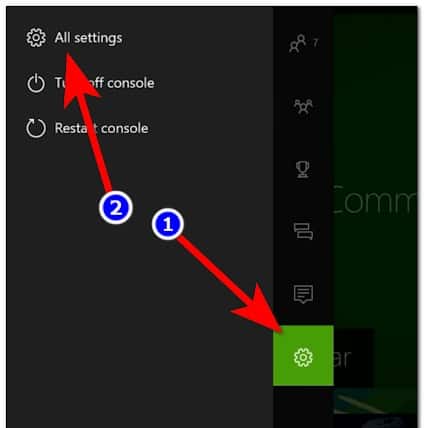
- Press the button Xbox on your controller to open the guide, then navigate to Configuration and select All settings.
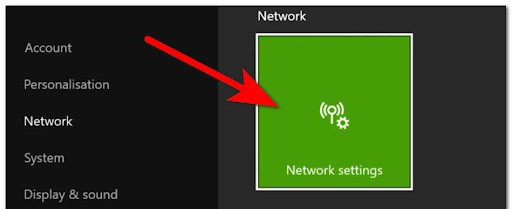
- Once you are inside the settings, scroll down until you find Red Then navigate to the right side menu and select Network Configuration.
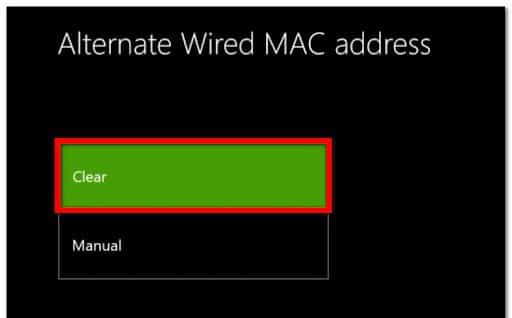
- Once you've done that, go to Advanced settings and select Alternate MAC address. Now you must choose Delete.
- Changes will only take effect after restarting the console. Select Restart and wait until Xbox restarts.
- Once your console is back on, launch Apex Legends and test the game to see if voice chat is still not working.
In case this error is still present on your console, please check the following method.
2. Turn the controller off and on
If the problem is still not resolved, another easy fix to try that has helped other players is to turn off the controller while in-game and then turn it back on. This is a simple thing to do that has proven to be effective in many cases.
There is no official explanation as to why this is effective, but community members who have successfully implemented this solution speculate that this method ends up restoring VoIP functionality, reestablishing party audio between you and the other party participants.
If you are looking for specific instructions on how to apply this solution, please follow the instructions below:
- While in a match, plug your microphone into the controller.
- After that, hold down the Xbox button until that appears What do you want to do? The menu appears. Now you must choose Turn off the controller.
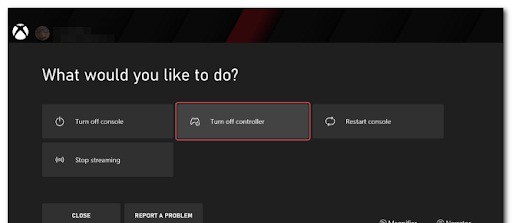
- Once the controller is off, wait a few seconds and turn it back on.
- Once you're done with that, your in-game voice chat should be working.
If voice chat is not working in Apex Legends even after doing this, check the next possible solution.
3. Update your controller firmware
This voice chat not working error could also be caused by your controller being out of date. Xbox controllers receive updates from time to time, but updates don't install themselves. You'll need to turn on these updates yourself. Luckily, you can install them from your Xbox settings.
Note: This method is likely effective if you keep receiving notifications about a pending driver update and choose to ignore them. VoIP functionality available through the driver may be affected if you're not using the latest driver firmware (this is very likely if you're experiencing similar issues with other games besides Apex Legends).
If this scenario is applicable, here are the steps you need to follow to update your Xbox controller:
- Go to the Configuration of your Xbox console.
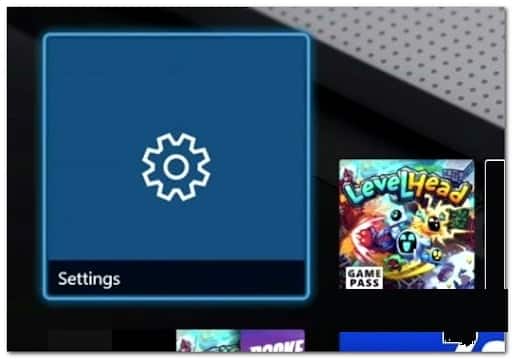
- Once you are inside the menu Configurationgo to Devices and connections and select Accessories
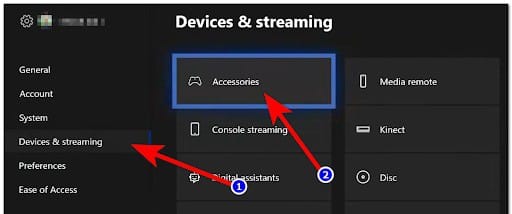
- Inside the menu xbox accessories, navigate to the three dot button and select it, then select Firmware version.
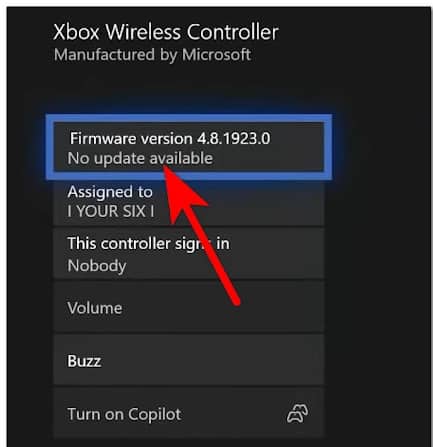
Note: If a new update is available, you will see "New update available" in the current firmware version.
- After that, select Update Now to start the process. Your Xbox will check for updates and, if any updates are available, install them.
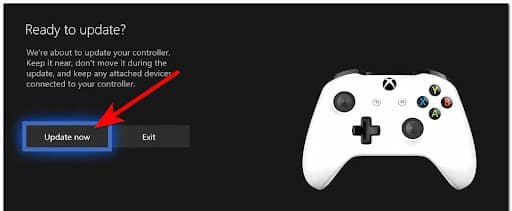
- This process may take up to 5 minutes. Once the driver is updated, launch Apex Legends and test the game to see if the voice chat error still occurs.
- Please check the following solution below in case this one does not help or you already have the latest version of the driver firmware installed.
4. Open and close a private chat session
Some Apex Legends players also managed to get around this issue by creating a private chat session while they were encountering the issue in-game. This will unmute you in-game, so you need to close the private session to use voice chat in Apex Legends.
This is a trick that should work in other games besides Apex Legends. Basically, you'll need to start a new party through the Multiplayer tab while in Apex Legends, then close the menu (this will keep the VoIP protocol enabled for the game's native voice chat functionality).
Here is the guide that will help you to open and close a private chat session to apply this solution:
- While inside Apex Legends and your microphone indicator shows a speaker, you need to press the Xbox button and navigate to the section Multiplayer.
- After that, select Start a party to open a private chat session.
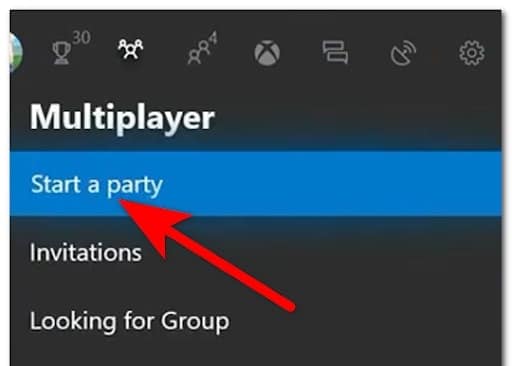
- Once the party is open, close the menu multiplayer and get back to the game.
- Head over to the Apex Legends lobby menu to bring native VoIP functionality into play.
- Without wasting any time, press the button again. Xbox button and go to the section Multiplayer.
- Select your group, then scroll down until you see Leave, then check it to log out of the group.
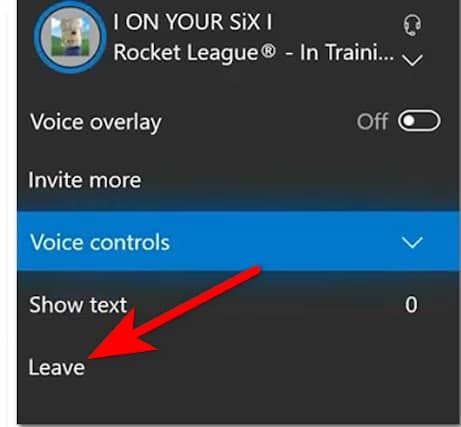
- After that, voice chat in Apex Legends should be working.
If none of the above methods fixed the voice chat not working error, check out the last method below.
5. Soft and hard reset your Xbox console
The last thing you can try is to perform a soft reset, and if that doesn't help either, try restarting your Xbox console. This method fixed this issue for some players.
This method is reported to be effective in situations where VoIP inconsistency within Apex Legends is facilitated by a cache issue affecting your version of Xbox One or Xbox Series X.
You can try a soft reset first, as it will take less time. You can reset your Xbox console by pressing the Xbox button on the console to turn it off, and then pressing it again to turn it back on.
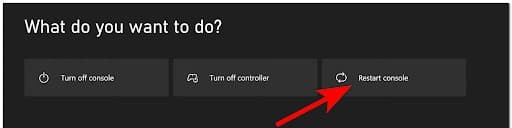
Additionally, you can do this from your controller by holding down the Xbox button to open the What do you want to do? menu, and then selecting Restart console.
If that doesn't work, you can also try a full reset: to do this, you need to hold down the Xbox button on the console for about 10 seconds until the console turns off.
After that, unplug the power cord from the console for at least 10 seconds and then plug it back in.
Now turn on your console and launch the game to see if you still encounter voice chat not working in Apex Legends.
Both ways work the same, so do one of them and check below if the voice chat not working error in Apex Legends is fixed.

My name is Javier Chirinos and I am passionate about technology. Ever since I can remember, I have been interested in computers and video games, and that passion has turned into a job.
I have been publishing about technology and gadgets on the Internet for over 15 years, especially in mundobytes.com
I am also an expert in online marketing and communication and have knowledge in WordPress development.