- Edge's vertical tabs allow you to make better use of screen space and see full tab titles, especially on widescreen monitors.
- They can be easily activated and deactivated from the icon in the upper left corner, the appearance menu, or the keyboard shortcut CTRL + SHIFT + ,.
- The side panel can be organized with pinned tabs, collapsed to show only icons, and combined with hiding the title bar to gain more workspace.
- Although it's not possible to completely hide the tabbed interface without full screen, the combination of these features provides a very clean and comfortable environment for working with many pages.
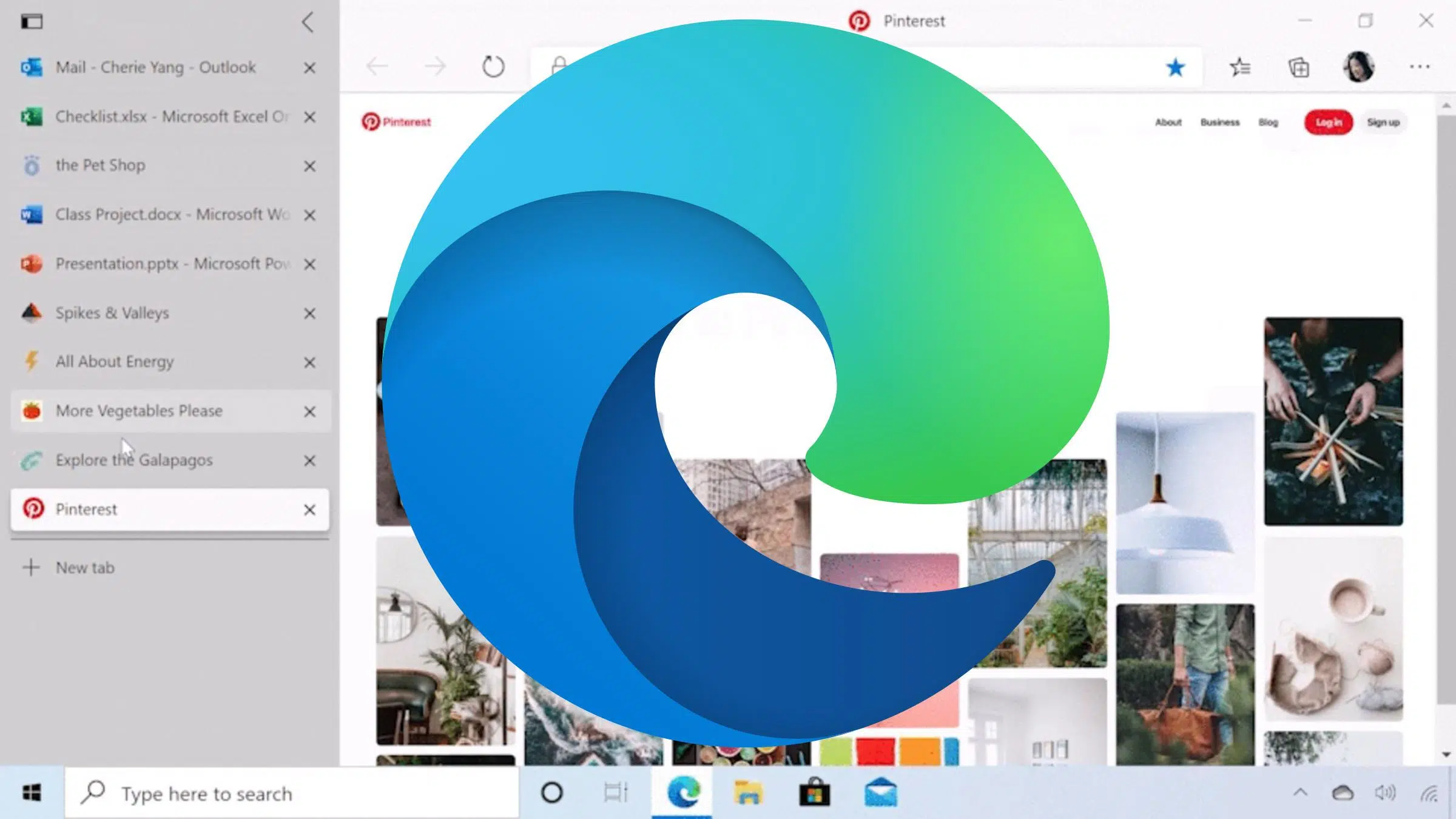
If you often have your browser full of open websites, you've probably thought more than once that the classic tabs at the top aren't enough. Microsoft Edge has included vertical tabs for some time now , a different way of organizing what you have open that makes much better use of screen space, especially if you use widescreen monitors.
In the following lines, you'll find a comprehensive guide to help you master this feature as if you've been using it your whole life. You'll learn how to activate it, switch between horizontal and vertical views, hide the title bar, collapse the panel, pin tabs, and some extra tricks to work more comfortably without cluttering your screen with unnecessary elements.
What are Microsoft Edge vertical tabs and why are they worth it?
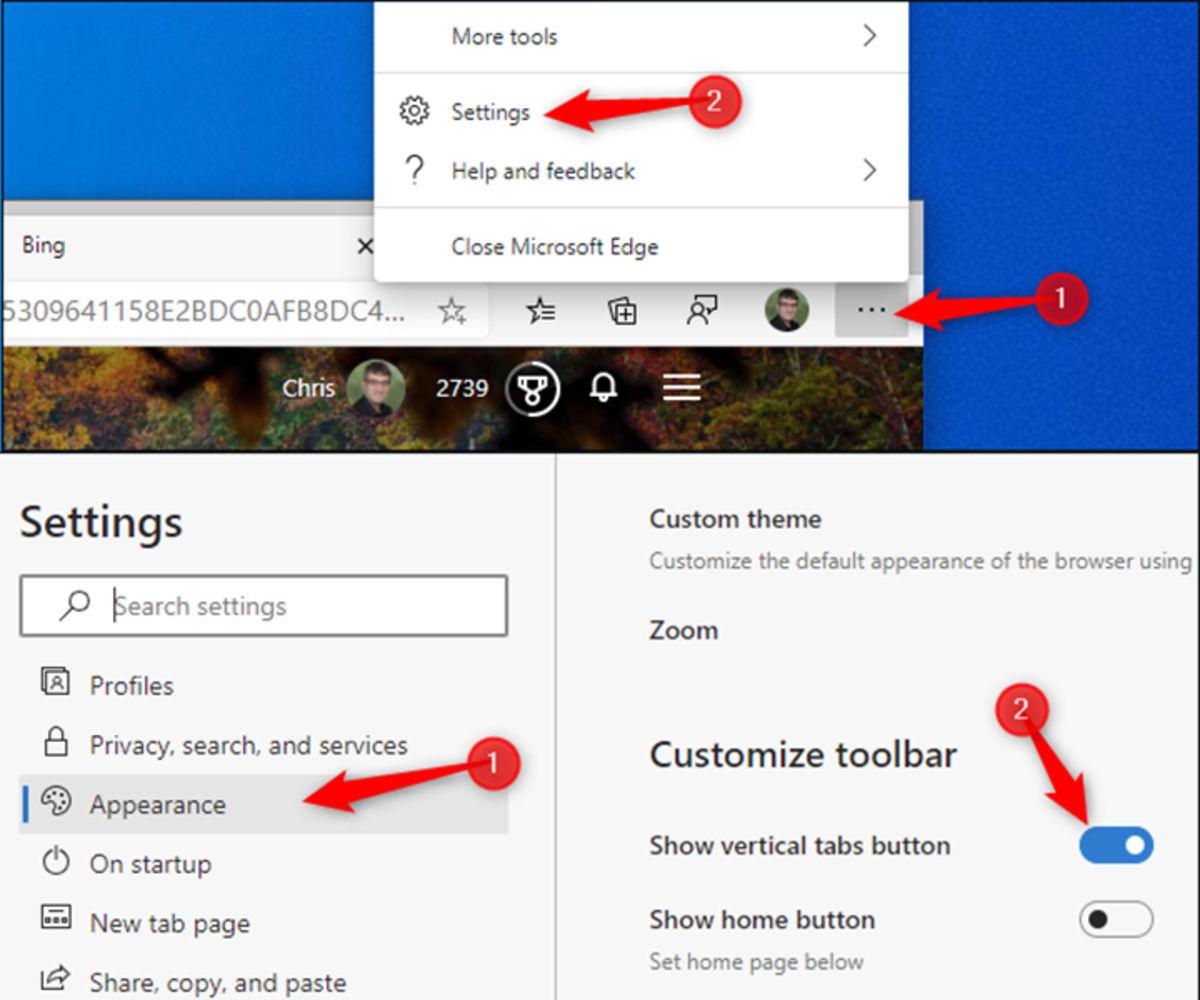
Traditional tabs are displayed in a horizontal row at the top of the browser. The problem arises when you accumulate many open pages and the titles become illegible , to the point that you only see the site's icon (favicon) and little else, making it difficult to quickly find what you're looking for or copy all the links from open tabs.
Edge's vertical tabs completely change this approach : they move from a horizontal row to a column on one side of the browser, usually the left. With more vertical than horizontal space, you can see almost the entire name of each tab, which is very useful when working with many pages at once.
This system is quite similar to the tree-like tabs offered by some alternative browsers, which favor a more vertical and organized structure. Edge doesn't have a complex tree of sub-levels, but it does provide a clear and ordered list of all your tabs, much more readable than the classic top bar.
Furthermore, Microsoft has been refining the feature over time . In recent versions (such as the 93.0.94 branch and later), the ability to hide the title bar when using vertical tabs was added, freeing up even more usable space for web content—something many users had been requesting for some time.
All of this makes vertical tabs a particularly interesting option if you work with wide or curved monitors. These screens usually have plenty of space on the sides but not enough vertically , so placing the tabs on a side panel makes perfect sense to make the most of your desktop space.
How to enable vertical tabs in Microsoft Edge
The best part is that enabling vertical tabs in Edge is extremely simple . You don't need extensions, to mess with hidden flags, or do anything complicated: it's a built-in feature of the browser itself, designed to be switched on the fly at any time.
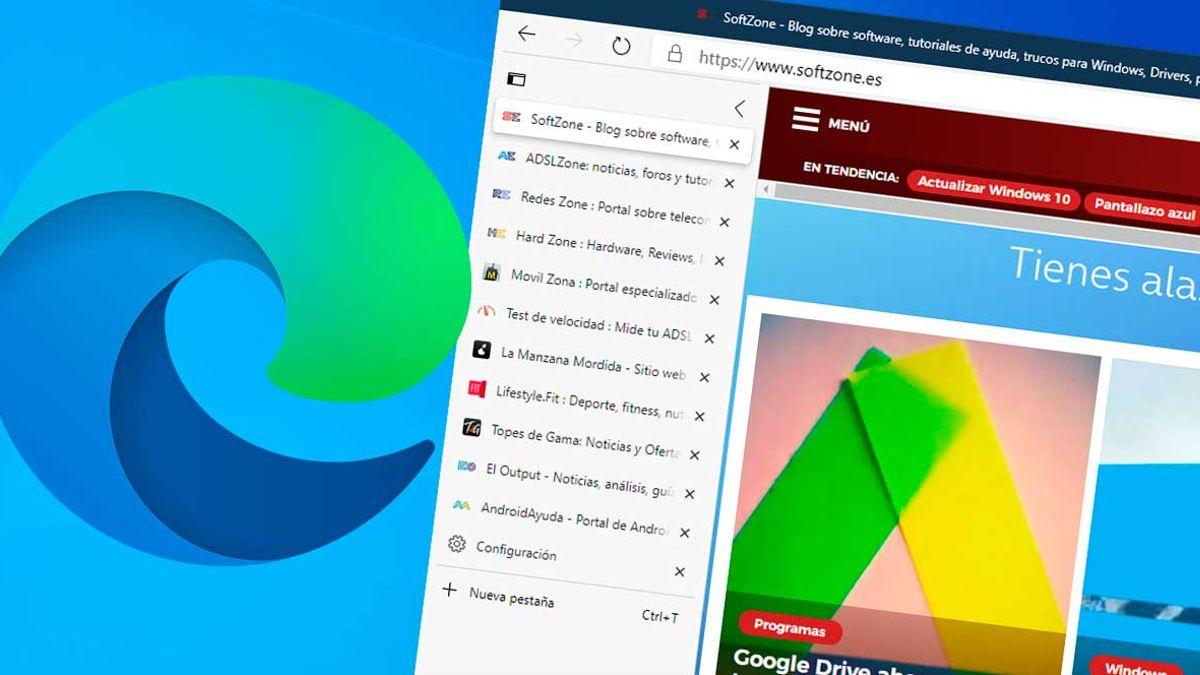
By default, Edge displays your tabs at the top, like any other modern browser. To switch to vertical view, simply use the specific icon located in the upper left corner of the window , just to the left of the first tab. It's usually a small rectangle that represents the sidebar.
When you click that icon, all open tabs immediately jump to a column to the left of the content. The change is reversible and doesn't affect what you have open : it simply rearranges how they're displayed, without closing or reloading anything.
If you prefer to use the context menu, you can do that too. Right-click on the top tab bar (where the tabs are displayed horizontally) and select the option equivalent to "Turn on vertical tabs" to switch Edge to this mode.
For those who enjoy using keyboard shortcuts , Microsoft has added a direct combination: you can switch between vertical and horizontal tabs with CTRL + SHIFT + , (Control + Shift + comma). This combination instantly activates or deactivates the vertical panel, without having to navigate through menus.
In some versions or regions, the vertical tabs option was rolled out gradually, so it may not have appeared on all devices initially. If you don't see the vertical tabs button in your Edge browser, you most likely don't have that version yet , so it's a good idea to check for pending updates in the settings menu.
Configure vertical tabs from the appearance menu
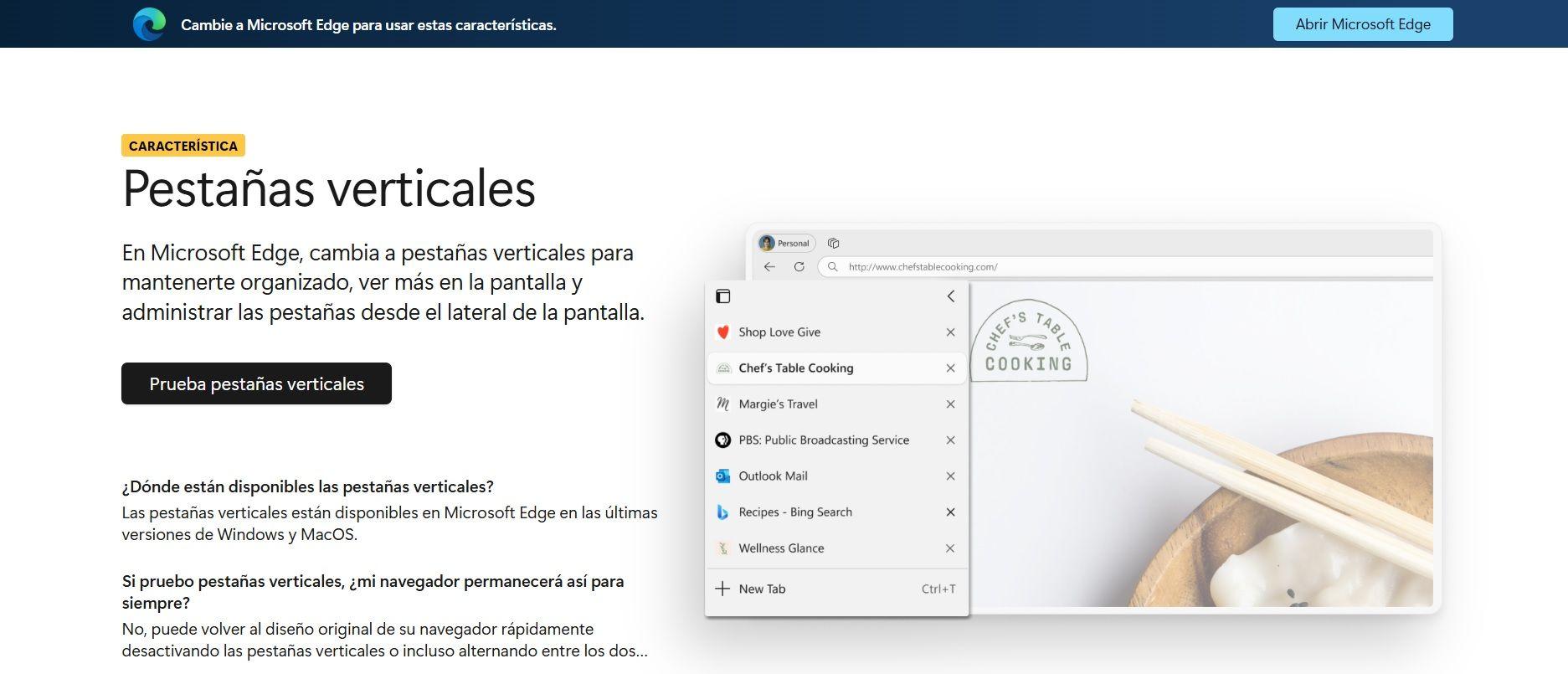
Edge also lets you control the presence of the vertical tabs button from its internal settings. If you want to ensure this feature appears in the interface, you can do so by going to the browser's Settings menu.
To do this, open the main menu (the three dots in the top right corner) and go to “Settings > Appearance” . Within this section, you'll find the toolbar customizer, where you can enable or disable different icons.
Among the available options, you'll see a specific control for the "vertical tabs button ." If you slide it to the "on" position, the icon will appear in the top bar, ready to use whenever you want. If you deactivate it, it will disappear from the interface, although the function will remain available through other shortcuts if Microsoft decides to add it in future versions.
This method is useful if you want to maintain a clean interface and only display the buttons you actually use daily . This way you avoid having icons you don't usually touch, but you can easily restore them at any time by going back to Appearance.
If you don't see any reference to vertical tabs in your Appearance menu, check that you're using a current version of Edge. The feature was rolled out gradually , and the documentation or screenshots might refer to a newer version than the one you have installed.
Using the vertical tab panel: moving, pinning, and organizing

Once activated, all your tabs will be displayed in a sidebar. Each tab appears as a row with its icon and page title , taking up significantly more horizontal space than the classic sidebar. This makes it easier to quickly identify each site, even with long titles.
The basic behavior remains the same as in horizontal view: you can drag a tab up or down to reorder it within the list, just as you would by moving it from left to right in the traditional toolbar. The gesture is the same; only the axis you work on changes.
Right-clicking on any of these tabs will open Edge's standard context menu. From there, you can pin tabs, close them, mute a page, duplicate it, or move it to another window , just as you would in landscape mode.
The pinning option is particularly useful here. When you pin a tab in the vertical view, it sits at the top of the list , separate from the rest. It's similar to what happens in the classic toolbar (where tabs are grouped on the left), but adapted to the new column format.
This is convenient for keeping frequently consulted websites readily available: your email, a work tool, a tab with an important document, and so on. Because they remain pinned to the top, these tabs won't get lost among the others , even if you open dozens of new pages during your session.
Of course, you can close tabs from the sidebar using the cross button that appears on each tab, or via the context menu. There are no differences in this regard compared to the horizontal bar , other than how they are visually displayed.
Hide and show the tab sidebar
One of the great advantages of Edge's system is that you're not forced to always have the entire vertical tab panel visible . You can display it at normal size, collapse it so only the icons are visible, or even hide it temporarily if you prefer.
When the panel is expanded, you'll see a left-pointing arrow icon at the top . Clicking this arrow collapses the panel into a narrow strip along the side of the window, displaying only the favicons for each tab, without the text.
In this compressed state, the panel occupies very little horizontal space, leaving almost the entire width of the window free for web content. To see the tab titles again, simply hover your mouse over the narrow bar : it will automatically expand temporarily so you can view or switch tabs.
As the panel expands when you hover over it, you'll also see a pin icon at the top. Clicking this pin will re-pin the open panel , making the tab column permanently visible until you manually collapse it again.
If you want to switch between vertical and horizontal tabs (not just collapse the panel), you need to use the vertical tabs icon in the top left or the keyboard shortcut Ctrl + Shift + , . This will cause Edge to restore the traditional toolbar at the top or return to the sidebar view, depending on the current state.
Quickly activate and deactivate vertical tabs
Some users prefer to have vertical tabs only at certain times, for example, when working with many websites simultaneously, and then switch back to the traditional toolbar for more relaxed browsing. Edge allows this type of hybrid usage without any problems.
If you're in the horizontal bar and want to switch to the vertical view, remember that you can do it in several ways: click on the button in the upper left corner, right-click on the tab bar and choose "Activate vertical tabs" , or the keyboard shortcut mentioned.
Once you're in portrait view, the same steps work in reverse. You can press CTRL + SHIFT + again to return to the horizontal bar , or use the context menu on the horizontal or vertical tab panel to disable the feature.
This system is especially flexible if you share the computer with other people. Each user can enable or disable vertical tabs as they wish in a matter of seconds , without having to switch profiles or adjust advanced settings.
Keep in mind that, although the appearance changes, your tabs remain the same. No information is lost and no websites are closed when switching between modes , so you can alternate without fear or worry about potential side effects.
Hide and show the title bar with vertical tabs
One of the most striking new features Microsoft has introduced in Edge concerns the title bar. When working with vertical tabs, the browser can completely eliminate this top bar , integrating window controls and tabs into a single area to save space.
This means you can have a very compact browser, with the tab column on the left and the content right next to it, without an extra strip at the top that eats up pixels. If you work on a laptop or a monitor with limited vertical height, having those extra centimeters to display more content on the screen is a real plus .
To control this option, place your pointer over the vertical tab panel and right-click . In the menu that appears, you will see the options "Hide title bar" or "Show title bar," depending on your current settings.
Clicking "Hide title bar" rearranges the top of the window, integrating the minimize, maximize, and close buttons directly into the vertical tab area and address bar. If you ever miss the classic title bar, simply repeat the process and select "Show title bar" to return to the traditional behavior.
This feature was one of the reasons many users started taking vertical tabs seriously. Combining a sidebar and removing the title bar results in a much more efficient design , without sacrificing full control over tabs and windows.
Collapse and dock the vertical tab panel
We've already mentioned that the tab panel can be collapsed into a simple column of icons, but it's worth taking a closer look at this because it has a significant impact on the daily user experience. The key lies in the "Collapse panel" control and the "Pin panel" option.
When you have the vertical tabs fully open, at the top of the panel you'll see the text or button that allows you to collapse it (in addition to the arrow mentioned earlier, in some versions). Clicking "Collapse panel" reduces the column width to a minimum , leaving only the page favicons.
From that moment on, whenever you hover your mouse over that narrow area, Edge will temporarily display the full list of tabs, with their titles and options. It's a very convenient way to save space without sacrificing having your tabs readily available , ideal for working on laptops or when you need to focus on the content.
If you prefer the column to remain visible at all times, simply use the "Anchor panel" option . This usually appears at the top when the panel is expanded. Anchoring it will fix the panel in place and it won't automatically collapse again until you manually change the anchor point.
This interplay between collapsing and pinning lets you adapt Edge to every situation. During periods of intense work, you can keep the panel pinned to quickly see all open pages, and during reading or writing, you can collapse it so it doesn't take up space or become a visual distraction.


Passionate writer about the world of bytes and technology in general. I love sharing my knowledge through writing, and that's what I'll do on this blog, show you all the most interesting things about gadgets, software, hardware, tech trends, and more. My goal is to help you navigate the digital world in a simple and entertaining way.