- GPU passthrough (vDGA/VMDirectPath I/O) in VMware maps a full physical GPU to a VM to achieve near-native performance.
- Its use requires strict requirements of hardware (VT‑d/AMD‑V, IOMMU, MMIO 64‑bit) and EFI/UEFI firmware on the virtual machine.
- Enabling vDGA results in the loss of key vSphere features such as vMotion, DRS, and snapshots on the VM using the GPU in passthrough mode.
- Compared to vGPU and other solutions, vDGA prioritizes dedicated performance over flexibility and the ability to share the GPU between multiple VMs.
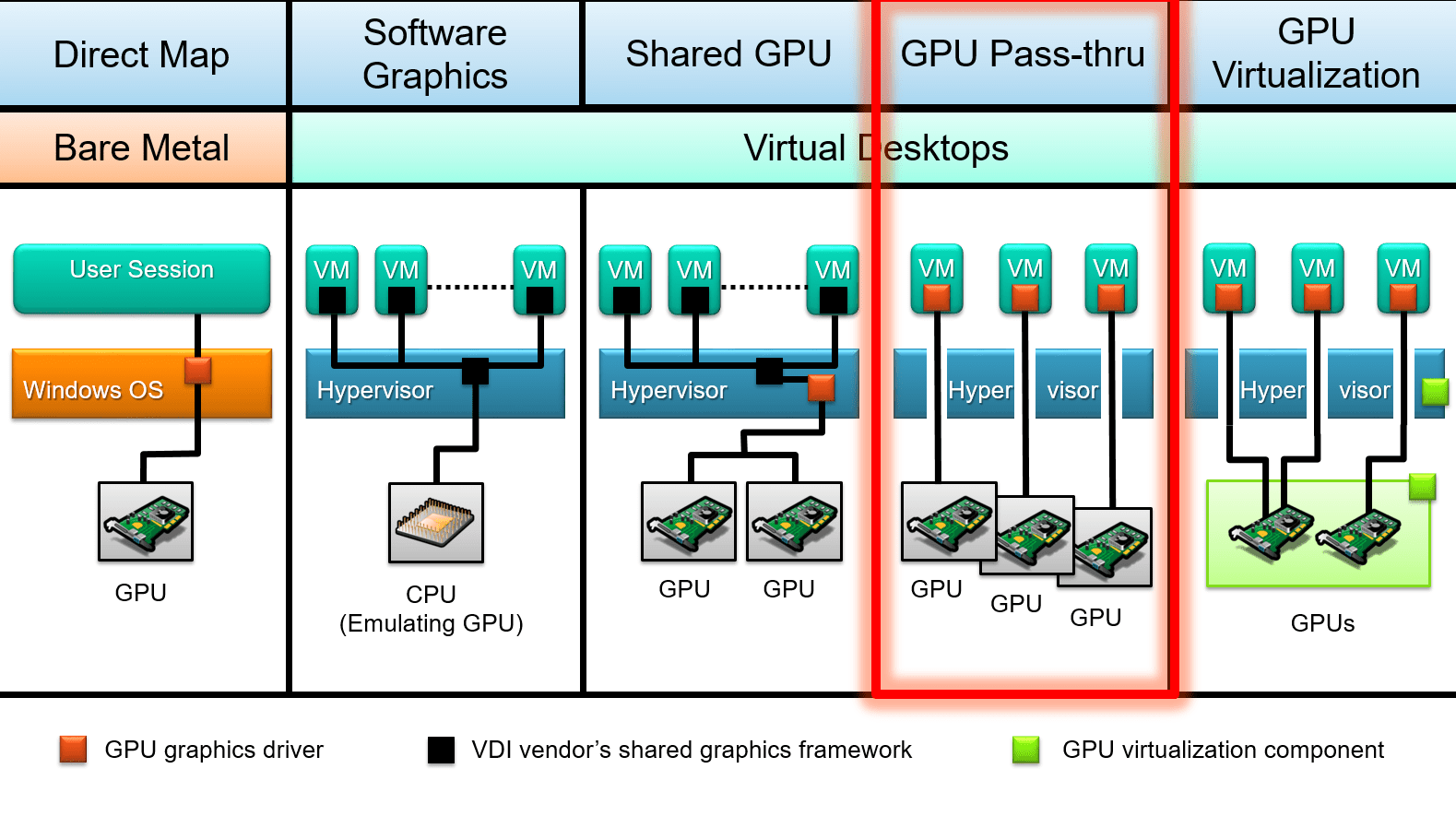
Connecting a physical GPU directly to a virtual machine in VMware is one of those changes that makes a real difference when working with heavy graphics workloads, AI , or 3D rendering. Switching from an emulated graphics card to a direct connection via passthrough (vDGA / VMDirectPath I/O) can bring the VM's performance closer to that of a physical machine, but it also adds several requirements and limitations that you should be very clear about before taking the plunge.
Furthermore, the current ecosystem supports several ways to use the GPU in virtualized environments: dedicated passthrough, shared vGPU, and technologies like BitFusion or GPU partitioning . Understanding what each one does, in which cases it fits, and how it's configured in vSphere/ESXi (and how it relates to similar technologies like Hyper-V DDA) is key to avoiding a dead end with the chosen hardware or hypervisor version.
What is GPU passthrough (vDGA / VMDirectPath I/O) in VMware
GPU passthrough in VMware, also known as vDGA or VMDirectPath I/O , is a mode of operation in which a physical graphics card installed in the ESXi host is directly mapped to a virtual machine. Instead of using a graphics adapter emulated by the hypervisor, the guest operating system sees the GPU almost as if it were plugged into a physical motherboard.
This direct access allows the VM to take full advantage of the graphics chip's power, its video memory, and advanced features like CUDA, OpenCL, Direct3D, and OpenGL natively, with very little added overhead from the hypervisor. In VMware lab tests, a performance loss of around 4-5% is typically observed compared to running the same GPU in bare metal.
In practice, using GPU passthrough means that the graphics card is completely dedicated to a single virtual machine . There is no fine-grained resource allocation between multiple VMs, nor is there a third-party software layer loaded into ESXi to share the card, unlike what happens with vGPU solutions such as NVIDIA GRID.
It is important to distinguish this approach from other ways of using GPUs in virtualization, such as NVIDIA vGPU (shared vGPU), RemoteFX/partitioning in Hyper-V, or BitFusion-type solutions , which seek to distribute a GPU or a pool of GPUs among multiple machines with different virtualization or remote redirection techniques.
When we talk about vDGA in the VMware world, we are essentially describing this direct allocation of the GPU's PCIe device to the VM using VMDirectPath I/O, with all the good (performance) and bad (mobility and high availability restrictions) that this entails.
Advantages of using GPU passthrough in vSphere
The main reason for switching to vDGA is that its graphics and computing performance comes very close to that of a physical hardware system . By omitting a large part of the virtualization layer for the PCIe device, the typical bottlenecks of emulated GPUs disappear, and the VM can run games, 3D applications, or AI engines much more smoothly.
This is especially noticeable in scenarios where integrated GPUs or the default emulated virtual graphics card fall far short: advanced graphic design, CAD, 3D modeling and rendering, video editing, animation, and game development . It is also critical in machine learning model training and AI workloads that heavily utilize CUDA or equivalent processors.
Another clear advantage is the more flexible use of hardware at the data center level. Instead of having a physical workstation per user or per project , it's possible to dedicate a well-sized ESXi host to several VMs, each with its own GPU in passthrough mode, and adjust for scheduling or peak demand.
In certain environments, especially if there are already servers with free PCIe slots, the cost per user or per project can be lower than maintaining a fleet of powerful physical workstations, especially if the graphics card is not needed 24 hours a day and can be reconfigured according to periods of heavy workload.
Finally, there is also an indirect benefit in terms of security and operations: by keeping graphics workloads within isolated virtual machines , if something goes wrong (an exploit, a problematic driver, a bad configuration) it is easier to contain the impact, revert to a previous snapshot or restore from a backup, as long as the limitations of passthrough, which we will see later, are respected.
GPU passthrough versus vGPU and other alternatives
Within the VMware ecosystem, there are several ways to leverage a graphics card, and not all of them involve dedicating it entirely to a single VM. The most well-known are vDGA/VMDirectPath I/O, vGPU (NVIDIA GRID or others), and remote access/computing solutions like BitFusion.
In direct passthrough mode (vDGA), the GPU is exclusively assigned to a single virtual machine . Compute cores and VRAM are not shared among multiple VMs, and the hypervisor's role is minimal beyond routing the PCIe device to the guest. This is the easiest option to understand and the one that most closely resembles a physical server with a dedicated graphics card.
In the vGPU approach, specialized software (such as NVIDIA GRID vGPU on VMware vSphere ) virtualizes the GPU at the controller level and exposes virtual instances of it that can be assigned to multiple VMs simultaneously. Each guest machine sees a "slice" of the GPU with guaranteed or shared resources.
Virtual GPUs (vGPUs) allow multiple virtual desktops or servers to share a single graphics card, which is very useful in VDI, lightly accelerated office environments, front-line graphics workstations in retail or hospitality , or scenarios where peak graphics usage is uneven across users. However, this does result in some overhead, and the peak performance is not the same as with a dedicated physical GPU for a single VM.
There are also solutions like BitFusion Flexdirect and similar technologies , which allow GPUs to be consumed over the network from different VMs, ideal for AI and HPC workloads where the GPU acts more as a remote computing resource than as a video card for the user's graphical interface.
Choosing between vDGA, vGPU, or a remote GPU model depends on whether you need to fully utilize a GPU for a single machine (passthrough), whether you want to distribute an expensive card among many users with medium workloads (vGPU), or whether the key is to orchestrate a pool of GPUs for distributed computing (BitFusion and similar).
Hardware requirements for using vDGA on ESXi
Before planning a GPU passthrough deployment in VMware, you need to make sure that the hardware platform meets a number of conditions that go beyond "having a graphics card plugged into the server".
First, the ESXi host's processor and motherboard chipset must support virtualization with IOMMU . For Intel , this is done through Intel VT-x plus VT-dy, and for AMD, through AMD-V with IOMMU. The server's BIOS/UEFI typically contains specific options to enable I/O virtualization extensions .
Secondly, you need to check that the motherboard supports MMIO memory mapping above 4GB (sometimes labeled as “Above 4G decoding”, “memory mapped I/O above 4G” or similar). This is especially important with high-end GPUs like Tesla , P100, V100, and equivalents, which declare very large memory regions in their BARs (Base Address Registers).
Some of these high-end cards can map more than 16 GB of MMIO space , so in addition to tweaking the BIOS , you will then need to adjust certain parameters in the advanced settings of the VM in vSphere so that it can boot with that GPU without insufficient resources errors.
Of course, the GPU itself must be compatible with the server platform and supported by the host manufacturer (Dell, HPE, Lenovo , etc.) when used in passthrough mode. In practice, most modern PCIe GPUs will work, but it's advisable to check compatibility lists, especially for GRID cards or very new models.
Software requirements and version compatibility
At the software level, it is important to be clear that VMware does support vDGA in vSphere 6.x and later versions , although some users have reported specific problems with certain hardware combinations (for example, NVIDIA GRID GPUs in Dell R720 servers with ESXi 6.x).
In these cases, it is common to see errors such as "device is already in use" or symptoms that suggest that passthrough has stopped working when updating from ESXi 5.5 to 6.x , when in reality it is due to specific bugs, changes in PCI device management or drivers, rather than an official withdrawal of support.
The guest operating system that will use the GPU in passthrough must have official drivers from the manufacturer installed within the VM (NVIDIA, AMD, Intel), since ESXi does not load any specific driver for that card when using VMDirectPath I/O; the hypervisor simply exposes the device to the guest.
Additionally, the VM must be configured to boot in EFI or UEFI mode when using GPUs that declare large MMIO memory regions. This is critical: incorrect VM firmware can lead to boot failures or prevent the GPU from initializing correctly from the guest operating system.
On the client side, if access to the VM occurs via remote desktop (RDP or other protocols) , the appropriate policies must be activated so that the guest system uses the hardware graphics adapter in remote sessions and is not stuck with a generic driver without acceleration.
Configuring the ESXi host to use GPU in passthrough mode
The first practical step is to prepare the vSphere/ESXi server to expose the GPU as a DirectPath I/O device . This involves modifying the BIOS, checking the PCI inventory on the host, and marking the card so that it can be assigned to VMs.
If the GPU requires large MMIO memory regions (16 GB or more), you need to look in the server's BIOS/UEFI for options like "Above 4G decoding" or "PCI 64-bit resource handling above 4G" and enable them. The exact name varies by manufacturer, but it's usually found in the PCI configuration or advanced resources section.
Once ESXi has booted with these settings, in the vSphere client you can navigate to the corresponding host and access “Configure → Hardware → PCI Devices → Edit” to view the list of detected PCI devices. There you will see NVIDIA, AMD, or similar cards along with the rest of the server's PCI hardware.
If the GPU is not yet enabled for DirectPath I/O, simply check the passthrough box next to its entry in that list. When you save the changes, vSphere will prompt you to restart the host to apply the configuration, as the hypervisor needs to reserve and prepare the device to be reassigned to VMs.
After the restart, when you return to the “Configure → Hardware → PCI Devices” section , a window titled something like “DirectPath I/O PCI Devices Available to VMs” will be displayed, listing all the devices that have become available for use in virtual machines, including GPUs and, in many cases, advanced network adapters such as Mellanox.
Preparing and configuring the virtual machine
With the host ready, the next step is to create or adapt the virtual machine that will use the GPU. The first thing to do is ensure that the VM has been created with suitable EFI/UEFI firmware , especially in scenarios with high-end GPUs and high MMIO.
In the vSphere client, simply select the VM, go to “Edit Settings → VM Options → Boot Options” , and verify that “EFI” or “UEFI” is selected in the “Firmware” field. If it isn't, you'll need to change it (and in some cases, recreate the VM or the operating system if it doesn't support this hot-swapping).
When using passthrough with cards that map more than 16 GB of MMIO space, it's advisable to adjust some advanced parameters in the VM configuration, accessible from “Edit Settings → VM Options → Advanced → Configuration Parameters → Edit Configuration” . There you can add keys related to pciPassthru to control how the address space is reserved.
Specifically, the use of 64-bit MMIO is typically enabled, and a size is defined for that region, calculated based on how many high-end GPUs will be allocated to the VM . The standard practice is to multiply 16 by the number of GPUs and round the result up to the next power of two (for example, two such GPUs would end up using 64 GB of 64-bit MMIO).
After adjusting these parameters, the guest operating system is installed or verified to support EFI/UEFI and to be capable of handling the memory size and GPU in question . At this stage, the graphics card has not yet been connected to the VM; the environment is simply being prepared so that, when it is connected, everything boots without errors due to insufficient resources or incompatible firmware.
Assign the GPU to the VM using VMDirectPath I/O
Once the host has marked the GPU as available for DirectPath I/O and the VM is configured correctly, it's time to physically associate the card with that virtual machine . This step must be done with the VM completely powered off.
From the vSphere client, select the VM and go to "Edit Settings" to review the virtual hardware . In the device list, click "Add New Device" and choose "PCI Device" if the GPU is not already listed. Then, select the PCI device corresponding to the graphics card (for example, the NVIDIA or AMD card detected on the host).
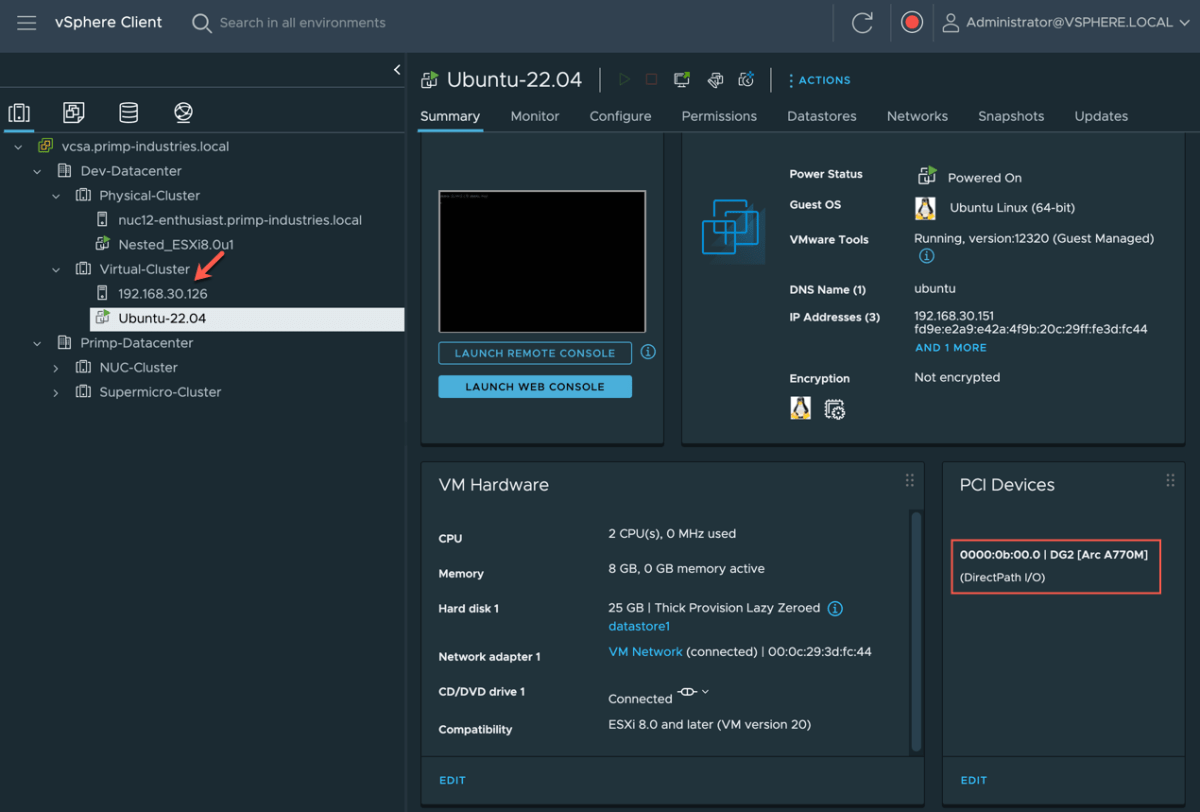
When the configuration is saved, the VM will display something like “PCI Device 0” in its hardware, associated with the specific GPU . From this point on, when the guest operating system boots, it will see an additional PCIe adapter corresponding to the physical graphics card.
It is essential that the virtual machine has all of its allocated memory reserved . In vSphere, this is configured in “Edit Settings → Virtual Hardware → Memory”, setting the “Reservation” value to the amount of RAM configured for the VM. Without this full reservation, PCI passthrough may fail or experience intermittent problems.
After powering on the VM, on a Linux system you can check for the presence of the GPU using commands like `lspci | grep nvidia` , while on Windows it will appear under "Display adapters" in Device Manager . Typically, you will see both the VMware emulated graphics adapter and the dedicated physical GPU.
The final step is to install the official GPU manufacturer's drivers within the guest operating system , downloaded from the NVIDIA, AMD, or Intel websites, avoiding relying on generic drivers or those supplied by Windows Update , which may not be optimized for passthrough scenarios.
vSphere limitations and features that do not work with vDGA
The downside of GPU passthrough in VMware is that several advanced platform features are lost when a physical device is dedicated directly to a VM. It's the price to pay for that near-native performance.
The first major compromise is vMotion and DRS . A virtual machine with a GPU in passthrough mode cannot be hot-migrated to another host because the card is physically locked to the original server. Automatic load balancing policies that involve moving the VM between hosts in the cluster also cannot be used.
Features such as traditional snapshots and certain high-availability mechanisms are also unavailable for that specific VM. Because it relies on very specific physical hardware, the ability to freeze and restore complex states is compromised.
Another aspect to consider is that, in this mode, the GPU is not shared between multiple VMs . If multiple desktops or servers with graphics acceleration are needed on the same machine, one graphics card per VM will be required, or alternatively, a vGPU model where the card is virtualized across multiple instances should be used.
On the support side, there may be specific cases where certain hardware and driver combinations cause problems , as some users have observed when upgrading to ESXi 6.x with NVIDIA GRID cards on specific servers (for example, Dell R720). In these scenarios, it's advisable to review VMware and GPU manufacturer documentation, and open support cases if necessary.
Finally, it should be noted that certain technologies or services that interact with graphics, such as remote desktops, Linux subsystems in Windows, or advanced operating system functions , may interfere with or cause "Code 43" errors in NVIDIA drivers if they detect that you are working within a VM with GPU passthrough.
GPU passthrough in other hypervisors: parallel with Hyper-V
Although the focus here is on VMware, it is worth understanding how other hypervisors (e.g., virtualization with KVM and virt-manager ) address the same need to allocate a physical GPU to a VM , as the terminology and tools change, but the underlying idea is similar.
In Hyper-V, the equivalent of VMware VMDirectPath I/O is Discrete Device Assignment (DDA) . This technique allows you to map a specific PCIe device, such as a GPU or NVMe drive, directly within a Windows virtual machine, with a level of control and performance similar to passthrough in ESXi.
In older versions of Windows Server, RemoteFX technology was used to provide GPU virtualization and allow sharing a single graphics card among multiple VMs. Over time , due to security issues and performance limitations (such as the 1 GB VRAM per VM cap and 30 FPS), Microsoft discontinued RemoteFX, leaving DDA as the primary solution for dedicated GPU scenarios.
In Windows 10 and Windows 11 , especially from certain builds onwards, support for GPU partitioning and reused mechanisms from WSL2 and Windows Sandbox has been appearing , although its configuration usually involves complex scripts and copying drivers from the host to the guest, something that is not as straightforward as assigning a device in vSphere.
Understanding these alternatives reveals that the philosophy of offering near-native access to the GPU via a direct PCIe channel is common to several hypervisors, although each has its own nuances, commands, and compatibility restrictions.
This entire ecosystem of passthrough, vGPU, and DDA demonstrates that, properly configured and with the right hardware, it is perfectly viable to use powerful GPUs within production virtual machines for workloads ranging from demanding graphics desktops to AI and HPC, always assuming that certain conveniences of traditional virtualization will have to be sacrificed, and that one must be very attentive to drivers, hypervisor versions, and GPU manufacturer support.


Passionate writer about the world of bytes and technology in general. I love sharing my knowledge through writing, and that's what I'll do on this blog, show you all the most interesting things about gadgets, software, hardware, tech trends, and more. My goal is to help you navigate the digital world in a simple and entertaining way.