
WinZip is a popular archiving program used by millions of users. However, no matter how useful the program may be, it's often necessary to completely uninstall WinZip , either for a proper reinstallation or simply because it's no longer needed.
This article will explain how to completely uninstall WinZip from your PC safely and efficiently. Please note that deleting a folder with an application is not a proper way. Everything should be cleaned and removed once and for all. There are two options described in detail below.
Note: We based these instructions on a 64-bit Windows 10 PC, but other operating systems will be quite similar.
Uninstall WinZip in the conventional way
To uninstall WinZip from a computer running Windows 10, 8, 7, or XP, you can use the standard program removal tool. While this may not be as fast, convenient, or effective as using dedicated uninstallers, it's still helpful to know how to do it manually.
The following are the steps you must follow to do it this way:
1. Delete application files
- First, you need to exit WinZipIt is very important to exit the program before you can uninstall it.
- Open the Task Manager > ProcessesYou can do this in several ways, such as by Ctrl + Alt + Delete or by right-clicking on the taskbar (at the bottom), in the context menu, select Task Manager.
- End all processes related to WinZipSome of them work in the background, so they can prevent the program from being removed properly.
- Open the application manager using WIN+X or right click on Home > Programs and Features. (Alternative: Start > Settings > System > Apps & features. This menu only differs in the interface, functionally everything is identical).
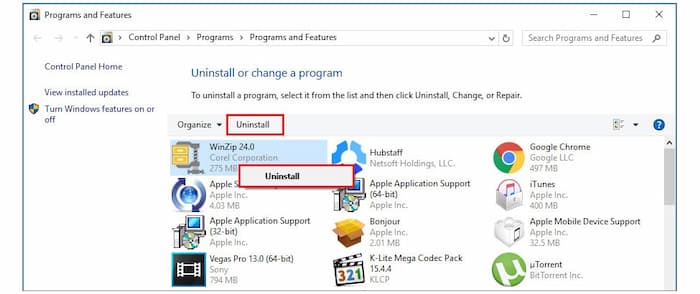
- Search for WinZip In the list of programs, select and use one of the buttons uninstall. Confirm your selection and wait for the process to complete.
Alternatives to step 1.
It is not uncommon for various errors to occur in the process of uninstalling certain programs. WinZip is no exception, so here are two examples of alternative uninstalls.
The first option is to locate the WinZip shortcut , right-click it, and select "Open file location ." There you will find the uninstallation file (it may have a different name: Unins000, Uninstall64/32, etc.). Run it and wait for it to finish.
The second option , if the first one cannot be implemented, is only for extreme cases. Locate the WinZip shortcut , right-click it, and select "Open file location" from the shortcut menu. You can find the desired folder manually via C:/Program Files (x86)/WinZip. Highlight the folder and delete it (or move it to the Recycle Bin).
2. Clean the registry.
When it comes to uninstalling WinZip this step may seem difficult and not entirely safe for inexperienced users. In this case, we recommend using special registry cleaner software (CCleaner Free, Uninstall Tool, etc.).
- Open the log. Press Win+R, type regedit in the window and then click OK.
- Create a backup from the registry just in case.
- Click on File> Export. Specifies the file name and location to save it (this file will be a backup of the registry).
- Click on SaveIt is important to get into the habit of backing up your registry every time you make changes to it. It protects you from unintended consequences and incorrect actions.
- You should remove the folders and files from the residual registry entries. Use CTRL + F to call Search and enter WinZip
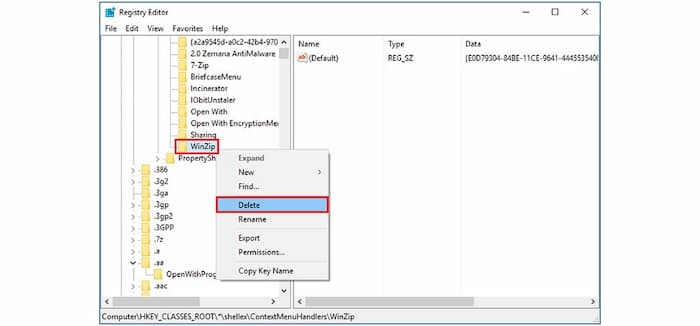
- Right click on the found folders or files and press Delete. Then press F3 to move to the next folder and repeat the process until a notification appears that the search is complete.
3. Delete residual files.
The final step to completely uninstall WinZip is to clean up the residual files and folders which, depending on the removal option, may or may not be present on your PC, this is normal.
- Go to Explorer > Folder Options and select the checkbox Show hidden files and folders.
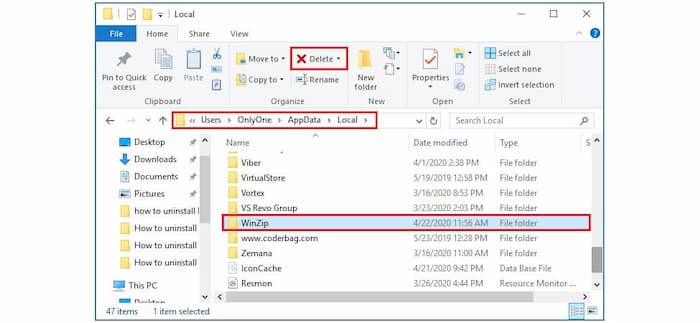
- Check the following folders for residual folders:
- C:/Users/Name/AppData/Local
- C:/Users/Name/AppData/Roaming
- C:/ProgramData
- If WinZip folders are found along these paths, simply Delete them and empty the Trash of recycling.
How to uninstall WinZip with special software
We should mention that the fastest and most thorough way to uninstall WinZip is by using powerful PC cleaning software. If you're unsure which software is the best option in this vast market, we can recommend some like CCleaner, IObit, or Ashampoo.
We will demonstrate how to uninstall WinZip using Ashampoo Uninstaller and IObit Uninstaller . Let's start with Ashampoo Uninstaller.
- Open the application. Then go to Applications and use the sort, filter or search to find the WinZip you want.
- Highlight it and click the button uninstall at the bottom of the menu.
- In the settings menu, you don't have to touch anything, just trust the program, and you can further customize various functions to your liking.
So the whole process may or may not be automatic. We recommend you to use automatic settings and delete any residual files, folders and registry entries you find. In any case, follow the instructions and wait until the removal is complete.
The same applies to IObit Uninstaller . Generally, most uninstallers use the same intuitive system, even for beginners.
- Open the application.
- This time in the section of Programs. Search for WinZip, highlight and click on uninstall.
- Make sure you enable the option Create a restore point before uninstalling to avoid deletion errors. In this case, you can always return everything to its place.
- Click on uninstall and wait for the removal to finish
- At the end of each deletion, you can see a report showing how much disk space was freed up, how many and which files were deleted, and more.
You might be interested in: What is WinZip? Uses, Features, Reviews, Prices
Final words
Uninstalling WinZip might seem like a simple task, but sometimes it can be more complicated. That's why we wanted to show you several alternatives you can use to completely uninstall WinZip from your PC.

My name is Javier Chirinos and I am passionate about technology. Ever since I can remember, I have been interested in computers and video games, and that passion has turned into a job.
I have been publishing about technology and gadgets on the Internet for over 15 years, especially in mundobytes.com
I am also an expert in online marketing and communication and have knowledge in WordPress development.