
Would you like to know how to uninstall Bytefence anti-malware from WindowsByteFence is a legal anti-malware suite developed by Byte Technologies.
Sometimes it comes bundled with free software that you download from the Internet, as these free programs do not indicate that you might end up downloading other software as well and therefore, you can download ByteFence Anti-Malware on your computer without it. Below we will show you the methods to uninstall it:
ByteFence What is it and what could it do to your PC?
You might think that as an anti-malware program, it might be a good idea to install it on your computer, but this This is not true since only the free version of the program will be installed.. The free version will only scan your computer and will not remove any malware or virus present in the scan.
Here you can learn how: Fix Dwm.exe Errors Is It Safe? Is It A Virus?
In addition, this program is combined with other programs that can damage your computer, so you should be careful when installing any third-party software.
ByteFence is installed as a third-party program and can modify browser settingsas the Google Chrome, Internet Explorer and Mozilla Firefox, by setting your home page and default online search engine to Yahoo.com, which greatly reduces the browsing experience every time you open a new tab, you will be automatically redirected to Yahoo.com. All of these changes take place without your knowledge.
ByteFence is definitely legal, but due to its problematic behavior, you will want to get rid of this application as soon as possible if it is installed on your computer. If you are experiencing this ByteFence problem and want to uninstall this application from your computer but don’t know how to do it, here we will show you how.
Here we will provide you with different methods by which you can easily uninstall ByteFence from your computer if it is installed on your PC without your permission or knowledge.
4 Ways to Completely Remove ByteFence Redirect
There are four ways to remove or uninstall ByteFence from your computer. These methods are explained below.
Method 1: Uninstall ByteFence from Windows using Control Panel
To uninstall ByteFence from Windows using the full control panel, follow these steps.
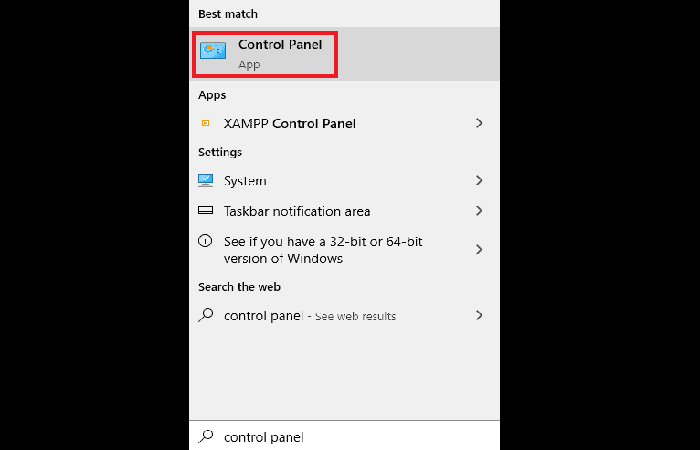
- Step 1:: Open your system's control panel.
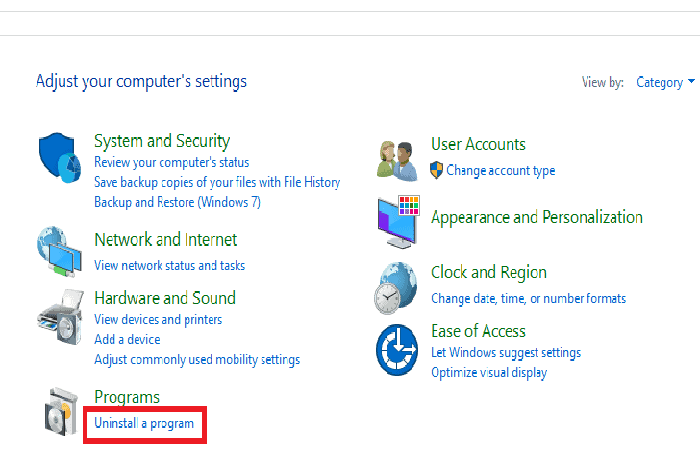
- Step 2:: In Programs, click the option uninstall a program.
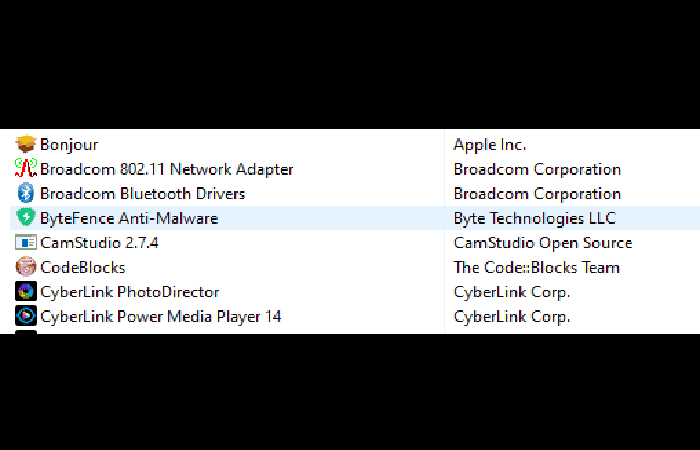
- Step 3:: The page appears Programs and Features with a list of the applications installed on your computer. Look for the ByteFence anti-malware app on the list.
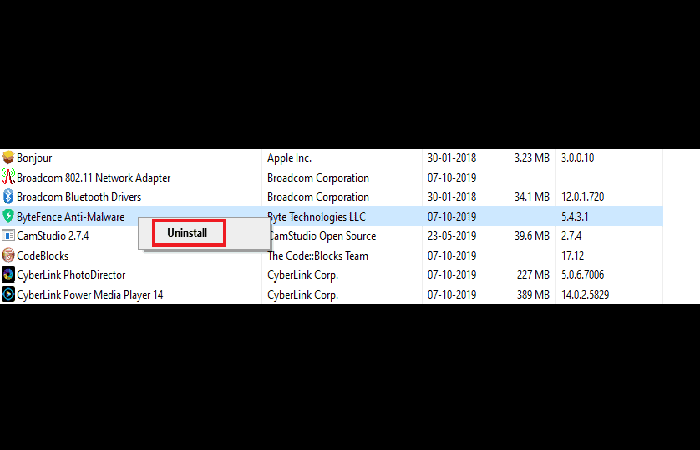
- Step 4:: Right-click ByteFence Anti Malware and then in the option uninstall that appears.
- Step 5:: A confirmation dialog box will appear. Click the button Yes to uninstall ByteFence Anti-Malware.
- Step 6:: Then follow the on-screen instructions and click the button uninstall.
- Step 7:: Wait a while for the uninstallation process to finish. Restart your computer.
After performing the above steps, ByteFence anti-malware application will be completely removed from your computer. If this method does not work for you, you can try the following one:
Method 2: Use Malwarebytes Free to uninstall ByteFence Anti-Malware
You can also uninstall ByteFence from your computer with another anti-malware program called Malwarebytes Free, which is a very popular anti-malware program for Windows. It is capable of destroying all types of malware that are usually ignored by other programs. The best part about Malwarebytes is that it doesn't cost you anything because it was always free to use.
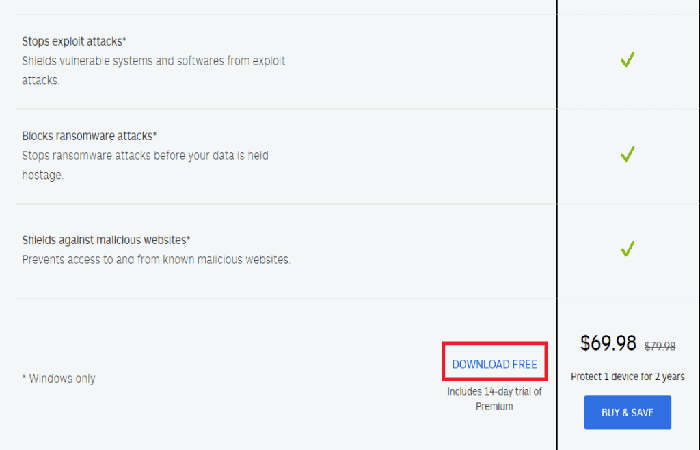
Initially, when you download Malwarebytes, you will get a 14-day free trial for the Premium version and then you will be automatically upgraded to the free Basic version.
To use MalwareBytes to uninstall ByteFence and fight malware from your computer, follow these steps.
- Step 1:: First of all, Download Malwarebytes from this link.
- Step 2:: Click on the option Free download and MalwareBytes will start the download.
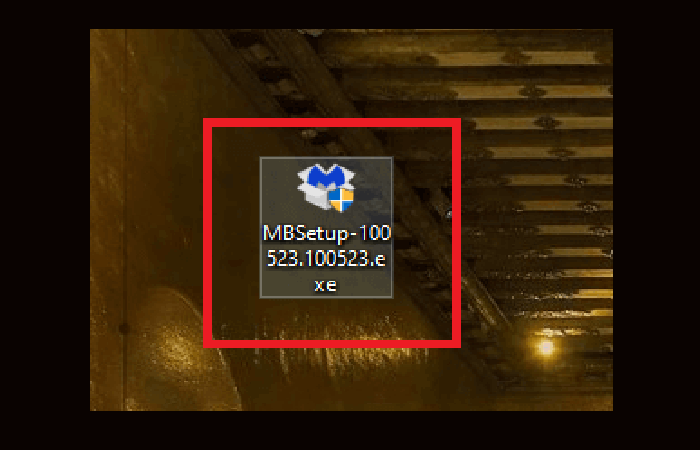
- Step 3:: Once the Malwarebytes download is complete, double-click the file MBSetup-100523.100523.exe to install Malwarebytes on your computer.
- Step 4:: A pop-up window will appear asking you: Do you want to allow this app to make changes to your device?Click on the "Yes" to continue the installation.
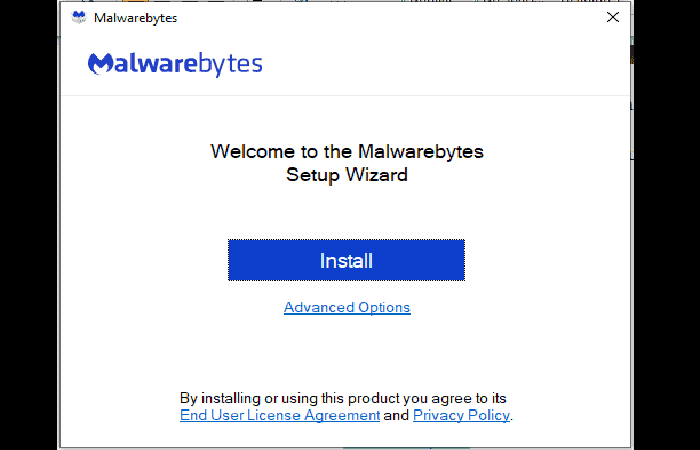
- Step 5:: Then follow the on-screen instructions and click the Install button.
- Step 6:: Malwarebytes will begin installing on your computer.
- Step 7:: When the installation is complete, open Malwarebytes.
- Step 8:: Then click the button Scan on the screen that appears.
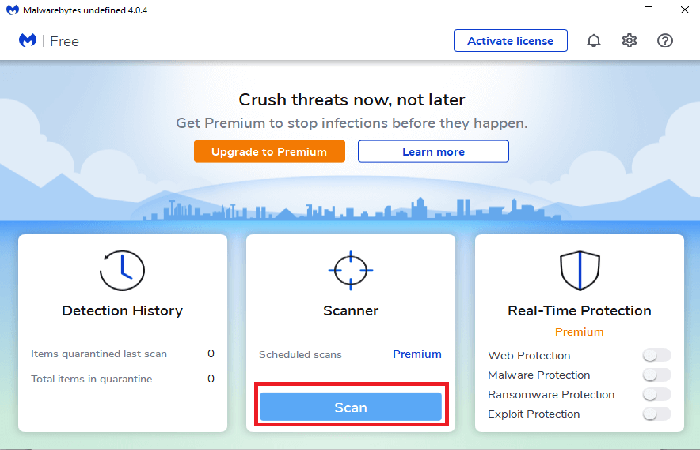
- Step 9:: Malwarebytes will begin scanning your computer for harmful software and applications.
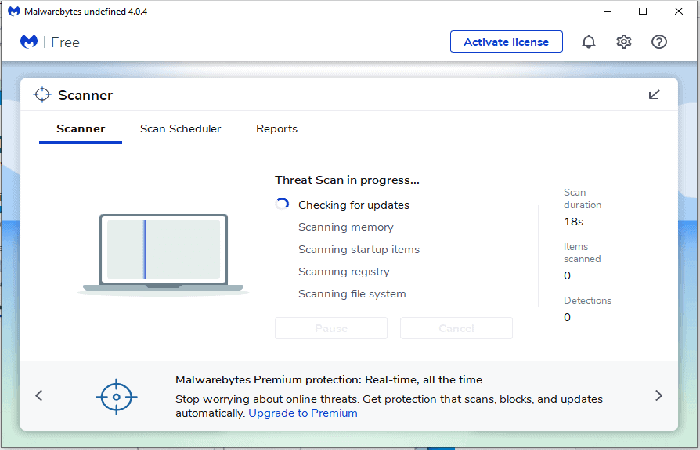
- Step 10:: The scanning process will take a few minutes.
- Step 11:: When the process is complete, a list of all malware bytes found by Malwarebytes will be displayed. To remove this malware, click on the option Quarantine.
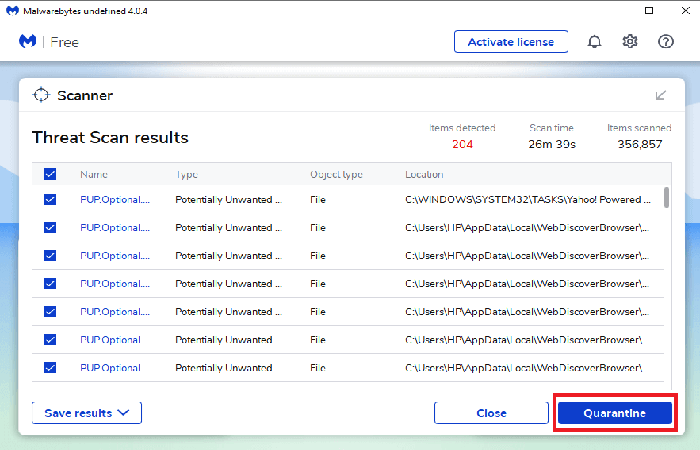
- Step 12:: When the process is complete and all malware and registry keys have been successfully removed from your computer, MalwareBytes will prompt you to restart your computer to complete the removal process. Click the button Yes to complete the removal process.
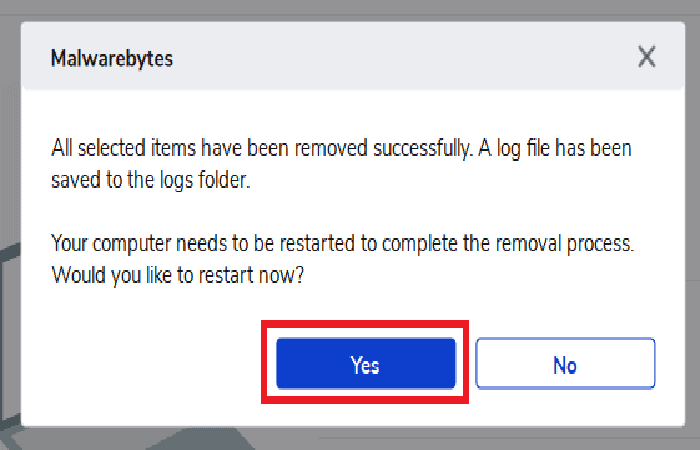
Once the computer has restarted, ByteFence Anti-malware should be removed from your computer. If this method does not work for you, you can try the following:
Method 3: Use HitmanPro to completely remove ByteFence from your computer
Like Malwarebytes, HitmanPro It is also one of the best anti-malware software that takes a unique cloud-based approach to finding malware.
If HitmanPro finds a suspicious file, it sends it directly to the cloud for analysis by two of today's leading antivirus engines, Bitdefender and Kaspersky.
The only drawback of this anti-malware program is that it is not available for free and It costs around $24,95 per year on a computer. There is no limit to software scanning, but when it comes to adware removal, you need to activate the 30-day free trial.
To use HitmanPro to uninstall ByteFence from your computer, follow these steps:
- Step 1:: First of all, Download HitmanPro to combat malware.
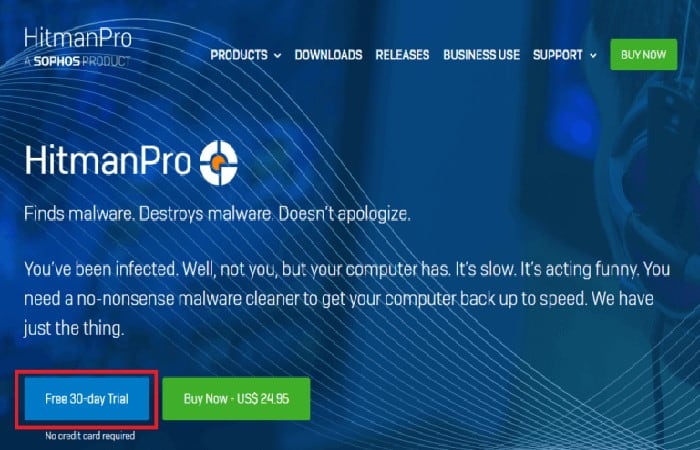
- Step 2:: Click on the 30-day trial button to download the free version and HitmanPro download will start soon.
- Step 3:: When the download is complete, double-click the .exe file for 32-bit version of Windows and in exe for 64-bit version of Windows.
- Step 4:: A pop-up window will appear asking you: Do you want to allow this app to make changes to your device? Click on the "Yes" to continue the installation.
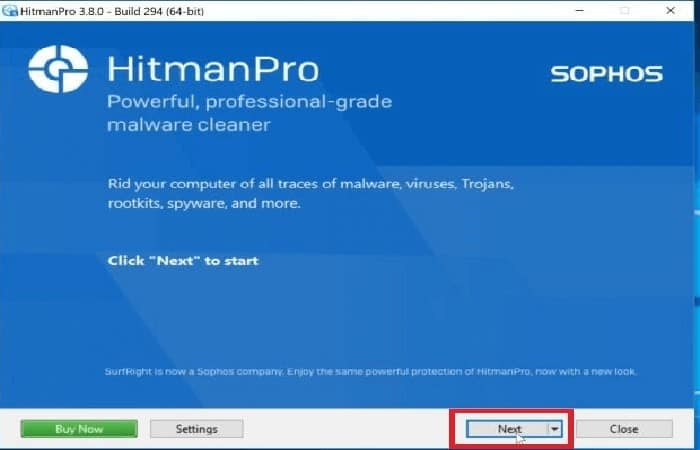
- Step 5:: Follow the on-screen instructions and click the button Next to continue.
- Step 6:: Once the process is complete, HitmanPro will automatically start scanning your computer. The process may take a few minutes.
- Step 7:: When the scanning process is complete, a list of all malware detected by HitmanPro will appear. Click the button Next to remove this malware from your computer.
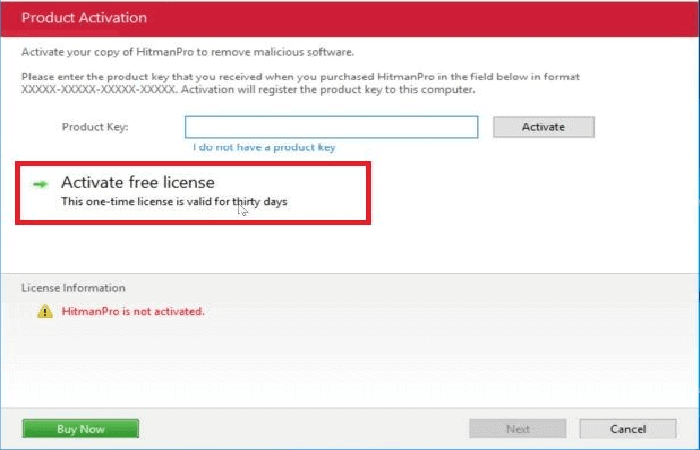
- Step 8:: To remove malware, you need to start the 30-day free trial. So, to begin the experience, click on the option to activate free license.
- Step 9:: When the process is complete, restart your computer.
After your computer restarts, you need to uninstall ByteFence from your computer.
Method 4: Remove ByteFence redirect completely with AdwCleaner
AdwCleaner is another on-demand malware scanner that can detect and remove malware that even the most well-known anti-malware application can’t find. Although Malwarebytes and HitmanPro are sufficient for the above process, if you want to feel 100% safe, you can use this AdwCleaner.
To use AdwCleaner to remove malware and malware from your computer, follow these steps.
- Step 1:: First, download AdwCleaner from this link.
- Step 2: Double click on the file exe to start AdwCleaner. In most cases, all downloaded files are saved in the folder Downloads.
- Step 3: If the User Account Control box, click the option Yes to start the installation.
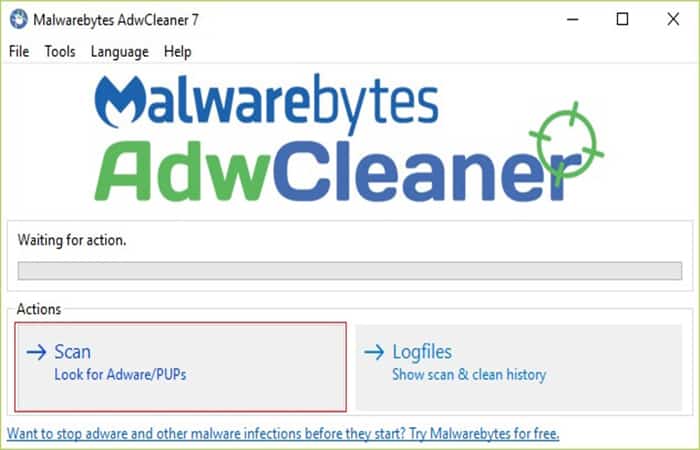
- Step 4: Click on Scan Now to scan your computer/computer for any available ads or malware. This will take a few minutes.
- Step 5:: When the analysis is complete, click on the option Clear and repair to remove unavailable files and malware from your computer.
- Step 6:: When the malware removal process is complete, click on the option Clean and reset now to complete the removal process.
Conclusion
After following the steps above, ByteFence Anti-Malware will be removed from your computer. Hopefully, by using any of the methods mentioned above, you will be able to uninstall ByteFence Redirect completely from your PC.
You may be interested in reading about: How To Remove Panda Antivirus From Your Computer Completely
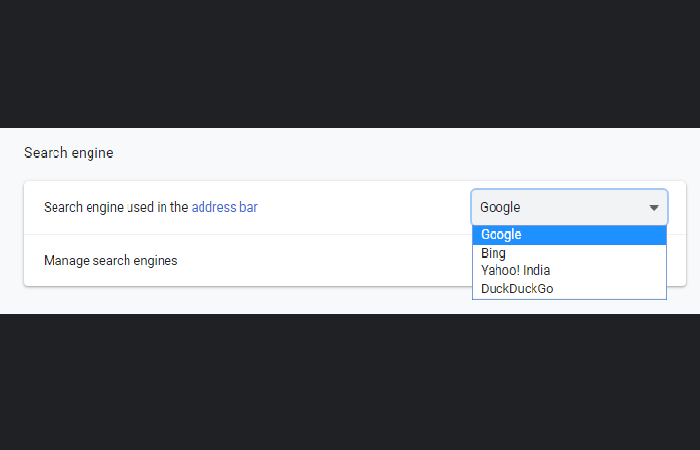
Once you remove ByteFence from your computer, you should manually set a default search engine for your browsers so that the next time you open a search engine, it will not redirect you to yahoo.com.
You can easily set a default search engine for your browser by visiting your browser's settings and under Search Engine, choose the search engine you want from the drop-down menu.
All the tips mentioned here are informative, we hope we have helped you uninstall Bytefence anti-malware for your Windows.

My name is Javier Chirinos and I am passionate about technology. Ever since I can remember, I have been interested in computers and video games, and that passion has turned into a job.
I have been publishing about technology and gadgets on the Internet for over 15 years, especially in mundobytes.com
I am also an expert in online marketing and communication and have knowledge in WordPress development.