- Master stories, posts, Reels, and live streams to multiply your reach and improve your profile's visibility.
- Optimize your bio, links, hashtags, and feed design to attract qualified followers and strengthen your brand.
- Take advantage of chat, security, and privacy tools to manage customers, protect your account, and educate the algorithm.
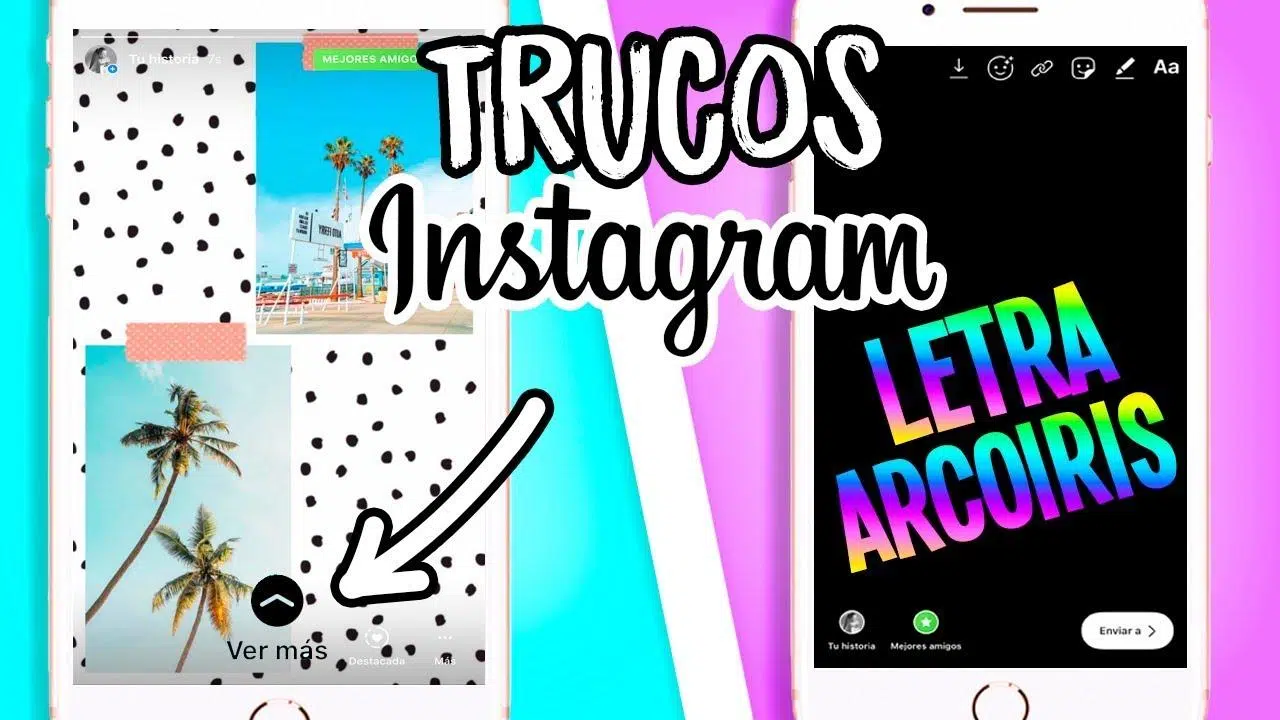
Instagram has become the star social network for brands, creators, and everyday users. With over a billion people connected every month, the competition for attention is fierce, and simply uploading a pretty picture now and then isn't enough: you need to know the tricks, shortcuts, and hidden features that allow you to stay several steps ahead.
The good news is that Instagram is full of tools to improve your stories, posts, profile, security, and even your chat experience, but many are somewhat hidden or go unnoticed. In this guide, you'll find a comprehensive collection of Instagram tips and tutorials , explained in detail and in clear language, so you can get the most out of the app even if you're not a social media expert.
Types of content on Instagram and how to make the most of them
Before we delve into advanced techniques, it's worth clarifying what you can post on Instagram and what each format is for. A photo in your feed is not the same as an ephemeral story or a live video with guests, and understanding this is key to planning your strategy.
Feed posts are the "classic" photos and videos on Instagram, the ones that remain permanently on your profile. They can be individual images, carousels, or videos up to one minute long. They're ideal for carefully curated, informative, or highly visual content that you want to be visible whenever someone visits your profile.
Stories are vertical content that disappears after 24 hours (unless you save them to your highlights). They support photos, videos, text, polls, GIFs, music, links, stickers, and much more. They work wonderfully for everyday content, behind-the-scenes glimpses, quick promotions, or immediate audience interaction.
Reels are Instagram's most viral short-form video format, a direct answer to TikTok. They are short videos, heavily focused on entertainment and designed to go viral thanks to the recommendation algorithm. They allow users to record in segments, add music and effects, and edit directly within the app.
IGTV and long-form videos allow you to share longer content, ideal for comprehensive tutorials, interviews, training sessions, or more in-depth content. While Instagram has been integrating video formats, the core idea remains to provide a space for extended videos that complement your Reels and posts.
Live streams give you the option to broadcast in real time, invite others to the broadcast, conduct interviews, Q&A sessions, or host special events. They're perfect for connecting closely with your community and building trust.

Instagram story tricks that make a difference
Stories are the heart of daily life on Instagram and the section where users spend the most time. Mastering their options helps you increase your reach, engage your followers, and give your content a much more professional touch.
A basic but essential trick is to share your feed posts to your Stories . The algorithm doesn't always show your latest post to all your followers, so whenever you post something important, tap the paper airplane icon on the post, select "Add to Story," and customize it with text, stickers, or a colored background. You can also do this with posts from other accounts (if they're public), which is ideal for curating content or collaborating.
If you also use Facebook, you can set up Instagram to automatically duplicate your stories on your Facebook profile. From the "Accounts Center" and "Share across profiles" sections, select your Instagram account and enable the option to share stories on Facebook. This way, with just one effort, you'll have content on two networks at once.
When you don't want everyone to see everything, the "Close Friends" feature comes in handy . Create a list from "Settings & Activity > Close Friends" choosing only the people with whom you want to share certain types of stories (more intimate content, exclusive promotions, sneak peeks, etc.) and, when posting, select that the story be only for them.
You can also do the opposite: hide your stories from specific users . From your story settings (“Hide story and live video”), select the accounts you don't want to see your ephemeral content. It's a very convenient way to maintain your peace of mind without having to block or unfollow anyone.
If you're looking for a more polished finish, you can fill the entire screen with a single color to use as a background. Take any photo, open the "Draw" tool, choose a color, and hold your finger on the screen: it will be completely covered. This is ideal for adding impactful text, ads, headlines, or creating a "scratch" effect.
The color gradient trick for text is incredibly eye-catching in stories. Type your text, select it, and with one finger, uncheck each letter while dragging the color picker across the palette with the other. You'll get a striking color gradient, perfect for titles or calls to action.
Another visually appealing technique is layering photos . From the story stickers, select the "Photo" option to add additional images from your gallery, changing their shape with a tap. You can also use "Design" or "Layout" mode before creating the story to assemble collages with multiple photos on a single screen.
If you want to add an extra touch of sparkle, try the effects that highlight emojis and text . When typing, tap the dotted "A" and choose styles like neon, sparkle, or glitter to make your text and emojis stand out without being too overwhelming.
A popular creative effect is the "reveal" : paint the entire image in a solid color, then erase specific areas with an eraser to reveal the image underneath, as if you were unveiling a surprise. It works brilliantly for launches, discounts, or special announcements.
If you ever had a story that performed incredibly well and you want to revisit it , go to "Archive" (under "Settings and Activity") to access all your past stories, organized by date and location. From there, you can repost them, turn them into highlights, or simply review what worked best for you.
A fun feature for iPhone users is the ability to convert Live Photos into boomerangs . Simply press and hold a Live Photo in your Instagram gallery until "Boomerang" appears, and it will transform into a short looping clip—perfect for adding movement to your content without recording a traditional video.
If you want to tag a lot of people without cluttering the screen with text , type the mentions, pinch them to make them smaller, and drag them out of the visible area: they'll still work, but no one will see them. Another option is to use "Add mentions" after posting the story to tag people without messing up the layout.
You can apply the same trick to hashtags : reduce their size, hide them outside the frame, cover them with a sticker, or match their color to the background. This way, you continue to benefit from their reach without disrupting the aesthetics of your story.
To record videos without having to hold your finger down, use "Hands-free" mode. In the Stories camera's side menu, select this option and a single tap will start recording. Perfect for dances, skits, product demonstrations, or anything that requires movement.
Effects and filters are the creative playground for stories . When you open the camera, swipe through the effects that appear next to the shutter button, and if you're still short on options, go to "Explore Effects" to discover thousands created by other users. You can save them and use them whenever you want.
Beyond what Instagram offers, you can enhance your stories with design apps like Canva, InShot, VSCO, PicsArt, or Lightroom. They have specific templates for stories, professional filters, and graphic resources that elevate your content if you want a more branded look.
One of the newest features is the "Your Turn" sticker , which lets you launch a template for other users to respond to with their own stories. It's a powerful way to generate trends, challenges, or viral content around your account.
Meta has also incorporated AI-generated images into Stories. On some accounts, the "AI Images" option appears in the left-hand menu: you type what you want (a prompt), the AI creates several suggestions, and you choose the one that best suits you. Instagram adds a small label indicating that it's an AI-generated image.

Tips and tricks for Instagram Chat and private messaging
Instagram Direct Messages are practically a full-fledged messaging app within the social network itself. Managing them effectively is just as important as posting good content, especially if you sell products or services.
A very useful feature is the ability to edit messages for a limited time after sending them. Tap and hold the message you want to correct, select "Edit," change the text, and save. If you've made a complete mistake, you can also unsend the message so it disappears from the chat.
To avoid disturbing your contacts with notifications at odd hours, you can send silent messages. Type "/silent" at the beginning of the message, and what you send won't generate a notification on the recipient's phone; they'll see it when they open the app themselves.
When sharing sensitive or specific photos or videos , you have the option to send them so they can be viewed once, twice, or remain in the chat. This can be configured each time you capture or upload content from your camera or gallery within the messages.
If you manage an account with a high volume of messages per day, quick replies are invaluable . In your inbox, tap the three dots, go to "Tools," and then "Saved Reply." Create templates with frequently used text (prices, hours, links, policies, etc.) and then insert them into chats with just a couple of taps.
To keep your most important conversations handy, you can pin chats to the top of your inbox. Tap and hold on a conversation and select "Pin." Ideal for key clients, team members, or active projects.
Personalization has also reached chat backgrounds . Within any conversation, tap on the user's name, go to "Style," and select a theme or solid color. Besides making it more visually appealing, this helps to distinguish different conversations.
In Instagram groups, you can launch polls directly in the chat . Tap the "+" symbol next to the text field, select "Polls," type your question, and add as many answer options as you need. It's a simple way to make decisions or gather opinions without leaving the chat.
Each conversation has a "Privacy and security" section where you can activate ephemeral mode (messages disappear when you close the chat), manage read receipts, the typing indicator, or restrict and block specific users if necessary.
Additionally, the inbox is organized into two tabs: Primary and General . The Primary tab displays your priority chats, while the General tab shows those you prefer to keep quieter. You can move a conversation from one tab to another directly from the chat details, which is perfect for "turning off" conversations without having to block them.
Tips for posts, comments, and reach
Your feed posts are still your calling card when someone first visits your profile. Managing likes, comments, tags, and how you share your content makes a big difference.
If you don't want the exact number of likes on a post to be displayed, tap the three dots in the top corner of the post and choose "Hide Like Count." The content will still be liked and commented on, but the total number won't be shown. You can do the same with the number of shares.
When you want to reduce unwanted interactions (for example, if you're being harassed or spammed), go to "Settings and activity > Limit interactions." From there, you can decide for how long and which specific profiles will have their comments, messages, or other actions restricted.
Offensive or inappropriate comments can be removed in seconds . Tap on the comment and select "Delete" or "Hide." In the "Privacy > Comments" section, you can also add lists of blocked words so that any comment containing them will be automatically hidden.
If you receive a particularly positive or helpful comment , you can pin it so it always appears first. Tap on the comment, select "Pin," and it will appear at the top, above the rest, helping to guide the conversation.
Sharing your content on other social media platforms saves you a lot of time . From the "Accounts Center," you can link your Instagram, Facebook, and Threads profiles to post simultaneously. Every time you upload something new, you'll have the option to have it automatically shared across your other accounts.
Before publishing, you can also decide whether that specific post allows comments or not . On the screen before you click "Share," go to "Advanced settings" and enable "Disable comments." This is very useful for announcements, contest rules, or other posts where you don't want to open a discussion.
Instagram lets you save your favorite content to private collections . Under each post, there's a bookmark icon: tap it to save it, and if you choose "Save to collection," you can group your favorites into themed folders (content ideas, design inspiration, competitors, etc.).
When you want to clean up your account, you can archive posts instead of deleting them . From the three dots next to each post, select "Archive" to remove it from your profile without losing it. If you change your mind, you can make it public again whenever you want.
Optimize your profile: biography, links, and visual appearance
Your Instagram profile is like a shop window : it has to attract attention, explain who you are and what you offer in a matter of seconds. This is where your profile picture, name, bio, links, and feed organization all come into play.
To write a compelling bio, take your time in a separate document . Draft it on your computer, test different versions, incorporate emojis to reinforce the message, and end with a clear call to action (for example, “DM me” or “Click the link”). Then copy and paste the text into “Edit Profile.”
Fonts and decorative symbols help make your name and bio stand out . Online tools like font generators let you write text and get it in different styles that you can then copy and paste into Instagram. Use them sparingly so as not to make it difficult to read.
SEO exists on Instagram too : including keywords in your name and description improves your chances of appearing in internal searches. If you're a wedding photographer in Madrid, for example, including "wedding photographer Madrid" in your name and bio can make all the difference compared to a simple username.
Links in your bio are your direct bridge to your online presence beyond Instagram . From "Edit Profile > Links," you can add one or more links to your website, online store, newsletter, or any other important page. If you sell, this is essential for driving qualified traffic to your e-commerce site.
Don't forget to set up your contact information if you have a business: email, phone number, location, or even your WhatsApp Business number. This way, direct buttons will appear on your profile so people can message or call you without having to search too much.
In your profile description, you can also include hashtags and mention other accounts . Hashtags help you associate yourself with certain topics, and mentions are useful when you want to highlight the founder's personal account, a partner brand, or a side project.
Highlights are your "fixed sections" within your profile. They allow you to pin collections of stories (about you, FAQs, testimonials, services, products, etc.) that always appear below your bio. Choosing consistent cover images and a clear structure projects a polished brand image.
To manage multiple profiles without going crazy (for example, personal, brand, side project), use the multi-account system. From your profile, tap your name at the top and add new accounts. You can then switch between them without logging out each time.
Feed design matters a lot . Defining a color palette, consistently using the same brand fonts, and applying similar filters to all photos helps your grid look organized and recognizable. There are apps that simulate the look of your feed with scheduled posts so you can preview the result before publishing.
Creating a mood board or inspiration board with saved collections from Instagram is a lifesaver when you're stuck for ideas. Save designs, quotes, carousel layouts, or photography styles you love and return to that collection whenever you need inspiration.
Don't underestimate the importance of story design just because they only last 24 hours. With tools like Canva, you can create templates that align with your brand and then customize them on your phone. You can even create a folder of PNG stickers (logos, icons, frames) in your camera roll, copy them, and paste them into stories for a completely personalized look.
Live streams, broadcasts, and real-time streaming features
Instagram Live is a powerful tool for building trust . It allows you to show yourself unfiltered, answer questions instantly, launch new products, and create a community around your brand.
Before you begin, you can choose filters or effects for your live stream . From the side menu on the broadcast screen, select the effects you want to use, including options like Superzoom or Boomerang to add dynamism to certain moments of your live stream.
Instagram lets you invite up to three co-hosts to your live stream, creating rooms for up to four people. It's ideal for interviews, debates, panel discussions, or shared live streams with other brands. Just tap the invite icon within the live stream and select the accounts you want to add.
If you want to use a live stream for a charitable cause , you can activate a fundraiser before you start. Choose the non-profit organization, and during the live stream, you'll see how many people donate and how much has been raised. You can even greet donors live.
When you finish your live stream, Instagram shows you basic statistics (number of viewers, duration, etc.) and gives you the option to share the video as a Reel, save it, or discard it. Publishing it allows those who didn't tune in live to watch it later.
During the live stream, you have access to a Q&A panel where viewers' questions are collected. You can pin a question to the screen while you answer it, so everyone knows exactly what you're talking about at any given moment.
Privacy and security: protect your account and educate the algorithm
With the amount of time we spend on Instagram, security and privacy are not optional . Properly configuring these settings prevents unpleasant surprises and helps you see content that truly interests you.
A basic step is to activate two-factor authentication . From "Account Center > Password and Security > Two-Step Authentication," you can add a second level of verification using SMS or an authenticator app. This way, even if someone gets hold of your password, it will be much harder for them to gain access.
To check if someone has accessed your account , review "Where you logged in" within the same security section: you'll see a list of devices, approximate locations, and dates. If something seems off, log out of that session and change your password.
Meta lets you review your entire change history and stored information about your account. In “Your information and permissions > Access your information,” you’ll have access to data such as old usernames, email changes, associated phone numbers, previous privacy settings, and even a list of archived content.
You can also view and manage which apps and websites have access to your Instagram account. From “App and Website Permissions,” you can revoke access to tools you no longer use or trust.
If you want a local copy of everything you've done on Instagram , go to "Download your information" within the Accounts Center. You can choose what type of data to include (photos, videos, messages, comments, settings, etc.) and whether to download it to your device or send it to another service.
In the "Your Activity" section, you'll see a comprehensive summary of how you use Instagram : posts you've liked, comments you've made, shared notes, saved reels, stories you've been tagged in, archived content, recently deleted posts, and much more. You can even see your average daily time spent on the app and set reminders to limit it.
If you don't want others to see if you're online or when you were last online , turn off "Activity Status" in the privacy settings for messages and story replies. The "Online" and "Active X minutes ago" indicators will no longer appear.
Another useful tool is the ability to limit who can mention or tag you . In “Tags and mentions,” you can decide whether to allow everyone, only people you follow, or no one. You can also enable manual tag approval to review each tag individually before it appears on your profile.
When someone is bothering you but you don't want to get into a conflict , you can always mute them: you won't see their posts or stories, but you'll still be connected. If things escalate, blocking them prevents that account from finding you, seeing your posts, or sending you messages.
Regarding the content you see, you can "train" the algorithm yourself . Whenever you don't like a post or Reel, open the three-dot menu and tap "Not interested." Instagram will take note of the topic, the account, and related keywords to show it to you less often. You can also pause post suggestions for 30 days if you need a break.
Instagram's search engine has filters for different types of results (For You, Accounts, Audio, Hashtags, Places, Reels) so you can find exactly what you're looking for. The more you interact with what interests you, the more refined the algorithm becomes at suggesting content to you.
If an ad doesn't suit you at all , tap the three dots in the corner of the ad and select "Hide Ad." You can then specify the reason, which helps Instagram adjust the ads it shows you, making them less intrusive and more relevant.
In the "Suggested Content" section, you can see what you marked as "I'm interested" or "I'm not interested ," block specific words from appearing in the suggestions, and decide the level of sensitive or political content you want to be shown.
Finally, if you want extra visual comfort, activate dark mode from “Settings and activity > Accessibility > Dark mode”. You can leave it always on or choose to have it follow your phone's general settings.
Mastering these Instagram features and tricks puts you in a league of your own : it's no longer just about uploading a photo a day, but about using every tool to your advantage to gain visibility, nurture your community, protect your account, and stand out in a sea of daily posts where only those who know the platform well and dare to experiment excel.

Passionate writer about the world of bytes and technology in general. I love sharing my knowledge through writing, and that's what I'll do on this blog, show you all the most interesting things about gadgets, software, hardware, tech trends, and more. My goal is to help you navigate the digital world in a simple and entertaining way.