Some customers have reported about Taskbar Icons Lacking or Taskbar Icons disappearing in Home windows 10. One can find beneath among the strategies to repair this drawback.

Taskbar Icons Lacking in Home windows 10
In case of Twin Mode Computer systems (Pill/Desktop), the issue of Lacking Taskbar Icons finally ends up being largely because of Pill Mode being by accident enabled on the system.
In most different instances, the issue of lacking or disappearing Taskbar Icons could be fastened by Restarting File Explorer and Clearing the App Icon Cache.
If this doesn't assist, you must be able to repair the issue by utilizing different strategies as supplied beneath.
1. Disable Pill Mode
In case you are using a dual-mode pc, comply with the steps beneath to disable Pill mode.
1. Open Settings and click on the System icon.
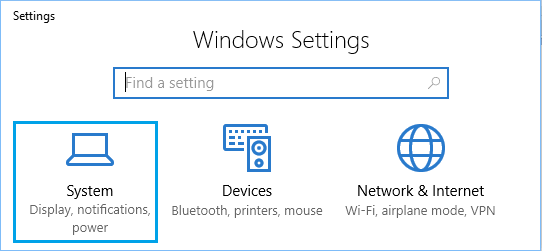
2. On the subsequent display screen, click on Desk Mode within the left-pane. Within the right-pane, choose Use Desktop Mode choice.

Restart your pc and you must discover the Lacking Taskbar Icons again in your pc.
2. Restart Home windows Explorer
Typically, the issue of Taskbar Icons Lacking in Window 10 is because of Home windows Explorer service not working in your pc.
1. Proper-click on the Begin button and click on on Job Supervisor.
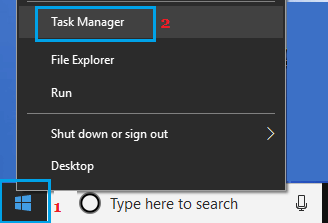
2. On the Job Manger display screen, right-click on Home windows Explorer and click on on the Restart choice.
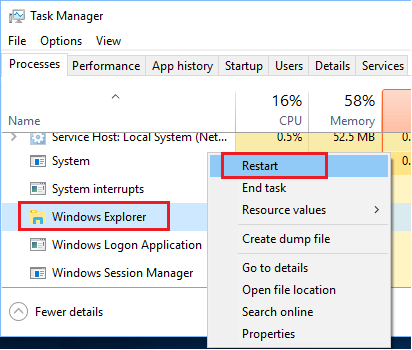
After this you must be able to see the lacking Icons again on the Taskbar.
Word : For those who can't discover Home windows Explorer entry, open any File or Folder in your pc and it will deliver up the Home windows Explorer entry on the Job Supervisor display screen.
3. Clear App Icon Cache
If the App Icon Cache will get corrupted, it may well result in Taskbar Icons lacking or disappearing from the Taskbar in Home windows 10.
1. Proper-click on the Begin button and click on Run.
2. In Run Command window, type appdata and click on OK.

3. In AppData Folder, double-click on the Native Folder.

4. In Native Folder, right-click on IconCache.db and click on Delete.

Word: In case you are unable to see IconCache.db, allow View Hidden Recordsdata choice in File Explorer.
5. Shut the File Explorer Window and Restart your Laptop.
After the restart, you must discover the lacking Taskbar Icons again on your pc.
4. Take away Non permanent Recordsdata
1. Proper-click on the Begin button and click on Run.
2. In Run Command window, type %temp% and click on OK.

3. Delete All of the Recordsdata positioned in Temp Folder.

Restart your pc and see if the App Icons are again on the Taskbar.
5. Reinstall Taskbar Apps
1. Proper-click on the Begin button and click on PowerShell (Admin).
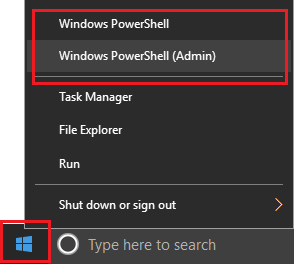
2. In Powershell window, type the next command and press the Enter key.
Get-AppxPackage -AllUsers | Foreach {Add-AppxPackage -DisableDevelopmentMode -Register “$ ($ _. InstallLocation) AppXManifest.xml”}
This can reinstall and re-register all of the default in-built Home windows 10 Apps on your pc. Restart the pc and see if App Icons are actually again on the Taskbar.
6. RUN SFC Command
1. Proper-click on the Begin button and click on Command Immediate Admin.
2. On Command Immediate display screen. kind sfc /scannow and press the Enter key.
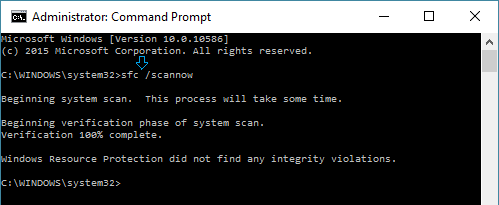
If this doesn't assist, attempt to restore system picture.
7. Restore System Picture
1. Open Command Immediate as Admin.
2. In Command Immediate window, type DISM /On-line /Cleanup-image /RestoreHealth and press the Enter Key.
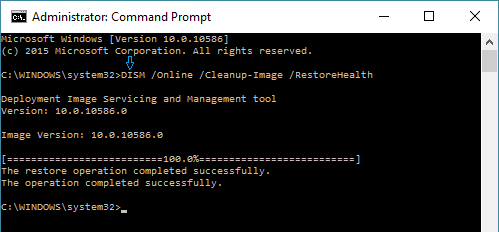
Shut the Command Immediate window and see if System Icons are again on the Taskbar.
8. Use System Restore or Create New Person Account
If a System Restore Level is accessible, you possibly can roll again your pc to its earlier working state by utilizing System Restore.
If a System Restore level just isn't obtainable, you'll have to Create a New Native Person Account and begin utilizing this New Person Account.
- The right way to Pin Packages and Apps to Taskbar In Home windows 10
- The right way to Cease Apps From Operating in Background in Home windows 10
Table of Contents
