- SysMain speeds up Windows 11 preloading applications into RAM for fast startups
- It can cause slowness on older or low-resource computers.
- It is safe to disable it if you notice performance loss on modest PCs.

Is your Windows 11 PC starting up slower than usual, or do you notice that some applications take forever to open? You've probably come across advice mentioning SysMain, that "semi-invisible" Windows feature that promises to speed up your computer. You're likely wondering what SysMain actually is, what it's for, and, above all, when you should disable it to improve performance. In this article, we'll explain everything thoroughly and clearly, drawing on information from various reference sources and adding tips and tricks to help you make the right decision based on your computer.
Windows has spent years refining its automatic optimization tools so users don't have to worry about performance. However, not all of these systems work equally well on every computer. SysMain (formerly known as Superfetch) is one of those features that can make the difference between a fast and smooth PC and one that suffers from excessive background processes . If you want to understand exactly how it works, when you should keep it active, and when it's best to turn it off, keep reading, because we'll clear up all your doubts.
What is SysMain and what does it do in Windows 11?
SysMain is a native Windows service that works in the background, analyzing how you use your PC. Its original name, Superfetch, is no longer used, but its goal remains the same: to improve startup speed and performance by preloading your most frequently used applications into RAM . So, when you decide to open your favorite browser, a photo editor, or even a video game, that program will launch much faster because some of its key files will already be loaded into your RAM.
The trick is to take advantage of RAM that would normally go unused . SysMain detects which programs you regularly use, observes your patterns, and anticipates your needs by performing what's called "prefetch" (anticipatory preloading) and "superfetch" (optimized preloading). This means it predicts your usage habits and reserves resources so everything runs smoothly when you need it.
It works like a "computer butler," rescuing applications and services even before you use them, and operates within the familiar svchost.exe process that groups many essential Windows services. It does this without asking for your permission or notifying you, as it's designed to be transparent and unobtrusive.
Microsoft first included this feature in Windows Vista back in 2007, designed for computers with traditional hard disk drives (HDDs), where loading times were the major bottleneck. Although SSDs have reduced that problem, SysMain remains an integral part of Windows 10 and 11.
How does SysMain work in detail?
In simple terms, SysMain monitors your RAM activity to decide when and how to preload applications. Here's how it works:
- Analyze in the background the programs you open most frequently each day.
- Uses RAM not actively used to load elements of your usual applications, keeping essential resources free so that no performance drop is noticeable.
- As soon as your system needs more RAM for other tasks, SysMain “gives up” the memory it occupies so that it does not interfere with normal use of the computer..
- This whole process is automatic and is regulated according to the hardware available and your usage habits.
The idea is to maximize the use of your hardware . In other words, if you have 16 GB of RAM and only use half of it, why leave the other half idle? SysMain uses it to keep everything "in standby," and releases it if you suddenly open many windows or programs.
As a general rule, the user should not notice the presence of SysMain . The process is transparent, and its negative impact, if any, is usually minimal and only manifests itself on specific systems.

Is it worth having SysMain enabled?
For most users with moderately modern PCs, keeping SysMain active makes sense . The most obvious advantages are:
- Reduction in application loading times that you use most on a daily basis.
- Best overall experience in the Boot Windows and launching programs, especially if you always use the same ones.
- It works without you having to install anything or configure complicated parameters.
For example, if you open Chrome, Word , and Spotify every morning , you'll probably notice how the startup is faster and the response more immediate, all thanks to SysMain.
It's not a miracle function (it's not going to turn your old laptop into a rocket), but it can make a noticeable difference in everyday life as long as you have the right equipment.
When can SysMain become a problem?
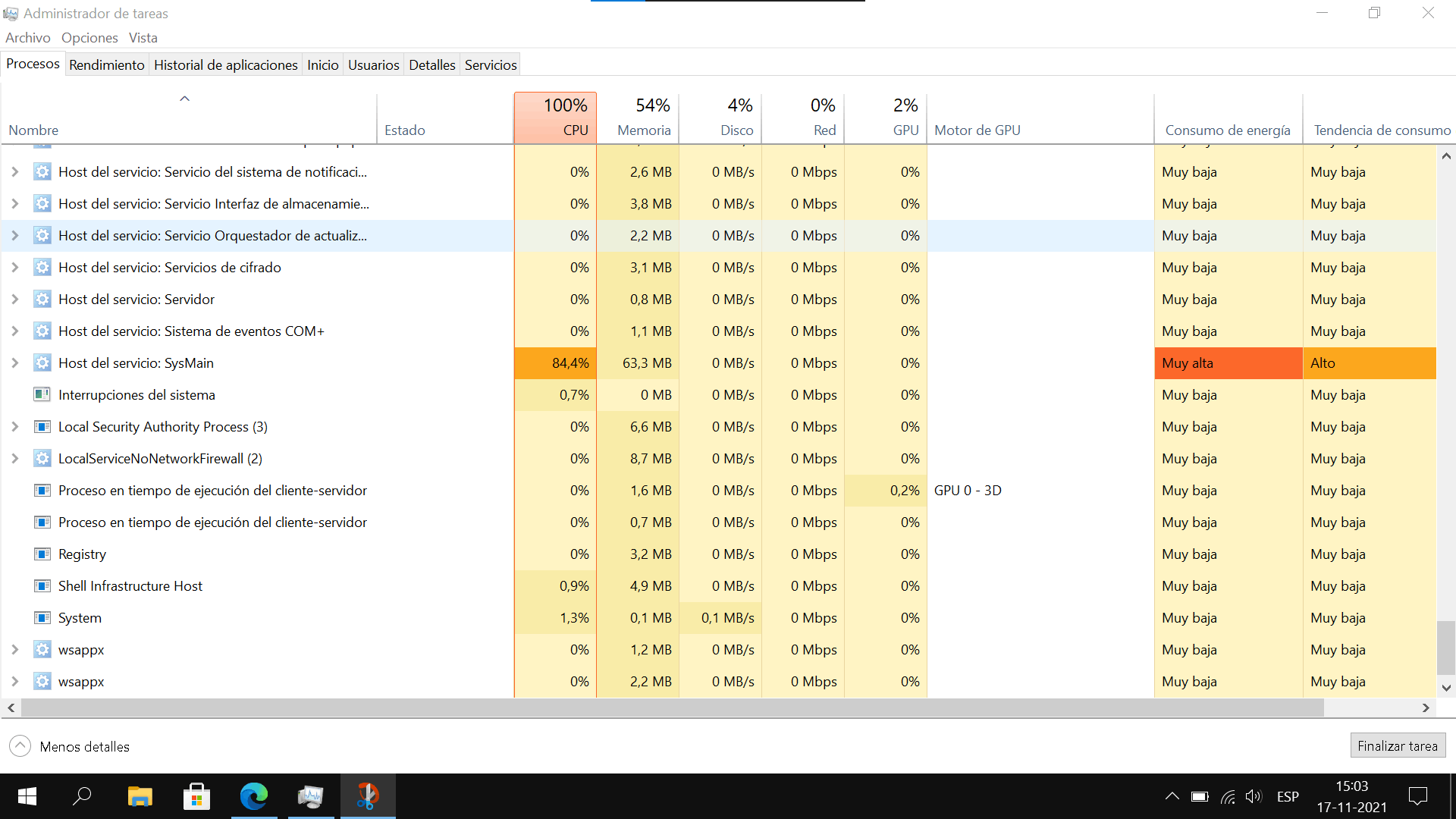
SysMain's Achilles' heel appears when your PC's hardware is more limited. On older computers with little RAM (less than 4-8 GB), a modest CPU, or a mechanical hard drive , preloading applications can have the opposite effect to what's intended:
- Consumption of extra resources in the background that competes with your active programs, slowing down your system.
- Sudden slowness when opening heavy applications if SysMain is trying to preload other files that you won't even be using at the time.
- On computers with very limited SSDs, it has been reported that SysMain can accelerate wear by additional write cycles, although the real impact is debated between users and technicians.
- Problems with games or intensive tasks if the RAM becomes full between what you use and what SysMain tries to reserve in anticipation.
If you have a computer with basic or low-end hardware , especially with less than 8 GB of RAM and an older processor, you'll likely notice Windows becoming erratic, applications freezing, or minor crashes occurring for no apparent reason. Disabling SysMain can free up resources and significantly improve your computer's responsiveness.
In what cases should you disable SysMain?
Not everyone needs to remove this feature, but there are clear cases where disabling SysMain is recommended :
- Your PC has less than 8 GB of RAM and you use several applications at the same time.
- The main disk is a mechanical HDD and you notice that data access is very slow.
- You experience performance drops or crashes suspicious when opening programs that previously worked well.
- You perform intensive tasks (video editing, gaming, heavy multitasking) and memory seems to be fair.
- You detect high CPU or disk usage associated with the SysMain process at the Task Manager.
Disabling it won't harm your operating system or cause you to lose essential functions . SysMain isn't a critical service for Windows stability, so you can try it without worry and see if the experience improves.
And when is it best to leave it active?
On the other hand, there are scenarios where keeping SysMain active can be beneficial and you shouldn't touch anything.
- Your computer has 16 GB of RAM or more, especially if you already have an SSD drive and a current processor.
- You usually always open the same applications, such as browsers, office suites, work or editing tools.
- Your system boots and responds quickly no suspicious spikes in CPU or memory usage.
- You don't notice any crashes or slowdowns. even if the equipment has been on for days.
In these cases, SysMain delivers on its promise and manages to speed up the startup of your usual programs . If you're a user of powerful laptops , modern gaming PCs, or any other modern device, you can let it do its job without worry.
How to check and change the status of SysMain
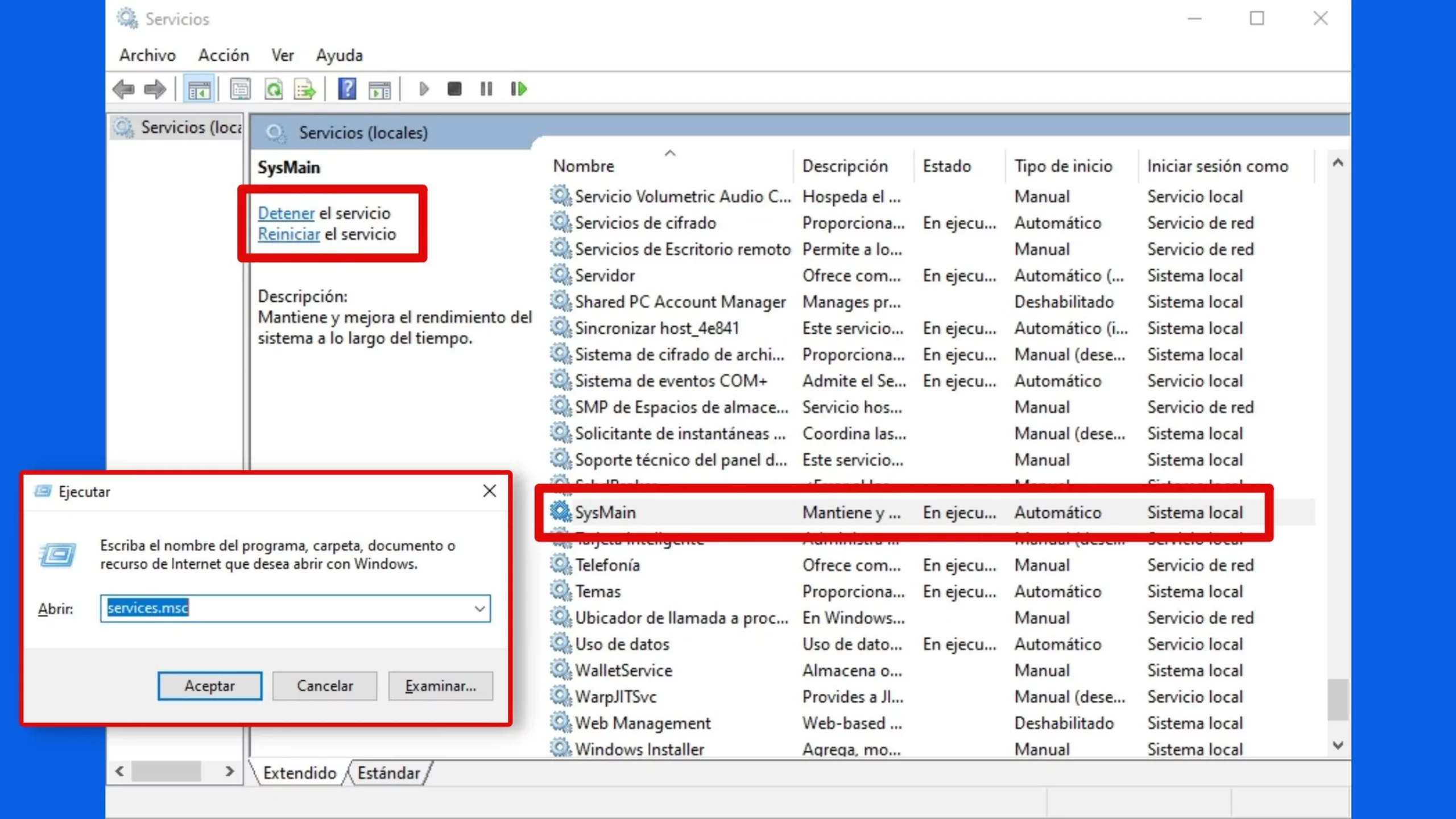
SysMain is enabled by default on most Windows 10 and 11 installations . You don't need to do anything to get it running. However, if you suspect it's causing problems or simply want to experiment, here's how you can easily disable it:
- Press Windows key + R to open the "Run" dialog.
- Write services.msc and press enterThe Windows Services window will open.
- Look for the service called "SysMain" in the list..
- Double-click on SysMain to open its properties.
- Press "Stop" if you want to stop it at that moment.
- In the "Startup type" section, select "Disabled" or “Manual” if you don’t want it to be reactivated when you restart your computer.
- Press "OK" to save the changes and close the window.
This process is completely reversible. If you want to reactivate SysMain later to see if it improves performance, simply follow the same steps and change the startup type to "Automatic" or "Manual" as you prefer.
After making the change and restarting your PC, you can see if the experience has improved by looking at disk usage and overall system responsiveness.
Are there any risks to disabling SysMain? What happens if I remove it?
Disabling SysMain is a safe change for your computer . It won't affect any essential Windows functions, and you won't lose the ability to use your programs or access your files. Many users report improved performance and stability after disabling it.
The only potential drawback on modern computers with powerful hardware is that applications you regularly use might take a little longer to open after restarting . However, overall, Windows 11 will continue to function normally.
The decision to enable or disable SysMain should be based on your experience and your team's specifications. Experiment, measure results, and adjust as needed . You can always revert the changes if you wish.

Table of Contents
- 1 What is SysMain and what does it do in Windows 11?
- 2 How does SysMain work in detail?
- 3 Is it worth having SysMain enabled?
- 4 When can SysMain become a problem?
- 5 In what cases should you disable SysMain?
- 6 And when is it best to leave it active?
- 7 How to check and change the status of SysMain
- 8 Are there any risks to disabling SysMain? What happens if I remove it?
