
If Google Chrome isn't behaving correctly or if you've installed an annoying add-on you don't want (like a third-party toolbar, for example), an easy solution might be to reset Google Chrome to its original settings.
You may also encounter a situation like this if you install a problematic browser extension or accidentally configure your settings in a way that causes your browser to behave strangely.
What changes when you restart Google Chrome?
The good news is that if you reset Chrome, you won't lose any of your search history, saved bookmarks, or passwords. Here are the things that will change after the reset:
- The default search engine changes back to Google.
- All extensions will be disabled.
- Your tabs will close and your home page will become the New Tab page.
- Pinned tabs are closed.
- Preferences and settings are reset to their default values.
- Cookies are deleted, so you will be logged out of all websites.
Restart Google Chrome
Are you still trying to figure out how to restart Google Chrome? Quite a few people seem to be struggling with this. If Google Chrome keeps crashing or isn't working properly, and you've heard that a restart can sometimes fix the problem, here's how to do it.
I think it's fair to say that Google did a good job with its Chrome web browser , and since its introduction in late 2008, Chrome has now become one of the most popular players in the web browser market. According to statistics firms W3Counter and Statcounter, Google Chrome, Internet Explorer, and Firefox are the most used internet browsers today, followed by Safari, Opera, and others.
People who use Google Chrome as their (default) web browser generally report that they are happy with the usability, speed (performance), and how they can customize their browser experience with Chrome extensions.
However, that doesn't mean there aren't problems with Chrome. You might try to open Google Chrome and get a message like this:
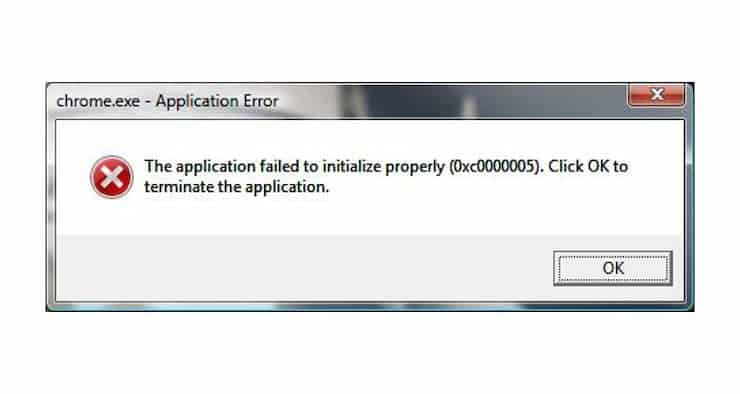
It says: The application could not be initialized correctly (0xc0000005). Click OK to terminate the application.
Whether you are trying to troubleshoot technical issues or simply want to undo changes caused by installing other programs, you may want to try resetting Google Chrome first before you decide to completely reinstall Google Chrome on your computer.
How to reset Google Chrome?
If you are not sure how to reset Google Chrome, don't worry, it's very easy. Just follow these steps:
- Click on the icon of the Google Chrome menu on the toolbar and select "Settings". That will open the settings window.
- In the settings window, scroll down and click «Show advanced settings».
- Once you have clicked on the “Show advanced settings” link, you can scroll down further and click on the button «Reset browser settings».
- Google Chrome will then display a message explaining that all browser settings will be reset to their default settings. Click on the reset button to continue.
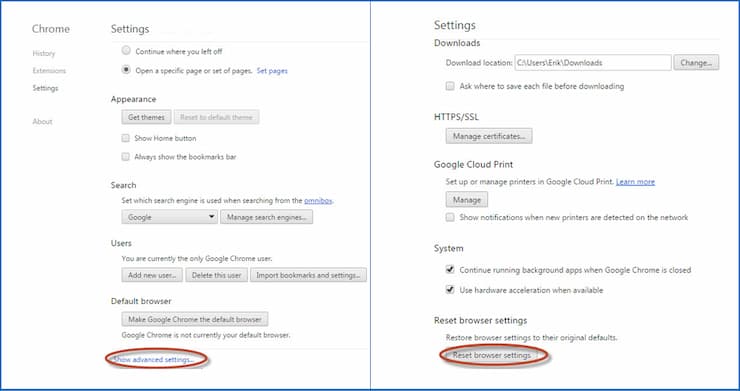
This may take a little while, and when Chrome is ready to reset to defaults, you will be taken back to the settings window. Now is a good time to close Google Chrome (click the red x in the top right corner) and restart Chrome to check if your issues have been resolved.
If you now restart Google Chrome, you'll find it in its original state, with default home tabs cleared, extensions and themes disabled, and the home page you previously set removed. However, your saved login bookmarks and passwords will be preserved.
What if Google Chrome is not working?
If you are unable to reset Google Chrome using the method described above because your Chrome is broken and won't even launch, you will need to perform a reset manually.
- First, make sure Google Chrome is properly closed.
- Check that you don't have any Chrome windows (that aren't responding) left open and use the Task Manager de Windows to end any remaining Chrome processes.
- You can open the Windows Task Manager by pressing Ctrl + Shift + Esc on your keyboard.
- Then look for the processes «chrome.exe» in the list and if you find any, select them and click the button «End process» until there are no more “chrome.exe” processes left.
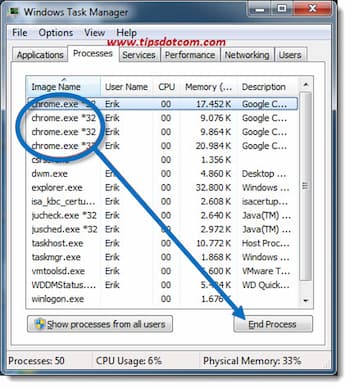
- Once all Chrome processes are finished, close the Windows Task Manager.
- Then press the key windows+r on your keyboard. That will open the run command box.
- In the run command box, type «appdata» (without the quotes) and click OK.
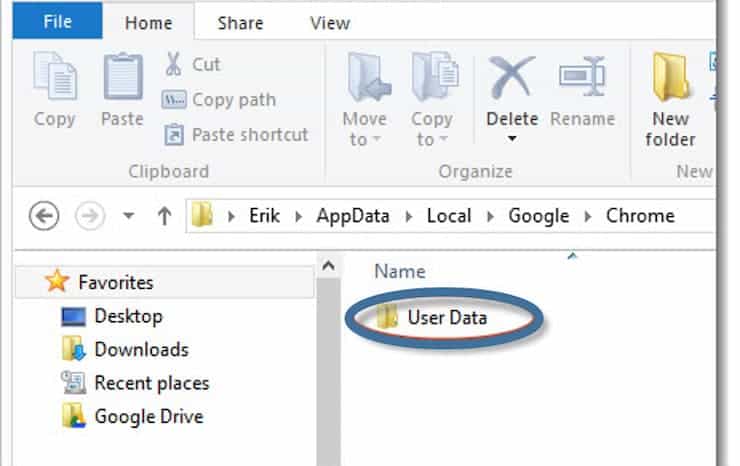
- That will open a Explorer window, in the appdata folder.
- From there, navigate to AppData\Local\Google\Chrome, where you will find a folder called "User Data". (You may need to enable “show hidden files” in Explorer if you don’t see the User Data folder.)
- Delete the folder "User Data" and close the Explorer window. Now try to open Google Chrome again. Typically, you will find Google Chrome with all its settings reverted to their default values.
If you're still having problems after trying to restart Google Chrome, that could indicate a more serious issue. You might want to uninstall Google Chrome and restart your computer. Then reinstall Google Chrome and see if it works. But again, if you've followed the steps in this guide on how to restart Google Chrome and are still having problems, you may need to check your computer for virus or malware infections.
You might be interested in: How to Fix Error 0x80040801 in Google Chrome
The sandbox-less solution
Many people who were unsure of how to reset Google Chrome have circumvented this problem by adding the “-no-sandbox” command at the end of the target field on the Google Chrome desktop icon. Personally, I don’t suggest you do this because:
- The sandbox feature is a security feature that protects you from malware infections while browsing the Internet.
- The "-no-sandbox" switch will only work if you launch Google Chrome via the desktop icon. If you click on a hyperlink in an email message, for example, Chrome will ignore the -no-sandbox switch.
However, what you can try, if nothing else works, is to check the compatibility settings of your Google Chrome desktop icon.
- Right click on the Google Chrome icon on your desktop and select "Properties".
- Then, in the Google Chrome properties window, on the tab "Compatibility", make sure the checkbox «Run this program in compatibility mode for» is not marked.
Final words
Depending on the problem Google Chrome is experiencing, it may be necessary to restart it . This process won't completely erase the most important information your browser stores, but it can help resolve some situations that could potentially become more complicated problems.
