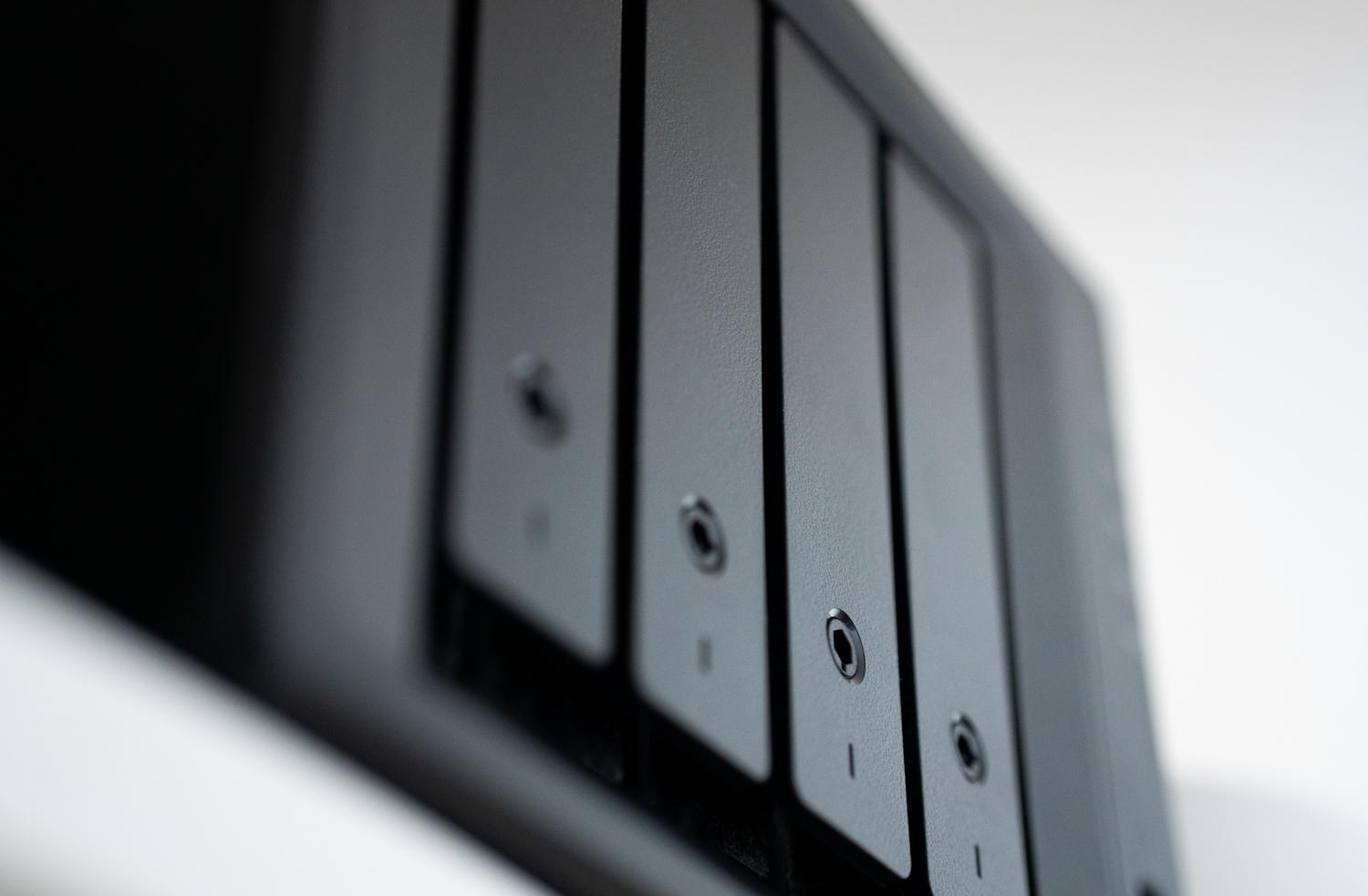
Setting up a NAS server is one of the best decisions for anyone who wants to stop relying on the cloud and take control of their files. However, when it comes to configuring the storage, the big question arises: how do I organize the drives so that nothing is lost if one fails? This is where RAID comes in , which is simply a way to group several physical drives so that the system sees them as a single unit, improving speed or adding a safety net. For better guidance, you can consult our guide on choosing the best NAS for your storage needs.
The first thing to understand, to avoid surprises later, is that a RAID is not a backup . If you accidentally delete a file, are hit by a ransomware attack, or if there's a fire in your house, the RAID won't save your life. Its main function is to ensure business continuity ; that is, if a hard drive physically fails, your server will continue to function and your data will be safe. For everything else, you need a proper external backup.

Hardware vs Software: Where is the data processed?

The fundamental difference lies in who does the heavy lifting of calculating parity and managing data flows. In hardware RAID , we have a dedicated controller card or an integrated chip that handles everything. This frees up the machine's main processor, resulting in superior performance , especially in complex configurations like RAID 5 or 6. Furthermore, they typically include their own cache memory with battery backup to prevent data corruption in the event of a power outage.
On the other hand, software RAID delegates these tasks to the CPU and the operating system. It's the most common option in home NAS devices and Linux or Windows-based servers because it's much cheaper and more flexible. Nowadays, processors are so powerful that for basic RAID levels like 0 or 1, you'll barely notice the system is working. The big advantage here is hardware independence : if the motherboard fails, you can move the drives to another PC and recover the data more easily, something that's very complicated with a physical controller because you'd have to find the exact same model.
Breaking down RAID levels according to your needs
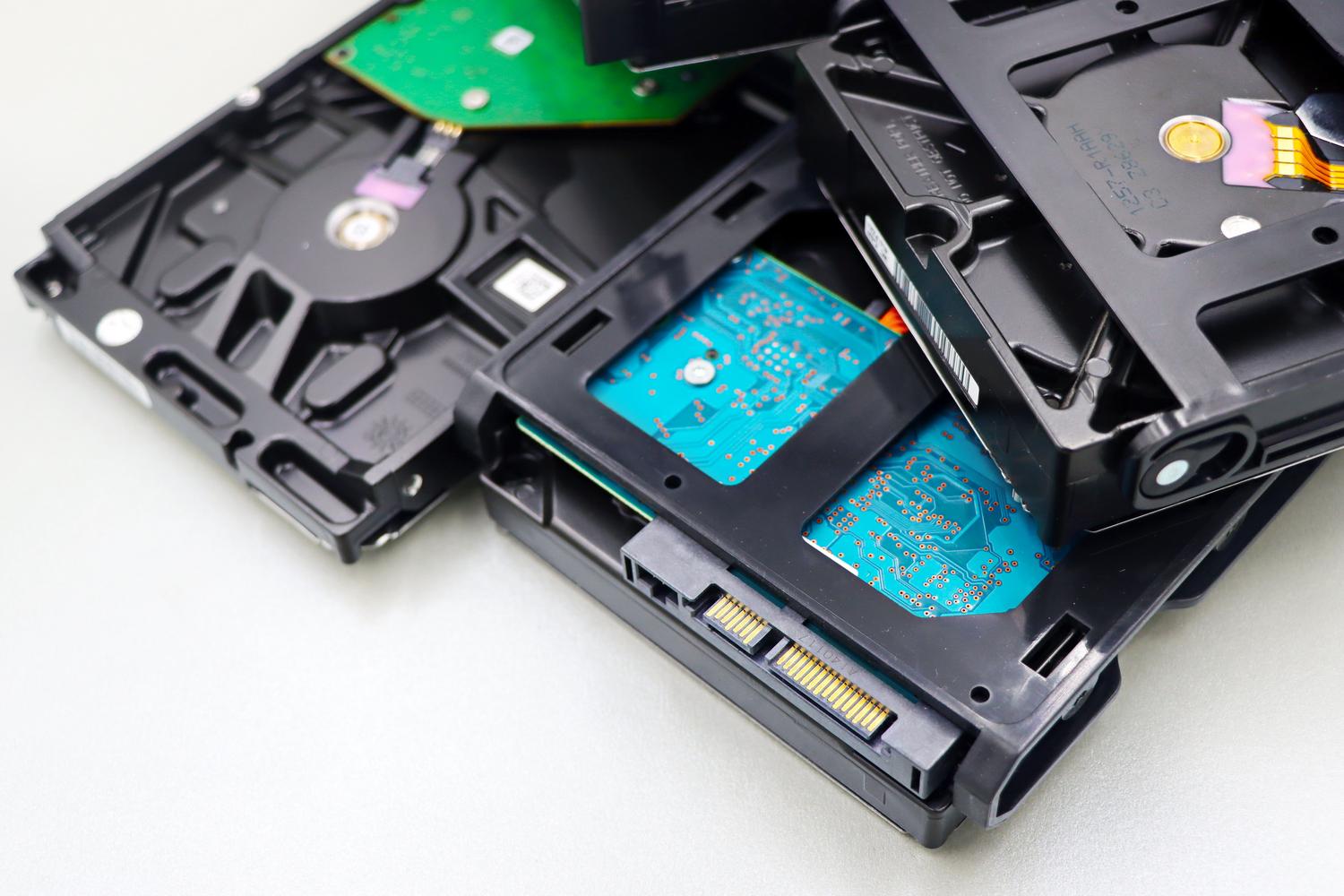
Not all RAID configurations are created equal, and the choice depends on how many bays your NAS has and what your priorities are. If you have a 2-bay NAS, RAID 1 (Mirroring) is the most suitable option. Essentially, the second drive is a mirror of the first. If one fails, the other remains intact. This is ideal for storing family photos or critical documents, although you do sacrifice half of the total storage space.
When you move up to 3 or 4 bays, RAID 5 becomes the king of balance. It distributes data and parity across all the drives, allowing one to fail without losing anything. This offers plenty of usable capacity and read speed, although write speeds are slower due to the parity calculation. If you're looking for more reliability or using very large drives (for example, 18 TB or more), RAID 6 is the right choice, because it can handle the failure of two drives simultaneously.

- RAID 0 (Striping): It's pure speed. It divides the data across the disks, but offers no redundancy. If one disk fails, You lose all the dataUse it only for temporary files or media libraries that you can regenerate.
- RAID 10 (1+0): It combines the speed of 0 and the redundancy of 1. It requires at least 4 disks. It is a favorite in enterprise environments because of its excellent writing performance and reading, although you only use half the space.
- JBOD: It's not a true RAID; it's a disk grouping. It sees them as a single large drive, but without any data protection or speed increase.
The impact of the file system and maintenance
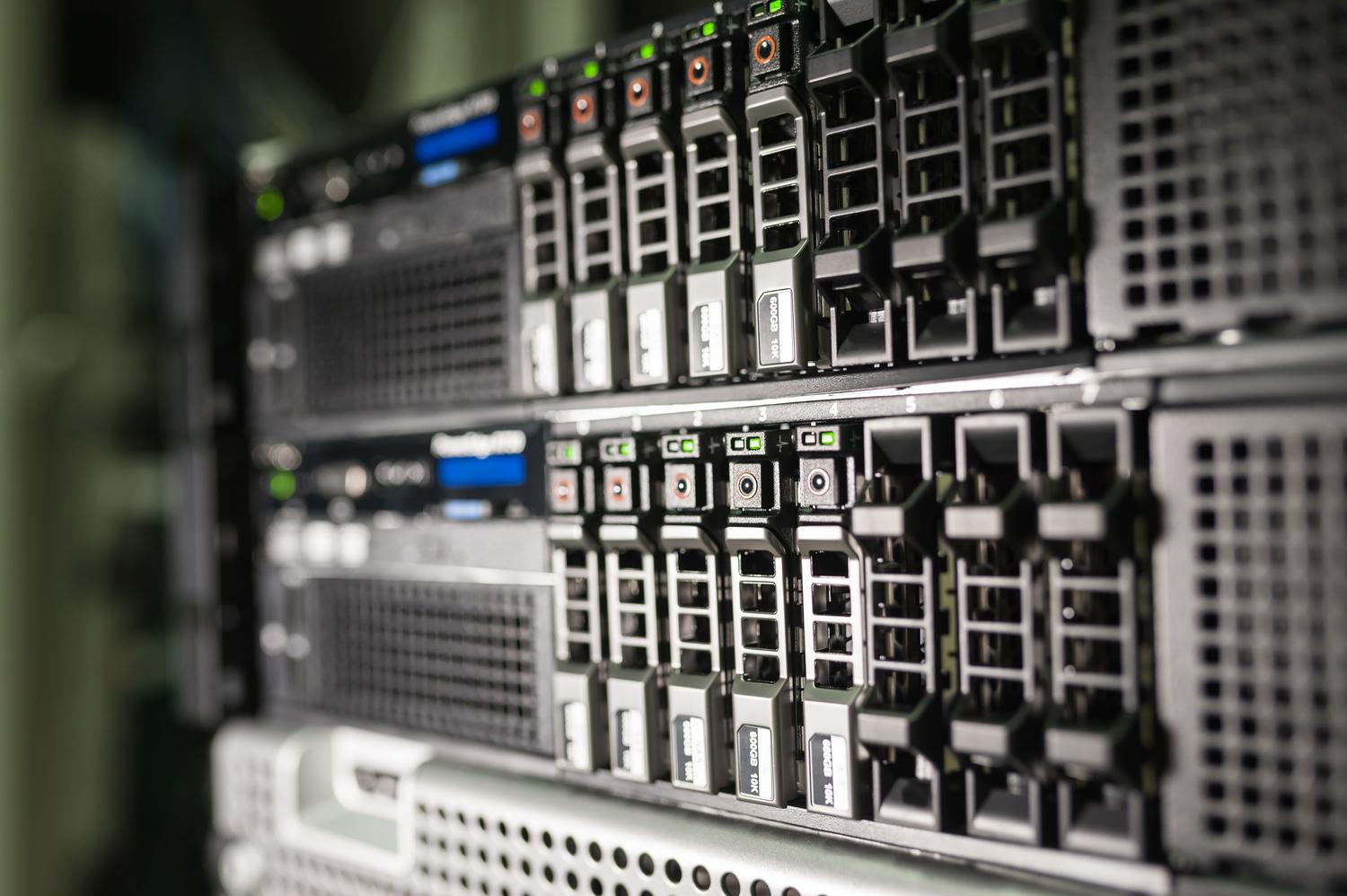
It's not all about the RAID level; the file system is the foundation upon which everything rests. ZFS is currently the gold standard, especially in TrueNAS, because it corrects silent data corruption using checksums and offers RAID-Z (an advanced version of RAID 5 and 6). If you want to delve deeper, you can read our comprehensive guide on ZFS and Btrfs . Other systems like Btrfs or EXT4 are very reliable and common in commercial NAS devices like Synology or QNAP, offering stable performance and good compatibility.
To prevent system failure, maintenance is crucial. Enabling SMART alerts is essential to anticipate disk failure. If you use ZFS, schedule regular scrubs to verify data integrity. A common mistake is mixing disks of different brands or capacities; while technically possible, the system will adapt to the smallest disk, wasting space.
Tips for avoiding technical disasters
Be careful with SMR (Shingled Magnetic Recording) drives. They're cheaper, but in a RAID array, especially during RAID 5 or 6 rebuilds, they can cause problems due to their slow write speeds, even leading to volume collapse during regeneration. The best option is to buy NAS-certified drives with CMR or PMR technology.
Another aspect is hot swapping . If your NAS allows it, you can remove a failed disk and install a new one without shutting down the system. If you have a spare disk configured as a hot spare , the rebuild process starts automatically upon detecting the failure, shortening the risk phase in degraded mode.
To choose the best option, consider whether you need the power and stability of a physical controller in a professional environment, or the simplicity and low cost of software for home use. Whether you want maximum speed with RAID 10 or complete protection with RAID 6, the key is to combine redundancy with external backups and constant disk health monitoring for peace of mind.


Passionate writer about the world of bytes and technology in general. I love sharing my knowledge through writing, and that's what I'll do on this blog, show you all the most interesting things about gadgets, software, hardware, tech trends, and more. My goal is to help you navigate the digital world in a simple and entertaining way.