
One of the advantages Word has over other word processors is that it offers a variety of alternative options so users can view or present their documents in the most personalized way possible. One of these options is the ability to use different page colors in Word.
Although some users may not find it right to use different page colors in Word, the truth is that it can have some advantages for many people. This alternative can help differentiate different parts of a document or simply change the aesthetic appearance of a document in Word.
Whatever your reason for doing this, the good news is that it is possible to not only change the color of all pages in an entire document, but also to change the color of a specific page.
How to put different page colors in Word
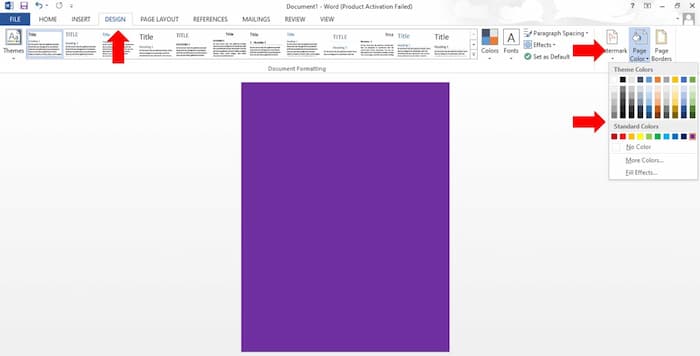
The most common and easiest way to achieve this effect is to change the overall color of an entire Word document. This option will make all pages in the same document be the color you choose.
To set different page colors in Word so that this change affects the entire document, you just need to follow these steps:
- Go to the tab Design (for Word 2013, 2016, and 2019 or Office 365). If you have Word 2010 or an earlier version, you won't see the Design tab. Instead, you need to go to the Page design.
- In the Page Background group, click Page color.
- The color palette will appear with many colors. Select the color you want to apply to the pages.
- As soon as you select the desired color, all pages in the document will change to the color you choose.
By following these simple steps you can easily change the color of an entire document, but you must keep in mind that this change will affect the entire document, so each of the pages you work on will take the color you have chosen.
Using standard colors and more colors
As for the Page Color palette, there are two categories of colors: The Theme Colors category and the Standard Colors category.
- Use the colors of theme colors if you want the background color of your page to vary when you change the document theme.
- Use the group colors Standard colors if you don't want your page background to change when you change themes.
- Use the option More colors If you can't find the color you want in the Standard Colors category. This will bring up the Colors dialog box with more different colors for you to choose from.
How to put different colors on a single page in Word
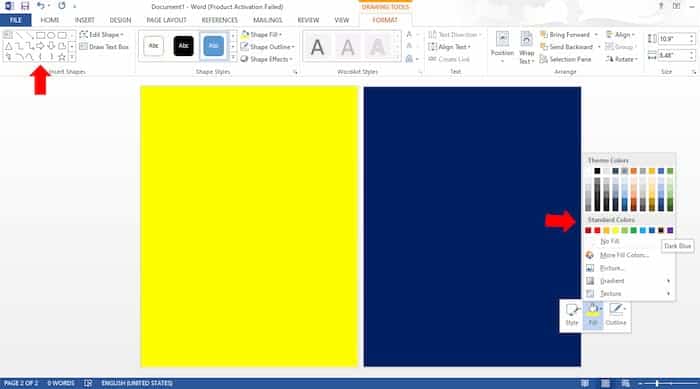
Another option you can try if you want to put different page colors in Word is to change each page to a different color. Although there is no direct way to put a different color on just one page, this is possible by following these steps:
- To put different page colors in Word on a single page, you must use the rectangle drawing tool. To do this, go to the page you want to change, Insert, Shapes and choose the rectangle.
- Using your mouse, draw the rectangle so that it covers the entire page you want to change.
- Once the rectangle has been drawn so that it encompasses the entire page, right click on the shape and go to Format Shape & Fill.
- En Filling, choose the color you want on your page.
- You will see that the shape changes color but hides the pre-existing text. To change this, select the shape again with the right mouse button and pause the cursor on the option Send Back.
- By doing this you will see a marked option Send Behind Text. Select this option. This will cause the shape and its color to be placed behind the text on the page.
How to change the half page color in Word
You might also want to color half a page in Word . This need often arises when you want to design something like a flyer or brochure in Microsoft Word.
Since there is no page layout feature that can allow you this option, you can creatively use the shapes method to design and apply different colors to a single page.
To add color to half a page in Word, the procedure is similar to the one described above. You need to insert a rectangular shape using the Insert tab. Then resize the shape to fill half the page . Now change the color of the shape and also make sure to use Wrap Text > Behind Text so that the text appears over the color.
Don't miss: 8 Best Office Software Programs
Print Colored Pages in Word
As you can see, setting different page colors in Word is something you can do very easily for both the entire document and a single page of it. However, you should know that Word will not automatically print those colors in the documents so you must change the printing settings if this is what you want.
The steps you must follow to have your document printed with the colors you have chosen are as follows:
- Go to the File button in Word.
- Click Options.
- Once in that pop-up window, choose Show.
- In that menu you must make sure that in the printing options the boxes for printing drawings and Word background colors are activated.
- This way, when you print your document, any of the changes we have shown you about adding different page colors in Word can also be displayed in your physical document.
Final words
Using different page colors in Word can be a fun way to create or read a document, especially for people who use color as a learning tool. While the process might take a little longer depending on your goals—whether you want to apply a color to the entire document or just a single page—it's certainly not overly complicated.
Let your imagination run wild and turn your Word documents into something fun and colorful as you work. And if you want your changes to be printed in your document, make sure to pay attention to the printing options as we have explained.

My name is Javier Chirinos and I am passionate about technology. Ever since I can remember, I have been interested in computers and video games, and that passion has turned into a job.
I have been publishing about technology and gadgets on the Internet for over 15 years, especially in mundobytes.com
I am also an expert in online marketing and communication and have knowledge in WordPress development.