- Schtasks is the line interface of commands from the Task Scheduler and allows you to create, modify, run and delete tasks both locally and remotely.
- Key parameters such as /sc, /tn, /tr, /ru, /mo, /st or /d define what runs, with what permissions and with what frequency or trigger condition.
- Managing permissions and accounts (Administrator, SYSTEM, remote users with /uy /p) is critical for tasks to be created and executed correctly.
- Schtasks replaces the old AT command and offers a robust platform for automating maintenance, scripts, and recurring processes in Windows.
Schedule tasks in Windows with schtasks It's one of those things that, once you master it, makes you wonder why you've been doing repetitive tasks manually for years. Backups at odd hours, scripts you run every morning, services you have to restart after an outage… all of that can be automated with a simple command.
The schtasks command is command-line interface Windows Task Scheduler lets you create, modify, list, run, and delete tasks on both your own computer and remote machines on the network. Let's take a closer look, with clear examples and explanations of each key parameter so you can get the most out of it, from simple automations to advanced scenarios involving users, permissions, and remote computers.
What is schtasks and what can it do for you
Schtasks.exe is the console tool which Windows uses to communicate with the Task Scheduler. Thanks to it, you can define that a program, script The command will be executed automatically at a specific date and time or on a specific schedule, without having to touch the graphical interface.
With schtasks you can schedule recurring tasks (every X minutes, hours, days, weeks, or months), tasks that are launched when the system starts, when a specific user logs in, when the computer is idle, or even in response to system events. Additionally, you can launch tasks under different user accounts (including the SYSTEM account) and on remote computers.
The basic operations of schtasks They are grouped into six main subcommands, which are the ones you will use 99% of the time:
- schtasks change: modifies properties of an existing task (program to run, user, password, interactive mode…).
- schtasks create: creates a new scheduled task.
- schtasks delete: deletes a task from the scheduler.
- schtasks end: stops the program that is running a task.
- schtasks query: displays the team's scheduled tasks.
- schtasks run: forces the immediate execution of a task that has already been created.
Behind these operations there are a lot of parameters To define the frequency, start and end dates, the user under whom the task is executed, the remote team, delays, duration, privilege levels, etc. We break them down for you right below.
Permits required to work with schtasks
Before you start creating tasks like crazyIt's important to be clear about what permissions you need, because otherwise you'll end up with tasks that are created but not executed, or that fail silently.
On the local team, to manage all tasks To view, create, modify, and delete tasks, you need to be an Administrator. A standard user can create their own tasks in some cases, but if you want full control over the system, do so from an account with administrative privileges.
In remote teams, things are similar.The account you use must be an Administrator on the remote computer. You can run the command from your computer and use the parameter. /s to indicate the destination team and /u y /p to provide administrator credentials for that machine or domain.
The /u parameter only works correctly This happens when the local and remote computers are on the same domain or on domains with configured trust. If there is no trust relationship, the remote computer cannot authenticate the account you provide, and the task will be misconfigured or empty, even though it appears to have been created.
In addition, the task itself must have sufficient permissions to do what you ask. By default, tasks are run under the current user or the one you specify with /uIf you want them to launch with another account or directly with system permissions, you must use the parameter / ru (Run As User) and, normally, /rp to enter the password.
General syntax of schtasks and key parameters
The syntax of schtasks is quite extensiveHowever, it always follows the same pattern: a subcommand, followed by parameters that define what, when, where, and with what permissions the task is executed. The general format for creating tasks is:
schtasks /create /sc <tipo_programación> /tn <nombre_tarea> /tr <comando_o_programa>
The fundamental parameters when creating a task are the following:
- /sc: type of programmingTypical values:
- MINUTE: every N minutes.
- HOURLY: every N hours.
- DAILY: every N days.
- WEEKLY: every N weeks.
- MONTHLY: every N months.
- ELEVEN: a single execution.
- ONSTART: in each Boot of the System.
- ONLOGON: when a user logs in.
- ONIDLE: when the system has been inactive for X minutes.
- ONEVENT: in response to a specific event in the log.
- /tn: Unique task name. Can include folder path (for example,
"MiCarpeta\BackupDB"). Maximum 238 characters. - /tr: Full path to the executable, script, or .bat file to be executed. If you do not specify a path, it will be assumed.
%SystemRoot%\System32Maximum length 262 characters. - /s: remote computer (name or IP). If you don't use it, you're acting on the local computer.
- /or: credentials with which the schtasks command itself is executed (for remote programming).
- /p: password of the user indicated in /uIf you don't provide it, the console will ask for it.
- /ru { | system}The account under which the task will be executed. You can use a domain user, a local user, or the account System.
- /rp: password for the account indicated in / ruIt is not used with
/ru Systembecause the SYSTEM account does not have a password. - /mo: frequency modifier within the programming type (how many minutes, hours, days, weeks or months).
- /d: specific day or days for WEEKLY or certain modes of MONTHLY (for example,
/d MON,FRI). - /m: specific months (JAN-DEC or * for all).
- /st: start time in 24-hour format (
HH:MM). - /et o /du: end time or maximum duration for schedules by minutes/hours.
- /sd y /ed: start and end dates according to the system's regional settings.
- /Item: makes the task run only if the execution user is logged in interactively.
- /np: does not save password; the task runs non-interactively and only with local resources.
- /z: automatically deletes the task when the schedule ends.
- /rl: privilege level (LIMITED or HIGHEST).
- /f: forces the creation or modification, overwriting without asking for confirmation.
There are more advanced parameters (XML, backward compatibility, delays with /delay(HRESULT codes, etc.), but with the above you can cover virtually any standard scenario.
Schedule tasks with different frequencies
One of the strengths of schtasks It's the flexibility in defining the frequency. You can adjust from executions every few minutes to releases on the last day of certain months or the second Sunday of each quarter.
For minute-by-minute schedules, it's used /sc minute. The modifier /B.C This indicates how often the task is launched in minutes. If you don't specify, the default value is 1 minute.
Example interval 20 minutes: schtasks /create /sc minute /mo 20 /tn "Security Script" /tr \\central\data\scripts\sec.vbs
Example with time slot: schtasks /create /tn "Security Script" /tr sec.vbs /sc minute /mo 100 /st 17:00 /et 08:00 /k
For scheduling is used /sc hourlyand again /B.C Indicates how often. For example, to run MyApp every 5 hours starting March 1st:
Example schedule for 5 hours: schtasks /create /sc hourly /mo 5 /sd 03/01/2002 /tn MyApp /tr c:\apps\myapp.exe
In daily schedules (/sc daily) you can use /B.C to space out the executions. For example, run MyApp every 12 days starting from a specific date:
Spaced daily example: schtasks /create /tn MyApp /tr c:\apps\myapp.exe /sc daily /mo 12 /sd 12/31/2002 /st 13:00
The weekly schedule is defined with /sc weekly, combining /B.C (interval of weeks) and /d (Days of the week: MON, TUE, WED, THU, FRI, SAT, SUN or *). For example, to launch MyApp every other Friday:
Weekly example (every 2 weeks): schtasks /create /tn MyApp /tr c:\apps\myapp.exe /sc weekly /mo 2 /d FRI
There are several options for monthly schedules:
- By a specific day of the month (1-31) with /sc monthly y /d.
- Per week and per day (FIRST, SECOND, THIRD, FOURTH + /d day) and optionally /m with the months.
- Last day of the month /mo LASTDAY y /m for specific months or * for all.
Monthly example (last day of specific months): schtasks /create /tn MyApp /tr c:\apps\myapp.exe /sc monthly /mo LASTDAY /m FEB,MAR /st 18:00
Special triggers: one-time, startup, login, and idle
You don't always want a recurring task.Sometimes you only need to run something once at a specific date and time. That's what the following type is for. /sc oncewhich requires a /st and, normally, a /sd:
Single execution example: schtasks /create /tn MyApp /tr c:\apps\myapp.exe /sc once /sd 01/01/2003 /st 00:00
The ONSTART type (/sc onstartThis makes the task run on every system startup, ideal for maintenance scripts, monitoring, or custom services:
Example OnStart: schtasks /create /tn MyApp /tr c:\apps\myapp.exe /sc onstart
ONLOGON (/sc onlogonThis executes the task when a user logs on. You can use it to launch environment scripts, mount network drives, start internal applications, and more. For example, on a remote computer:
Example remote OnLogon: schtasks /create /tn "Start Web Site" /tr c:\myiis\webstart.bat /sc onlogon /s Server23
ONIDLE (/sc onidle) triggers the task when the computer has been inactive for a period of time, which you define with /i in minutes. For example, to start MyApp when the device has been inactive for 10 minutes:
Example OnIdle 10 min: schtasks /create /tn MyApp /tr c:\apps\myapp.exe /sc onidle /i 10
Create tasks with specific privileges: alternate user and SYSTEM
A very powerful use of schtasks is to launch tasks with different accounts of the one you are currently using. You can, for example, schedule maintenance under an administrator account even if you are logged in with a limited user, or run processes with the SYSTEM account to have elevated permissions.
To run a task with a different user account the parameter is used / ru along with the password in /rpFor example, launching MyApp weekly on Tuesdays as Admin06 on the local machine:
Example /ru alternative: schtasks /create /tn MyApp /tr myapp.exe /sc weekly /d TUE /ru Admin06
On remote systems, /uy and /p control who schedules the taskWhile / ru Define under which account it will be executed. These are distinct concepts that should not be mixed:
- /u: credentials to run the schtasks command and create the task on the remote.
- / ru: account with which the task will be executed when the time comes.
Remote example with different accounts: schtasks /create /tn MyApp /tr myapp.exe /sc daily /mo 4 /s Marketing /u Marketing\Admin01 /ru Reskits\User01
If you want to use the SYSTEM accountwho has very high privileges, it is enough to specify /ru System Without a password. For example, to run MyApp on the 15th of each month as SYSTEM:
Example as SYSTEM: schtasks /create /tn MyApp /tr c:\apps\myapp.exe /sc monthly /d 15 /ru System
Note that processes running as SYSTEM They are not interactive: the user does not see windows or can interact with them. They are ideal for services, maintenance scripts, or system tasks, but not for opening applications visible to the user.
Manage existing tasks: change, run, list, and stop
Once you have tasks created, schtasks It offers several subcommands to manage them without opening the Task Scheduler graphical console.
To change properties of an existing task is used schtasks /changeYou can modify the program it runs, the user it runs on, the password, or set it to run only in interactive sessions:
- / tr: new executable or script.
- / ru: new execution account (user or SYSTEM).
- /rp: password for the account in /ru.
- /Item: marks the task as “only when the user is logged in”.
Example script change: schtasks /change /tn "OpenWebinarsSchedule" /tr C:\Users\OpenWebinars\Documents\Release\nuevo_script.bat
If you want to launch a task right nowignoring its programming, you use schtasks /runThis execution does not alter the next scheduled date:
Run immediately: schtasks /run /tn "OpenWebinarsSchedule"
To list the team's tasks is used schtasks /queryYou can get a simple list, a table, or a detailed list format:
schtasks /query→ basic list.schtasks /query /fo LIST /v→ detailed list, very useful for troubleshooting.
If a task is running a program that you want to stop, you have schtasks /endYou only need the name of the task:
Force task stop: schtasks /end /tn "OpenWebinarsSchedule"
And when you no longer need a taskYou eliminate it with schtasks /deleteYou can delete a specific task or all of them (carefully):
schtasks /delete /tn OpenWebinarsSchedule /f→ Delete that task without asking for confirmation.schtasks /delete /tn * /f→ Deletes all scheduled system tasks.
Persistence through scheduled tasks (technical and safety vision)
An advanced and delicate use of schtasks It involves creating tasks as a persistence mechanism: configuring a program or script to run periodically or at system startup, even if no one logs in. This is useful for legitimate administrators, but attackers also use it, so it's important to understand it well from the perspective of... ciberseguridad.
A scheduled task in Windows is simply a command This allows the system to launch a command, script, or executable at a specific time or with a certain frequency. If this task is defined with the SYSTEM account and a very short frequency, you can make a binary file run continuously even if someone closes it.
Example persistence (SYSTEM every N minutes): schtasks /create /ru "SYSTEM" /sc minute /mo <minutos> /tn "<nombre>" /tr "<comando>"
Breaking down the previous order:
- /ru «SYSTEM»: executes the task with the SYSTEM account, that is, with very high privileges.
- /sc minute: type of programming in minutes.
- /mo: repetition interval, for example 10 for every ten minutes.
- /tn « »: identifying name of the task, which can be disguised as something innocent if someone wants to go unnoticed.
- /tr « »: program or script to be executed (full path with arguments).
There are examples where schtasks are combined with tools like plink.exe to establish reverse connections, port tunnels, and the like, configured to relaunch periodically. From a defensive standpoint, periodically review the scheduled tasks with schtasks /query /fo LIST /v and the event viewer is mandatory to detect this type of use.
From AT to schtasks: why you shouldn't use AT anymore
For years, Windows incorporated the AT command. to schedule tasks. In modern versions, this command is officially deprecated, and the console itself tells you this when you try to use it: “The AT command is deprecated. Use schtasks.exe instead.”
AT allowed programming simple commands specifying only the time, date, and the command to execute. For example, to copy documents to another drive every midnight:
Classic AT example: at 00:00 cmd /c copy C:\Documents\*.* J:\MyDocs
You could also list and delete AT tasks with variations of the same command (by ID, on remote machines, etc.). However, it didn't come close to having the flexibility, granularity of permissions, or advanced options that schtasks offers.
In Windows 10 and later, AT still exists It only works as a compatibility wrapper, but it returns messages that the request is not supported. If you're working with older versions of Windows where it still works, it's recommended to migrate your automations to Schtasks, which is the supported and much more powerful tool.
Schtasks versus the Task Scheduler graphical interface
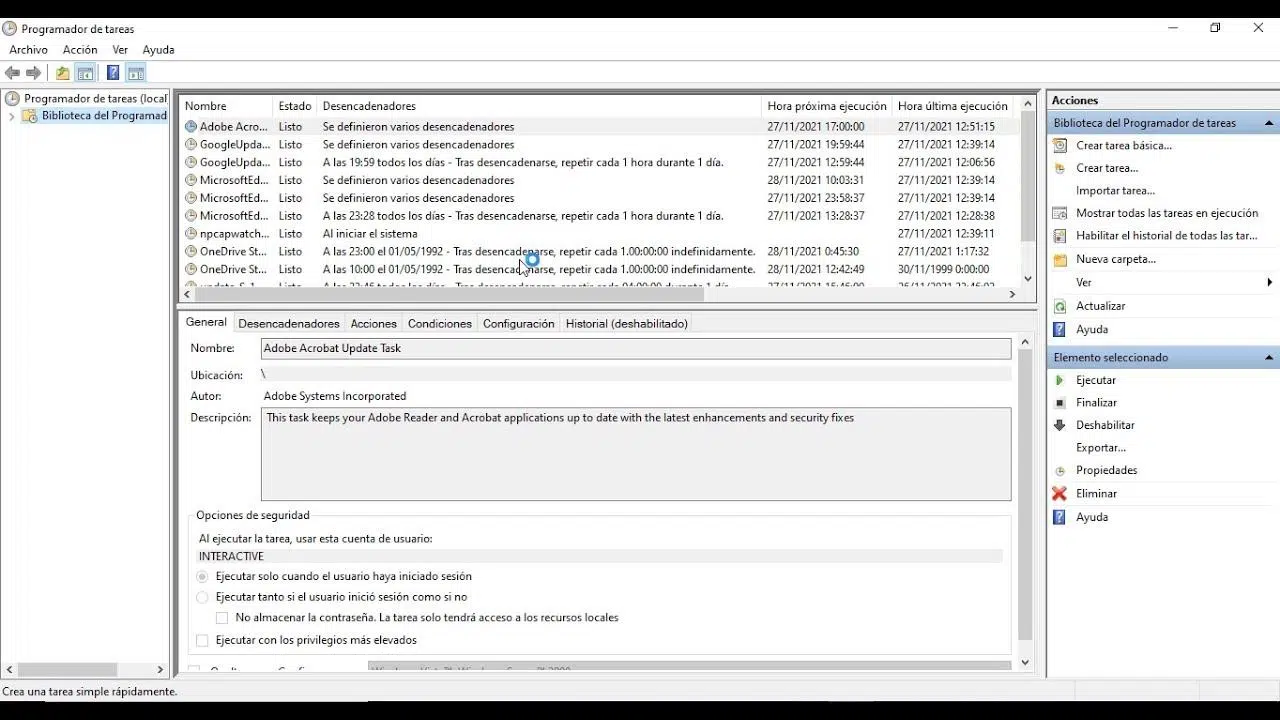
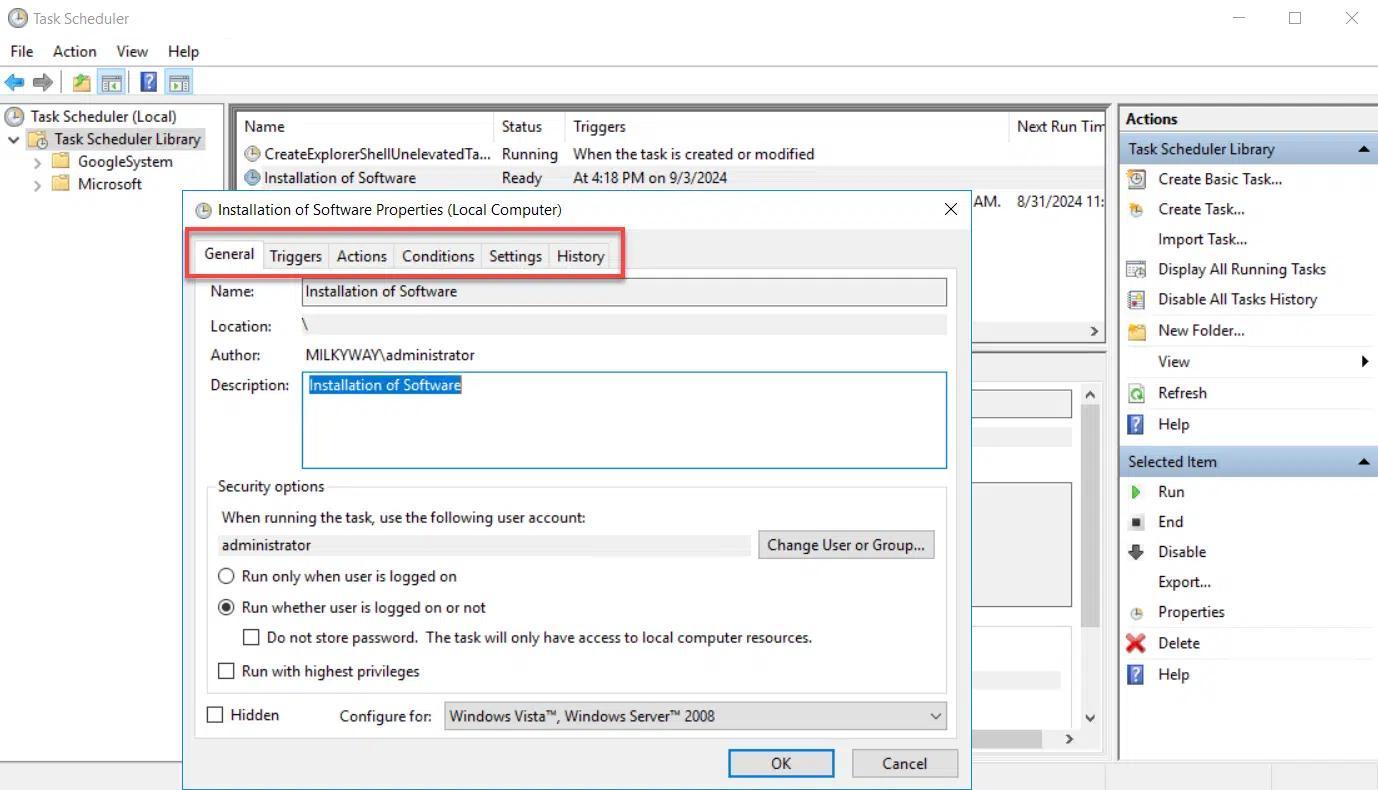
Everything that schtasks does can also be done from the Task Scheduler graphical console (opens) taskschd.msc from Run), but using the command line has clear advantages: you can automate deployments, generate reusable scripts, apply changes in bulk, or work against remote teams without sitting in front of them.
A very practical approach in mixed environments It's about combining both worlds: you create a base task from the graphical interface to understand all the settings, export it to XML, and then use schtasks with the parameter /xml to deploy copies by adjusting only what is necessary (user, dates, etc.).
You can also integrate schtasks into .bat or .ps1 scripts along with other maintenance tasks: cleaning logs, restarting services, launching backups or notifications, all triggered by a single scheduled task that calls a master script.
If you manage many machines or users, master schtasks and programs to automate tasks It will save you from getting up early to make manual backups, prevent you from forgetting things, and reduce the risk of human error by constantly repeating the same actions manually. It's literally teaching the system to do for you what steals your time every day.
A thorough understanding of schtasks, its programming parameters, and the interplay between /u, /ru, local and remote permissions It allows you to automate almost any routine in Windows accurately, safely, and reproducibly, letting the computer do what it does best: follow instructions to the letter 24 hours a day.

Passionate writer about the world of bytes and technology in general. I love sharing my knowledge through writing, and that's what I'll do on this blog, show you all the most interesting things about gadgets, software, hardware, tech trends, and more. My goal is to help you navigate the digital world in a simple and entertaining way.