- Offline file technology (CSC) allows working with UNC paths offline, but it depends on correct permissions on shared resources and NTFS.
- Many errors are due to partially inaccessible UNC paths, corrupted CSC caches, or poor Sync Center configurations.
- Group policies allow you to enable, disable, and fine-tune Offline Files per computer or user, including encryption, cache size, and behavior with slow links.
- Effective diagnostics combines Sync Center, OfflineFiles event logging, and WMI/PowerShell queries such as Win32_OfflineFilesItem.
When Windows offline files If things go wrong, the result is usually the same: angry users, laptops that are left "empty" outside the office, and administrators unsure where to begin. While it may seem like a secondary function, offline file caching is critical in many systems. offline environments with laptops and mobile profiles.
In this article you will find a guide very detailed for understanding, configuring, diagnosing and repairing problems We'll cover Offline Files, the Sync Center, and the CSC cache in various versions of Windows (especially Windows 7, 10, and 11). We'll address common issues like the system not returning to online mode or the Sync Center getting stuck on "Pending," and how to control the feature using Group Policy or audit it with PowerShell.
What exactly are offline files in Windows?
The characteristic of offline files It is a Windows client/server technology that allows the content of SMB shared resources to be copied and maintained in a local cache called CSC (Client Side Caching)Thanks to this, the system can simulate UNC paths even when the computer is disconnected from the corporate network.
In practice, the user accesses their network folders (for example, \\Server\Users\Nameas usual, but when there is no connection, Windows silently redirects access to the copy residing in the local cache. When the network becomes available again, the Sync center It compares changes between the server and the cache and synchronizes them automatically.
This technology is especially useful for laptops with roaming profiles or redirected folders (Desktop, Documents, Pictures, etc.). However, if enabled in folders shared by many users or on sensitive data (databases, shared departmental files) it can cause data conflicts, network overload, and duplicate copies throughout the organization.
For Offline Files to work correctly, the file server, the shared folder, and the Windows client must support the technology and have the offline file service activeIf the service is disabled on the client or the resource is not supported, the function will not come into play even if an attempt is made to force it.
Internal workings: MUP, SMB and CSC redirectors
In Windows Vista, Windows 7 and later versions, all requests to access remote file systems are routed through the Multiple UNC Provider (MUP)MUP receives a UNC route as \\Server\Resource\Folder and decides which network redirector (UNC provider) should be in charge: usually the SMB client (LanmanWorkstation), but it could also be others.
MUP sends an operation prefix resolution (IOCTL_REDIR_QUERY_PATH) to the appropriate redirector. This operation analyzes the UNC path and checks, step by step, the accessibility of each component: first \\Server, after \\Server\Resource$and so on. If any of those steps returns errors such as STATUS_LOGON_FAILURE o STATUS_ACCESS_DENIEDMUP marks the route as inaccessible.
Component client-side caching (CSC) It intercepts those requests that would otherwise be passed to the network redirector. If prefix resolution fails, but the route was previously marked as available offline, the CSC decides serve the data from the local cache instead of continuing to try to access the server.
This behavior explains many of the “weird” problems with offline files: the user can View some online network foldersHowever, those configured to work offline continue to be served from the cache even with a network available, which generates inconsistencies, synchronization conflicts, or a feeling of "outdated data".
Regarding performance, the Sync Center runs comparisons between the local directory list and the one exposed by the remote server via SMB (CIFS/SMB/SMB2/SMB3). Windows file servers that use NTFS return directory entries sorted alphabeticallyHowever, many third-party servers, or those that work on file systems like FAT32, return unordered lists, forcing the client to perform more queries and seriously impairing synchronization speed.
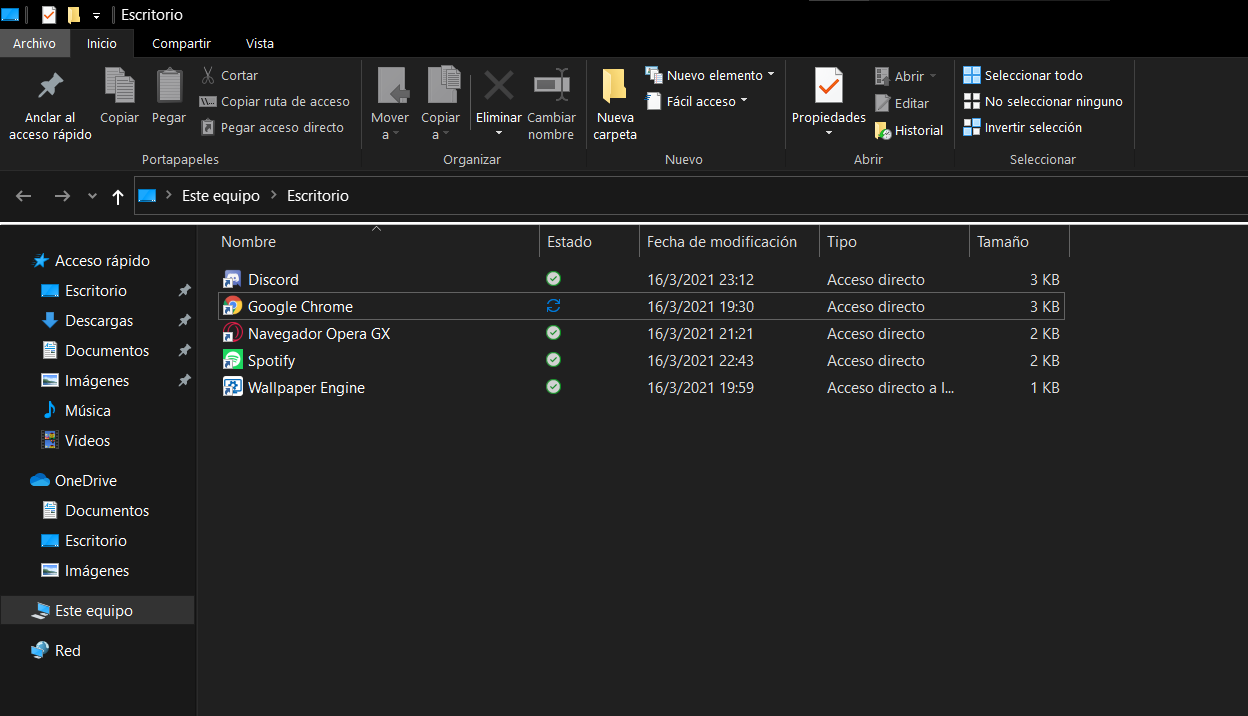
Typical problem: Windows does not return to online mode
One of the most talked-about flaws, especially in Windows 7 SP1The problem is that after switching to offline mode, the system doesn't automatically return to online mode when the network becomes available again. The user sees that the network connection is working and can access other shared resources, but items marked as "available offline" are still treated as if the machine were offline.
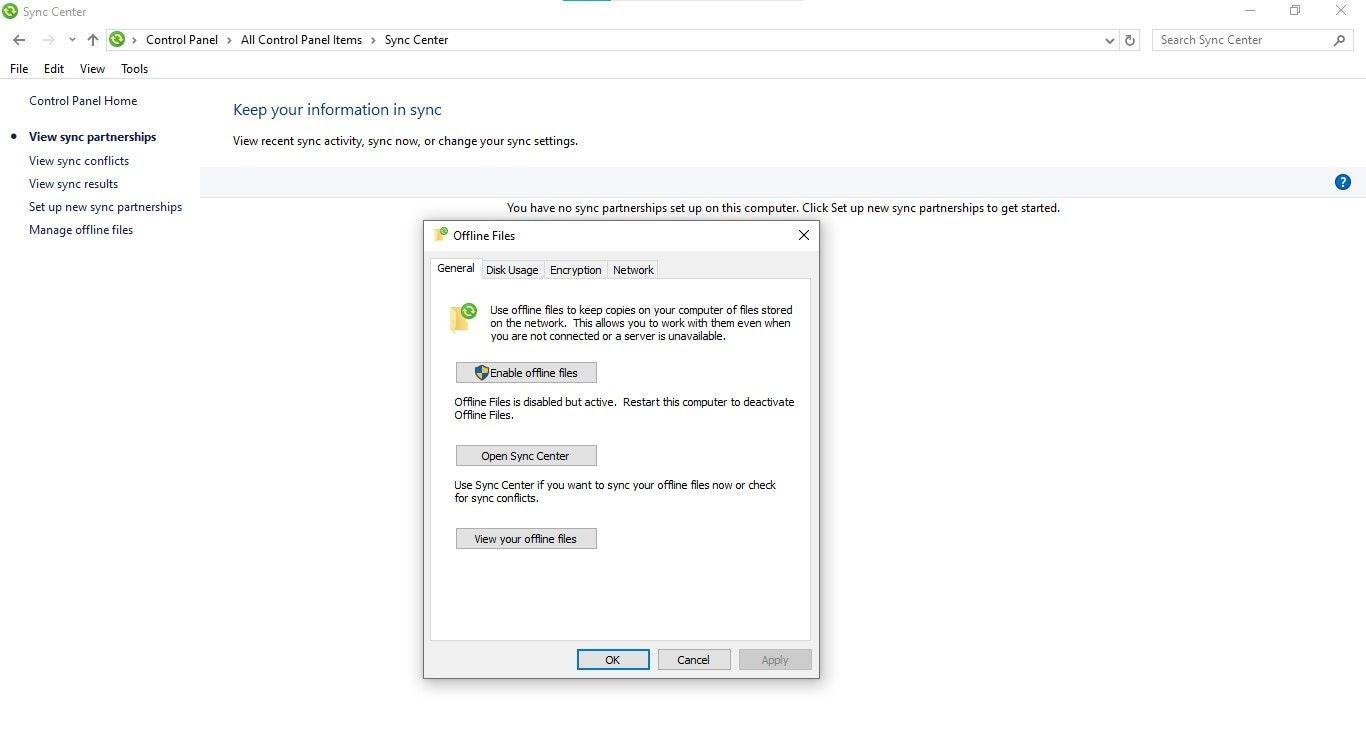
In these cases, the button to “Work offline / Work online” It may disappear from Windows Explorer after a transition, and the CSC cache remains offline until the next computer restart. To make matters worse, the Sync center It does not display updated information about the synchronization relationship and it is not possible to force a synchronization of the affected UNC path.
The typical symptom is that the user opens a shared folder and finds that Some network resources are online They work, but those configured to be available offline are always displayed from the local cache. You can create new files or modify existing ones, but those changes They are not uploaded to the server and remain only on the laptop's hard drive.
One scenario that triggers this behavior is when a shared resource is provided in the form \\ServerName\ShareName$\dir1\dir2, in which the user has sufficient permissions in the subfolders dir1 y dir2but does not have permission to view the contents of the root share ShareName$.
In that context, when analyzing the UNC path, Windows successfully checks \\ServerNamebut it fails when it tries to validate \\ServerName\ShareName$ due to a lack of permissions at that level. This denial causes the remote operation to be marked as erroneous, and by design, CSC returns the cache contents if the route had been previously synchronized.
Recommended permissions on shared resources and NTFS
The solution to these types of problems involves checking that the user can travel each section of the UNC route with sufficient minimum permissions, both at the SMB share level and NTFS permissions. For a path like \\ServerName\ShareName$\dir1\dir2, where the user synchronizes the subfolder dir1The security must be adjusted carefully.
In the offline file share (for example, ShareName$), the usual recommendation is to remove the group "Everybody" of sharing permissions, and use a security group that includes the users who actually need to use that resource to grant permissions Change or higher. This avoids unnecessary exposure, but ensures that anyone with access to the subfolders can resolve the UNC prefix without errors.
At the NTFS level in the root folder of the shared resource, entries like the following are usually established: CREATOR OWNER with full control over subfolders and files, SYSTEM with total controland a security group for users with permissions to “Show folder/read data” on this folderThe "Everyone" group is left without permissions to strengthen security, and administrators can have direct access or delegate to specific groups according to the organization's policy.
In the specific user's subfolders (for example, dir1 and dir2), it is usual to grant the owner user permissions to Reading and writing, keep SYSTEM with total controland remove unnecessary permissions for "Everyone" and, in many environments, for "Administrators" on the contents of each user folder, depending on the privacy policy and technical support.
If these permissions are not aligned, MUP may mark the path as inaccessible due to access denial at the share level, and Offline Files will continue to serve data from the cache without returning to online mode, resulting in failed or missing synchronizations.
Sync center stuck on "Pending" and corrupted CSC cache
Another classic mistake is the Synchronization center remaining eternally in "Pending" state For Offline Files associations. There's no clear error; the interface offers few clues, and the user only sees that it never finishes syncing.
This type of problem usually points to a damaged or inconsistent CSC cacheOne effective (though somewhat drastic) way to fix this is to disable the offline file feature and completely clean the folder. C:\Windows\CSC and re-enable the function so that the cache is regenerated from scratch.
The typical procedure would be something like this: first, Disable offline files from the Sync CenterThe computer is restarted to stop the service, and then ownership of the folder is taken. C:\Windows\CSC, since by default it is protected and belongs to the system.
To take ownership, you can use the "Take Ownership" context menu if it was added via the registry, or use the command line with administrator privileges and run something like this: takeown /f «c:\windows\csc» /r /a /dyFollowed by icacls «c:\windows\csc» /grant Administrators:(F) /t /l /qThis grants the administrators group full control over the entire structure.
Once access is secured, it is advisable back up the CSC folder in case the user has unsynchronized data that needs to be recovered manually. Afterwards, it's important to delete the entire folder C:\Windows\CSC And not only its contents; if the folder is left with incorrect ACLs, the system may get stuck in "Pending" again. After deletion, offline files are reactivated in the Sync Center, and the system restarts to regenerate the cache structure.
In more complicated cases, when the CSC folder cannot be deleted even after changing permissions, tools such as PsExec (SysInternals) to open a console as the system account (SYSTEM) and use rmdir /s on the internal folder (for example, C:\Windows\CSC\v2.0.6Another alternative is to boot into the Windows Recovery Environment (WinRE), go to the command prompt, and rename the CSC folder (for example). ren csc csc1) and create a new empty one with md csc.
Slow performance when syncing with non-Windows servers
It's possible that offline file synchronizations may occur. take much longer than normal when the underlying file server is not a classic Windows Server (e.g., third-party NAS or Linux servers with Samba) or when the underlying file system is not NTFS.
The reason is that the Sync Center bases much of its logic on comparing the local content list with the one returned by the server via SMB. Microsoft servers that use NTFS They return the directory entries already sorted alphabetically., which allows the client to efficiently compare data.
However, many file systems They do not maintain organized internal listsThis doesn't work in third-party SMB implementations or other formats like FAT32. In these scenarios, the Windows client receives unorganized directories, forcing it to perform more queries to both the local file system and the remote serverespecially when there are hundreds or thousands of files with long names and the sorting disorder is large.
The larger the volume of files and the more disorganized the listings returned by the server, the more the number of operations required to determine what has changed and what hasn't increases. While this doesn't cause integrity errors, it does result in... very slow synchronizations and a notable impact on the user experience.
To mitigate the problem, it is recommended divide the data into smaller folders (either by reducing the number of files per directory or the size of the names) and, where possible, tidy up or restructure the underlying file system so that file creation follows a less chaotic pattern, helping the client to avoid making so many queries.
Control offline files with group policies (GPO)
In corporate environments with Active Directory, the most sensible thing to do is Control Offline Files using GPOThis applies at both the equipment and user levels. It allows for precise control over who can use the feature, on which devices, and how it behaves in the event of slow connections, disconnections, or certain types of files.
A common strategy involves separate the “Enabled” and “Disabled” policies to be able to assign them to different Organizational Units (OUs). For example, you can create an OU called “Computers” and, within it, subfolders for “Laptops” and “Workstations”. A GPO is applied to laptops that enables offline files, and a GPO is applied to office workstations that disables them.
The main options are found in the administrative templates under Computer Configuration > Policies > Administrative Templates > Network > Offline Files, where the global usage of the feature can be adjusted using the directive “Allow or deny the use of the Offline Files feature”Setting it to "Disabled" completely turns off the service, and the user cannot modify it from the Sync Center.
At the user level, in User Configuration > Policies > Administrative Templates > Network > Offline FilesAspects such as the default action when the connection is lost, which extensions should not be cached, and the execution of synchronizations at login and logout are controlled. To limit access to certain people, a specific security group (for example, “Users with offline files”) and use GPO security filtering, removing “Authenticated Users” and adding only that group.
When configuring user folder permissions on the server, you must ensure that the security group used in the GPO has the appropriate permissions in NTFS: show folder/read data, create folder/append data and read permissions on the root folder; while SYSTEM, CREATOR OWNER and administrators maintain full control where appropriate, following best practices for roaming profiles and redirects.
Advanced customization of Offline Files by policy
Beyond enabling or disabling the feature, GPOs allow fine-tune the behavior of offline files to adapt it to different scenarios. Some of the most useful options that an administrator typically configures in production are:
Define the action upon disconnecting from the serverThis feature automatically switches the device to "Work Offline" mode when it detects a loss of connection. This prevents the user from having to watch network errors and ensures they can continue viewing their files from the cache without interruption.
Configure a list of “uncached files”which includes problematic extensions such as *.mdb, *.dbf or other types of databases They don't handle disconnected copies well. Marking them so they never synchronize greatly reduces the risk of corruption and conflicts.
Enable the option “Encrypt offline file cache” mandatory. This way, even if the laptop is lost or stolen, the information stored in the CSC cache remains encrypted and cannot be easily read without the user's credentials.
Force synchronization of All files are available offline both when logging in and when logging out.This ensures that changes made outside the corporate network are sent to the server as soon as the user reconnects, reducing the time during which discrepancies exist between the local and remote copies.
Adjust the maximum cache size This is done using the "Default cache size" directive, where the value is specified as a percentage with two decimal places (e.g., 2550 for 25,50%). It's important to consider the actual capacity of the laptop's hard drive and the volume of data you intend to keep offline.
Users with slow connections or who are always out of the office
There are user profiles that almost never access the corporate network with a good connection, or that almost always connect via VPN with low bandwidthIn these cases, it may be useful for them to work always in offline mode and that synchronization only occurs at specific times or under certain conditions.
Directive “Configure low-speed link mode” It allows defining specific shared resources that, for the system, should be treated as if they were always on a slow link, establishing parameters such as Latency=1 to force the consideration of that route as a slow connection in Spanish or English systems.
Combined with this, the option can be enabled “Enable file synchronization on estimated networks”so that automatic synchronization is more bandwidth-friendly and doesn't flood weak mobile or Wi-Fi connections with file update traffic.
With the correct combination of these policies, it is possible to ensure that the user always works from the local copy, and that their changes are synchronized when the machine detects a better connection, reducing waiting times and complaints about slowness.
Troubleshooting: Sync Center, Event Viewer, and PowerShell
In the event of any unusual behavior with Offline Files, the first point of reference should always be the Sync centerFrom there you can review errors, conflicts, and the status of each association synchronization. It is possible to launch manual synchronizations, both global and on a specific folder or file, which helps to reproduce failures on demand.
When the Sync Center doesn't shed enough light, the next step is to go to the Events viewer, in the route Application and Services Logs > Microsoft > Windows > Offline Files > Operating SystemThis log stores a history of operations, errors, and warnings issued by the offline file component, which is very useful for identifying recurring patterns or specific error codes.
In large environments, where there are dozens or hundreds of potentially affected computers, it is practical to use PowerShell and WMI to collect information on a massive scale. The class Win32_OfflineFilesCache It allows you to check if the offline file cache is enabled and active, but it falls short if we want to know which specific items are being synchronized.
To delve deeper, you can use the class Win32_OfflineFilesItemThis returns a detailed listing of everything that is part of Offline Files on a computer. Each entry includes a property ItemType which indicates whether it is a server (3), a shared resource (2), a directory (1) or a file (0), allowing you to quickly filter out those computers that are actually synchronizing files and not just have remnants of old associations.
This information is especially useful when preparing, for example, a script that automatically disables Offline Files using a local GPO on devices where the function is not actually being used. If a device only has "server" or "share" items without files (type 0), it can be considered safe to disable the feature without risk of losing user data.
As you can see, offline files are a powerful tool for maintaining the productivity of users working outside the corporate network, but they are also a common source of headaches when server permissions are not properly configured, the CSC cache is corrupted, or group policies haven't been carefully defined. Understanding how MUP works, knowing how to read the OfflineFiles event log, having a clear grasp of UNC permission best practices, and mastering GPO and PowerShell options makes all the difference between a stable infrastructure and one where users lose confidence in their own data.

Passionate writer about the world of bytes and technology in general. I love sharing my knowledge through writing, and that's what I'll do on this blog, show you all the most interesting things about gadgets, software, hardware, tech trends, and more. My goal is to help you navigate the digital world in a simple and entertaining way.