- GPU passthrough (vDGA/VMDirectPath I/O) in VMware maps a full physical GPU to a VM to achieve near-native performance.
- Its use requires strict requirements of hardware (VT‑d/AMD‑V, IOMMU, MMIO 64‑bit) and EFI/UEFI firmware on the virtual machine.
- Enabling vDGA results in the loss of key vSphere features such as vMotion, DRS, and snapshots on the VM using the GPU in passthrough mode.
- Compared to vGPU and other solutions, vDGA prioritizes dedicated performance over flexibility and the ability to share the GPU between multiple VMs.
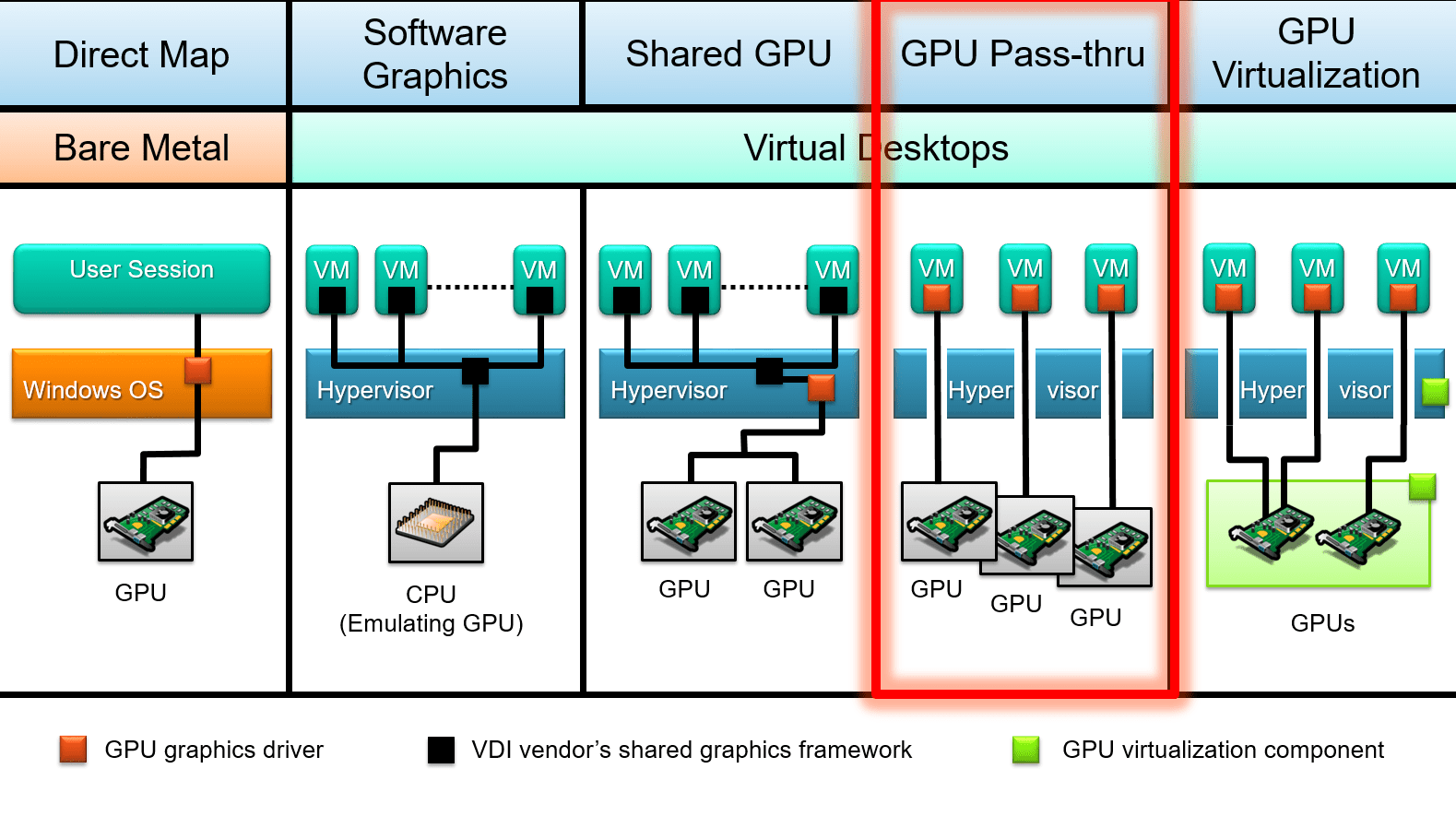
Connecting a physical GPU directly to a virtual machine in VMware It's one of those changes that makes all the difference when working with heavy graphics loads. IA or 3D rendering. Switching from an emulated graphics card to a direct access via passthrough (vDGA / VMDirectPath I/O) can bring the VM's performance closer to that of a physical machine, but in return it adds quite a few requirements and limitations that should be very clear before starting.
Furthermore, in the current ecosystem, several ways of using the GPU in virtualized environments coexist: Dedicated passthrough, shared vGPU, and technologies like BitFusion or GPU partitioningUnderstanding what each one does, in what cases it fits and how it is configured in vSphere/ESXi (and how it relates to similar technologies like Hyper-V DDA) is key to not getting into a dead end with the hardware or the chosen hypervisor version.
What is GPU passthrough (vDGA / VMDirectPath I/O) in VMware
GPU passthrough in VMware, also known as vDGA or VMDirectPath I/OThis is a mode of operation in which a physical graphics card installed in the ESXi host is directly assigned to a virtual machine. Instead of using a graphics adapter emulated by the hypervisor, the guest operating system sees the GPU almost as if it were plugged into a physical motherboard.
This shortcut allows the VM to take advantage all the power of the graphics chip, its video memory and advanced features such as CUDA, OpenCL, Direct3D, and OpenGL natively, with very little added overhead from the hypervisor. In VMware lab tests, a performance loss of around 4-5% is typically reported compared to running the same GPU in bare metal.
In practice, using GPU passthrough means that That card is completely dedicated to a single virtual machine.There is no fine-grained resource allocation between multiple VMs, nor is there a third-party software layer loaded onto ESXi to share the graphics card, unlike what happens with vGPU solutions such as NVIDIA GRID.
It is important to distinguish this approach from other ways of using GPUs in virtualization, such as NVIDIA vGPU (shared vGPU), RemoteFX/partitioning on Hyper-V or BitFusion-type solutions, which seek to distribute a GPU or a pool of GPUs among multiple machines with different virtualization or remote redirection techniques.
When we talk about vDGA in the VMware world, we are essentially describing this direct assignment of the GPU's PCIe device to the VM using VMDirectPath I/O, with all the good (performance) and bad (mobility and high availability restrictions) that this entails.
Advantages of using GPU passthrough in vSphere
The main reason for making the switch to vDGA is that The graphics and computing performance is very close to that of a physical computer.By omitting a large part of the virtualization layer for that PCIe device, the typical bottlenecks of the emulated GPU disappear and the VM can work with games, 3D applications or AI engines much more smoothly.
This is especially noticeable in scenarios where the integrated GPUs or the default emulated virtual graphics card fall far short: Advanced graphic design, CAD, 3D modeling and rendering, video editing, animation, and game developmentIt is also critical in training machine learning models and AI workloads that rely heavily on CUDA or equivalents.
Another clear advantage is the more flexible use of hardware at the data center level. Instead of having a physical workstation per user or per projectIt is possible to dedicate a well-sized ESXi host to several VMs, each with its own GPU in passthrough, and play with schedules or peak demand.
In certain environments, especially if servers with free PCIe slots are already available, the cost per user or per project It may be less than maintaining a fleet of powerful physical workstations, especially if the graphics card is not needed 24 hours a day and can be reconfigured according to periods of intense work.
Finally, there is also an indirect benefit in terms of security and operations: by maintaining graphics workloads within isolated virtual machinesIf something goes wrong (an exploit, a problematic driver, a bad configuration) it is easier to contain the impact, revert to a previous snapshot or restore from a backup, as long as the limitations of passthrough, which we will see later, are respected.
GPU passthrough versus vGPU and other alternatives
Within the VMware ecosystem, there are several ways to utilize a graphics card, and not all of them involve dedicating it entirely to a single VM. The most well-known are: vDGA / VMDirectPath I/O, vGPU (NVIDIA GRID or others) and remote access/computing solutions such as BitFusion.
In direct passthrough mode (vDGA), the GPU is allocated exclusively to a virtual machineCompute cores and VRAM are not shared between multiple VMs, and the hypervisor's role is virtually nonexistent beyond routing the PCIe device to the guest. It's the easiest option to understand and the one that most closely resembles a physical server with a dedicated graphics card.
In the vGPU approach, specialized software (for example NVIDIA GRID vGPU on VMware vSphereIt handles GPU virtualization at the controller level and exposes virtual instances of the GPU that can be assigned to multiple VMs simultaneously. Each guest machine sees a "slice" of the GPU with guaranteed or shared resources.
vGPUs allow multiple virtual desktops or servers to share a single graphics card, which is very useful in VDI, lightweight accelerated office environments, front-line graphic workstations in retail or hospitalityor scenarios where peak graphics usage is uneven across users. In return, there is some overhead, and the same peak performance is not achieved as with an entire physical GPU dedicated to a single VM.
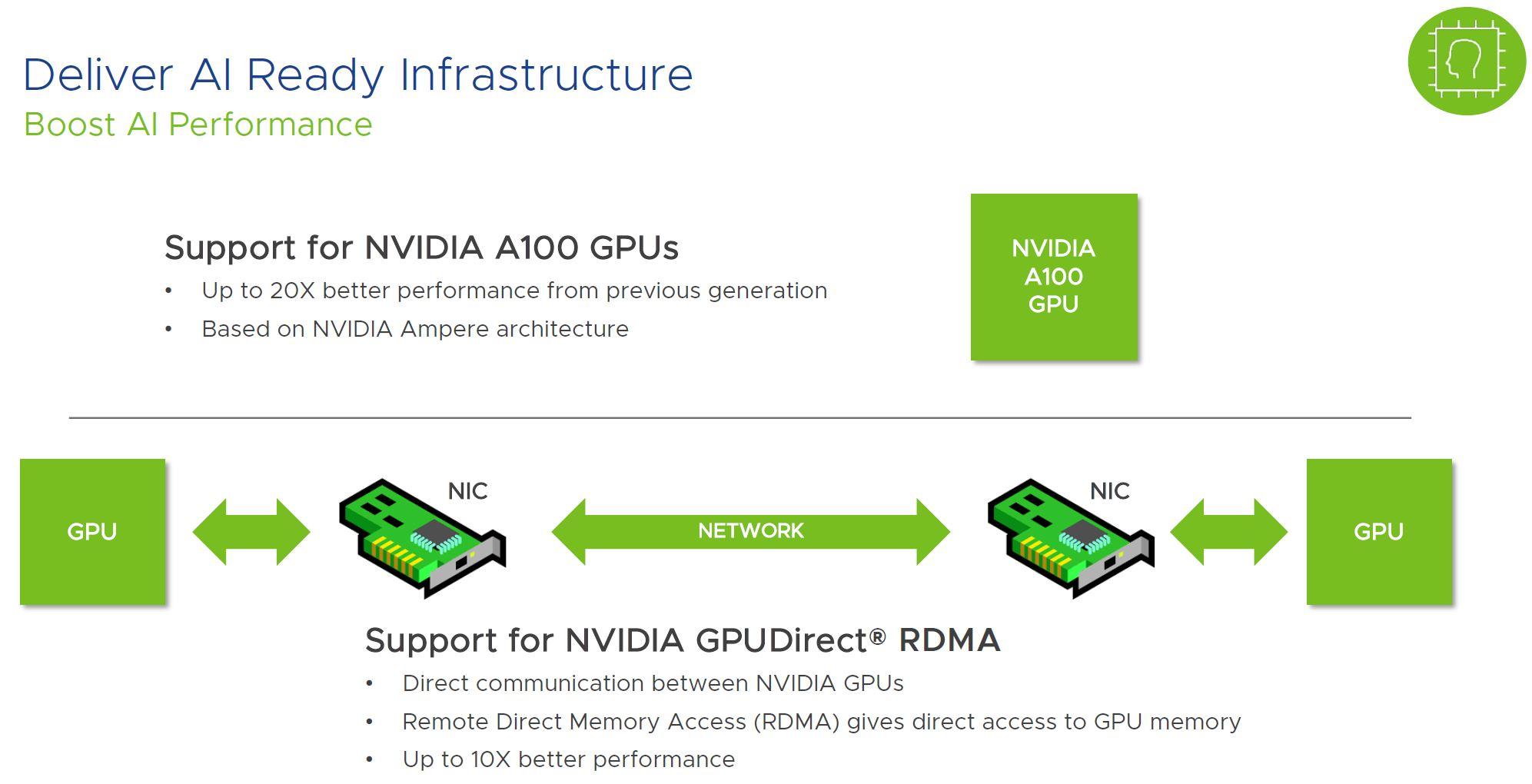
There are also solutions such as BitFusion Flexdirect and similar technologieswhich allow GPUs to be consumed over the network from different VMs, ideal for AI and HPC workloads where the GPU acts more as a remote computing resource than as a video card for the user's graphical interface.
Choose between vDGA, vGPU, or a remote GPU model It depends on whether you need to fully utilize a GPU for a single machine (passthrough), whether you want to distribute an expensive card among many users with medium workloads (vGPU), or whether the key is to orchestrate a pool of GPUs for distributed computing (BitFusion and similar).
Hardware requirements for using vDGA on ESXi
Before planning a GPU passthrough deployment in VMware, you need to make sure that the The hardware platform meets a series of conditions that go beyond "having a graphics card plugged into the server".
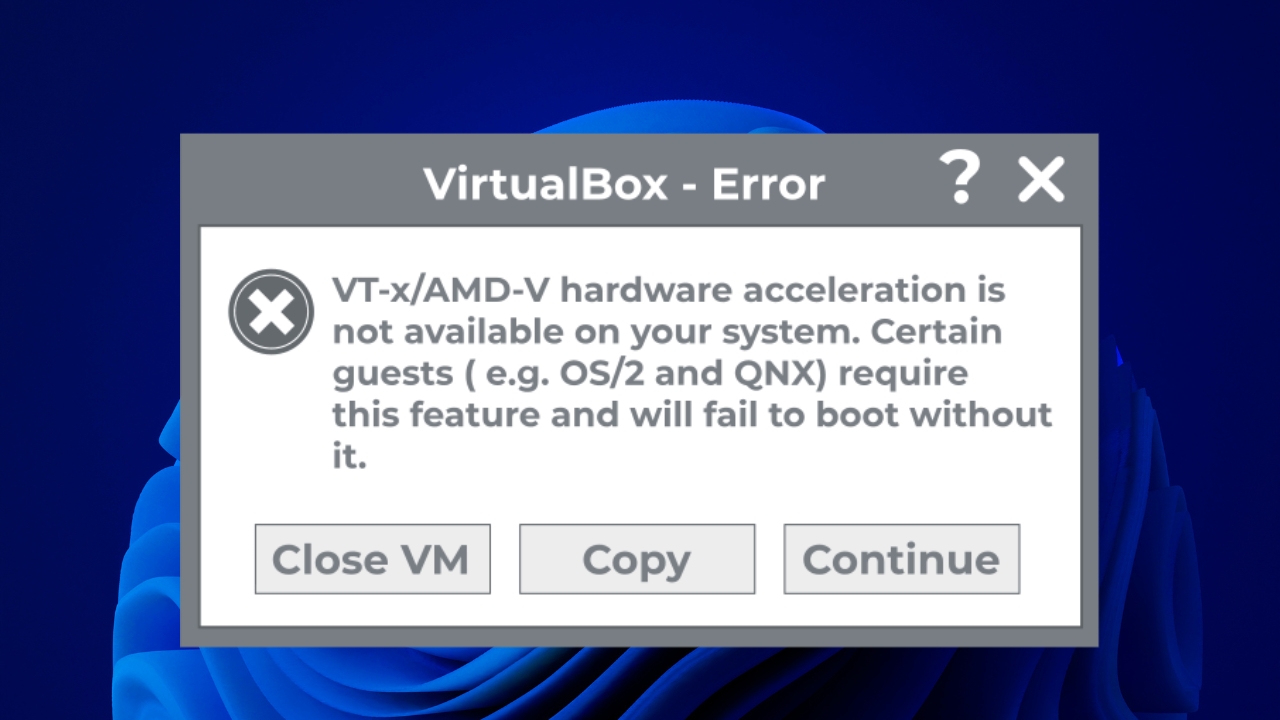
First, the ESXi host motherboard's processor and chipset must support virtualization with IOMMU. In Intel This is achieved through Intel VT-x plus VT-dy, and through AMD via AMD-V with IOMMU. The server's BIOS/UEFI usually has specific options for this. activate virtualization extensions of I/O.
Secondly, you need to check that the support plate MMIO memory mapping above 4 GB (sometimes labeled as “Above 4G decoding”, “memory mapped I/O above 4G” or similar). This is especially important with high-end GPUs such as Tesla, P100, V100 and equivalents, which declare very large memory regions in their BAR (Base Address Registers).
Some of these high-end cards can map more than 16 GB of MMIO spaceTherefore, in addition to playing the BIOSThen, certain parameters in the advanced VM settings in vSphere will need to be adjusted so that it can boot with that GPU without insufficient resources errors.
Of course, the GPU itself must be compatible with the server platform and be supported by the host manufacturer (Dell, HPE, Lenovoetc.) when used in passthrough mode. In practice, most modern PCIe GPUs work, but it's advisable to check compatibility lists, especially for GRID cards or very new models.
Software requirements and version compatibility
At the software level, it is important to be clear that VMware does support vDGA in vSphere 6.x and later versionsHowever, some users have reported specific problems with certain hardware combinations (for example, NVIDIA GRID GPUs in Dell R720 servers with ESXi 6.x).
In these cases, it is common to see errors such as “device is already in use” or symptoms that suggest that Passthrough stopped working after upgrading from ESXi 5.5 to 6.xwhen in reality it's about specific bugs, changes in PCI device management or drivers, rather than an official withdrawal of support.
The guest operating system that will use the GPU in passthrough must have official manufacturer drivers installed within the VM (NVIDIA, AMD, Intel), since ESXi does not load any specific driver for that card when using VMDirectPath I/O; the hypervisor simply exposes the device to the guest.
Additionally, the VM must be configured to boot in EFI or UEFI mode when using GPUs that declare large MMIO memory regions. This detail is critical: incorrect VM firmware can lead to failures Boot or that the GPU does not initialize correctly from the guest operating system.
On the client side, if access to the VM occurs through Remote desktop (RDP or other protocols)The appropriate policies will need to be activated so that the guest system uses the hardware graphics adapter in remote sessions and is not stuck with a generic driver without acceleration.
Configuring the ESXi host to use GPU in passthrough mode
The first practical step is to prepare the vSphere/ESXi server to expose the GPU as a DirectPath I/O deviceThis involves accessing the BIOS, checking the PCI inventory on the host, and marking the card so that it can be assigned to VMs.
If the GPU requires large MMIO memory regions (16 GB or more), you need to look in the server's BIOS/UEFI for options like “Above 4G decoding” or “PCI 64‑bit resource handling above 4G” and activate them. The specific name varies depending on the manufacturer, but it can usually be found in the PCI settings or advanced resources section.
Once ESXi is started with these settings, in the vSphere client you can go to the corresponding host and access “Configure → Hardware → PCI Devices → Edit” To view the list of detected PCI devices, you will see NVIDIA, AMD, or similar cards along with the rest of the server's PCI hardware.
If the GPU is not yet enabled for DirectPath I/O, simply check the box. passthrough box at your entrance within that list. When saving the changes, vSphere will prompt you to restart the host to apply the configuration, as the hypervisor needs to reserve and prepare the device to be reassigned to VMs.
After the restart, upon returning to the section “Configure → Hardware → PCI Devices” A window titled something like “DirectPath I/O PCI Devices Available to VMs” will be displayed, listing all the devices that have become available for use in virtual machines, including GPUs and, in many cases, advanced network adapters like Mellanox.
Preparing and configuring the virtual machine
With the host ready, the next step is to create or adapt the virtual machine that will use the GPU. The first thing is to make sure that the VM It has been created with suitable EFI/UEFI firmware., especially in scenarios with high-end GPUs and high MMIO.
In the vSphere client, simply select the VM, go to “Edit Settings → VM Options → Boot Options” and verify that "EFI" or "UEFI" is selected in the "Firmware" field. If it is not, it will need to be changed (and in some cases, the VM or operating system will need to be recreated if it does not support this hot-swapping).
When using passthrough with cards that map more than 16 GB of MMIO space, it is advisable to adjust some advanced parameters in the VM configuration, accessible from “Edit Settings → VM Options → Advanced → Configuration Parameters → Edit Configuration”There you can add keys related to pciPassthru to control how the address space is reserved.
Specifically, the use of 64-bit MMIO is usually enabled and a size is defined for that region, calculated from How many high-end GPUs will be allocated to the VM?The rule of thumb is usually to multiply 16 by the number of GPUs and round the result up to the next power of two (for example, two such GPUs would end up with 64 GB of 64-bit MMIO).
After adjusting these parameters, the installation is performed or it is verified that the The guest operating system supports EFI/UEFI and is capable of handling the memory size and GPU in question.At this point, the graphics card has not yet been connected to the VM; the environment is simply being prepared so that, when it is, everything will start without errors due to lack of resources or incompatible firmware.
Assign the GPU to the VM using VMDirectPath I/O
Once the host has marked the GPU as available for DirectPath I/O and the VM is configured correctly, it's time to physically associate the card with that virtual machineThis step must be done with the VM completely powered off.
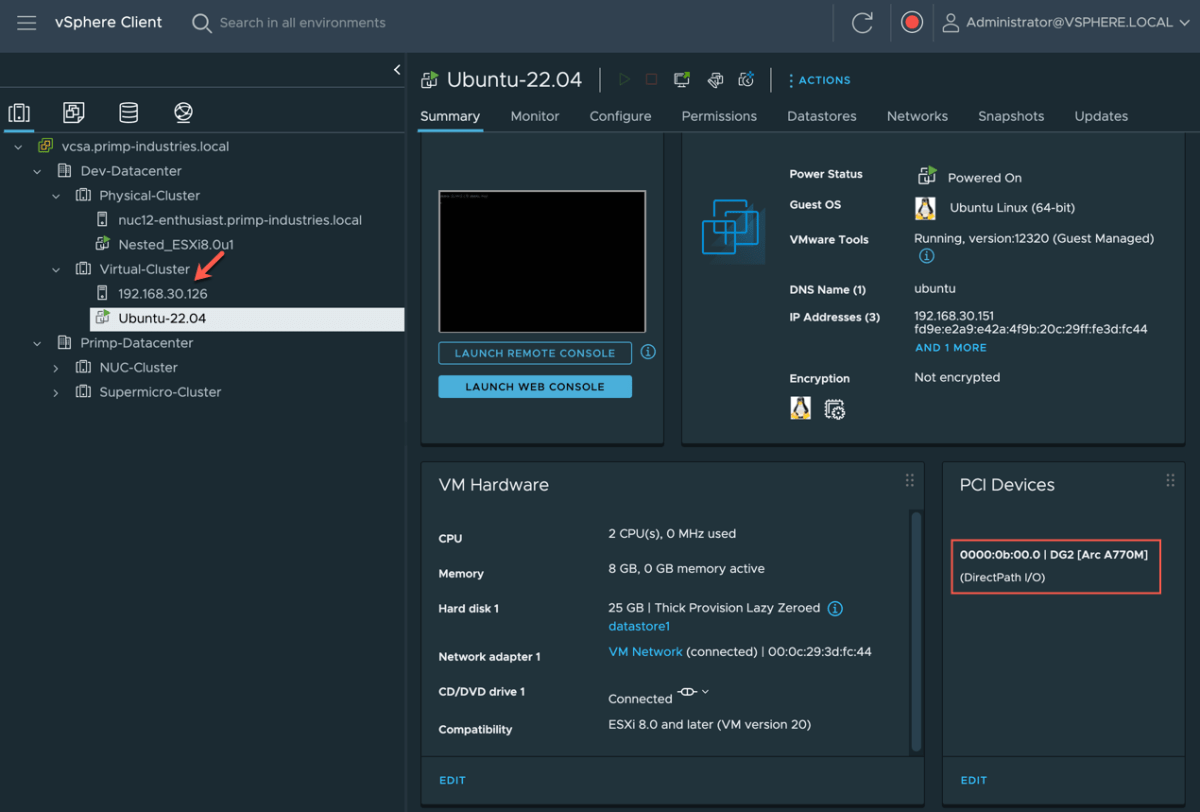
From the vSphere client, select the VM and enter “Edit Settings” to review the virtual hardwareIn the device list, you can click "Add New Device" and choose "PCI Device" if the GPU is not already listed. Then, select the PCI device corresponding to the graphics card (for example, the NVIDIA or AMD card detected on the host).
When the configuration is saved, the VM will display something like this on its hardware “PCI Device 0” associated with the specific GPUFrom this point on, when the guest operating system starts, it will see an additional PCIe adapter corresponding to the physical graphics card.
It is essential that the virtual machine has reserved all the memory that has been allocated to itIn vSphere, this is configured in “Edit Settings → Virtual Hardware → Memory”, setting the “Reservation” value to the amount of RAM configured for the VM. Without this full reservation, PCI passthrough may fail or experience intermittent problems.
After turning on the VM, on a system Linux The presence of the GPU can be verified with commands type lspci | grep nvidia, while in Windows it will appear under “Display adapters” in the Device administratorIt is normal to see both the VMware emulated graphics adapter and the dedicated physical GPU.
The final step is to install the following on the guest device: drivers GPU manufacturer officials, downloaded from the NVIDIA, AMD or Intel websites, avoiding relying on generic drivers or those supplied Windows Updatewhich may not be optimized for passthrough scenarios.
vSphere limitations and features that do not work with vDGA
The B side of GPU passthrough in VMware is that Several advanced features of the platform are lost by dedicating a physical device directly to a VM. That's the price to pay for that near-native performance.
The first big sacrifice is vMotion and DRSA virtual machine with a GPU in passthrough mode cannot be hot-migrated to another host because the card is physically locked to the original server. Automated load balancing policies that involve moving the VM between hosts in the cluster also cannot be used.
Features such as Traditional snapshots or certain high availability mechanisms for that specific VM. Because it relies on very particular physical hardware, the ability to freeze and restore complex states is compromised.
Another aspect to consider is that, in this mode, The GPU is not shared between multiple VMsIf multiple desktops or servers with graphics acceleration are needed on the same machine, one card per VM will be required, or alternatively, a vGPU model can be used where the card is virtualized across multiple instances.
On the support side, there may be specific cases where Certain combinations of hardware and drivers can cause problemsAs some users have observed when upgrading to ESXi 6.x with NVIDIA GRID cards on specific servers (e.g., Dell R720), it is advisable to review VMware and GPU manufacturer documentation in these scenarios, and to open support cases if necessary.
Finally, it should be noted that certain technologies or services that interact with graphics, such as remote desktops, Linux subsystems in Windows, or advanced operating system featuresThey can interfere with or cause "Code 43" errors in NVIDIA drivers if they detect that you are working inside a VM with GPU passthrough.
GPU passthrough in other hypervisors: parallel with Hyper-V
Although the focus here is on VMware, it's worth understanding how other hypervisors (for example virtualization with KVM and virt-manager) address the same need to allocate a physical GPU to a VMbecause the terminology and tools change, but the underlying idea is similar.
In Hyper-V, the equivalent of VMware VMDirectPath I/O is the direct device assignment using DDA (Discrete Device Assignment)This technique allows mapping a specific PCIe device, such as a GPU or NVMe, directly within a Windows virtual machine, with a level of control and performance similar to passthrough in ESXi.
Older versions of Windows Server used this technology RemoteFX to offer GPU virtualization and share a graphics card among multiple VMs. With ThereDue to security issues and performance limitations (such as the 1GB VRAM per VM cap and 30 FPS), Microsoft retired RemoteFX and left DDA as the primary path for dedicated GPU scenarios.
In Windows 10 and Windows 11Especially with certain compilations, support has been appearing for GPU partitioning and reused mechanisms from WSL2 and Windows SandboxHowever, its configuration usually involves complex scripts and copying drivers from the host to the guest, which is not as straightforward as assigning a device in vSphere.
Knowing these alternatives allows us to see that The philosophy of offering near-native access to the GPU via a direct PCIe channel It is common to several hypervisors, although each has its own nuances, commands, and compatibility restrictions.
This entire ecosystem of passthrough, vGPU, and DDA demonstrates that, properly configured and with the right hardware, It is perfectly viable to use powerful GPUs within virtual machines for production For workloads ranging from demanding graphics desktops to AI and HPC, always assuming that you will have to give up certain conveniences of traditional virtualization and pay close attention to drivers, hypervisor versions and GPU manufacturer support.

Passionate writer about the world of bytes and technology in general. I love sharing my knowledge through writing, and that's what I'll do on this blog, show you all the most interesting things about gadgets, software, hardware, tech trends, and more. My goal is to help you navigate the digital world in a simple and entertaining way.