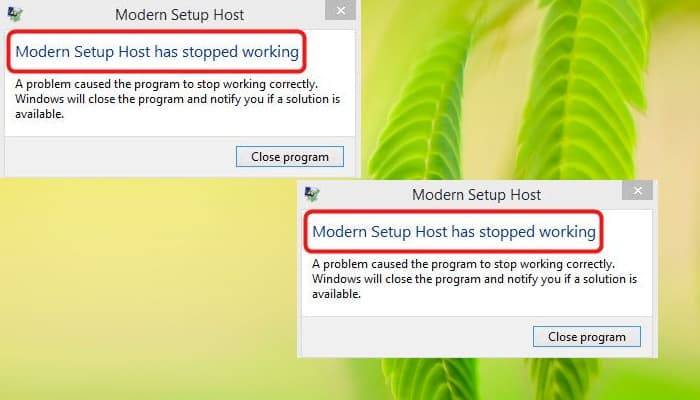
Many Windows users report encountering the "Modern Installation Host" or "SetupHost.exe" error in Task Manager. This error typically indicates high CPU usage, often resulting in computer problems and slow performance.
If you've recently noticed an increase in CPU usage due to the modern configuration host, this guide will show you some possible solutions.
Modern Install Host? What is it?
It is very important to have an up-to-date operating system. The Windows operating system has certain built-in components that allow updates to be installed directly on your computer. One of these components is the Modern Installation Host, or SetupHost.exe.
Additionally, this program tends to run in the background when performing Windows updates or when upgrading from a previous version to Windows 10.
Modern Install Host Error? Why does it appear?
As I mentioned above, there are several users who claim to have encountered this error at least once. Especially when running Windows upgrades or updates. This is certainly not a pleasant thing.
Modern Setup Host, like many other Windows components, also has a variety of conflicts. Common problems, as reported by different users, include:
- High CPU usage on modern installation host
- Modern configuration host not working.
Sometimes this host reaches up to 100% disk usage and causes various problems on your computer, including, of course, slowdown.
How can I fix the Modern Setup Host error in Windows?
The first thing we recommend when you notice any errors within the Modern Configuration Host is to wait at least 4 hours. This is more than enough time for the Modern Configuration Host to run before removing it.
However, if after that time the program continues to cause problems on your PC, we suggest you proceed to the following solutions to fix the Modern Installer Host error.
Preliminary measures
Typically, these modern configuration host errors are the result of other errors within the computer. The best thing is that you can resolve it with a few tweaks, such as:
- Restart your PC through the normal process, then try performing Windows Update or Refresh again.
- Scan your PC with a quality antivirus program to detect any malware that may be causing the problem.
- Disable your third-party antivirus program: Some antivirus programs are very sensitive and can cause the modern installation to stop working. Turn off the AV software on your PC and proceed with Windows Update to see if the problem is eliminated or persists.
- Check if your network is stable: Sometimes, the Modern Setup Host error can occur when the network you are using to install or update your operating system is unstable. Tweak your router to make sure your network is stable and can download files. Windows Update.
In case these solutions do not give you good results regarding the error, you can make use of the techniques mentioned below.
Solution 1: Run the Windows Update troubleshooter
If you encounter a Modern Setup Host error, running the Windows Update troubleshooter can save you. Windows 10 has a built-in app troubleshooter that can help you fix different errors, including the Modern Setup Host error.
To run the Windows Update troubleshooter, make sure to follow these steps:
- Open the Windows search box and type Control panel.
- Now, open the Control Panel and click on the drop down arrow On the right side.
- From the list, select Big icons.
- Then, within the list of items, find and select Solve problems.
- Now you must click Run thebutton Problem Solver.
- Next, in the right panel, find and click on Windows Update.
- Next, press where it says Run troubleshooter.
Troubleshooting often takes some time, so you should wait for everything to run smoothly, it will be worth the wait.
Once the procedure is complete, you must follow the instructions that appear on the screen. This way you will be able to resolve the error. Finally, restart your computer.
Solution #2: Perform a clean boot of your computer
The Modern Setup Host error is probably caused by some background programs interfering with your PC's Windows update or software conflicts on your PC.
A clean boot can help you resolve this issue because it will allow you to start your computer with only essential startup programs and drivers. It will also help you identify conflicting software that you can disable and continue with Windows Update.
Note : Before restarting your PC in a clean boot, make sure to disconnect from the network.
To perform a clean boot , follow these steps:
- Make sure you are logged in to your PC as administrator.
- Open the windows search and write msconfig.
- Select option System settings.
- Go to the General tab and deselect Load startup items.
- Then locate the tab Services and check the box Hide all Microsoft services and then click Disable all.
- Go to the Home tab and select OPEN Task Manager.
- In Task Manager, locate the Startup tab.
- For each startup item in the list, select each item, right click on it and then select
- Once you have disabled all tasks, close Task Manager and return to System Configuration.
- Now, in the window Configuration system, go to the Home tab > and select
Once this is done, restart your PC. Your computer will now be able to boot cleanly. You should now try Windows Update once again and verify that everything has been resolved.
Solution #3: Run SFC and DISM
Running these tools is essential to improve and repair the faults present in the damaged files that could be causing the error. To do this, you have to make sure to run the respective SFC and DISM scans through the command prompt.
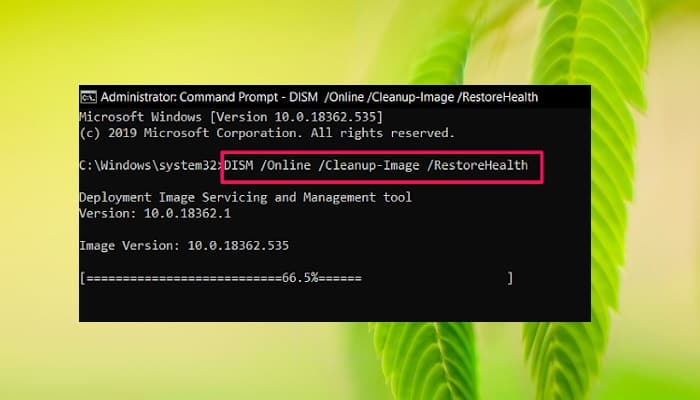
To run SFC and DISM via the command prompt :
- Click on the windows search and write this: cmd so that it can be opened symbol of the system.
- Choose Run as administrator
- In the elevated command prompt, type the command, then press Enter DISM.exe /Online /Cleanup-image /Restorehealth
Note: This tool may malfunction if the Windows Update client does not have a stable internet connection or is not working.
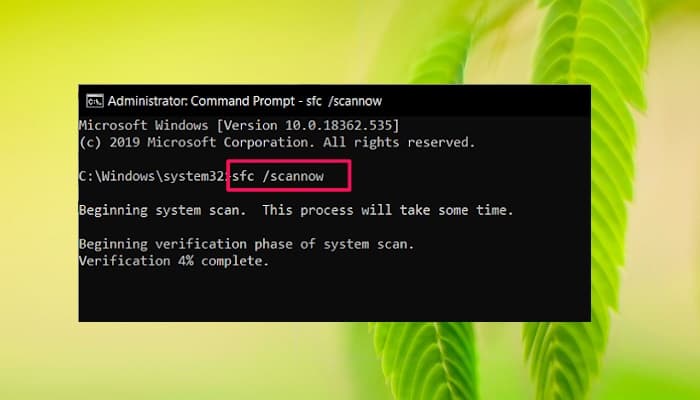
- Once the DISM process is complete, it will perform an SFC scan
- Type this command and press enter sfc /scannow
- Make sure there is a space between sfc and the forward slash
This type of action usually takes some time, so it is best to be patient until it is finished. When it is complete, a command prompt message will appear notifying you of what it was able to fix. Restart your computer, and then restart it again.
Solution #4: Delete items from the Software Distribution folder
Windows has a Software Distribution folder that serves as an essential component for Windows Update. Within this folder, temporary files essential for system updates are stored.
Sometimes some of the temporary files may accumulate and cause errors during subsequent Windows updates, and emptying the software distribution folder may help resolve the issue.
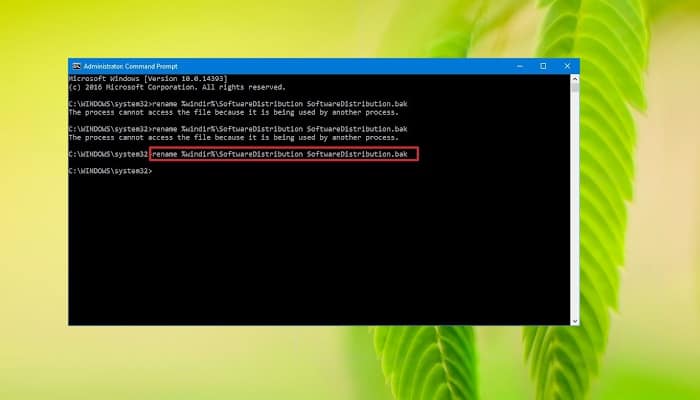
To empty the Software Distribution folder:
- Write the Wins key + R to open the Run box.
- Copy and paste the following path and then press Enter: C:\Windows\SoftwareDistribution\Download.
- Select all items in the Software Distribution Download folder (press Ctrl + A), right-click the selected items and choose
- If you are prompted to provide administrator permissions, check Do this for all current items and then Continue.
- Once this is done, restart your computer.
Now, try installing the Windows updates again and see if the modern installation host error has disappeared.
Solution #5: Reset Windows Update components
By performing a WUpdate components reset, you can easily resolve the Modern Install Host error in W10:
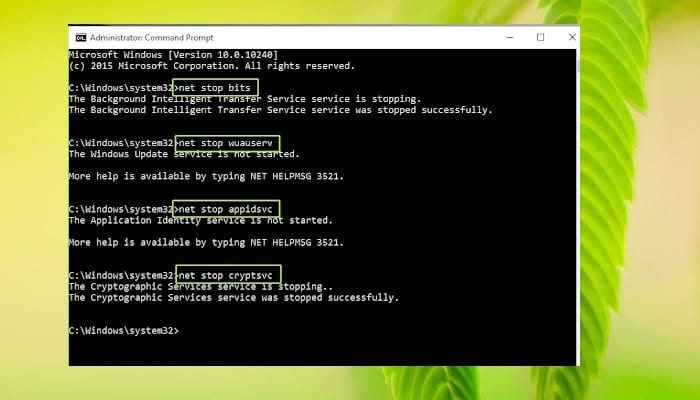
- Opens symbol of the system
-
- Press win Key + S.
- In the search, type cmd.
- At the command prompt, click Execute as an administrator.
- stop Windows Update Services such as BITS, MSI Inst aller Cryptographic and Windows Update.
To stop these services in the command prompt, type these commands and be sure to press the Enter key on your keyboard.
net stop wuauerv
net stop cryptSvc
net stop bits
net stop msiserver
- Change the name of the software distribution and the folder backups Catroot2. In the Command Prompt window, type these commands, making sure to press the Enter key on your keyboard after typing each command.
ren C:\Windows\SoftwareDistributionSoftwareDistribution.old
- Restart BITS, MSI Installer Cryptographic, and Windows Update services. In the command prompt window, you need to type these commands and press the Enter key.
net start wuauserv
net start cryptSvc
net start bits
net start msiserver
- Still, at the command prompt, type Exit to close it.
Close Command Prompt, then restart your computer and see if the error is fixed.
Solution #6: Disable Windows Updates
Use this process only if you do not plan to perform any Windows Updates or Windows Upgrades on your computer.
To disable Windows Update:
- Click on Wins Key + R to open the Run dialog box.
- Write msc.
- When the Services window opens, look for Windows Update service y click with el right button in it, then select Properties.
- In General tab, sets the Type of Home en Disabled and click Stop.
- Go to the tab Recovery, Make sure that First fault is configured as Take no action.
- Now click on Apply > then in Accept.
You don't need to use these solutions in order. Select each one until you find the one that best suits your needs.

My name is Javier Chirinos and I am passionate about technology. Ever since I can remember, I have been interested in computers and video games, and that passion has turned into a job.
I have been publishing about technology and gadgets on the Internet for over 15 years, especially in mundobytes.com
I am also an expert in online marketing and communication and have knowledge in WordPress development.