- The ribbon interface in LibreOffice improves organization and access to features.
- There are interface variants such as Tabbed, Tabbed Compact and Groupedbar Compact, adaptable to each user.
- It is possible to customize menus and commands, adding, removing or rearranging options according to your preferences.
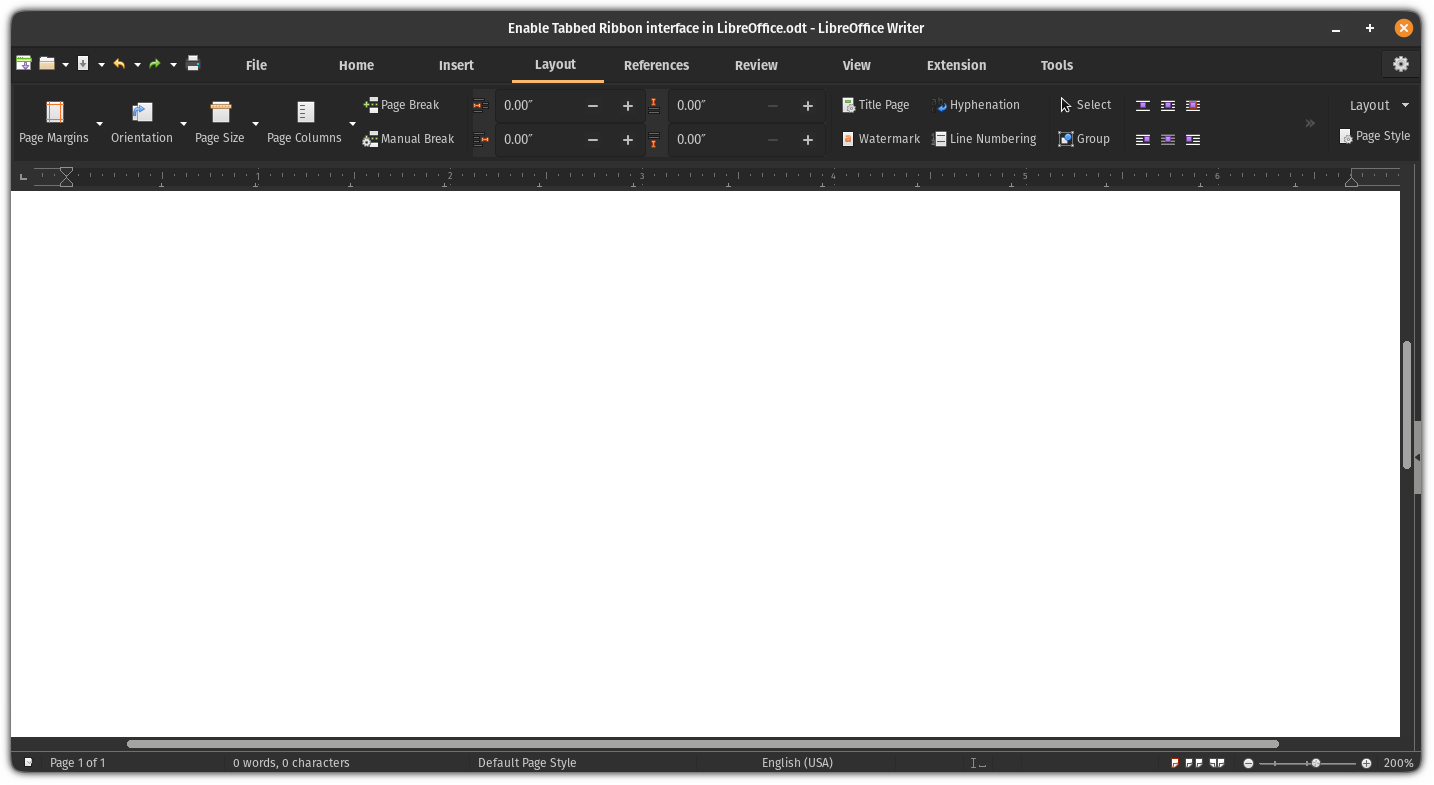
Are you tired of the classic menu-based interface in LibreOffice and want something more visual, modern, and similar to what Microsoft Office offers ? You're not alone. Many users are looking to switch to a tabbed or 'ribbon' interface, as it improves the user experience and allows for more intuitive access to functions. If you want to customize the appearance of LibreOffice to work more comfortably and efficiently, here's a complete guide based on the most relevant and reliable information from the best available resources.
Get comfortable, because we're going to break down all the options and configuration details for activating the tab menu in LibreOffice, making it similar to the Office ribbon, and fully customizing your experience . You'll also discover all the tricks for adapting the interface to your needs, managing menus and commands, and learning about the different styles available. You'll have all the best knowledge concentrated in one place!
What is the tabbed or Ribbon-style interface in LibreOffice?
The "Ribbon" or tabbed interface style in LibreOffice is called the Notebookbar . The idea is to organize commands and tools into contextual tabs, abandoning the old endless row of icons and drop-down menus. Each tab groups related functions according to the context of what you're doing : editing, design, tables, images, etc., resulting in faster and more visual navigation.
This format is much more modern and reminiscent of the look of Microsoft Office, which is a huge help for users coming from that office suite or simply looking for a more organized visual experience.
Different interface styles in LibreOffice
LibreOffice allows you to choose from several user interface styles to suit different tastes and needs:
- Standard bar (Classic): The classic interface with two bars, the standard one and the formatting bar, visible at the top. Very traditional.
- In tabs (Notebookbar Tabbed): Here, the toolbar is divided into tabs with icons grouped by context. This is the most similar option to the Office Ribbon.
- Tabbed Compact: Variant of the previous one but more compact, ideal for small screens or portable.
- Groupedbar Compact: Commands are grouped into blocks with large icons for the main functions and drop-down menus for the rest. This is a very practical option when we want to make the most of the vertical space.
- Contextual Single: Displays a single bar with controls that change depending on what you select in the document.
- Single Toolbar: Just a top bar, very minimalist, designed for devices with very small screens.
- Expanded sidebar: For advanced users who need to quickly change a multitude of properties from one side.
You can try each one and see which best suits your workflow . LibreOffice allows you to switch between them at any time, so the flexibility is very high.
How to enable the Ribbon-style tabbed interface in LibreOffice
To enable the ribbon menu in LibreOffice, follow these simple steps:
- Open any LibreOffice application (Writer, Calc, Impress, etc.).
- go to the menu View and select User interface (may also be called “User Interface” in some versions).
- In the dialog box that appears, you can choose from several layouts. Choose In tabs o tabbed to activate the Ribbon style.
- Confirm your selection and the interface will change immediately.
Do you prefer an even more compact look? You can select "Tabbed Compact" for a narrower ribbon, perfect if your screen is small.
Customization is one of LibreOffice's greatest advantages. You can not only activate the Ribbon menu, but also add, remove, or rearrange commands and menus according to your preferences . This makes your workspace unique and perfectly tailored to your needs.
From the Tools > Customize menu , you enter the menu editing panel:
- You can add new orders, modify or reorganize existing onesDrag and drop the commands to the position that suits you best.
- It is even possible insert commands created by your own macros or apply styles directly from the menu.
- When creating or modifying a menu, you can set whether it will be visible in all applications or only in a specific file.
How to find and add commands
- Use the search box to find the command or function you want to add. You can filter by category (editing, formatting, macros, styles, etc.).
- The results are listed, and you can review the description of each order before adding it.
- To add a command to a menu, select the destination and press the right arrow. To delete it, use the left arrow.
Advanced organization and editing
- You can insert separators to group commands by topic and improve visibility.
- If you want to create submenus, simply add a "submenu" and define its name; you can then edit it like any other.
- Reorder commands within the menu using the arrow keys (up/down).
- To undo all changes and return the menu to its original state, you can restore the "default values."
It's that simple! After each change, LibreOffice will automatically save it to your user profile , and when you return to the classic interface, your customized menus will still be there waiting for you.
Many users are unsure which tabbed menu option to choose. We've summarized the main differences so you can choose the right one:
- 'Tabbed': The most similar to the Microsoft Office Ribbon. Large icons grouped into contextual tabs. It eliminates the need for the traditional top menu.
- 'Tabbed Compact': Same as above but tighter, ideal for laptop screens.
- Groupedbar Compact: Commands are grouped together, but without the pronounced tab layout; here, blocks of icons with integrated drop-down menus predominate.
- Contextual Single: Just a single toolbar, which changes what it displays depending on what you're doing in the document.
- Expanded sidebar: Everything goes on the side, especially useful if you work with a lot of styles or text properties.
The 'notebookbar' not only changes the appearance, but also the way you access and organize your daily work.
Other ways to customize the LibreOffice experience
Beyond enabling the tabbed menu, LibreOffice allows many other customizations :
- Save different interface configurations: For example, you can have the notebook bar active in Writer, but the standard bar in Calc, depending on what is most comfortable for you in each program.
- When returning from "notebookbar" to a previous mode, LibreOffice remembers your visible toolbars so you don't lose your customizations.
- Advanced users can create keyboard shortcuts specific to your modified menus.
The menu customization panel is tremendously powerful:
- You can create completely new menus, with the functions you use most, even if they weren't present by default.
- It is possible to include macros to automate repetitive tasks and execute them from the menu.
- Submenus are a good way to group related tasks together and keep your main menu uncluttered.
- Add separators to differentiate command blocks and make everything more discoverable at a glance.
In terms of customization, you can decide whether your edited menus will always be visible throughout the entire application or only in specific documents . This is very useful for professionals who work on different projects and need highly customized environments.
There are many reasons why the tab menu has become so popular:
- Faster and more visual access to tools, especially for new users or those coming from Microsoft Office.
- Contextual grouping which allows you to display only the relevant commands based on the selected object (table, image, text, etc.).
- Cleaner, more modern and customizable interface.
- Easy to return to the classic interface if you wish, without losing previous settings.
- Support for different resolutions and screen sizes thanks to the compact variants.
The flexibility it offers makes LibreOffice a tremendously versatile suite, capable of adapting to both traditional users and those who prefer the latest advances in graphical interfaces.


Passionate writer about the world of bytes and technology in general. I love sharing my knowledge through writing, and that's what I'll do on this blog, show you all the most interesting things about gadgets, software, hardware, tech trends, and more. My goal is to help you navigate the digital world in a simple and entertaining way.
Table of Contents
- 1 What is the tabbed or Ribbon-style interface in LibreOffice?
- 2 Different interface styles in LibreOffice
- 3 How to enable the Ribbon-style tabbed interface in LibreOffice
- 4 Customize your tab menu: add, remove, and rearrange commands
- 5 Difference between tabbed menu and other interface variants
- 6 Other ways to customize the LibreOffice experience
- 7 Advanced customization of menus and commands
- 8 Advantages of working with the Ribbon-style tab menu