- macOS recovery mode allows you to repair disks, reinstall the system, and restore Time Machine backups on both Intel Macs and Apple Silicon.
- The boot combinations and Internet Recovery determine which version of macOS is offered and how the recovery utilities are loaded.
- Reinstalling macOS can be done without deleting data, but a full erase using Disk Utility removes accounts, files, and settings.
- Before using destructive options, it is advisable to have backups and, if necessary, use specific data recovery tools.
When macOS starts acting up or your Mac simply won't boot properly, recovery mode and its various recovery options become your lifeline. From this special environment, you can reinstall the system, repair disks, restore backups, or even connect to the internet to download macOS again without needing a USB drive.
Mastering all these recovery options is key to avoiding data loss and knowing what to do in every situation: a minor startup failure is not the same as a nearly failed hard drive or the need to erase everything to sell your Mac. In this guide, you'll see, step by step and in detail, how recovery mode works on Macs with Intel chips and Apple Silicon, what keyboard shortcuts exist, what each utility does, how to use Internet Recovery, and what precautions you should take before touching anything.
What is macOS recovery mode and what is it used for?
macOS Recovery Mode is a minimal system that resides in a hidden partition or is loaded from the internet and includes macOS Utilities . Apple introduced it with OS X Lion, and it's designed to allow you to recover, repair, or reinstall the system even if the main installation is corrupted.
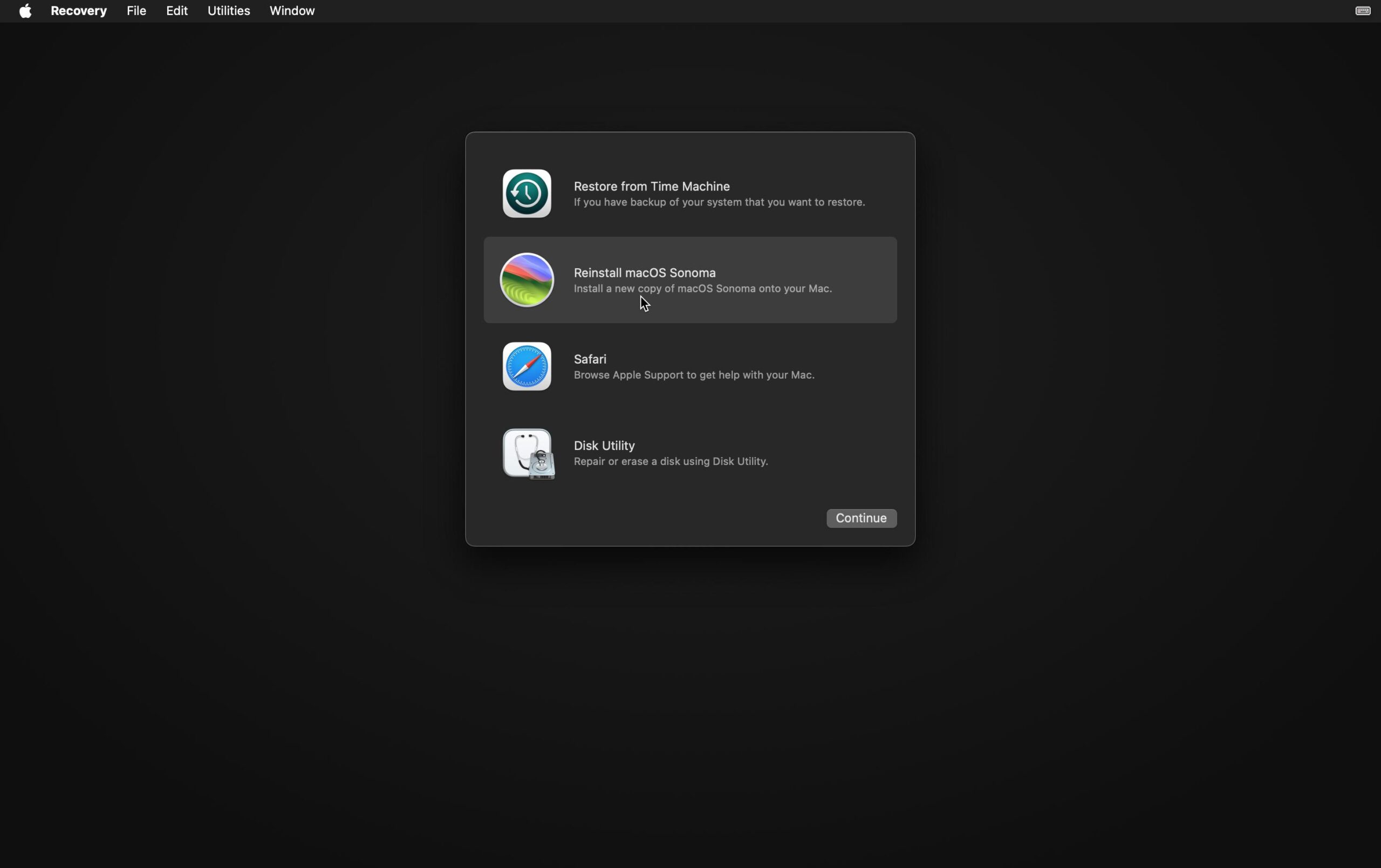
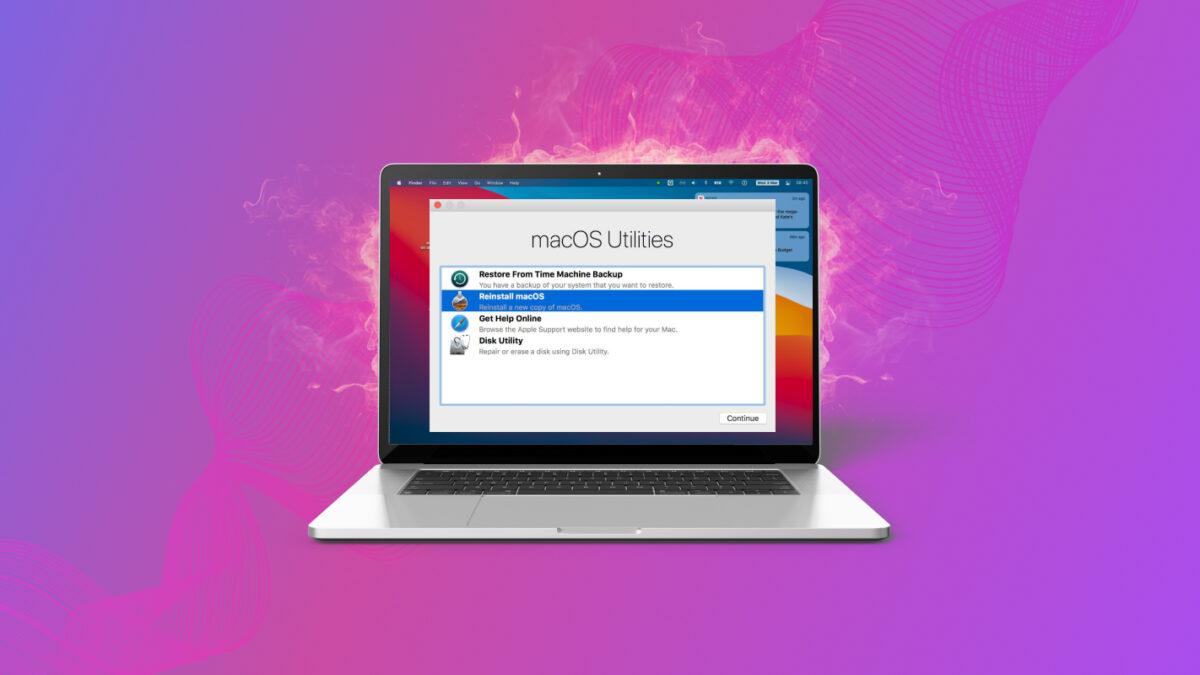
When you boot into recovery mode, you don't enter your usual desktop, but rather a small interface with options like Restore from Time Machine, Reinstall macOS, Disk Utility, and Safari , as well as more advanced tools like Terminal. From there, you can fix disk errors, format volumes, reinstall the system, restore from a backup, or find online help.
This recovery environment is also the foundation for more advanced features like Internet Recovery , which downloads utilities and the macOS installer directly from Apple's servers if the local recovery partition is missing or corrupted. This includes scenarios such as newly replaced or completely erased disks.
In practice, recovery mode is the safety net of any Mac: you'll use it to fix startup problems , reinstall macOS (keeping or not keeping your data), prepare a computer for sale, recover files from Time Machine, or diagnose hardware failures when the system no longer responds normally.
Differences between Mac with Intel chip and Mac with Apple Silicon
The way to enter recovery mode depends on the type of processor your Mac has. There are currently two main families: Macs with Intel processors and the more modern ones with Apple Silicon chips (M1, M2, M3, M4, M5 series, etc.). The utilities environment is very similar in both, but the startup process and some security options differ.
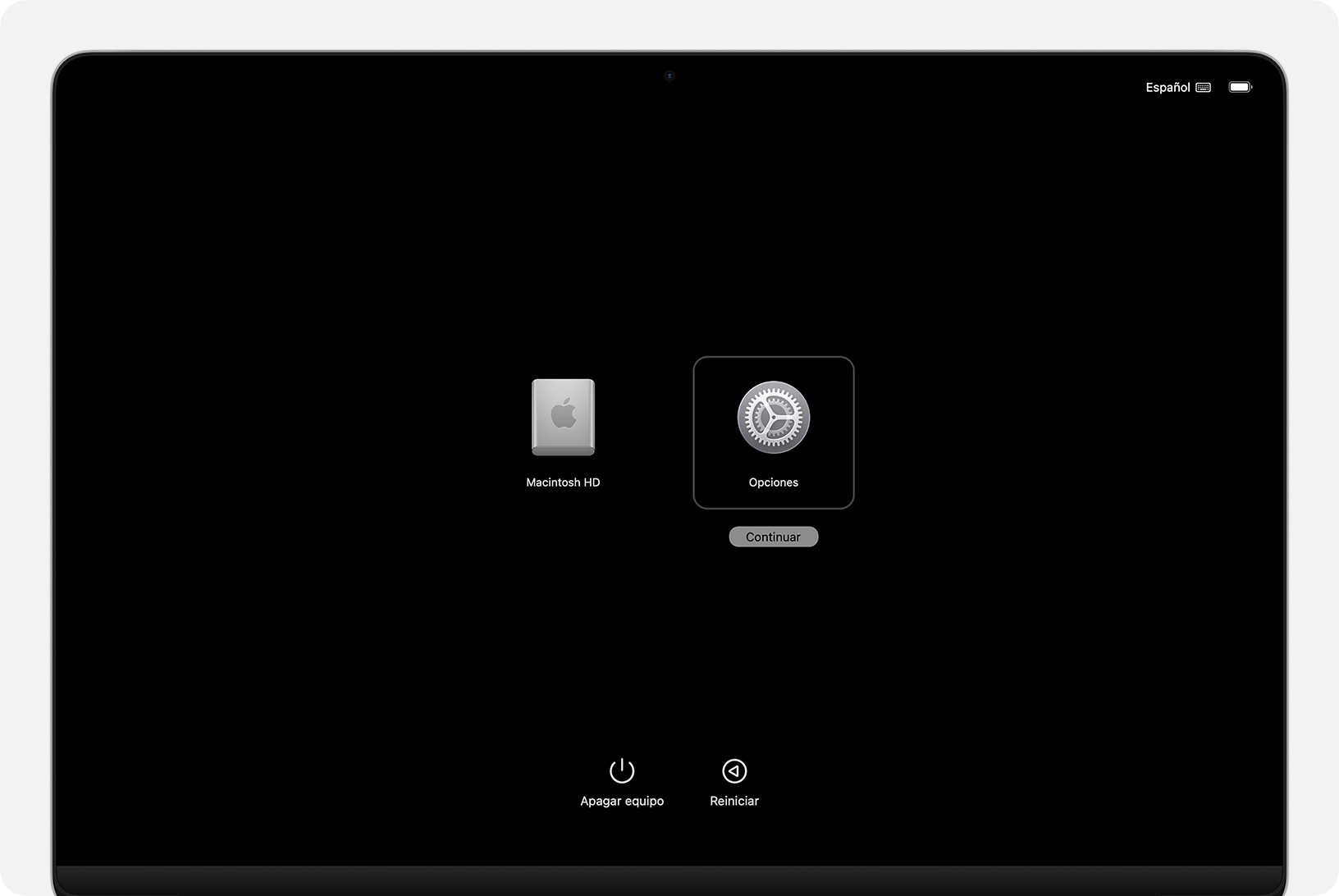
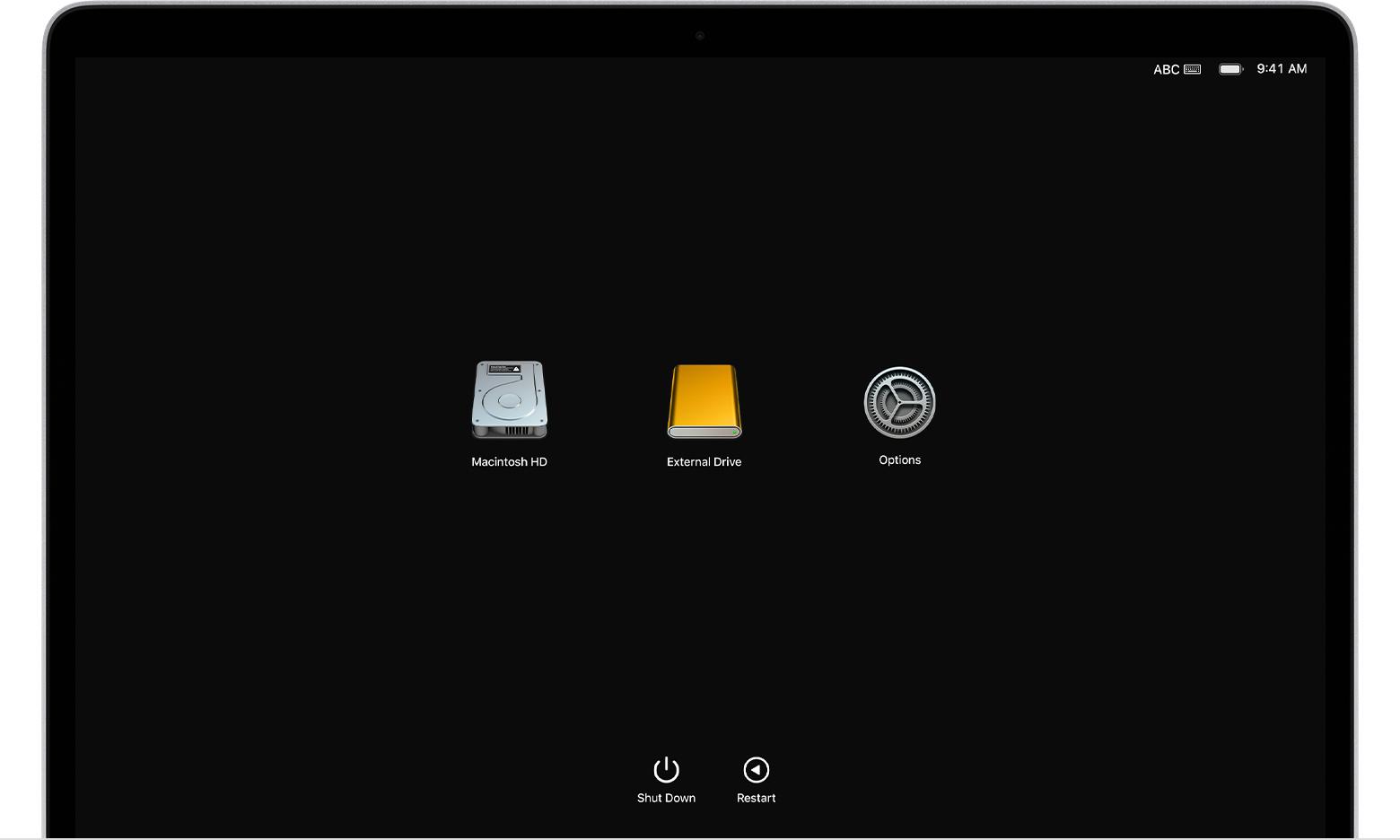
On Macs with Apple Silicon , the power button (or Touch ID on laptops) is the key. Pressing and holding it at startup brings up the Startup Options screen , from which you can select a startup volume or go to Options > Continue to open the recovery utilities. The system automatically detects if Internet Recovery is needed.
On Intel-based Macs , access is granted via keyboard shortcuts during startup. These shortcuts include Command (⌘) + R , Option + Command + R , and Shift + Option + Command + R. Depending on the combination, the Mac will either load the local recovery partition or boot into recovery mode from the internet, offering a specific version of macOS for reinstallation.
If you're unsure which chip your Mac has , Apple recommends trying both methods: holding down the power button until you see "Loading Startup Options" (typical of Apple Silicon) or turning it on and holding Command + R (typical of Intel). Neither attempt will damage your computer; you'll simply see one screen or the other.
Beyond startup, both types of Mac share the same core utilities: Time Machine, Reinstall macOS, Disk Utility, and Safari , in addition to advanced tools. The difference lies in some startup security settings, which on Apple Silicon are managed from recovery mode.
How to enter recovery mode on a Mac with Apple Silicon
On a Mac with an Apple Silicon chip (M1, M1 Pro, M1 Max, M2, M3, etc.), accessing recovery mode is fairly straightforward, but it's advisable to follow the steps exactly so that the Startup Options appear and macOS doesn't start normally.
First, make sure your Mac is completely shut down . If it's frozen and unresponsive, press and hold the power button or Touch ID for up to 10 seconds until the screen turns off completely. On laptops, Touch ID also acts as the power button, so simply press and hold it.
Next, press and hold the power button again. Don't release it as soon as you see the logo: keep it pressed until you see the message "Loading startup options" or the screen with the boot disk icons and the Options icon . Only then release the button.
On the startup options screen , click Options , and then click the Continue button . The system may ask you to select the volume you want to recover (for example, "Macintosh HD") and to choose a user account whose password you know in order to proceed with administrative privileges.
After entering the user password , the Mac will finish loading the Recovery environment and you will see the classic macOS Utilities window with different options: restore from Time Machine, reinstall macOS, access Safari, open Disk Utility, or use other tools like Terminal.
When you're finished using recovery , you can quit by simply opening the Apple menu at the top and choosing Restart or Shut Down . If your Mac later starts up with a blank screen, an exclamation mark in a circle, or another strange symbol, you should consult Apple's documentation on Macs that won't start up, as there could be a more serious hardware or disk problem.
How to access recovery mode on a Mac with an Intel processor
On Macs with Intel processors , accessing recovery mode is done using keyboard shortcuts during startup. It's important that the keyboard is recognized in time, especially if it's wireless or a third-party keyboard.
As a first step, shut down your Mac completely . If it's locked, press and hold the power button until it turns off. Once it's off, press the power button again to turn it on, and as soon as you hear the startup chime or see the screen begin to light up, press and hold the Command (⌘) + R keys.
You must hold down Command + R until the Apple logo, a spinning globe icon, or the macOS Utilities window appears on the screen. If the system doesn't locate the internal recovery partition, it can proceed directly to Internet Recovery , indicated by the spinning globe icon.
If your Mac prompts you to select a Wi-Fi network , choose one from the list in the network menu or connect an Ethernet cable. For secure networks, you'll need to enter the password. A good internet connection is crucial, as your computer may need to download recovery components or even the full macOS installer.
Once inside the recovery environment , the process is similar to Apple Silicon: you may be asked to choose a volume to recover (for example, "Macintosh HD") and a user account whose password you know. After these steps, the macOS Utilities window will open , from which you can repair disks, reinstall the system, restore backups, or use Safari to search for help.
You can exit recovery at any time using the Apple menu > Restart or Shut Down . If your Mac doesn't start normally afterward, it's a good idea to repeat the procedure and use Disk Utility to check the disk's health before performing a full reinstallation.
Advanced boot combinations and macOS versions
In addition to the classic Command + R , Apple offers several keyboard shortcuts on Intel Macs that change which version of macOS is suggested when reinstalling from recovery mode. This is useful if you want to revert to the original system version, keep the current one, or install the latest compatible version.
Command (⌘) + R is the standard combination: it loads the local recovery partition (if one exists) and allows you to reinstall the version of macOS you already have installed on your Mac, ideal for repairing system files without changing the version. It doesn't erase your data by default; it only rewrites the system.
Option (⌥) + Command (⌘) + R forces Internet Recovery to install the latest version of macOS compatible with your Mac model. This is the recommended option if you want to update to the most recent version possible without going through the Mac App Store or creating USB installers.
Shift + Option (⌥) + Command (⌘) + R attempts to download the version of macOS that came pre-installed on your Mac, or the closest available version. This is very useful for restoring your computer to its factory settings, for example, before selling it or giving it to someone else.
In Apple Silicon, the system internally manages these variants according to the disk's status and configuration, but the idea is the same: the Mac can suggest reinstalling your current version, the original version, or the latest compatible version, downloading it from Apple's servers if necessary.
Internet recovery on macOS: how it works and requirements
Internet Recovery is a special mode in which your Mac downloads the recovery utilities and macOS installer directly from Apple's servers, instead of relying solely on the local recovery partition on your internal hard drive. It's crucial when your hard drive has been replaced, completely formatted, or the recovery partition is damaged.
Not all older Macs have this option enabled by default . Models manufactured from late 2011 onward running OS X 10.7 Lion or later typically include it without any modifications. For slightly earlier models, Apple released EFI firmware updates that added Internet Recovery support to models such as the late 2010 MacBook Air, mid-2010 MacBook and MacBook Pro, 2010 Mac mini, and 2010 iMac.
At the network level, internet recovery is quite finicky . Your router must be configured with DHCP (automatic IP assignment) and use WPA/WPA2 as the Wi-Fi security protocol. It doesn't work correctly on networks using WEP, WPA-Enterprise, PPPoE connections managed directly by the Mac, or networks that require accepting terms and conditions through a captive portal, typical of cafes, gyms, or shopping malls.
When the local recovery partition fails , your Mac will usually automatically display a spinning globe with a message indicating that recovery is initiating from the internet, accompanied by a progress bar. You can also force this mode using the keyboard shortcuts Option + Command + R or Shift + Option + Command + R on Intel-based Macs.
If the download balloon appears with an exclamation mark or warning symbol , the problem is usually with the network connection: the download has been interrupted, the network is incompatible, or there's a temporary outage. In that case, try a different Wi-Fi network, use Ethernet if possible, check your router settings, or try again later.
What you can do inside macOS recovery mode
Once inside macOS Utilities , Recovery Mode offers a set of tools designed to troubleshoot problems without the need for third-party applications. While the environment is limited, it's sufficient for repairing the system, managing disks, and restoring data.
Reinstalling macOS downloads and reinstalls the operating system on your chosen disk. In standard mode, it rewrites only system files, keeping your user accounts, apps, and documents. It's a way to "clean" macOS when it's become corrupted or has accumulated errors without formatting everything.
Safari in recovery mode gives you limited internet access to consult Apple support pages or search for technical solutions. It doesn't support extensions, add-ons, or advanced bookmarks, but it's sufficient for reviewing official documentation or guides while you repair your Mac.
Disk Utility is the key tool for repairing, erasing, or partitioning disks . It includes the First Aid feature for checking and repairing file systems, as well as options for erasing volumes (for example, in APFS format) or managing containers and partitions before a clean reinstall.
In addition to these four main options , the menu bar usually offers access to advanced tools such as Terminal (for command-line operations), boot disk selector, system security options, network settings, and other utilities geared towards administrators and advanced users.
Reinstall macOS without losing data vs. erase and reinstall from scratch
Reinstalling macOS is not the same as erasing your disk . In most cases, if you choose the option to reinstall macOS from recovery mode and select the system volume (usually "Macintosh HD"), the installer simply replaces the operating system files with a fresh copy, preserving your files and accounts.
This type of full reinstallation is more thorough than a simple update. Instead of just replacing the new parts of the latest version, the installer rewrites the entire system, helping to fix accumulated damage, beta bugs, or rare glitches that aren't resolved with a regular update.
If you want to restore your Mac to its original factory settings , you'll need to go a step further: boot into Recovery, open Disk Utility , select the system volume or volume group, choose APFS format, and use the "Erase Volume Group" option . This will delete user accounts, network settings, and all files and folders.
Once the erase is complete , close Disk Utility and return to the main window to select Reinstall macOS , click Continue , and follow the instructions until the installation is finished. When it's complete, your Mac will behave as if it were brand new, prompting you for initial setup.
In either scenario (reinstalling without deleting or formatting and reinstalling), having an up-to-date backup is essential . Although the reinstallation shouldn't affect your data, there's always a risk of errors, power outages, disk failures, or network problems that could result in data loss.
Recommendations for the keyboard and recovery boot
For startup key combinations to work correctly , the Mac must recognize the keyboard very early during startup. Sometimes, if the keyboard isn't detected in time, the keys have no effect and the computer starts normally, which can give the impression that recovery mode "isn't working."
On Mac laptops, it's always best to use the built-in keyboard for these operations. On desktop computers like iMac or Mac mini, if you're using an external keyboard, it's advisable to wait one or two seconds after pressing the power button before entering the key combination, to give the system time to recognize it.
With wireless (Bluetooth) keyboards, it's common for the connection to take a little while to establish. If you're having trouble, try connecting the keyboard with a cable while booting into recovery mode, or use a simple, Mac-compatible USB keyboard to minimize errors.
If you have a PC keyboard with a Windows key instead of a Command key, the key mapping can be confusing. In that case, a keyboard designed for Mac will save you trial and error, especially when you need to use more complex shortcuts like Shift + Option + Command + R.
If, after checking the keyboard, key combinations, and network, recovery mode still won't load, the recovery partition may be damaged or the disk may have physical problems. In these cases, Internet Recovery or even a USB installer created on another Mac may be an alternative.
Use Disk Utility in recovery mode to repair and erase
Before you rush to format or reinstall , it's worth trying Disk Utility from recovery mode to check for errors on the disk or file system that can be repaired without deleting anything.
From the macOS Utilities window , select Disk Utility and click Continue . In the sidebar, you'll see your physical disks and logical volumes (APFS, containers, etc.). Select your system's primary volume (usually named "Macintosh HD" or something similar) and click First Aid to scan for and repair logical errors.
If First Aid doesn't resolve the issue or the drive has serious errors, you might need to perform a full erase. To do this, select the system volume or volume group, click Erase , and choose APFS (for recent systems) as the format. If the option appears, use "Erase Volume Group" to remove the entire macOS-related volume group.
When the erasing process is complete , Disk Utility will display the new, clean volume. Click OK , close the app from the Disk Utility menu > Quit Disk Utility , and return to the main window to select reinstalling macOS on the newly created volume.
Always keep in mind that erasing with Disk Utility deletes accounts, network settings, documents, photos, and any other data stored on that drive. If you didn't have a backup beforehand, it's still possible to try to recover information using specialized software by booting from another drive, but the risk of data loss is high.
Recover data before touching the system: backups and recovery
Whenever possible, it's wise to back up your data before performing any aggressive operations in recovery mode. A simple reinstallation while keeping your data is usually safe, but if you're going to erase the disk or suspect the drive is failing, a backup can make all the difference.
If you can still log in to macOS , back up your important files to an external drive using Time Machine or manually copy them to another drive. Also, make a note of your network settings (SSID, Wi-Fi passwords, special configurations) so you can easily rebuild them later.
When a Mac won't boot , one option is to use Mac data recovery software that allows you to create an external boot disk . The typical process involves installing the software on another Mac, preparing a bootable USB drive with the recovery environment for that tool, booting the damaged Mac from the USB drive, and scanning the internal disk to extract files to the external drive.
This type of recovery solution is especially useful if you've experienced an accidental format, a failed macOS update, a malware attack, or a system crash that has rendered the drive inaccessible. However, the more the drive is used after the loss, the harder it will be to recover everything, so it's best to act as soon as possible.
Even in the most complicated scenarios (severely damaged disks, Macs that won't boot even with recovery), a professional recovery service or Apple's authorized support can offer alternatives, albeit at a higher cost. That's why insisting on regular backups with Time Machine remains the best insurance policy.
Knowing all the macOS recovery options —from local recovery mode to Internet Recovery, including advanced boot combinations, Disk Utility, and the possibility of reinstalling with or without prior erasure—allows you to react calmly when your Mac fails and choose the least invasive strategy for your data and the most effective way to restore system stability.


Passionate writer about the world of bytes and technology in general. I love sharing my knowledge through writing, and that's what I'll do on this blog, show you all the most interesting things about gadgets, software, hardware, tech trends, and more. My goal is to help you navigate the digital world in a simple and entertaining way.