
We can't deny the frustration of encountering the "Application access to graphics hardware blocked " error. It can be incredibly annoying, and it's an error we need to find a solution for. In this article, you'll find several possible solutions to stop dealing with this frustrating problem.
How to fix “Graphics hardware application access blocked” error
Now, let’s look at the solutions to the “Graphics Hardware Application Access Blocked” error:
Here you can learn about: How to Update Graphics Drivers in Windows 7 and Windows 10
Executea the application with administrator rights
Perhaps the best way to avoid the locked graphics hardware issue is to run the application with administrator rights. When we do this, the application will have access to several functions, including the graphics hardware.
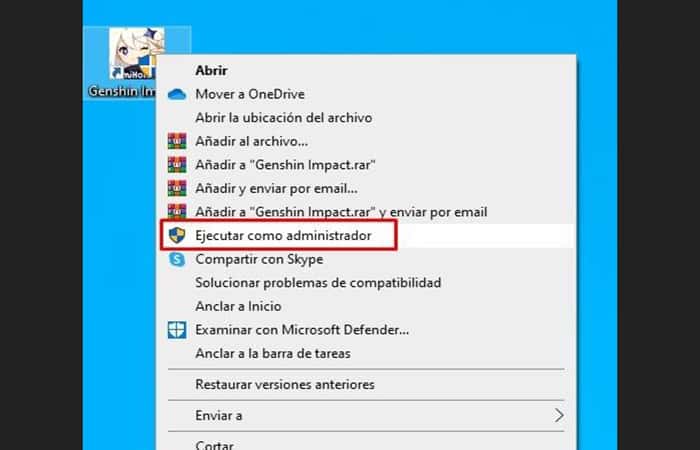
To be able to run the application in question with administrator rights.
- Step 1:: Simply, we will right click on the application and select “Run as administrator”, a pop-up message should appear that we will have to confirm and that's it.
Personalize performance optionstion of graphics for tor application
If the issue affects a game or application, it may be helpful to set the graphics performance preferences. These settings will allow us to improve the performance of the application.
- Step 1:: The first thing we are going to do is press Windows +i to access the Configuring Windows. Then we will have to go to System > Display > Graphics Settings.
- Step 2:: Now we will search for the application by clicking on the Browse button in option Choose an app to set preferences.
- Step 3:: We select the application and then choose “Add”. We will have to follow the on-screen instructions to complete the process.
Set the application compatibility mode
This issue can also occur when the app has incorrect compatibility mode settings. Let's first see how to configure compatibility mode settings.
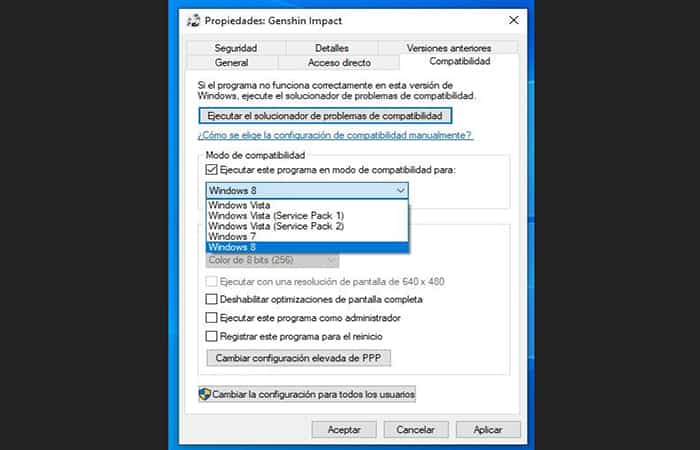
- Step 1:: We will click on Windows and write the name of the program.
- Step 2:: Then we will right click on the program and select “Open destination folder".
- Step 3:: After that we look for the executable file (exe) of the application and right click on it, a menu opens with several options and we will look for the one that says "Properties” right at the end.
- Step 4:: We will look for the Compatibility tab.
- Step 5:: We check the box “Run this program in compatibility mode to".
- Step 6:: We click on the drop-down menu below the indicated option and select the option that best suits us. Then we click on Apply> OK.
- Step 7:: If the issue persists, we will need to run the compatibility troubleshooter.
- Step 8:: We return to the Compatibility tab as we mentioned in the previous steps.
- Step 9:: Next, we will click on the “Run the compatibility troubleshooter".
- Step 10:: We select “Program Troubleshooter” in the next window.
- Step 11: We will have to mark the corresponding boxes according to the problem we have to solve and when we finish we will give it to it.
Now we will only have to follow the instructions on the screen.
Fix: Graphics Hardware App Access Blocked in Windows 10
In this article, we'll give you advice on how to fix the graphics hardware application access block in Windows 10. Please pay close attention to the explanation provided to ensure a successful and efficient solution for your operating system.
What should you do if GPU access for applications is blocked?
The “Application has been blocked” message usually prevents games from running on the operating system, but here we will give you the solutions.
Apply el system file verification scan:
The error " The application was blocked " is caused by corrupted system files on the graphics card. The Windows System Troubleshooter can scan and repair files to determine the extent of the damage. This will help resolve the "graphics hardware application blocked" error.
- Step 1:: Enter the Windows menu by pressing the keys Windows + X on your keyboard, or simply right-click the Windows start icon.
- Step 2:: Click on «Symbol of the system (administrator)» to enter the application window.
- Step 3:: This will tell you if it allows you to make changes to your team, tap 'Yes'.
- Step 4:: Next, you need to enter the following command «DISM.exe / Online / Cleanup-image / RestoreHealth»And press Get in.
- Step 5:: Then, enter the following command «SFC / scannow» and press return to start the SFC scan, it may take around 30 minutes or less.
- Step 6:: After running the scan, restart Windows to configure the file fixes.
Back To install Graphics Card Checker:
The error message " The request was blocked " can also appear due to an incompatible or corrupted driver . It can also occur after Windows updates the system, generating an incorrect configuration of the graphics card performance driver.
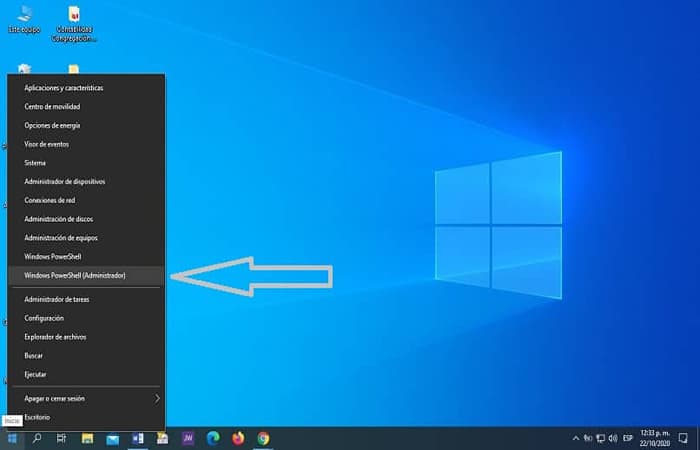
Here's how to perform a reinstallation of the Graphics Card Checker on your Windows 10 operating system.
- Step 1:: Press Windows Key + and will look for the option “Device administrator«.
- Step 2:: Double click on «Business cards» to expand this category.
- Step 3:: Right click on the card and select «Uninstall device«.
- Step 4:: Afterwards, a box will appear with a message, you will select the option “Remove driver software".
- Step 5:: Then click on the button «uninstall«.
- Step 6:: Now press the button «Check for hardware changes» to complete the reinstallation.
Two more ways to fix the issue of apps accessing blocked graphics hardware in Windows 10
To help you further, we have added two more ways to easily and simply fix Windows 10 hardware access lock.
Update graphics card driver
Operating systems and their components currently require constant updates, and graphics cards are no exception. Therefore, we'll explain how to update drivers in Windows, following the steps below.
- Step 1:: Download Driver Booster 6, this program has the ability to scan and list drivers, including outdated or faulty devices.
- Step 2:: You will go to the «File Browser» and you will touch the subsection «Download«.
- Step 3:: The program download will appear there, Double click on it.
- Step 4:: Once opened it will ask you if you allow this application to make changes to your PC, you will accept.
- Step 5:: This will be immediately added to the Windows 10 operating system.
- Step 6:: The newly installed software will perform an automatic analysiswhen you run it as a user.
- Step 7:: Tap «Update display adapter driver» and will be updated.
- Step 8:: Then restart your PC for the changes to take effect.
Windows 10 System Restore
The other way to fix many issues is to restore the Windows 10 system after a reset point on the PC.
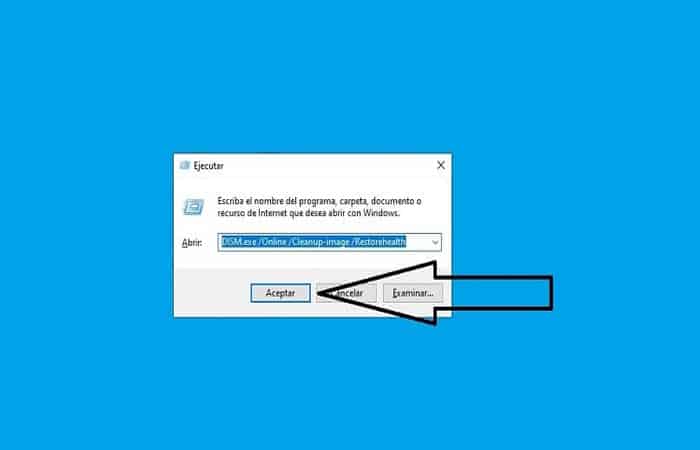
- Step 1:: Press Windows key + R and a window called " will appearRun«.
- Step 2:: Write the word “rstruct” and press “OK".
- Step 3:: Then, in the window «System Restore«, Click Next.
- Step 4:: In the “ windowSystem Restore”, an option will appear that says “Show more restoration”, select this option to expand the list of restore points.
- Step 5:: Selecting the restore point where you will move the Windows 10 operating system again.
- Step 6:: Click next and finish.
Other solutions to the problem when you cannot access locked graphics hardware
Windows 10 users, especially after the latest update, may encounter the error " The application is blocked from accessing the graphics hardware ," which usually appears when playing games or working on programs that actively use the graphics card.
This part of the tutorial details the possible methods to resolve the " Access to graphics hardware blocked " problem on your computer or laptop.
Ways to fix “Application blocked from accessing graphics hardware” error
Here are the ways to fix the “Application blocked from accessing graphics hardware” error
Solution 1: (Access to graphics hardware blocked)

The first method that most often works is updating the graphics card drivers, and many users mistakenly believe that clicking " Update driver " in the Windows 10 Device Manager and getting " The most appropriate drivers for this device are already installed " means that the drivers are already up to date.
In fact, it isn't, and the previous message only indicates that there's nothing more suitable on Microsoft's servers. The correct way to update drivers in case of a " graphics hardware access blocked " error would be as follows.
- Step 1:: Download the driver installer for your video card from the AMD website or NVIDIA (these are usually the ones that give the error).
- Step 2:: Uninstall the existing video card driver, it is best to do this with the utility Display Driver Uninstaller (DDU) en safe mode and restart your computer in normal mode.
- Step 3:: Start by installing the driver downloaded in the first step.
After that, check if the error occurs again.
If this option doesn't work, a variation of this method that may work for laptops might work:
- Step 1:: Similarly, uninstall existing video card drivers.
- Step 2:: Install the drivers not from the AMD, NVIDIA or Intel, but from your laptop manufacturer's site specifically for your model (that said, if, for example, there are drivers only for one of the older versions of Windows, try installing them anyway).
Solution 2: (Access to graphics hardware blocked)
The second way that could theoretically help you is to run the built-in troubleshooter under " Hardware and Peripherals ".
NOTE : If the problem started occurring with a recently installed game (which never ran without this error), the problem may be with the game itself, your default settings, or an incompatibility with your particular hardware.
Learn more about access to locked graphics hardware
Finally, some additional information that may be part of the solution to the problem " The application is blocked from accessing the graphics hardware ".
- If you have multiple monitors connected to your graphics card (or a TV connected), even if the second one is off, try unplugging its cable, this may fix the problem.
- Some reviews report that running the video card driver installation (step 3 of the first method) in compatibility mode with Windows 7 or 8 helped to fix this problem. You can also try running the game in compatibility mode, if the problem occurs with only one game.
- If the problem is not solved by any means, you can try this option: uninstall video card drivers on DDU, restart your computer and wait for Windows 10 to install the driver (you must be connected to the Internet for this), it may be more stable.
You might also be interested in reading about: Plotting an Equation on an Excel Chart
Conclusion
One last point: by its very nature, the error in question is quite similar to another equivalent problem, and the solutions in this guide—"The video driver has stopped responding and has been successfully restored"—can also work in the case of " Access to graphics hardware is blocked ." We hope this article helps you resolve the "Graphics hardware is stuck" issue in Windows 10 once and for all.

My name is Javier Chirinos and I am passionate about technology. Ever since I can remember, I have been interested in computers and video games, and that passion has turned into a job.
I have been publishing about technology and gadgets on the Internet for over 15 years, especially in mundobytes.com
I am also an expert in online marketing and communication and have knowledge in WordPress development.