- Ephemeral mode deletes what you sent when you leave the chat and limits copying or forwarding.
- It is activated by sliding up until you see “Release to activate”.
- Includes capture notices and can retain messages for up to 14 days for reports.

If you're worried about keeping your private conversations safe from prying eyes, Instagram 's ephemeral mode is just what you've been looking for. This feature, also known as Vanish, deletes what you send when you leave the chat, so your messages leave no trace in the history. It's a practical option for both casual chats and exchanging sensitive information without it cluttering up your inbox.
Although the idea is simple, it's important to understand how to activate it, what it actually deletes, and its limitations . Below you'll find the exact steps for using it, its requirements, important warnings (such as screenshot notifications or temporary retention for reports), and other complementary security measures like two-step authentication and device monitoring for devices connected to your account.
What is Instagram's Vanish mode?
Ephemeral mode is a chat feature where messages disappear when you leave the conversation . While it's active, you can send text, photos, videos, memes, GIFs, and reactions with the peace of mind that nothing will be recorded in the chat history when you close the chat. It's ideal for one-off conversations where you don't want anything to remain afterward.
The feature is optional and is activated per chat ; it doesn't affect all your conversations at once. It's usually available between people who follow each other or are connected via Messenger , so not just anyone can force you to use it. If you enable it, only anything sent from that point onward will be temporary; anything sent before activating it remains visible.
One important detail: although the goal is for everything to disappear when you leave the chat, Instagram may retain messages for a limited time (up to a maximum of 14 days) for purposes such as reporting content. This doesn't mean they remain visible in your conversation; the platform may temporarily retain them for security reasons.
Beyond its automatic disappearance feature, ephemeral mode aims to enhance privacy by preventing the copying, saving, or forwarding of messages sent while it's active. Even so, no one can stop the other person from taking a screenshot with another phone, so it's best to use common sense and only use it with people you trust.
How to activate ephemeral mode step by step
The process is quick and the same on Android and iOS . If you've seen a circle at the bottom of the chat, you're on the right track: the key gesture is swiping. Follow these instructions:
- Open Instagram and enter the conversation where you want to activate ephemeral mode. Make sure you both can use it (for example, that you follow each other or are connected on Messenger).
- In the chat window, swipe up from the bottom. You'll see a circle of progress which fills up as you maintain the gesture.
- Continue sliding it until the message appears Release to activate ephemeral mode. When you see it complete, lift your finger.
- Done: Ephemeral mode will be active and Everything you send now will disappear when you leave the chat.
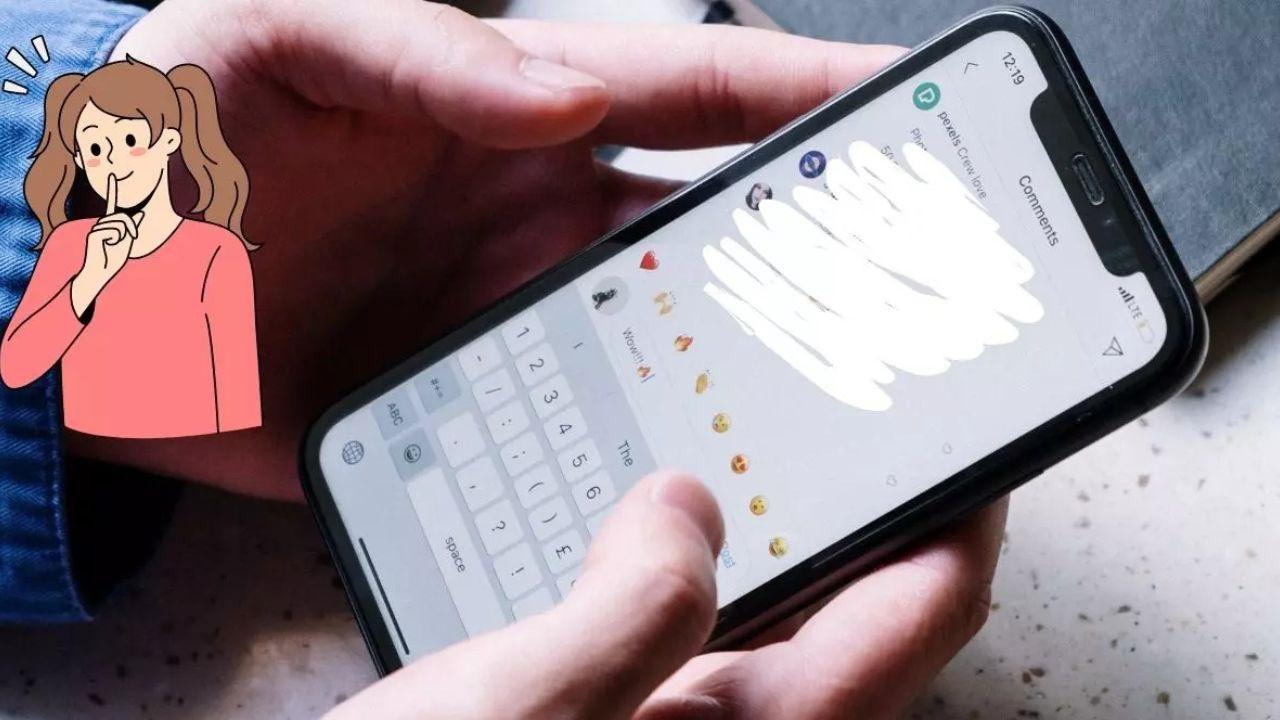
You can use it normally: send text, images, stickers, GIFs, and even reactions, knowing they won't be saved in your chat history . On many accounts, the chat interface changes its appearance (usually becoming darker) so you can easily see that you're still in this mode.
If the option doesn't appear, try updating the Instagram app to the latest version or check out how to use Instagram on your computer . Also, keep in mind regional availability: it might only work if the other person already has it enabled in their region and decides to activate it for you.
How to deactivate it and how to know it is active
Exiting ephemeral mode is as easy as entering it. A toggle switch or banner usually appears at the top of the chat indicating that ephemeral mode is active; you can tap it to deactivate it instantly. Another way to exit is to swipe down to return to the normal conversation.
While the mode is on, you'll notice visual changes (for example, the chat screen will turn black or dark), as well as notifications each time you send posts. This way, you'll always know if you're still in ephemeral mode or if you've returned to the classic chat.
Important note: this mode does not delete messages sent before it was activated, nor those sent after it was deactivated. It only deletes messages sent while it was on and, generally, when you leave the chat.
Limitations, notices and privacy
While privacy is the central idea, there are some points to keep in mind. Ephemeral mode doesn't allow you to copy, save, or forward messages while it's in use. Additionally, it sends notifications when a screenshot of the chat is taken, adding an extra layer of control to detect attempts to save the conversation.
Meta has been promoting end-to-end encryption in chats, a security measure that ensures only you and your recipient can read the content. In practical terms, if someone were to intercept these messages in transit, they wouldn't be able to decrypt them. However, perfect security doesn't exist: anyone could take a screenshot with another device , so it's best to share sensitive information only with trusted contacts.
Another important point is how chat history works. When you leave a chat, that content will disappear from the conversation , but it may be temporarily stored (for up to 14 days) on the servers to allow for reporting. You won't see it in your inbox, but you should be aware of this policy in case you need to report something.
If you tend to lose track of messages, consider disabling ephemeral mode or not closing the chat until you're finished . Otherwise, everything sent during ephemeral mode will be deleted, which might not be convenient if you're organizing topics that require follow-up.
Regional availability, requirements, and common issues
The feature has been rolled out in phases and doesn't always appear simultaneously in all countries . In fact, in early December 2024, Meta confirmed that Ephemeral Mode wasn't available in Spain. If you're reading this later, it's worth checking again to see if it has arrived in your region, as these releases change over time.
In everyday use, it should work on Android and iPhone with the updated app. If you don't see it, in addition to updating, check that you have the Messenger icon enabled (instead of the paper airplane icon from classic direct messages). In many cases, ephemeral mode appears when the other person messaging you already has it enabled in their region and initiates it in your chat.
Also keep in mind that this feature usually works between accounts that follow each other or are connected via Messenger. If someone you're not connected with messages you, they might not be able to activate the mode for you due to security reasons.
Ideas for use and good practices
For highly active profiles, such as shops or accounts with many followers , ephemeral mode helps prevent one-off messages from clogging up the inbox. You read, reply if appropriate, and when you close the message, the temporary conversation disappears, preventing it from accumulating in your digital "trash."
It can also be used to share confidential information (for example, sensitive data or a link you don't need to keep). However, if it's something truly important, consider confirming it through an additional secure channel, and don't forget the risk of someone capturing the screen with another device.
For casual conversations, it can be simply fun: you send memes, GIFs, or reactions without them being permanently recorded. Even so, be sensible: just because a message is ephemeral doesn't make it harmless if it's misshared outside of Instagram.
If you need to revisit a topic later, you might want to disable ephemeral mode and return to normal chat, where you can easily search for and quote old messages.
Strengthen your privacy: 2FA and device control
Ephemeral mode is just one piece of the puzzle. To protect your account, enable two-factor authentication (2FA) in Settings > Security > Two-Factor Authentication. After setting it up, Instagram will ask you to choose from several methods to verify your account each time you log in.
- Authentication app: generates temporary codes even offline, it is the most recommended option.
- SMS: You'll receive a code via text message; it's convenient, although somewhat less robust than a dedicated app.
- Other available methods: depending on the region, you may have backup codes or options integrated into the Meta app itself.
Additionally, frequently check in Settings > Security > Login Activity which devices are logged into your account. You'll see a list with the phone or device model, operating system, browser (if applicable), date, time, and approximate location of each login.
If you notice anything suspicious, log out of that device and change your password immediately. This vigilance will save you from unpleasant surprises: if someone gains unauthorized access, you can ban them and block further access using your two-factor authentication (2FA).
As a final layer, avoid reusing passwords, use long and unique passwords, and be wary of suspicious messages that ask for personal information or verification codes . Security is cumulative: the more layers you apply, the harder it will be for someone to compromise your account.
Ephemeral mode gives you interesting control over the digital footprint of your chats: activate it with a gesture , send what you need, and let it disappear when you exit, knowing it won't remain in your chat history. Understanding its limitations (temporary retention for reports, capture notifications, regional availability) and combining it with 2FA and connected device verification will allow you to chat with greater peace of mind and without surprises.

Table of Contents
- 1 What is Instagram's Vanish mode?
- 2 How to activate ephemeral mode step by step
- 3 How to deactivate it and how to know it is active
- 4 Limitations, notices and privacy
- 5 Regional availability, requirements, and common issues
- 6 Ideas for use and good practices
- 7 Strengthen your privacy: 2FA and device control
