
The Focused Inbox feature was introduced in Outlook to separate users' emails into Focused and other tabs. When enabled, this feature directs important emails to the Focused tab and all other emails to the Other tab.
But many people don't like the idea, since they themselves (not Microsoft) want to decide which emails are important and want to disable Focused Inbox – for many users, disabling this feature reverted the setting and Focused Inbox was enabled again.
How to disable focused inbox in Outlook
You can try the methods mentioned below to disable the Focused Inbox in Outlook, but before that, keep in mind that if you want to disable the Focused Inbox across the board (i.e., from the web, desktop, mobile clients, etc.).
You need to sign out of all clients and disable Focused Inbox in Outlook web, then sign in to the clients again one by one and disable Focused Inbox in each client.
1.- Disable directly from the Web
In order to carry out this process directly from the website, make sure to follow these simple steps that we show you below:
- start a Web navigator and go to outlook website (or to the Office 365 website).
- Now you must click Configuration at the top right of the window and deactivate the slider to Remove the focused inbox.
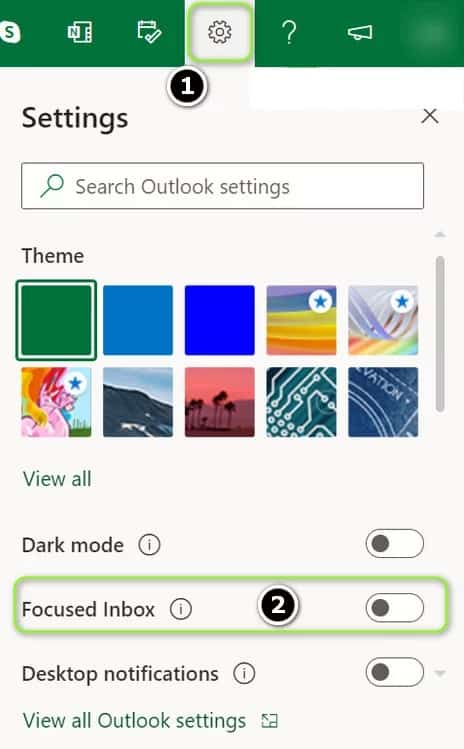
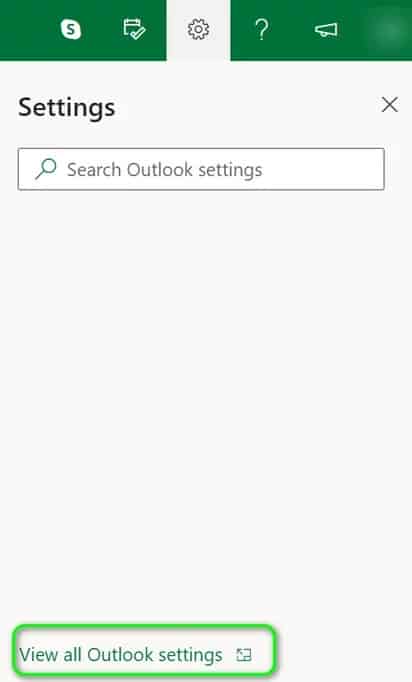
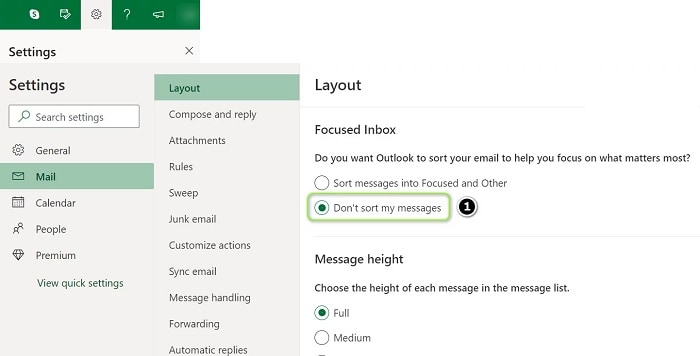
- If the option is not there, then in the same menu, open See all Outlook settings, and in the resulting window (you must be in Mail>flange Design), Choose Do not sort messages (in the Focused Inbox section).
- Now guard changes and check if Focused Inbox is disabled for Outlook web.
If the Focused Inbox option isn't displayed, make sure no web browser add-ons (Classic IE is reported to cause this issue) are interfering with the website's functionality. Some Office 365 users may need to open Settings > Display settings > Focused Inbox and select Don't sort messages.
2.- Disable the focused inbox in the Windows 10 mail app
Make sure to follow these simple steps to disable the focused inbox in the Windows 10 Mail app:
- Launch the Mail app. Windows 10 and in the left panel click on the icon Setup/Gear(near the bottom of the panel).
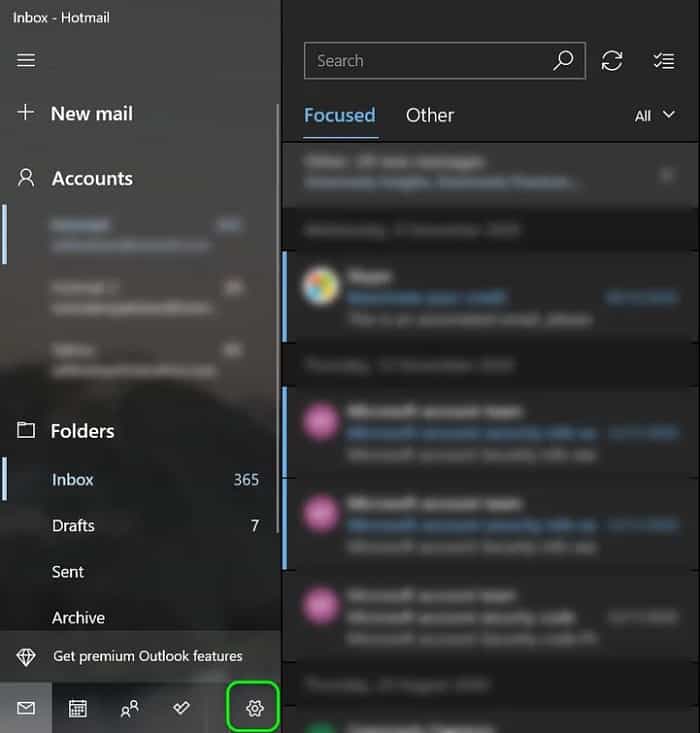
- Now, in the right panel that appears, select Focused inbox y deactivate the switch Sort messages into Focused and Other (make sure the correct account is selected).
- Then click on the back button(settings may not be saved) and then check if Focused Inbox is turned off.
- Please note that if the app fails to apply the settings, repeat the same after putting your system into tablet mode.
3.- Remove the focused inbox in Outlook for Windows 10
To remove the Focused Inbox in Outlook on Windows 10 operating systems , follow these simple steps:
- Start the app Outlook and go to the tab View.
- Now you must click Show focused inbox y restart Outlook client to check if Focused Inbox is disabled.
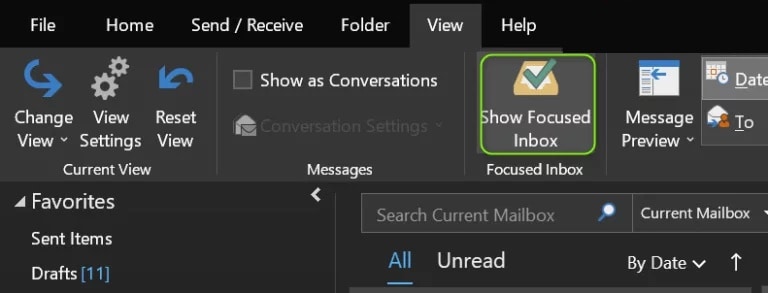
- If Show Focused Inbox is not on the View tab, you can enable it in the Customize Ribbon.
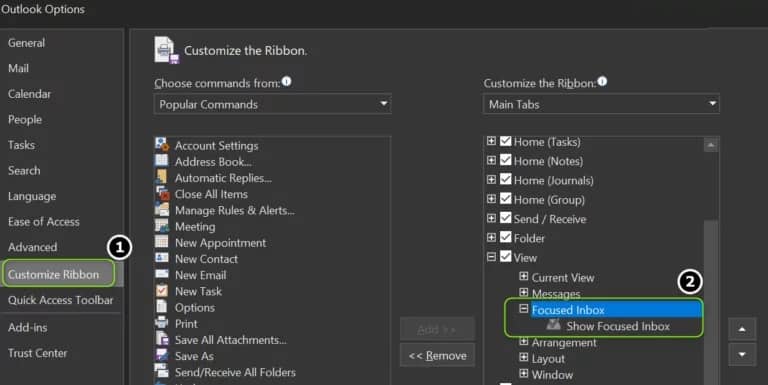
- If the Focused Inbox option is grayed out on the View tab, you must first turn off Focused Inbox in Outlook Web and the Windows 10 Mail app. Then, restart Outlook and try again to disable the Focused Inbox feature in the Windows 10 Outlook client.
If some emails are not showing up in your Inbox, check if disabling "Show as conversation" on the View tab in Outlook resolves the issue.
4.- Disable Focused Inbox in Outlook for Macbook
You need to make sure that you follow these simple steps so that you can disable Outlook focused inbox on Macbook:
- Starts Outlook and go to the tab Organize (make sure your user account's Inbox is selected in the left panel, not All Accounts).
- Now click on Focused inbox and check if Focused Inbox is disabled (if not, you can restart the Outlook client).
5.- Disable Focused Inbox for Outlook Android
To successfully disable the focused inbox on Android , you must follow these steps:
- Start the app Outlook and near the top left of the screen, tap Home (or your user icon).
- Now, in the menu that appears, click on the icon Gear / Settings (near the bottom of the screen) and deactivate the switch FocusedInbox (you may need to scroll a bit to find the option).
- Then press the back button and check if Focused Inbox is disabled (if not, you may need to restart Outlook).
If you still can't disable Focused Inbox and you're part of an organization , you can contact your organization's IT administrator to disable Focused Inbox in Outlook (either for your account or for the entire organization) or give them the right to do so (once permission is granted, you can try the methods described above to disable Focused Inbox).
As an alternative solution , you can mark all incoming emails as Focused (until the problem is resolved) and keep an eye on the Others tab (whenever an email appears there, right-click on it and select Move to Focused). If that's not an option, you can try a different email client.
I hope that each of these tips will be of great help to you and that you manage to disable the focused inbox in Outlook. If you are lucky enough to do so, do not forget that you can share your experience with us in our comments section. Also, if you are a lover of technological information, you can visit our web portal whenever you want, we have a wide variety of guides for you. See you in our next post.

My name is Javier Chirinos and I am passionate about technology. Ever since I can remember, I have been interested in computers and video games, and that passion has turned into a job.
I have been publishing about technology and gadgets on the Internet for over 15 years, especially in mundobytes.com
I am also an expert in online marketing and communication and have knowledge in WordPress development.