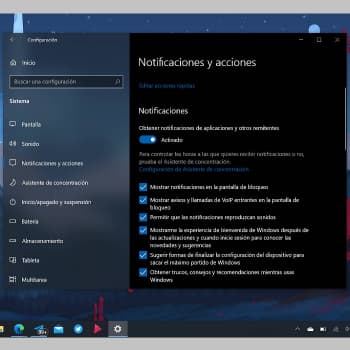
Pop-up notifications that alert you to important messages or notifications can be helpful, but they can also get in the way when you want to focus on work or watching a movie.
With There, many Windows 10 users develop an aversion to the bottom right corner of the screen, where something keeps popping up. Fortunately, there is a simple solution for this.
Nota: These instructions only apply to Windows 10. Microsoft has stopped updating older versions of the operating system, making them vulnerable to viruses, Trojans and other threats.
If you are still using Windows 7, 8.1 or earlier versions, we recommend that you upgrade to Windows 10 as soon as possible.
You can also read: How to Disable and Remove Feedback Hub in Windows 10
What notifications should I keep?
Windows 10 users can disable almost all notifications, but we recommend keeping two categories active, as they can compromise the security of the computer.
- Antivirus protection. Keep an eye out for any suspicious activity on your computer, even if you have to interrupt a TV show to do it.
- System updates. Operating system updates are important for security as they patch security holes that allow hackers to infect your computer with malware. malware. Sometimes these updates are only announced briefly or not at all, especially when malware is actively spreading through a newly discovered security vulnerability. You should install operating system updates as soon as possible.
How to turn off notifications in Windows 10
You can easily disable and hide other notifications that bother you. You have several options: turn them off completely, disable the most annoying ones, or use Windows 10's Focus Assist mode to stop them.
1. Disable all notifications at once
This procedure Prevent system update notifications and notifications of Windows Defender, which can be set separately. Disable notifications from other apps, such as your email account or games.
- Open the Start menu and select Settings by tapping the gear icon.
- Select System, then Notifications & Actions.
- scroll down and Uncheck the Receive notifications option from applications and other senders.
Here you will find many other useful options, such as:
- Hide notifications in the lock screen (so that no one can read your private messages) Facebook).
- Turn off Windows Notes, tooltips, and device setup tips (which appear when you install an update or while your system is running).
2. Set up notifications for individual programs
Let's say you don't want to disable all notifications, but only those from certain programs. In this case:
- Open the Start menu and select Settings.
- Select System, then Notifications & Actions.
- Scroll down to receive notifications from these senders.
- Move the app button down the list (on to receive notifications, off to not receive them) or select the applications one by one for more detailed settings:
- Disable Play Sound when notified to mute the sound but keep the notification popup.
- Uncheck the Show notification banner options and Show notifications in action center to disable pop-up notifications but keep the sound.
If you have explicitly agreed to receive notifications from the site – for example, notifications from social networking services, online shopping promotions, etc. – your browser may display new notifications every few days. – Your browser may display new messages every few days.
3. Focus Assist Mode: Suspend notifications
Windows 10 includes Focus Assistant mode, which allows you to pause some or all notifications instead of turning them off completely. Focus Assist settings are located in the Settings menu under System. To set notifications:
- Select Alarms Only to hide all notifications except alarms and timers, or
- Select Priority Only to set a specific time (for example, work hours) to receive notifications only from apps or contacts on your priority list (customizable).
Follow the steps below To set up a priority list for contacts and apps:
- Tap “Set up priority list.” (directly in “Priorities Only”);
- Select the types of notifications allowed: incoming text messages and calls or reminders.
- Select the contacts from which you want to receive notifications on Call, Email or Skype or Whatsapp.
- Set up a list of apps that can send notifications when Focus Assist is activated. For example, you can include only your email account or remote work applications in this list. Remove unnecessary apps from the list, click the app icon and then click Delete.
You can also set automatic rules for Focus Assist mode, such as automatically turning it on during your daily meeting and hiding non-urgent notifications when you mirror your screen, play a game, or use another app in full-screen mode.
Using Focus Assist doesn't mean you won't see any more notifications, but they will be hidden until you disable this feature. You can view these notifications at any time in the “Action Center,” which you open by tapping the button to the right of the system clock at the bottom of the screen.
If you don't want to see all notifications, you can view a summary of them in the Summary of what I missed while Focus Assist was active. This way, when Focus Assist ends, you get a summary of what you missed.
Why do I have to close notifications in Windows 10?
This article is about closing notifications in Windows 10. Interesting choice of keyword, but it's actually about how to permanently disable notifications in Windows 10. If you just want to close notifications, simply hover over the notification and click the X in the top right corner to close it.
Turning off notifications completely can be helpful to avoid interrupting your workflow. We have already drawn attention to this point. Notifications are good, of course, but they can be quite intrusive.
The good news is that, as we mentioned earlier, you can selectively disable notifications in Windows 10. This way, only the notifications you want to see will appear on your screen. For example, you can disable all other features except notifications.
Notifications can also consume data on your computer. This is especially important if you are on a pay-as-you-go network. In that case, you don't want apps to load in the background for a long time. Of course, You can prevent apps from downloading data in the backgroundHowever, it is obvious that some apps ignore this setting. Therefore, disabling some apps is often the best solution.
Conclusion
From now on, your computer will no longer distract you while you work, study or relax. We recommend that you choose your notification strategy carefully, as you do not want to miss an important notification. At the very least, allows notifications from security programs and the system updates that keep it running.
Windows 10 users aren't the only ones who can adjust certain settings to spend more time in front of the computer in silence. Android, iPhone, iPad and macOS can also benefit from detailed notification settings. And for added security in the digital world, we recommend creating your own digital comfort zone.
You can also read: How to enable and disable ClearType in Windows 10

My name is Javier Chirinos and I am passionate about technology. Ever since I can remember, I have been interested in computers and video games, and that passion has turned into a job.
I have been publishing about technology and gadgets on the Internet for over 15 years, especially in mundobytes.com
I am also an expert in online marketing and communication and have knowledge in WordPress development.