- O&O ShutUp10++ centralizes and simplifies privacy and security settings scattered throughout Windows 10 and 11.
- The tool uses a color-coded recommendation system to indicate which settings are safe, which require caution, and which may cause problems.
- It allows you to export and import configuration profiles, create restore points, and quickly apply groups of settings to different computers.
- Used with best practices, it is a powerful and secure add-on for reducing telemetry and strengthening privacy without breaking the system.
If you use Windows 10 or 11 and are fed up with telemetry, tracking, and invasive features (and want to learn how to detect spyware apps on your PC ), you've probably already browsed through countless settings scattered across Settings, the Registry, and the Policy Editor. The problem is that Microsoft doesn't exactly make it easy to disable everything, and if you don't know what you're doing, you could break something important in your system.
O&O ShutUp10++ has become one of the go-to tools for organizing the complex web of privacy and security options. It centralizes dozens of settings, usually buried throughout Windows, in a single window. The goal of this guide is to teach you how to use it effectively, maximizing its potential without disabling important features or causing system instability.
What is O&O ShutUp10++ and what is it really for?
O&O ShutUp10++ is a free application created by the German company O&O Software , which has specialized for over two decades in tools for Windows (defragmenters, backups, data recovery, secure erasing, etc.). With this utility, their goal is to give you maximum control over privacy and certain security aspects of the operating system.
The great advantage is that you don't need to install anything : it's a portable program, a simple executable file that you can save to a USB drive and run on any PC with Windows 10 or 11. It doesn't leave any "junk" in the system, no resident services, and no background processes; you open it, apply the changes, close it, and you're done.
ShutUp10++ functions as a kind of advanced control panel where more than 50 settings are grouped (in recent versions there are many more) related to: privacy, telemetry, location services, Cortana, Microsoft Edge, user behavior, Windows Defender, Windows Update, settings synchronization, Microsoft Office, lock screen and other system components.
Everything this tool does could be done manually by navigating through Settings, the Registry, the Group Policy Editor, and other menus, but the idea is to save you from having to go through them one by one. Furthermore, it provides clear explanations of each option and indicates whether a change is recommended, recommended with caution, or not recommended at all because it could affect the normal operation of Windows.
One important detail to keep in mind : whenever Windows undergoes a major update (for example, a large version update), some settings may revert to Microsoft's default values. That's why ShutUp10++ includes features to export your configuration so you can reapply it without having to remember what you changed last time.
Who is behind O&O ShutUp10++ and why is it relevant?
O&O Software is a German company with over 25 years of experience in the Windows ecosystem . While it may not be widely known to many home users, it is very common in professional environments: its optimization, backup, and data recovery solutions are used in more than 140 countries and by a high percentage of companies listed on the German DAX and the Forbes 100 International index.
The brand is known for focusing exclusively on Windows software . Among its best-known products are O&O Defrag, O&O DiskImage, O&O DiskRecovery, O&O SafeErase, and tools for migrating and optimizing SSDs. ShutUp10++ and AppBuster (for cleaning pre-installed applications) are part of its suite of utilities geared towards privacy and system control.
One advantage of ShutUp10++ is that O&O claims the tool doesn't send user data to its servers . All decision logic runs locally, and there's no communication with external services to apply changes. This makes it a good complement to other security practices like using Pi-hole, changing your browser, or limiting your Microsoft account.
The philosophy behind the program is clear : to give you granular control over what your Windows shares with Microsoft and other parties, without having to be an expert in the Registry or group policies, and without hiding options under confusing menus.
Installation and first steps with O&O ShutUp10++
Getting started with ShutUp10++ is very simple . Just go to the official O&O Software website, download the latest version of O&O ShutUp10++, and save the .exe file (usually named OOSU10.exe or something similar). There's no need to install anything; simply run the file.
If you prefer, you can copy the executable to a USB drive and carry it with you to use on multiple computers. Being portable, it doesn't add any extra system entries, nor does it require subsequent uninstallation. Simply open, configure, and exit.
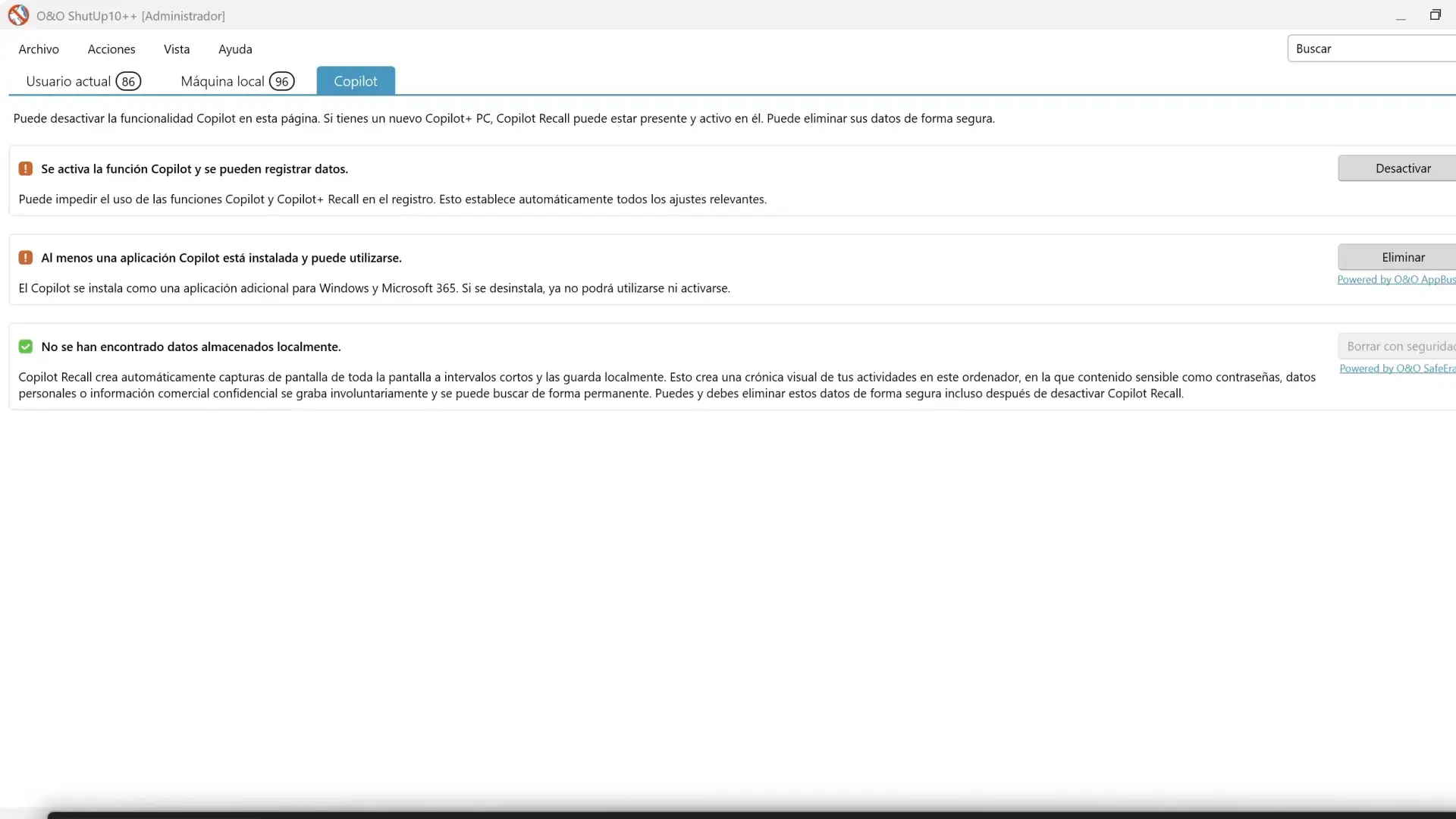
The first time you open it, you'll see a window with a long list of settings , each with a switch, a description, and a column indicating whether it's recommended to adjust it. The current interface is divided into at least three main sections based on the application: "Current User," "Local Machine," and, in newer versions, a specific section for "Copilot" in Windows 11.
Before enabling or disabling anything, ShutUp10++ will suggest creating a system restore point . This is a critical step if you want to use it safely: that way, if you disable something that later breaks an important function, you can always revert to a previous Windows state without any problems.
Another good initial practice is to export the system's default settings (without changes) to a .cfg file from the "File" menu. This way, you'll have a clean template to revert to if you ever want to undo all the settings applied with the tool.
Interface, recommendation icons, and how to understand the switches
The ShutUp10++ interface is quite clear, especially compared to Windows options . Each setting is displayed in a row that includes three key elements: the status (switch), the setting description, and O&O's recommendation in the form of an icon and color.
The recommendation icons are essential for using the tool without making a mess of it :
- Tick or green markRecommended configuration. It is usually safe to apply on most devices without losing essential functionality.
- Tick or yellow/orange signalRecommended with caution. It improves privacy, but could disable features some people use (e.g., cross-device syncing, certain "smart" features, etc.).
- Tick or red alertChanges that are not recommended or that may break expected system behavior. Only for users who fully understand what they are sacrificing.
Regarding the switches themselves, the red/green color scheme is a source of confusion . In ShutUp10++, when the switch turns green, it doesn't mean "allow" in the sense of disabling protection, but rather that the tool's setting is being applied. In practice, for most options, turning the switch green disables a telemetry, tracking, or intrusive Windows feature.
Sometimes you'll see a setting listed as "disabled" but the switch is green . This indicates that the Windows feature in question is disabled thanks to ShutUp10++ (meaning the system is already in the desired state). Changing it to red would allow Windows to re-enable it.
Each time you click on a setting's name, a more detailed explanation appears, explaining exactly what it does, its impact on privacy, and any potential side effects you might experience (for example, loss of suggestions, Cortana features, cloud syncing, etc.). This information is crucial if you want to fine-tune what you change instead of activating everything haphazardly.
Settings categories: privacy, security, and more
To help you navigate the many options, ShutUp10++ groups settings by category . Depending on the version, the list may vary slightly, but the most common categories are:
- Private / PrivacyGeneral settings to reduce the sending of usage data, disable tips, suggestions and features that display personalized information.
- Activity history: controls the timeline, user activity recordings, and the sending of that history to Microsoft.
- App privacy: permissions and behaviors of apps, including background execution, access to certain functionalities and data.
- Security: options related to the internal security of Windows 10/11, including certain components of Windows Defender and associated services.
- Microsoft Edge (Chromium and Legacy): web tracking, integration with other Microsoft services, suggestions, and browser personalization.
- Microsoft Office: telemetry and sending of usage data related to the office suite.
- Synchronizing Windows Settings: synchronization of settings through the Microsoft account and other cloud mechanisms.
- Cortana: options to completely disable the assistant, both in the system and on the web.
- Location servicesLocation permissions, geolocation services, and sharing of this data.
- User behaviorDetailed telemetry on how you use the system, participation in user experience programs, etc.
- Windows Update: behavior of updates, including the use of P2P to distribute them and certain download modes.
- Windows Explorer: options related to the File Explorer and its interaction with online services.
- Microsoft Defender and Microsoft SpyNet: participation in malware detection networks, sending samples, etc.
- Lock screen: content, suggestions, notifications and “interesting” items that appear on the screen before logging in.
- Diverso / MiscellaneousAdditional settings that do not fit into the categories above but affect system privacy or behavior.
Among the actions you can perform within these categories, the following stand out:
- Completely disable telemetry from the operating system and Microsoft Office.
- Prevent apps from running in the background if you don't need them.
- Disable Cortana both in the taskbar and on the web.
- Block Microsoft Edge web tracking and reduce personalization based on your activity.
- Prevent Windows from sharing Wi-Fi networks or data with other devices.
- Disable tips, tricks, suggestions, and promotional notifications on the system and lock screen.
- Limit participation in networks like Microsoft SpyNet and reduce the sending of samples or data to Microsoft Defender.
In many cases, these options are technically accessible in Windows , but are usually scattered across Settings, advanced panels, the Registry, and policies. ShutUp10++ doesn't reinvent the wheel, but it saves you from having to memorize where each setting is and how to modify it without breaking internal operating system policies.
File menu: import, export and exit the program
ShutUp10++'s "File" menu is small but very useful if you plan to use the tool often . It contains three basic actions:
- Import settingsThis feature allows you to load a .cfg file with a predefined configuration. It's perfect if you want to replicate the same privacy settings across multiple computers without repeating the process each time.
- Export settings: Saves your current set of settings to a .cfg file. Very useful for having a "personal" privacy profile, preserving it against Windows updates, or sharing it with others.
- LogoutSimply close the application, that's all.
The combination of importing and exporting is key when installing large Windows updates , as the system itself can revert some settings to their factory defaults. Instead of checking each setting individually, you can simply load your configuration file and reapply what you've already tested.
Actions menu: Apply bulk changes and restore system
The "Actions" menu contains everything related to applying or undoing groups of settings . This is where you can work more quickly if you don't want to configure each option individually.
The most important functions within this menu are :
- Apply only the recommended settingsThis activates all settings marked with a green recommendation at once. It's the safest starting point for most users.
- Apply recommended and "somewhat recommended" settingsThis also includes settings marked in yellow or orange. You increase privacy, but you should expect that some convenient Windows features might disappear.
- Apply all settingsForce all possible changes. Only recommended if you have a firm grasp of the consequences, because this is where the likelihood of something you need ceasing to function as expected is highest.
- Undo all changes: reverts the settings that ShutUp10++ has applied, trying to return the system to a state similar to the original (note that, if you have touched other things by hand or with other tools, it will not always be able to leave it exactly the same).
- Create a system restore pointAlthough the application already suggests it when you start touching switches, from this menu you can manually create a restore point to protect yourself before a large round of changes.
The general recommendation for using this menu safely is to always start by applying only the recommended options, test how the system works for a while, and then, if everything is correct, add the "recommended with caution" options according to what you really need.
Menu View: organization, appearance and language
In the "View" menu, you can adjust how information is displayed in ShutUp10++ , without actually changing Windows' behavior. It's purely for aesthetic and organizational purposes.
Among the options it offers, the following stand out :
- Show or hide settings groupingsIf you're not convinced by the separation by categories (Private, Security, Edge, etc.), you can change how it's presented to see the list in a more compact way.
- Change the appearance of the buttonsYou can switch between different styles (blues, grays…) to adjust the program's appearance to your liking.
- Change languageShutUp10++ is available in several languages, including Spanish, English, French, German, Italian, and Russian. You can change it without restarting your system.
These changes do not affect the functionality of the settings ; they simply make it easier for you to navigate the list and better understand the organization of options.
Help menu: quick guide, version and change logs
The "Help" menu is there for when you want to delve a little deeper into how the tool works or check if you are using the latest version available.
It includes several useful sections :
- Short guide: Displays a quick explanation within the window itself, temporarily hiding the settings list. It uses icons and visual diagrams to help you understand the program's basic logic.
- Online version checkOpen your default browser and it will take you to an O&O page indicating whether a newer version of ShutUp10++ is available. If so, you can download it from there.
- ChangelogsIt also opens a webpage where you can see what has changed in each version of the tool, from 1.0 to the latest. This is very useful for understanding new options or modified settings.
- About: displays information about the company, the current version of the program and some basic data about your system (Windows edition, version, system type, etc.).
Checking the change logs from time to time is a good idea , because with each Windows 10 or 11 update, new settings often appear, such as those related to Copilot or changes in telemetry.
Examples of key settings you can disable with ShutUp10++
Although the list is long, there are certain settings that almost all privacy-conscious users tend to adjust . Some relevant examples are:
- Disable all operating system telemetry: limits as much diagnostic and usage information as possible that Windows sends to Microsoft.
- Disable Microsoft Office telemetry: reduces the sending of usage data from Word, Excel, Outlook, etc. to the company's servers.
- Prevent apps from running in the backgroundIt saves resources and reduces the surface area of unnecessary telemetry and notifications.
- Disable Windows tips, tricks, and suggestions: removes contextual messages that appear while you use the system, many of them associated with advertising or promotion of Microsoft services.
- Lock the timeline and activity history: prevents Windows from storing or sending a detailed log of what you do on the computer.
- Disable Copilot and similar features in Windows 11If you don't want the AI-based assistant, ShutUp10++ lets you easily disable it.
- Disable web tracking for Microsoft Edge: reduces the personalization of ads and suggestions in the Microsoft browser.
- Neutralize Microsoft SpyNet and certain automated sample submissionsYou can limit your participation in Microsoft's threat intelligence networks if you don't want automated samples sent from your computer.
- Remove suggestions and notifications from the lock screen: prevents "fun facts", tips or advertising from appearing at that point in the system.
Each of these settings usually comes with a simple explanation within the program, so it's always advisable to read it before activating the switch, especially if the associated icon is yellow or red.
Comparison with other tools and additional telemetry lock
It's common for those interested in ShutUp10++ to also be familiar with other tools like WPD or network-level blocking options (for example, Pi-hole). Each approach has its advantages and limitations.
ShutUp10++ works directly on Windows' internal settings : policies, registry keys, services, application permissions, and privacy configurations that the system itself exposes, even if they are hidden. It is very effective at disabling operating system components.
Other tools like WPD also add IP filters or firewall rules to block telemetry connections to specific Microsoft servers. This can further enhance privacy, but it also complicates troubleshooting when something stops connecting correctly.
Network solutions like Pi-hole are complementary : they operate at the DNS level, blocking known telemetry and advertising domains. If you already use Pi-hole, some Windows telemetry will be blocked, but ShutUp10++ is still useful because it stops the generation and transmission of data within the system itself, even before any attempt is made to contact those domains.
Ideally, you should combine several layers : tweak Windows with ShutUp10++, use a content blocker in your browser, and, if possible, network filtering like Pi-hole. This reduces both data collection and external communications.
Best practices for using O&O ShutUp10++ safely
To get the most out of ShutUp10++ without getting into trouble, it's advisable to follow a few basic guidelines :
- Always create a restore point before applying many changesIt's your safety net if the system starts behaving strangely.
- Start with the options marked as recommended (green) Try it for a few days. If everything goes well, then you can move on to the yellow warning ones.
- Don't apply "all settings" the first time.Especially if you're not sure what each thing does. That option is for very advanced users.
- Read the description of each setting by clicking on their name, especially when you see yellow or red icons.
- Export your settings when you find a balance you like.This way you can recover it after a major Windows update or replicate it on other computers.
- Update ShutUp10++ from time to time to ensure that it recognizes and handles the new features of Windows 10/11 correctly.
If you're coming from older systems like Windows 7 and are considering whether to stay or not , ShutUp10++ can help make the jump to Windows 10/11 less aggressive in terms of privacy loss, bringing the experience closer to something more controlled and less intrusive.
Overall, O&O ShutUp10++ stands out as a straightforward tool, ad-free, with no hidden features, and a very clear focus: putting control over what Windows shares and doesn't share in your hands, without requiring you to be a system expert. Used wisely, combining its recommendations with backups and restore points, it becomes a very solid ally for strengthening your privacy and limiting telemetry without sacrificing the advantages of modern Windows versions.


Passionate writer about the world of bytes and technology in general. I love sharing my knowledge through writing, and that's what I'll do on this blog, show you all the most interesting things about gadgets, software, hardware, tech trends, and more. My goal is to help you navigate the digital world in a simple and entertaining way.