
Want to know why GeForce Experience isn't working on your graphics card? This error is a common problem among users of NVIDIA cards. The " GeForce Experience Won't Open " error message occurs due to Windows updates, corrupted software, and even NVIDIA updates. Here, we'll explain the methods to fix it and its alternatives.
What is GeForce experience?
GeForce Experience is a control panel that gives gamers a way to control the way their graphics card is used on their computer. It will allow you to change all of your graphics settings in one place and allow you to adjust them on a per-game basis.
You might also be interested in reading about: Nvidia Account Blocked | How to Fix It
Unfortunately, software can crash. Fortunately, many people have encountered this well-documented problem. Below are four of the known methods that will fix the Nvidia GeForce error when GeForce Experience is not working.
Method 1: GeForce Experience not working or stopped
There are times when software crashes and turns off. It doesn't always tell you when this happens, so you should check to make sure it's on. We recommend you follow these steps to check:
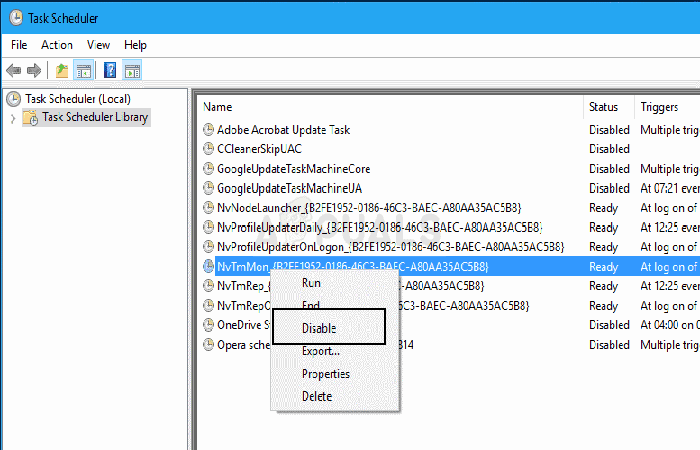
NOTE : Once these steps are completed, reopen the program to see if the problem is resolved.
Method 2: Reinstall the software if GeForce Experience is not working
The second probable cause of GeForce Experience not working is because the software itself is corrupted. To fix this error, a reinstallation will be necessary. Just follow these steps to complete the process:
NOTE : Once reinstalled, open the GeForce software to make sure everything is working correctly.
Method 3: GeForce Experience not working due to incompatibility with your antivirus
Your antivirus software is there to protect your system, but it's not right all the time. Sometimes, it may falsely identify GeForce Experience as a dangerous program. To test this, disable your antivirus program and try opening it again.
If it opens after disabling your antivirus, you'll need to add a rule to permanently whitelist GeForce Experience software to prevent future issues. Please refer to the instructions for your specific antivirus program to learn how to do this.
Method 4: Experience GeForce not working due to outdated drivers
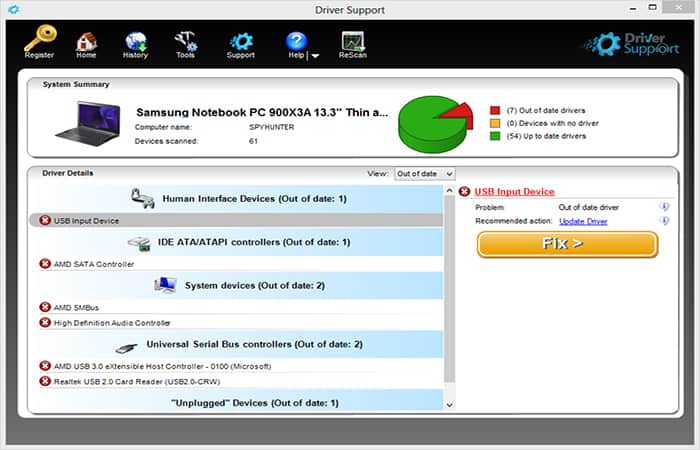
Driver updates are regularly released by NVIDIA, and you should keep up to date with them. You can download drivers manually as they become available, or you can use a tool like Driver Support to manage updates for you.
Follow these instructions to start running quickly and easily:
Other solution methods
Once it’s set up, you can rest easy knowing that all your driver updates are handled behind the scenes and without your intervention. By following our complete guide to troubleshooting “Nvidia Experience GeoForce not working” issues, you’ll be able to use the graphical control panel effectively. If you’re still experiencing the same issues, continue with these solutions:
How to fix error code 0x0001 when Experience Geforce is not working
If you are facing Geforce Experience not working error on your PC/Laptop, then we invite you to read the methods below to fix Nvidia Geforce Experience error code 0x0001.
NVIDIA is an extremely popular and widely used graphics processing unit (GPU) combination. GeForce Experience is the best utility that allows Nvidia graphics card candidates to keep their drivers up to date, adjust their gaming settings, and more. But many candidates report an “error code 0x0001” when opening the NVIDIA GeForce Experience utility. GeForce Experience Error 0x0001 is a problematic sight for all gamers.
What is NVIDIA Geforce Experience error code 0x0001?
This “NVIDIA Geforce Experience Error Code 0x0001” destroys the entire applicant experience because the NVIDIA GeForce Experience will not even start at this point.
There are many reasons available that cause the “Nvidia Geforce Experience Error Code 0x0001” issue. Some of the main causes are:
There are many possible solutions you can check to resolve this issue, but before you look into them, you should first restart your PC and then relaunch NVIDIA GeForce Experience.
What is Geforce Experience error code 0x0001?
It is a major error, one of the general problems to be extremely specific. Sometimes, it can be due to a bug or improper shutdown of the PC or laptop.
In most situations, the affected applicant sees the message “Something went wrong.” You must restart the PC or laptop and then launch GeForce Experience.
It allows or restricts some of these aspects or features: Live Game, Game Installation, In-Game Overlay, Online Reality, including many other options. You may be facing this error code 0x0001 and 0x0003, or GeForce Experience not working. Users can solve the “Nvidia Geforce Experience Error Code 0x0001” issue by using the methods or solution below.
What causes Nvidia error code 0x0001?
There are several reasons why GeForce has error code 0x0001. Some of the reasons are mentioned below.
- Error in GeForce: Many Nvidia users would have faced this error code due to a bug in the GeForce version on their computers. We can fix this error by installing the GeForce beta version on the PC.
- NVIDIA services not working: On your computer/laptop, Nvidia services are stopped, then you may enter error code 0x0001 on your PC.
- The location is not set correctly on the drive for installation: If the x86 location of Program Files and associated program files is not mentioned in the registry/drive, your system may face this error.
- Nvidia files corrupted: During installation, some program files are placed in the desired location for Nvidia, in these files all the Nvidia Geforce files are corrupted on your disk. This makes you face this error.
How to fix error code 0x0001 when Geforce experience not working?
Now, let's look at some methods that can help you with this problem:
Method 1: Check Nvidia Telemetry Container Settings if Geforce experience not working:
- Step 1:: To open the installation application, you must press the key combination «Windows + R» and write the task execution command «MSC«.
- Step 2:: Then, check the list and look for the NVIDIA Telemetry container. You need to click on the “Properties", which is located below the option «NVIDIA Telemetry Container».
- Step 3:: Now press the button «Connection» and check the « tabAllow the installation to communicate with the desktop«.
- Step 4:: Press the button Apply followed by Accept to edit and then save it by pressing the button Save.
- Step 5:: You can also check if the «NVIDIA Telemetry Container Status» you can see if it is working or not, if not, press the « tabStart to run«.
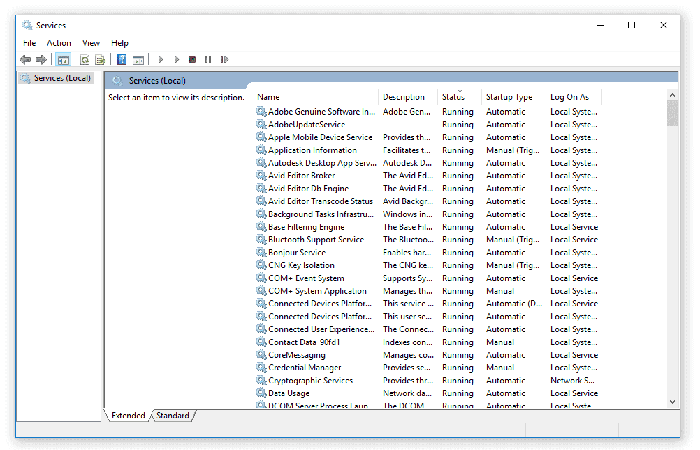
- Step 6:: You can also click on the “Restart» to restart NVIDIA installations.
Method 2: Update display drivers if Experience GeForce is not working:
The essential method is to update your NVIDIA display drivers. Just follow these steps:
- Step 1:: First, you need to go to the official portal to download the drivers.
- Step 2:: From the list available in the drop-down menu, applicants must choose the correct model of their graphics card.
- Step 3:: After observation, the applicant is made accessible with the new version of the display driver for the graphics card.
- Step 4:: It is mandatory to accept the terms of use, then you can download and install the display driver.
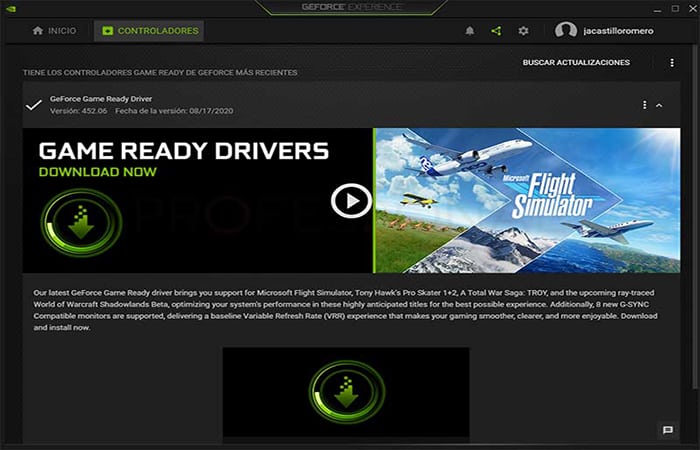
- Step 5:: Then restart your PC or laptop so that the latest and updated version appears on your desktop and becomes active. Applicants can also try using the beta version.
Method 3: Try using the beta version if GeForce Experience is not working
- Step 1:: First, press the « keyWindows + R«, writes the execution command «Cpl» in the run dialog box and press the « buttonEnter«.
- Step 2:: Now you will see the list of programs and functions, find and tap the option «NVIDIA Experience».
- Step 3:: Follow the guides to begin the Nvidia GeForce Experience removal procedure.
- Step 4:: Restart your PC or laptop, visit the official website and install the beta version.
- Step 5:: Install it according to the commands and install it correctly.
Using the beta version
- Step 6:: Then you need to restart your PC or laptop first, then launch GeForce.
- Step 7:: Instead of the latest beta version, you can select any previous version to download or install if the beta version is not for you.
Method 4: Change the network adapter if Experience GeForce is not working
If you want to change the network adapter, start with the following steps:
- Step 1:: press the keys Windows + R, and you must write the instructions «cmd» in the run box and press Ctrl + Shift + Enter To start the symbol of the system higher.
- Step 2:: When you are asked for the User account control, you must press «Yes» to grant administrator rights.
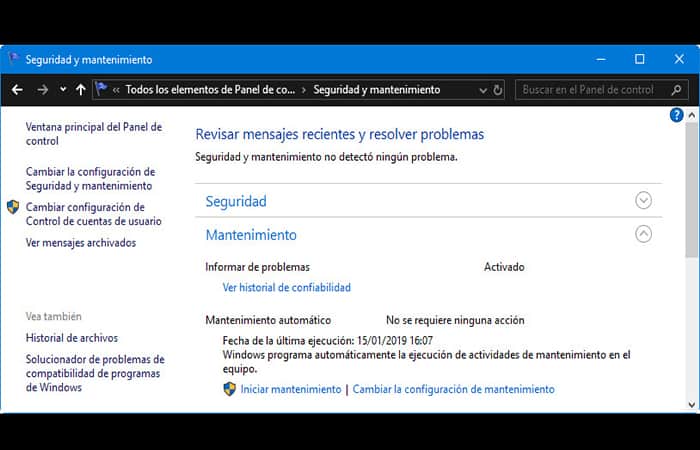
- Step 3:: In the advanced command prompt, enter the command and press the « buttonEnter» to change the location of the network card driver.
- Step 4:: After changing the network card driver location, restart your PC.
Method 5: Reinstall GeForce experience
- Step 1:: First, download and install the dedicated utility to help you remove the graphics driver.
- Step 2:: Once downloaded, run it and delete the files to a suitable available location.
- Step 3:: Get the service working after you download and install it.
- Step 4:: Tap the utility icon and double tap the “Log in«.
- Step 5:: Now tap on the GPU tab, which is located under the “Select device type«.
- Step 6:: Click Clean and restart, Then install the new driver version.
- Step 7:: Now reboot your new controller and then open Geforce.
Method 6: Check the display driver services if GeForce Experience is not working
- Step 1:: To see the list of services, you will need to open the service manager and then press the button WINDOWS+R to start the execution utility.
- Step 2:: Then enter the command msc and click Enter.
NOTE : This will open a Services window on your PC and display a list of services.
- Step 3:: Windows will display the list of services, click on its properties box if the service is not running, then select Start to run, you need to select stop first and then select the services to start.
Method 7: Update Windows 10 and check for optional updates if Experience GeForce is not working
While Windows update sometimes causes problems and additional updates are also released. Just follow these steps:
- Step 1:: Go to Windows Settings > Update & Security and click on the link.
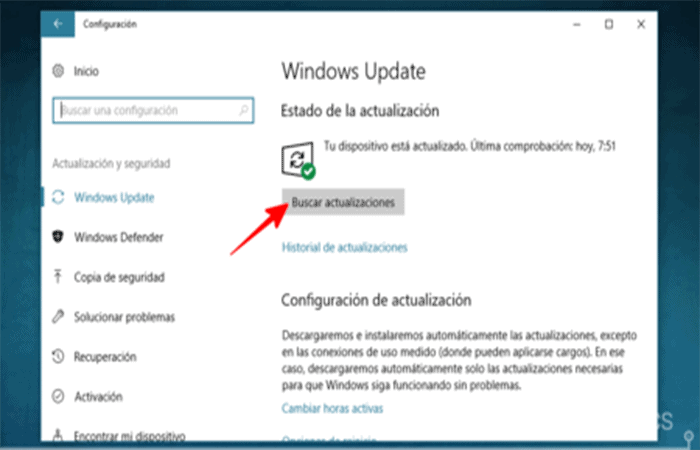
- Step 2:: Check to see if an update is available for NVIDIA Driver Services.
- Step 3:: Make sure to reboot and then check the software.
Method 8: Create a new account if GeForce experience is not working
If none of the above options work, it will surely help you fix the error. As a last resort, you need to create a new account with administrator rights after removing all the Nvidia-related apps and drivers. After creating the new account, download and install the drivers and check if the error persists.
Solutions Error code 0x0001 when Experience Geforce not working
Are you experiencing the “Nvidia Geforce Experience Error Code 0x0001” error? This is an essential part of GTX graphics cards. It allows the program to suggest driver updates and optimal settings for the games installed on your computer.
However, a bug or defect can negatively affect the user experience. If you are facing Geforce Experience error code 0x0001, there can be several causes.
This can be due to client errors when telemetry services or other services do not interact with the desktop if Nvidia logs do not have the necessary permissions, and file or driver corruption.
The solution is quite simple and we will guide you step by step. As the causes may vary from user to user, we recommend that you try all the solutions until the “Geforce Experience Error Code 0x0001” disappears.
The list of errors can be corrected
These are the most common errors you'll encounter when opening it on your PC, and they can be easily fixed.
Solution 1: Run as administrator
Often, the problem can be caused by insufficient permissions . Simply launch the app with administrator privileges . To do this, follow these steps.
- Step 1:: To start you must right click on the task bar, and in the drop-down menu select the option Task Manager or Press Ctrl + Shift + Esc
- Step 2:: Then, you must locate each of the tasks related to the NVIDIA card and end its process by right-clicking on the “finish tasks"
- Step 3:: Then head over to the Nvidia desktop app y right click , Select Run as administrator
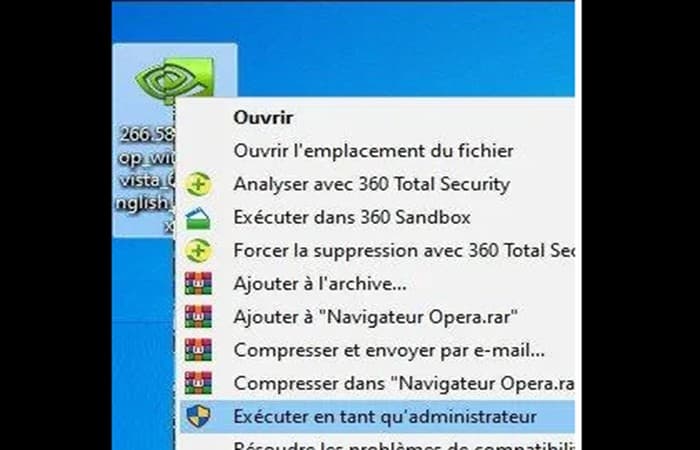
NOTE : Now try running the application and check if the GeForce Experience error code 0x0001 still appears. If it does, proceed with the other solutions.
Solution 2: Update Nvidia drivers or install Beta if GeForce Experience is not working
This error may be resolved after installing the new beta version. As the Geforce Experience error code 0x0001 error is a very common problem, there may be a fix in the beta version that is not available in the stable version.
So, to resolve this issue, you need to uninstall the current version and install the beta version. However, if you haven't updated Nvidia drivers for a long time, try updating them first and if that doesn't work, proceed to install the beta version.
Upgrade Steps
- Step 1:: Go to This PC or My Computer and right click, select Properties
- Step 2:: Click Device administrator in the left panel
- Step 3:: In the Drivers Screen, right-click on Nvidia Drivers. Then you should choose the option that says: “Update Driver"
- Step 4:: Then, you must follow the instructions given by the system step by step.
- Step 5:: Check if error code 0x0001 is fixed.
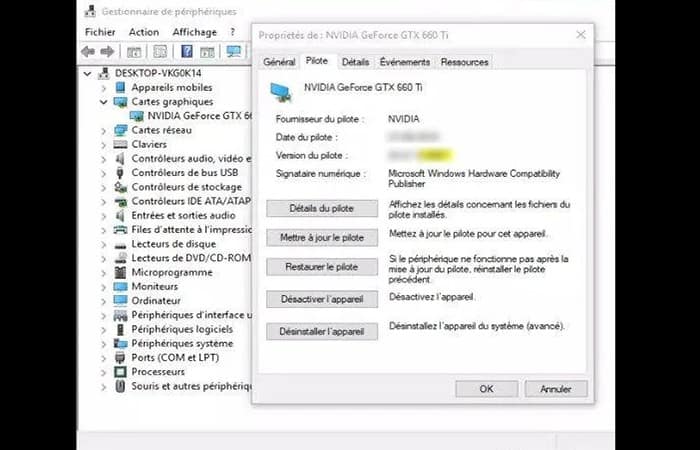
If the driver update worked , that's all there is to it. But if it didn't help, installing the beta version might fix the problem; however, you must first completely uninstall the driver and then reinstall the beta version. Follow these steps:
- Step 1:: Press the key Windows + R and writes Cpl and press the key Enter
- Step 2:: In the list that appears you must select NVIDIA, When you locate it you must choose the option that says: in Uninstall / Change
- Step 3:: Then, you must follow the procedure that appears with the installation wizard
- Step 4:: Finally, restart your computer.
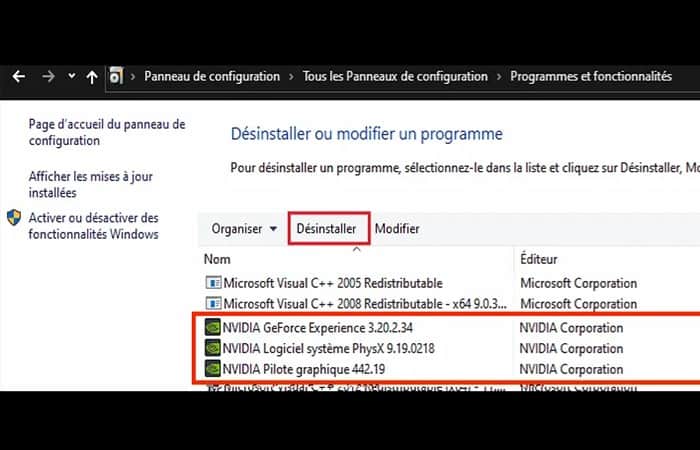
Install the beta version of GeForce Experience
- Step 1:: Visited the official GeForce website following this link.
- Step 2:: Click the Download button and download a copy of the beta version.
- Step 3:: Once downloaded, double click on the installer and start the installation process
- Step 4:: Once the installation is complete, launch the program and check if you still encounter the error.
If it still appears, follow the next solution.
Solution 3: Give permission to services if Experience GeForce is not working
For security reasons , Windows 10 doesn't allow administrator access to all applications you install on your PC. The same applies to Nvidia. To resolve this issue, simply follow the steps below:
- Step 1:: Press Windows key on your keyboard and type Services
- Step 2:: Now click on Services and search NVIDIA TELEMETRY CONTAINER.
- Step 3:: Then, you must select the option Properties right clicking on NVIDIA TELEMETRY CONTAINER
- Step 4:: Switch tabs Generalto the tab Connection
- Step 5:: From there, simply choose the local system account and make sure you check the box Allow the service to interact with the desktop just below.
- Step 6:: In the tab General, also set the Startup type to Automatic.
- Step 7:: Finally, click the button OK (Make sure NVIDIA Telemetry Container is running) and restart your PC.
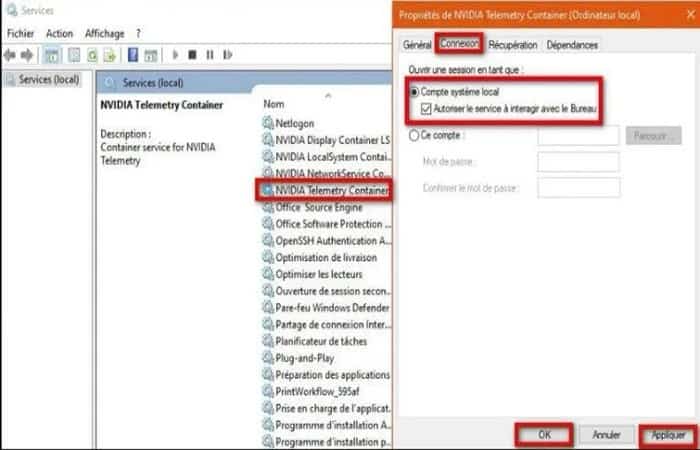
If you are still facing this error, try the following solutions.
Solution 4: Make sure the NVIDIA folders belong to the system
This error can occur if NVIDIA folders don't have sufficient permissions . Users have been able to resolve the issue by changing the folder's ownership to System . For this step to be effective, you must change the permissions of all NVIDIA folders on your system. Here are the steps to do so.
- Step 1:: Go to the C drive > Program Files (x86)
- Step 2:: Seeks the folder named NVIDIA Corporation
- Step 3:: Select the folder, click right and click Properties
- Step 4:: Then, you need to go to the tab called Security and later Advanced
- Step 5:: Make sure that the owner is designated as SYSTEM.
- Step 6:: If not, click on Edit
- Step 7:: In «Enter the name of the object to select», you must write "SYSTEM» and click on » Accept
- Step 8:: Mark Replace owner on subcontainers and objects and click Apply y Accept
- Step 9:: Once you have done that, you need to follow the same process for the NVIDIA folder located in Local Disk (C:) > Program Files.
Solution 5: Update Windows OS if Experience GeForce is not working
If none of the previous steps worked, the problem might be different . Some users have been able to resolve the issue by updating their Windows operating system . So it's worth a try. Follow these steps:
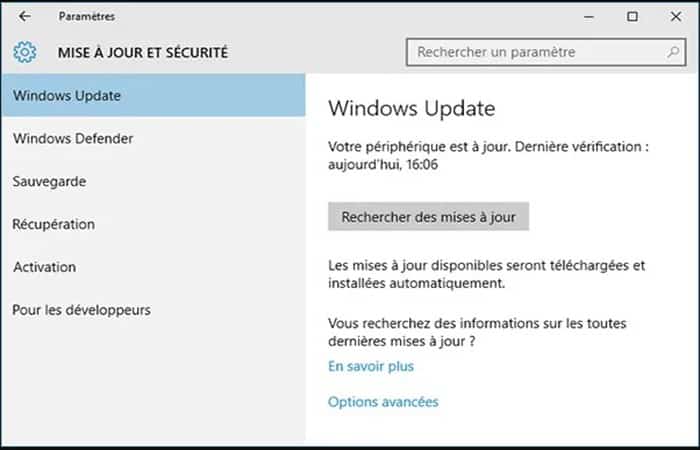
- Step 1:: Press Windows + I and select Update and security
- Step 2:: You will find the button Search updates and click on it.
- Step 3:: Follow the on-screen instructions to download and install the latest updates.
Solution 6: Change the path in the registry editor if Experience GeForce is not working
Many people use SSD for primary system disk and HDD for storage, sometimes it can be confusing for Windows and for some reason it will automatically hang the default program directory to another disk.
So, you should check the default directory path in the registry editor and change it if necessary. But first, you should uninstall all Nvidia programs from your computer (as there is a chance that they are installed on the wrong drive)
- Step 1:: Open the menu Home, writes Registry Editor and open it.
- Step 2:: Now go to the following route:
- Computer -> HKEY_LOCAL_MACHINE -> SOFTWARE -> Microsoft -> Windows -> CurrentVersion.
- Step 3:: From there, simply set all the data values as shown in the image above, as they are the default path directory to install the program.
- Step 4:: For modify the dataSimply Double click on the value that you want to modify and write default routes as shown above.
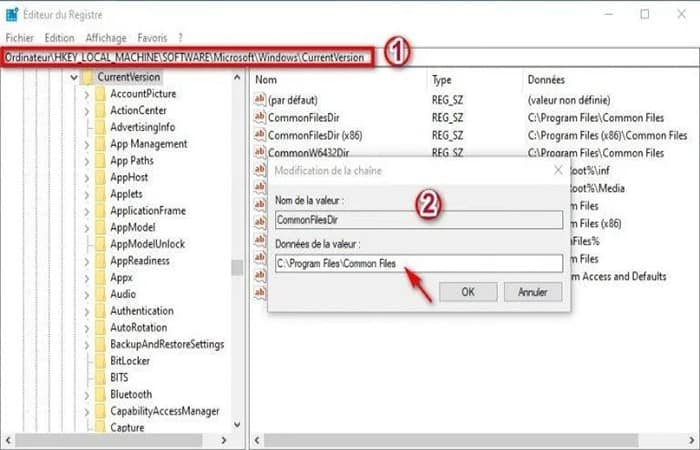
- Step 5:: Finally, reinstall all Nvidia graphics drivers from the beginning and this time all the programs will be installed on the drive "C:" and you will find no more mistakes.
Solution 7: Try the GeForce Experience beta
In the beta version, you can get some new features before the public release. And Nvidia continues to try to be the best it can be by constantly fixing new issues in the GeForce Experience beta. You can fix the error code “something went wrong: 0x0003”.
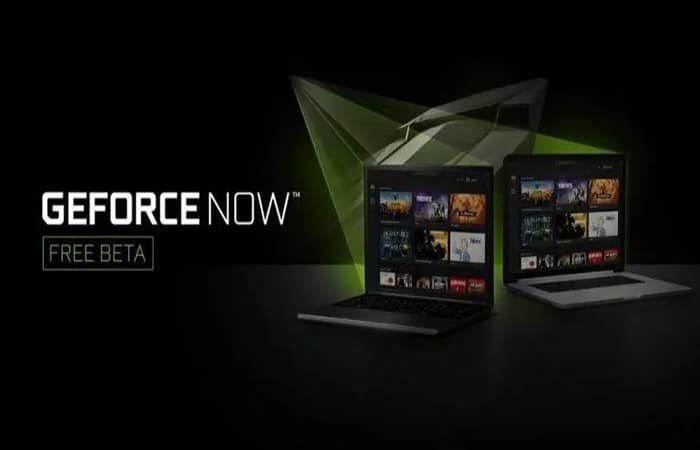
Alternatives you can use if GeForce Experience is not working
If none of the solutions and methods helped you with the problem, we recommend that you continue reading to learn about the best alternatives to GeForce.
1. Google Stadia

Google has also joined the race towards cloud gaming. Stadia, as it's known, can be played on any device, whether it's a PC, mobile device, or even your Android Smart TV.
Stadia has two plans, a free plan and a paid monthly plan that will cost you $9,99. Stadia also supports several other controllers and even has its own Stadia Controller. It really is a great alternative that you can use if Experience GeForce is not working.
You can avail the one-month free trial of Stadia Pro before you start purchasing the plans. With Stadia Pro, you get a ton of free games to keep every month.
You can play games at 4K60 and even expect a higher resolution at 8K120 FPS. However, Google Stadia is currently available in a handful of regions, but a growing list of games is also being added.
You can enter from here
2. Amazon Moon
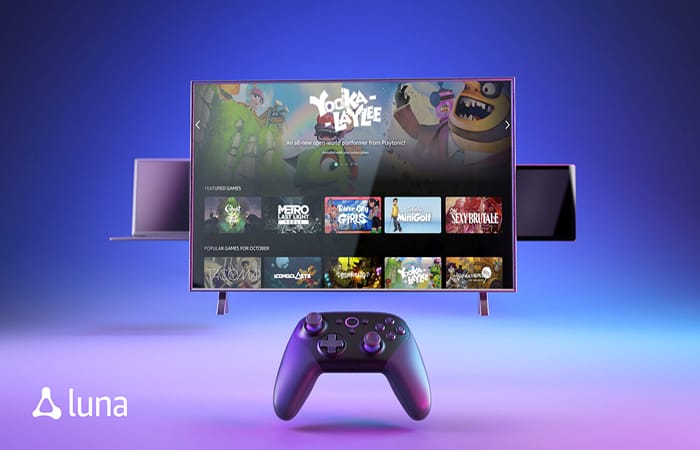
Amazon decided not to be left out of the cloud gaming race. Amazon Luna is your answer to cloud gaming, which you can use if GeForce Experience isn't working. The service has two types of subscription plans, both currently in early access.
In order to play on Amazon Luna, you will need to request early access and choose any of the plans. There is the Luna+ plan that will cost you $5.99 a month and the Ubisoft+ plan that will cost you $14.99 a month. However, Amazon Luna is only available in the US and allows you to play at 1080p60.
Amazon Luna has an average list of games in its library which you can check out here. Amazon Luna has third-party controller support only for Xbox One and PS4 controllers.
If you don't have those controllers, you can always buy the Luna controller and play games right away.
You can enter from here
3. Sony PlayStation Now

Want to enjoy the best PlayStation games on your PC? Sony's PlayStation Now is the best option if Experience GeForce isn't working. You can play top PS2, PS3, and PS4 titles on your PlayStation 5 or Windows PC.
To use PS Now, simply download the PS Now app on your PS5 or PC, get the 7-day free trial, and enjoy the games.
Well, you will need to create or sign in with your PlayStation Network account to use the service. You can use the DualShock4 controller on your console or PC or even any other compatible controller.
PS Now has a huge library of games of at least 300+ and new games are added all the time. There are three types of plans, an annual plan that will cost you $59,99, a 3-month plan for $24,99, and a monthly plan for $9,99. However, the cloud service is available in 19 regions as of now.
You can enter from here
4. Xbox Cloud Gaming
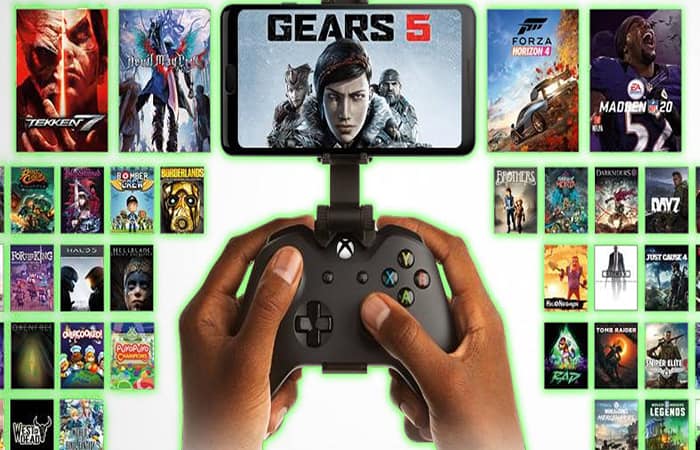
Microsoft has also entered the cloud gaming arena with Xbox Cloud Gaming . The service is currently in beta, but it's still one of the best alternatives you can use if GeForce Experience isn't working.
So how does this work? Well, if you have an Xbox Game Pass Ultimate subscription, you’ll be able to easily play the entire collection of Xbox games on your PC or mobile device for one monthly price. The Ultimate Game Pass subscription will cost you $14,99 per month.
This will give you access to a large library of games, Xbox Cloud Gaming, Xbox Live Gold, and even an EA Play membership, plus exclusive same-day access to newly released games. While you can purchase an Xbox Game Pass subscription in almost any region, the Cloud Gaming service isn't available in all regions.
You can enter from here
5. Parsec

The next option on the list of the best alternatives you can use if GeForce Experience isn't working is Parsec. Parsec takes a different approach when it comes to gaming.
What you will basically need is a virtual machine in the cloud. Rather, you need to rent a cloud computer that is available and fully functional in your region.
You will also need to download the Parsec app to the cloud VM and then install your game client on the cloud VM. Create some save states for the game you want to play in the VM with your friends.
Once the game save states are complete, you can simply share a link with your friend to join and play multiplayer games immediately without latency or lag issues.
Even if your friend has a tablet and a controller, they can join in to play with you right away. It's more like a cloud game sharing service if you would call it that.
You can enter from here
6. Playkey

Playkey.net is a cloud gaming service for those who don't have a high-end gaming rig. If you have games purchased on Steam, Battle.net, Uplay, and other stores, you can play those games instantly.
All you need to do is create a Playkey account and play games you've already purchased. With Playkey subscriptions, you can pay on an hourly basis starting at $2 per hour. So if you play for 100 hours, you'll have to shell out $100.
If that doesn’t suit you, you can always avail the monthly plan that has unlimited benefits that will cost you $49 a month. On Playkey, you will be able to play games with Full HD graphics that run at 60FPS. If you have internet speeds above 25Mbps, you will be able to play games at 120 FPS right away.
You can enter from here
7. Blacknut

Blacknut is another cloud gaming service that you can use to play games right away. The library has around 500 games and new ones are added to its library regularly.
You can have up to 5 different accounts on a single monthly subscription plan. What this would mean is that you can have other members on your plan and let them play the games they enjoy on their separate accounts. The monthly plan will cost you $12.99 and Blacknut claims that there are no ads or in-game purchases required either.
Regarding platform availability, you can run Blacknut's cloud gaming services on Windows, macOS, Linux , Android, iOS , Amazon TV, and Google TV . Each platform has an app that you can download and use right away.
You can also play a game on one device and then log in via another device to continue playing. Additionally, Blacknut now has support for Xbox One controllers.
You can enter from here
8. Netboom
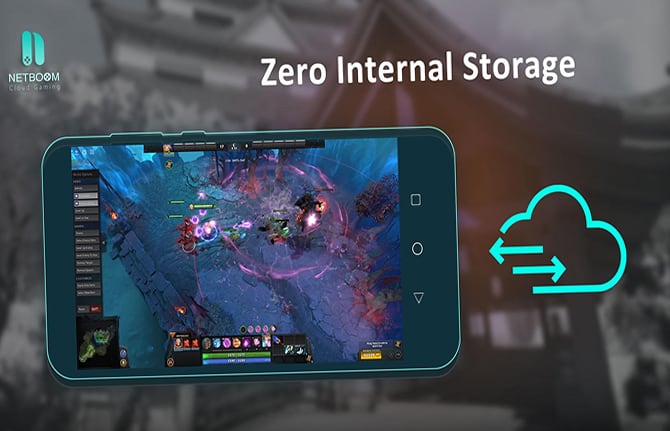
Netboom is a cloud gaming service that focuses primarily on those without a PC. You can play games from the cloud through their Android and iOS mobile apps. You can also play on your PC for a monthly fee of $8,99.
That said, the service does have support for some controllers to connect via Bluetooth. You can choose games from the Rockstar, Steam, and Epic Games libraries to play.
The Netboom website showcases some of the latest and most demanding games that can be played right away on mobile devices. It truly is a great alternative that you can use if Experience GeForce is not working.
If you are a new member who has recently signed up with a netbook, you are provided with around 20 minutes of a game session for free. After the 20 minutes, you can top up and pay as you play. Meaning you pay for the number of houses you play.
You can enter from here
9. Vortex
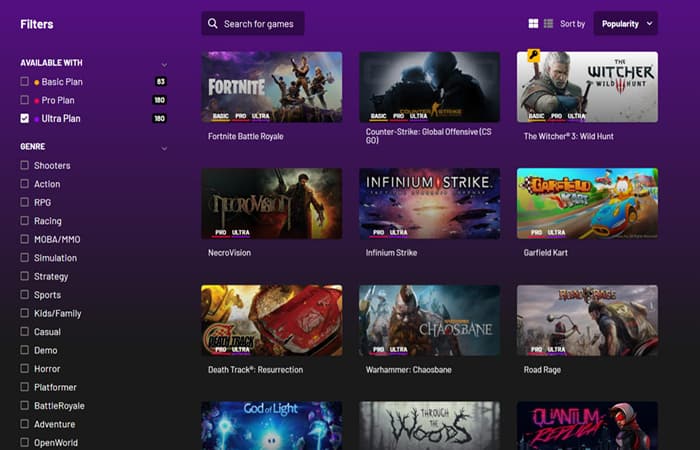
Vortex is another gaming service you can use if Experience GeForce isn't working, and it's slowly growing. The service currently has around 168 games in its library.
You'll be able to play games on Windows, macOS, and Android . Vortex is available in many regions and will soon be global with an ever-growing game library.
Vortex also claims that you'll be able to play games at 60 FPS Full-HD. The Vortex may be small for now, but you'll surely be able to see it grow soon and expand far and wide.
With Vortex, you can choose from three types of monthly plans, a $3,99 Basic plan, a $19,99 Pro plan, and a $29,99 Ultra plan, each plan giving you a license for a handful of games.
You can enter from here
10. Shasow
The latest cloud gaming service, or perhaps the alternative you can use if GeForce Experience isn't working, Shadow is available to play on Windows, macOS, Android, iOS, and even Smart TVs.
The cloud gaming service claims to give you the best streaming quality in 4K60 and 144 FPS with Full-HD resolution. It also has support for various peripherals and controllers. If you want, you can also install software on the cloud PC if you don’t plan on gaming at any time.
For best performance, Shadow requires you to have at least a 15Mbps internet connection. Shadow currently has a monthly plan that will cost you $29.99.
You will be provided with a system in a data center that is closest to them, ensuring that you will not encounter any delays and latency issues of any kind.
You can enter from here
Conclusion
GeForce Experience is a windowed application designed to help you fine-tune your games, update your graphics, and enhance your in-game events. GeForce Experience is a support for people who enjoy playing games with graphics cards created by NVIDIA.
But many users reported that “Nvidia Geforce Error Code 0x0001” is happening, you can fix this error quickly by following the methods provided above. We hope that this information helped you. If Experience GeForce is not working, we recommend you to use the above alternatives.

My name is Javier Chirinos and I am passionate about technology. Ever since I can remember, I have been interested in computers and video games, and that passion has turned into a job.
I have been publishing about technology and gadgets on the Internet for over 15 years, especially in mundobytes.com
I am also an expert in online marketing and communication and have knowledge in WordPress development.
Table of Contents
- 1 What is GeForce experience?
- 2 Other solution methods
- 3 How to fix error code 0x0001 when Geforce experience not working?
- 3.1 Method 1: Check Nvidia Telemetry Container Settings if Geforce experience not working:
- 3.2 Method 2: Update display drivers if Experience GeForce is not working:
- 3.3 Method 3: Try using the beta version if GeForce Experience is not working
- 3.4 Method 4: Change the network adapter if Experience GeForce is not working
- 3.5 Method 5: Reinstall GeForce experience
- 3.6 Method 6: Check the display driver services if GeForce Experience is not working
- 3.7 Method 7: Update Windows 10 and check for optional updates if Experience GeForce is not working
- 3.8 Method 8: Create a new account if GeForce experience is not working
- 4 Solutions Error code 0x0001 when Experience Geforce not working
- 5 The list of errors can be corrected
- 5.1 Solution 1: Run as administrator
- 5.2 Solution 2: Update Nvidia drivers or install Beta if GeForce Experience is not working
- 5.3 Solution 3: Give permission to services if Experience GeForce is not working
- 5.4 Solution 4: Make sure the NVIDIA folders belong to the system
- 5.5 Solution 5: Update Windows OS if Experience GeForce is not working
- 5.6 Solution 6: Change the path in the registry editor if Experience GeForce is not working
- 5.7 Solution 7: Try the GeForce Experience beta
- 6 Alternatives you can use if GeForce Experience is not working
- 7 Conclusion