- Exclusions narrow the analysis to improve performance and protection; they apply precise, contextual rules.
- Use PathType, ScanType, ScanTrigger, and Process restrictions to limit when and how to exclude.
- Configure exclusions from the app, GPO, Intune/ConfigMgr, PowerShell or WMI and validate with MpCmdRun and EICAR.
When Windows Defender triggers at the slightest provocation and flags folders or processes you know are trustworthy, your system can slow down or block frequently used tasks. Setting up scan exclusions lets you fine-tune what gets scanned and when, without disabling protection: the key is to do this thoughtfully to minimize the impact on security.
In this in-depth, practical guide, you'll learn how to exclude files, folders, extensions, drives, and processes, and go a step further with contextual exclusions that only apply to certain types of scans, triggers, or specific processes. You'll also see how to do this using the Windows Security app , Group Policy, PowerShell, and WMI , as well as how to validate that your rules work with tools like MpCmdRun or the EICAR test file.
What are exclusions in Microsoft Defender and when to use them?
Exclusions are rules that tell Defender what not to scan (files, folders, extensions, or processes), whether in scheduled scans, on-demand scans, or real-time protection. Their main purpose is to mitigate performance issues , but they come at a cost: they reduce the level of protection , so apply them only when necessary and precisely.
Exclusions are not the ideal solution for false positives . If you detect one, the proper approach is to submit the file for analysis through the Microsoft Defender portal (subscription required) or the Microsoft Security Intelligence website . For temporary cases in environments with Microsoft Defender for Endpoint, consider creating a specific "allow" flag instead of excluding an entire path.
Contextual Exclusions: Restrict by route type, exam, trigger, or process
Contextual exclusions allow you to be very specific on when an exclusion applies. They are defined by adding restricciones to the excluded route by means of a string with syntax how are you: <RUTA>\:{TypeName:value,TypeName:value}. Important: Types and values are case sensitive.
Four restrictions are available to fine-tune your rules:
- PathType (file or folder): Delimits whether the exclusion should be applied only if the destination is fillet o folder. Example:
C:\documents\*.mdb\:{PathType:file}oC:\documents\*\:{PathType:folder}. - Scantype (exam type): limits the exclusion to exams quick o full. Example:
C:\documents\:{ScanType:full}. - ScanTrigger (trigger): Applies when the exam starts OnDemand (includes scheduled and directed complete/fast), OnAccess (real time) or by BM (behavioral supervision). Example:
C:\documents\:{ScanTrigger:OnAccess}. - (process): Restricts exclusion to access from a specific process (wildcards allowed). Example:
C:\documents\design.doc\:{Process:\"winword.exe\"}.
Quick examples of syntax in action:
- Only if it is a file and in real time:
C:\documents\design.doc\:{PathType:file,ScanTrigger:OnAccess}. - Only when you open it Word (by image name):
C:\documents\design.doc\:{Process:\"winword.exe\"}. - With wildcards in routes and extensions:
C:\*\*.doc\:{PathType:file,ScanTrigger:OnDemand}. - Wildcards in the process path:
C:\documents\design.doc\:{Process:\"C:\\Program Files*\\Microsoft Office\\root\\Office??\\winword.exe\"}.
Keep in mind the default behavior: If you do not specify PathType, ScanType, or ScanTrigger, the exclusion is applied both to files and folders y in all types and triggers. To avoid ambiguities (for example, C:\program.exe could be a folder), combines restrictions as in C:\program.exe\:{ScanType:quick,PathType:file}.
Exam Types and Triggers: How They Affect Your Rules
Defender performs several types of scans : the quick scan looks at common malware boot locations , memory , and relevant registry keys; the full scan scans the entire file system in addition to what the quick scan covers; and the targeted scan analyzes a specific item (e.g., from the context menu).
Triggers determine when exclusion is triggered . OnDemand groups scheduled and manually launched scans (quick, full, and targeted); OnAccess corresponds to real-time protection (open, write, read, or modify); BM refers to scans triggered by behavioral monitoring , including memory.
Practical examples for adjusting the impact on performance:
- Exclude a folder only in the complete:
C:\documents\:{ScanType:full}. - Exclude a file only in the quick and ensuring that it is a file:
C:\program.exe\:{ScanType:quick,PathType:file}. - Exclude a real-time-only route:
C:\documents\:{ScanTrigger:OnAccess}.
Combining restrictions reduces the risk surface by avoiding overly broad exclusions that could overlook threats if applied in unforeseen contexts.
Version requirements and scope of functionality
Contextual exclusions require Microsoft Defender Antivirus with platform version 4.18.2205.7 or later and engine version 1.1.19300.2 or later . Check for platform and security intelligence updates to ensure your environment supports these options.
Exclusions apply to scheduled scans, on-demand scans, and real-time protection . However, Microsoft notes that exclusions are generally not necessary except in specific cases (for example, administrative tools, databases , or intensive operations that you know and control).
How to configure exclusions: Windows Security app, Group Policy, PowerShell, and WMI
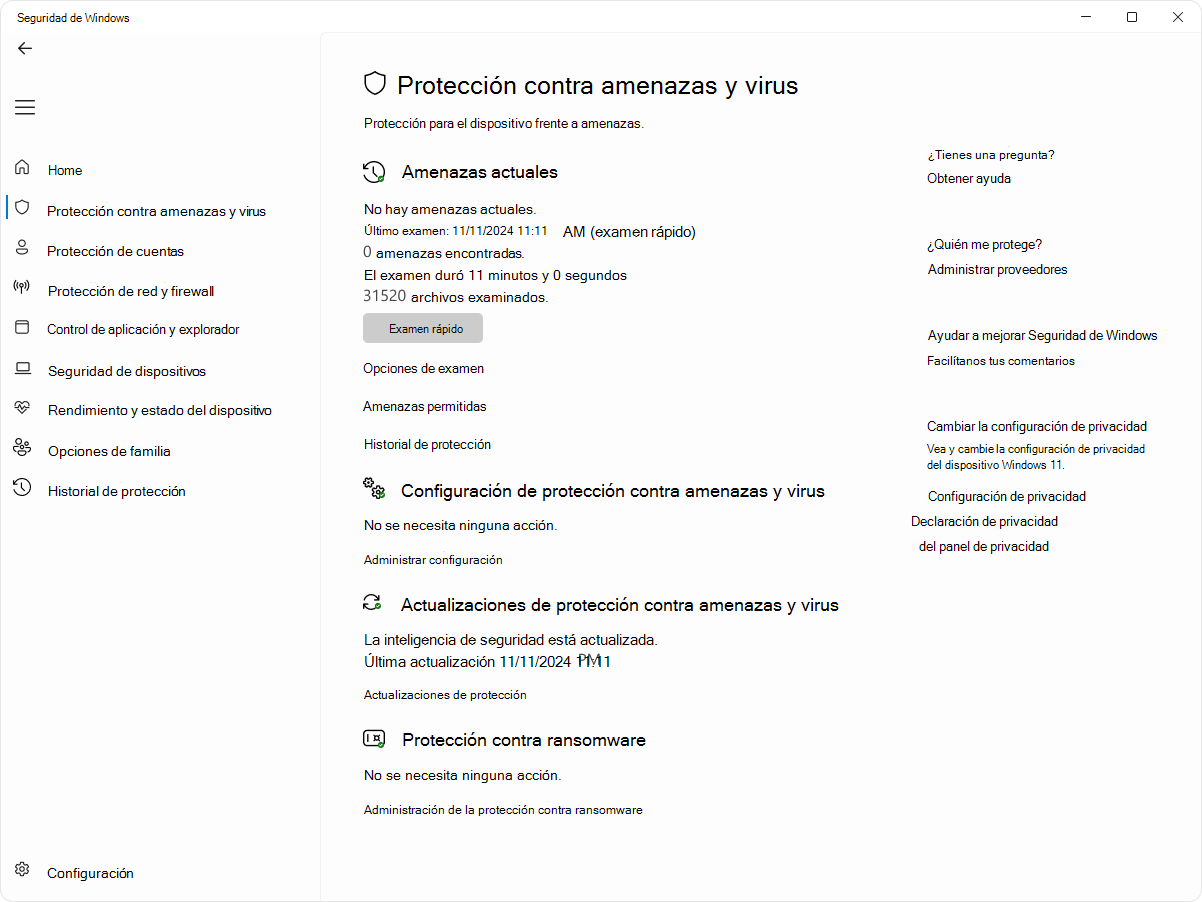
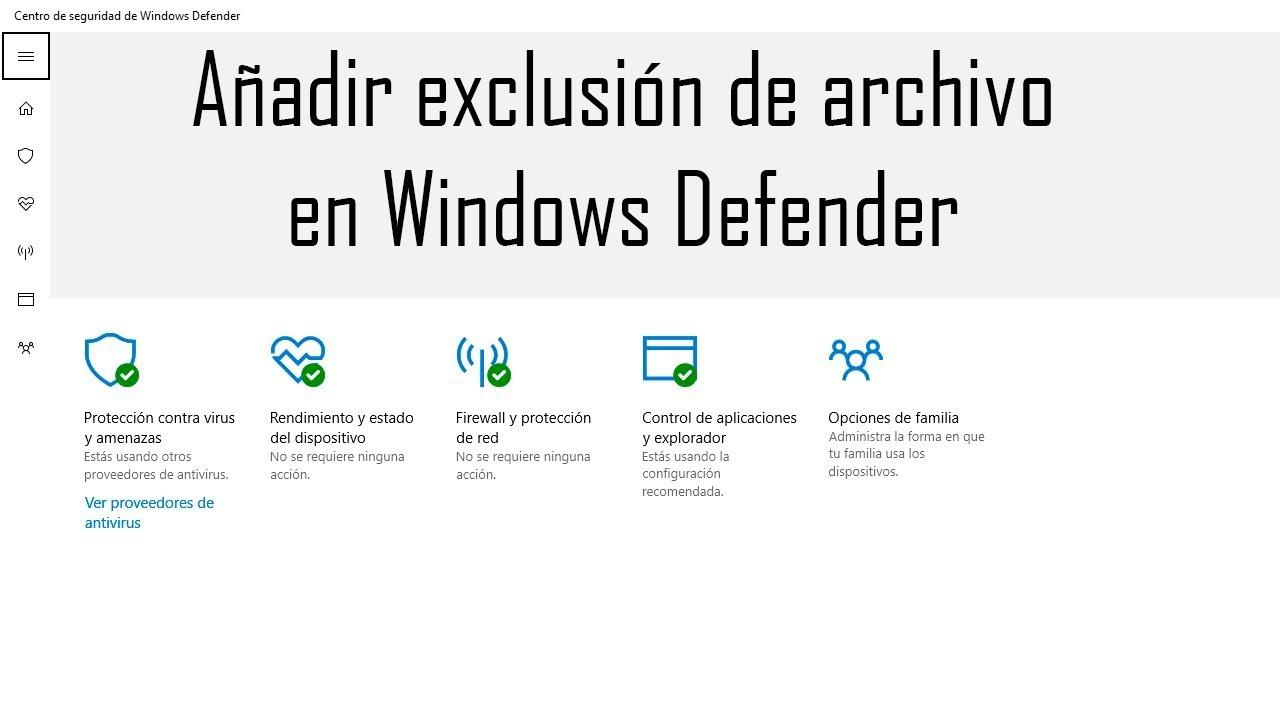
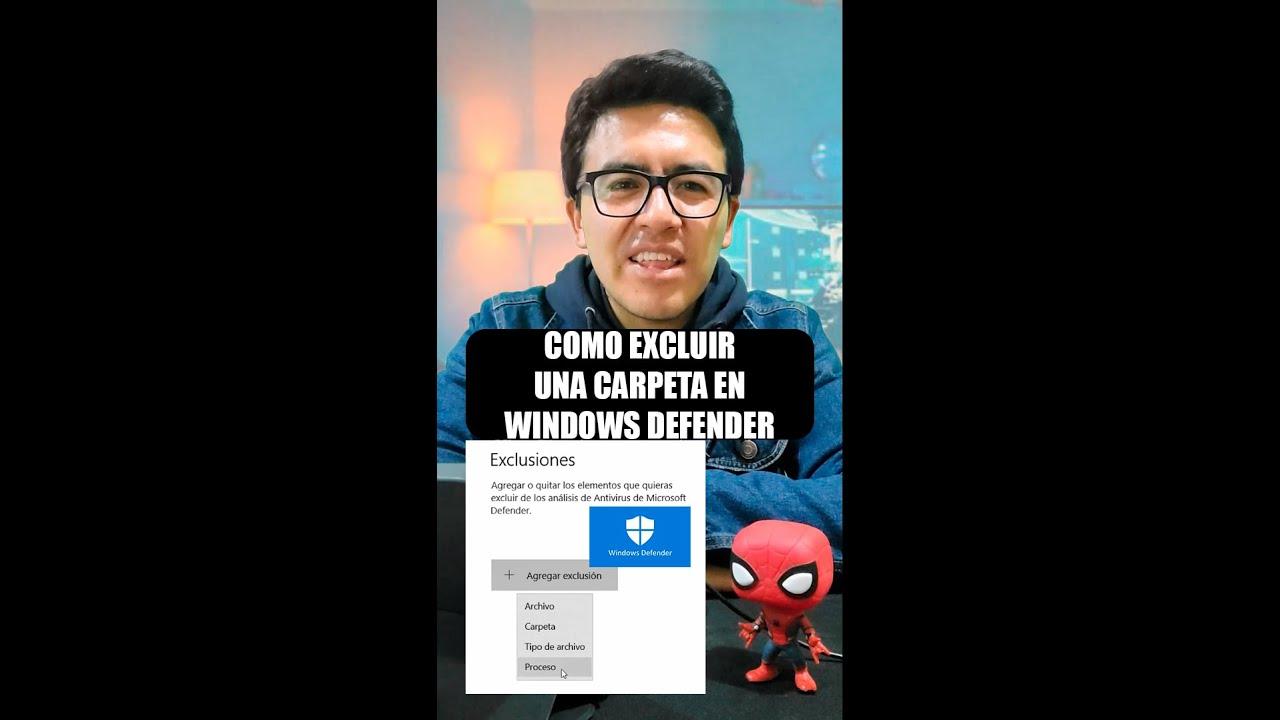
From the Windows Security app (graphical interface) : Open the search bar and type "Security" to access Windows Security . Go to Virus & threat protection and then to Manage settings within "Virus & threat protection settings." In the Exclusions section , click Add or remove exclusions and then Add exclusion . You can choose File , Folder (including subfolders), File type (by extension), or Process (by name). To remove an exclusion, use the side icon next to each item and select Remove.
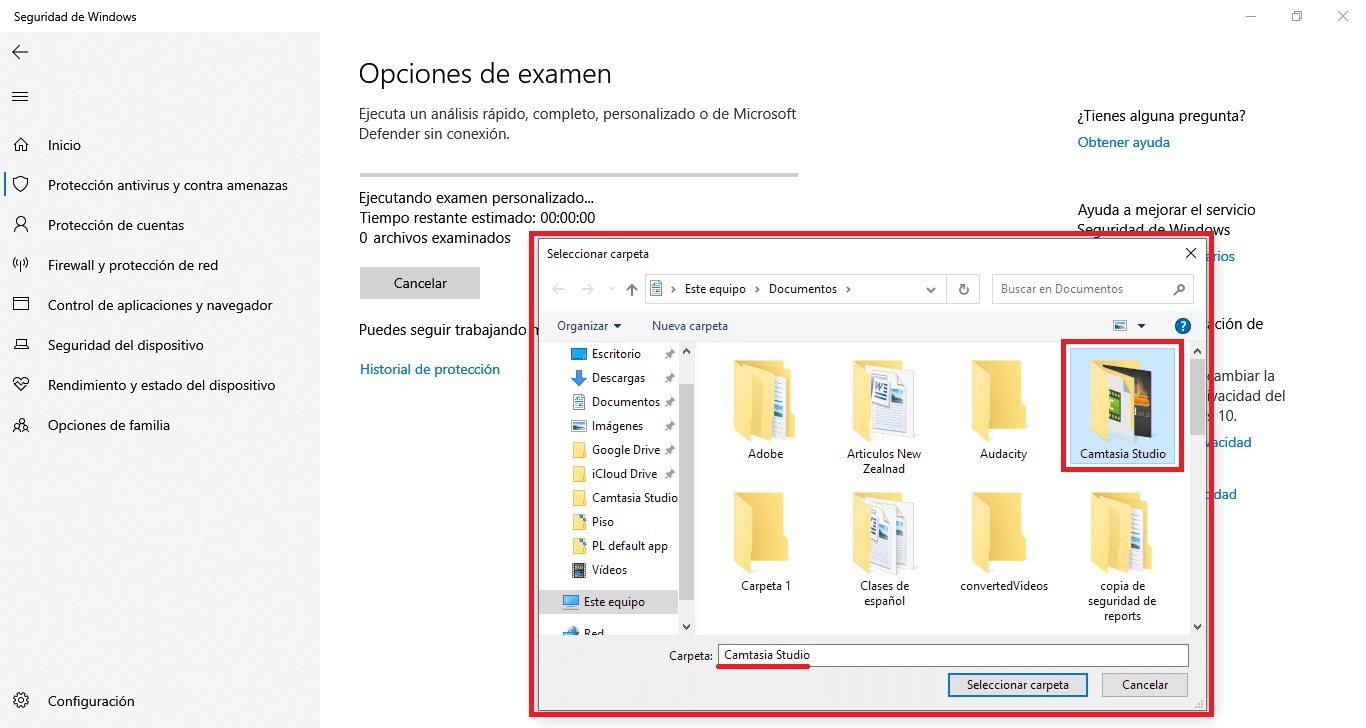
Using Group Policy (GPO) : Open the Group Policy Management Console , edit the desired GPO, and navigate to Computer Configuration > Administrative Templates > Windows Components > Microsoft Defender Antivirus > Exclusions . Go to Path Exclusions , select Enabled , click Show , and add each path (folder or file with full path); enter 0 in the Value column. Repeat for Extension Exclusions (one extension per line, with or without a period; value 0 ). Apply and OK.
With Microsoft Intune or Configuration Manager : you can define exclusions by file name, folder, or extension from Intune (refer to the corresponding security policy) and in Configuration Manager (current branch) using antimalware policies in the exclusion settings section.
With PowerShell (Defend module): use Set-MpPreference to create/overwrite, Add-MpPreference to add and Remove-MpPreference to remove. The key parameters are -ExclusionExtension (extensions) and -ExclusionPath (files or folders, including subdirectories). Example: Add-MpPreference -ExclusionExtension ".test". To review all preferences, run Get-MpPreference; you can also store in a variable: $WDAVprefs = Get-MpPreference and then see $WDAVprefs.ExclusionExtension o $WDAVprefs.ExclusionPath.
With WMI : the MSFT_MpPreference class exposes Set , Add , and Remove methods on properties such as ExclusionExtension and ExclusionPath , similar to PowerShell cmdlets. This is useful for automation and scripting in managed environments.
Using wildcards and environment variables in extensions, paths, and processes
Defender supports wildcards in path/file/process and extension exclusions: the asterisk * and the question mark ?, plus Environment Variables (for example, %ALLUSERSPROFILE%). Eye: its interpretation differs from other languages and apps; it is important to understand its scope well.
Patterns with *: located on file names/extension, replaces any number of characters in the last defined folder; In folder exclusions, each * replaces a single folder in the path, and after matching wildcard and named folders, all subfolders are included. Examples: C:\MyData\*.txt covers C:\MyData\notes.txt; C:\somepath\*\Data offers C:\somepath\Archives\Data y C:\somepath\Authorized\Data; C:\Serv\*\*\Backup covers routes such as C:\Serv\Primary\Denied\Backup y C:\Serv\Secondary\Allowed\Backup.
Patterns with ?: located on file names/extension, replaces a single character in the last folder; in folders, replaces a single character in the name of each folder in the pattern. Examples: C:\MyData\my?.zip would cover C:\MyData\my1.zip; C:\somepath\?\Data would coincide with C:\somepath\P\Data; C:\somepath\test0?\Data would include C:\somepath\test01\Data.
Environment Variables: They expand to their actual path when evaluating the exclusion. Examples: %ALLUSERSPROFILE%\CustomLogFiles equivalent to C:\ProgramData\CustomLogFiles; and you can combine them with wildcards, like %PROGRAMFILES%\Contoso*\v?\bin\contoso.exe, which would marry C:\Program Files\Contoso Labs\v1\bin\contoso.exe.
Most common environment variables On Windows systems, this will provide you with portable exclusions without absolute paths: %APPDATA% (application profile), %LOCALAPPDATA%, %ProgramData%, %ProgramFiles%, %ProgramFiles(x86)%, %SystemDrive%, %SystemRoot%, %windir%, %PUBLIC% y %USERPROFILE%. Remember that there are many more (start menus, system32, fonts, etc.) that follow the same expansion pattern.
Review and validate your exclusions: PowerShell, MpCmdRun, and EICAR
Audit what you have configured with PowerShell: Get-MpPreference Shows all preferences. If you're interested in targeting, save to a variable and view specific properties: $WDAVprefs = Get-MpPreference, then $WDAVprefs.ExclusionExtension y $WDAVprefs.ExclusionPath. This way you can detect duplicate or overly broad entries..
Validate exclusions with the MpCmdRun tool (line of commands). Open a cmd As an administrator, go to %ProgramData%\Microsoft\Windows Defender\platform, enter the folder of the platform version (for example, 4.18.2111-5.0) and run: MpCmdRun.exe -CheckExclusion -path <ruta>. This check confirms whether a specific route is actually excluded..
Technical test with the EICAR test file. From PowerShell, download the test file to a location that meets your rules and verify the behavior. Example: Invoke-WebRequest \"https://secure.eicar.org/eicar.com.txt\" -OutFile \"test.txt\". If Defender alerts you about malware, the exclusion does not apply; if there is no alert and the file exists, exclusion is working.
Alternative with .NET WebClient: $client = new-object System.Net.WebClient; $client.DownloadFile(\"http://www.eicar.org/download/eicar.com.txt\",\"c:\\test.txt\"). Without Internet, generates the EICAR content locally: [io.file]::WriteAllText(\"test.txt\",\"X5O!P%@AP[4\\PZX54(P^)7CC)7}$EICAR-STANDARD-ANTIVIRUS-TEST-FILE!$H+H*\"). Always use it on controlled routes so as not to interfere with other processes.
Applying exclusions precisely prevents degrading the overall security of your computer. You've seen how to use contextual restrictions (PathType, ScanType, ScanTrigger, and Process), how to configure them from the Windows Security app, Group Policy Objects (GPOs), Intune/Configuration Manager, PowerShell, and WMI, and how to verify that everything works with MpCmdRun and EICAR. The winning strategy is to use the narrowest possible exclusions , leverage wildcards and environment variables judiciously, and periodically review the list to remove entries you no longer need.

Passionate writer about the world of bytes and technology in general. I love sharing my knowledge through writing, and that's what I'll do on this blog, show you all the most interesting things about gadgets, software, hardware, tech trends, and more. My goal is to help you navigate the digital world in a simple and entertaining way.
Table of Contents
- 1 What are exclusions in Microsoft Defender and when to use them?
- 2 Contextual Exclusions: Restrict by route type, exam, trigger, or process
- 3 Exam Types and Triggers: How They Affect Your Rules
- 4 Version requirements and scope of functionality
- 5 How to configure exclusions: Windows Security app, Group Policy, PowerShell, and WMI
- 6 Using wildcards and environment variables in extensions, paths, and processes
- 7 Review and validate your exclusions: PowerShell, MpCmdRun, and EICAR