
Sometimes, when a user tries to export a file using the Save for Web function, it fails. The Adobe Save for Web error is reported on Mac , Windows , and Linux for all image formats (JPEG, PNG, etc.), as well as GIF. If you want to learn how to fix it, keep reading this post.
How does the Adobe save for web error occur?
Adobe Save for Web feature may not work due to many different factors, but the following are the main causes reported by users to trigger the issue:
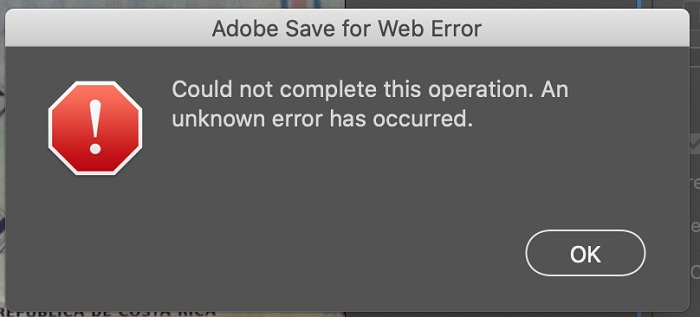
- Error in full disk access permissions for Adobe Photoshop: Adobe Photoshop requires full disk access on a Mac to complete its save for web operation on the target drive. If the Photoshop application is missing full disk permissions on Mac, it may display the save for web error.
- Preferences Adobe Photoshop corrupt: Adobe Photoshop saves many of its settings in the preferences file and if that file is corrupted or some of its settings conflict with 'save for web' then Photoshop might display the current error.
- Adobe Photoshop or outdated OS: Photoshop application and your system OS (like Windows or macOS) are updated regularly to keep up with the latest advancements in technology. If either the Photoshop application or your system OS is outdated, it may conflict with each other resulting in the Adobe Save for Web error.
- Conflicting Cloud Applications: Many users prefer to back up their systems (especially desktop and documents) to the cloud. If you're trying to save to a directory that syncs with a cloud app (like Dropbox), the cloud app's permission requirements may restrict Photoshop's access to the folder and you may encounter the issue at hand.
How to fix Adobe save for web error?
Before diving into more detailed and technical solutions, you may want to check out the following list if any of these work for you:
- Make sure your system complies with the recommended system configuration for Adobe Photoshop, not just the minimum requirements.
- If you are saving the file with a name that has some special characters (such as @, -, _, \, \, etc.), check if saving the file with a name without special characters resolves the issue. Also, if you are using animation and have a video source, make sure the path to the source does not have any special characters. Check if saving the file to a new location resolves the issue.
- Make sure you have only one version of Adobe Photoshop installedIf you have an older version of Photoshop, uninstall it.
Please note that sometimes an Adobe Photoshop update adds another application to your system (especially on a Mac) and does not replace the old one, so make sure you are using the latest version of the application.
Also, if you have a shortcut defined to open Adobe Photoshop, make sure the shortcut points to the correct Adobe Photoshop installation.
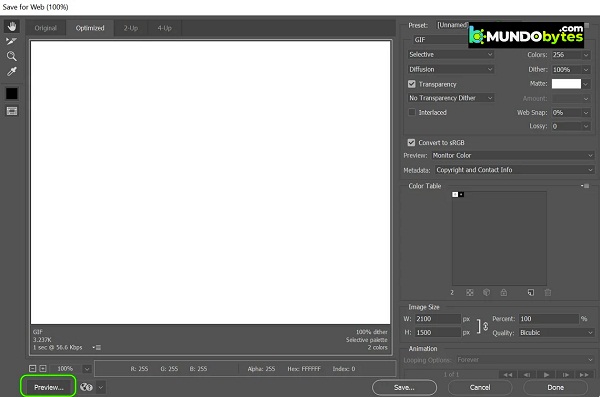
If nothing has worked, you can click the Preview button in the Save for Web dialog box and, when you get a preview of the image in the browser, check if saving the image from the browser meets your needs.
For macOS users
Give Adobe Photoshop and the default browser full disk access
If Adobe Photoshop or the default system browser does not have full access to the disk where you want to save the file or if Photoshop/browser access privileges are removed, Photoshop may not be able to export for the web. In this case, you can fix the Adobe Save for web error by giving Photoshop and the browser full disk access in Mac preferences.
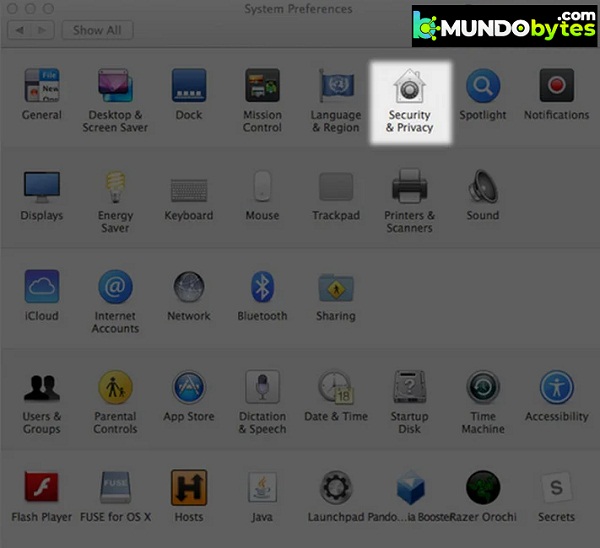
- Launch your Mac's Preferences and open Security and privacy.
- Then go to the tab Privacy policy and in the left panel, locate the Full disk access.
- Now you need to click on the icon of the padlock near the bottom left corner and enter your credentials (if requested).
- After this, you must start the Applications folder y drag/drop Adobe Photoshop to Full Access Disk Application ListYou can also use the plus sign near the bottom of the list to add Photoshop.
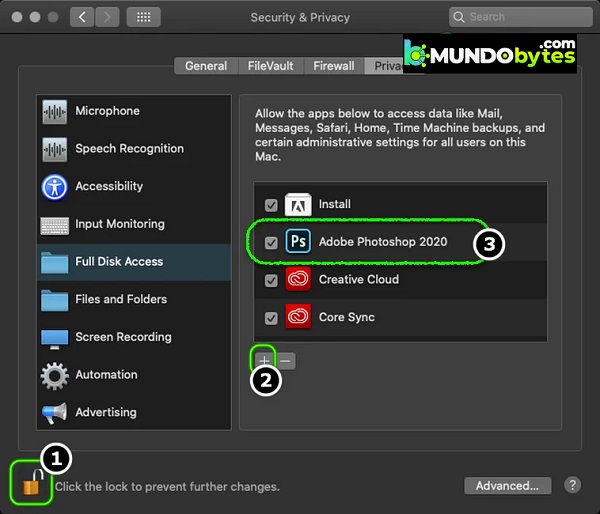
- then restart your Mac and after restarting, launch Adobe Photoshop to check if the Save for Web feature works properly.
Otherwise, check if dragging and dropping the entire Adobe Photoshop folder (not just the application) from the Applications folder into the Applications list in Full Disk Access clears the saved for web error.
- If the problem persists, check whether to grant full disk access to com.apple.appkit.xpc.openAndSavePanelService dragging it and letting go from the following path solves the Photoshop problem:
/System/Library/Frameworks/AppKit.framework/Versions/C/XPCServices/com.apple.appkit.xpc.openAndSavePanelSe
If that didn't work, check if giving the default system browser (e.g., Chrome) full disk access resolves the issue.
Reset Mac PRAM to default values
PRAM (Parameter RAM) along with NVRAM is used to store all the system settings, but sometimes these RAMs go into an error state. Here, resetting the PRAM to default can resolve the Adobe error. Before you proceed, don’t forget to take a backup of your Mac machine.
- First, turns off your Mac system.
- Now hold down the following keys and turn on your Mac system:
option (alt) + command + P + R

- Then, hold down the 4 keys mentioned above until you hear the startup sound for the second time and then release the keys. In the case of Apple T2 chips, you should release the aforementioned keys when the Apple logo is displayed for the second time. In both cases, you may need to hold the above keys for about 30 seconds.
- Once your Mac is on, launch Adobe Photoshop and check if the Save for Web error is cleared.
Enable Mac Low Resolution Option for Adobe Photoshop
Adobe Photoshop may fail to export for web on Mac if the resolution is not optimal for Photoshop. Here, enabling Mac low resolution option for Adobe Photoshop may solve the problem.
- First, exit Adobe Photoshop and navigate to the Applications folder of Mac.
- Now select Adobe Photoshop and, in the menu that appears, open Get information.
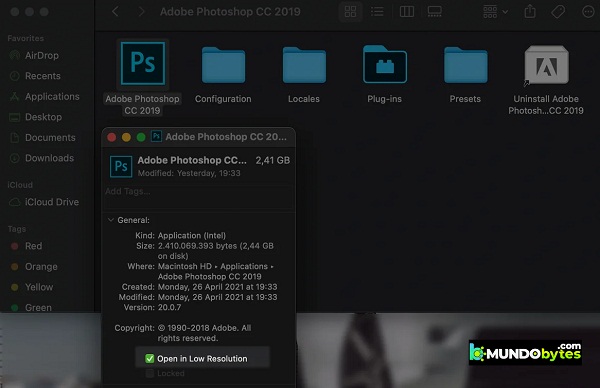
- Then, brand the option of Open in low resolution and start Adobe Photoshop to check if it is working well.
For Windows users
Delete temporary files from the system
Temporary file directories are used to store temporary application/system data, and if any of Adobe Photoshop's temporary files are corrupted, the Photoshop application may display the "Save for Adobe Web" error. In such a case, deleting the temporary files and emptying the Recycle Bin may resolve the issue.
- First, exit the Adobe Photoshop application and click with el right button en Windows.
- Now select Run y browse to the following route:
temperature
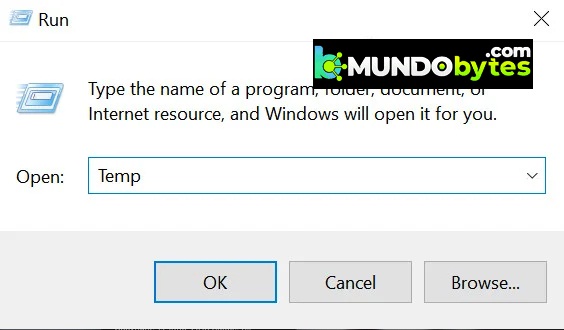
- then delete all files in the directory that is shown, leave the ones you cannot and browse to the following path in the Run box:
%temperature%
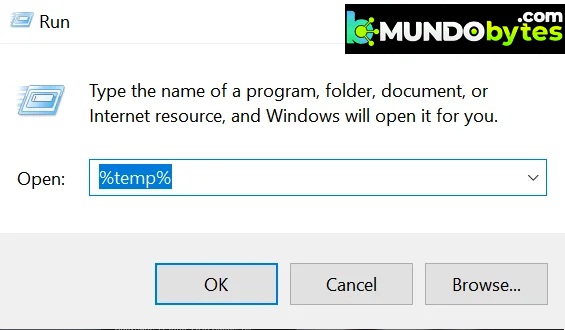
- Now delete all files in the directory shown and press the keys Windows + D to open the system desktop.
- The next thing you need to do is press right click in the Recycle Bin and select Empty the recycling bin.
- Then, confirms to empty the Recycle Bin and then launch Adobe Photoshop to check if the Save for Web feature works properly.
If that didn't work, check if freeing up more space on your system drive resolves the issue. If the image size is large enough (around 20.000 inches), you might have around 100 GB of free space on your drive with approximately 10 GB of RAM usage.
For all users (Windows and macOS)
Update Adobe Photoshop to the latest version
If Adobe Photoshop on your system is not updated to the latest version, it may conflict with the operating system/modules, resulting in the Save for Web error. Here, updating the Adobe Photoshop on your system to the latest version may resolve the issue.
- Starts Adobe Photoshop and expands its menu of Help.
- Now select Updates and if a Photoshop update is available, sigue instructions for updating the app. If you are using the app Creative Cloud, you can use it to update Photoshop.
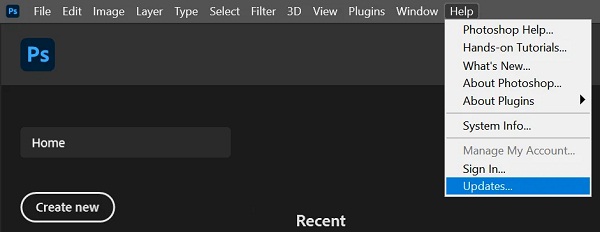
- Once the Photoshop application is updated, check if you can use the Save for Web feature without any issues.
Update your system's operating system to the latest version
An outdated operating system may conflict with the latest version of Adobe Photoshop, leading to the Save for Web error. In such a case, updating your system's operating system to the latest stable version may resolve the issue. For the sake of illustration, we will discuss the process for a Mac system.
- Starts Mac Preferences and open the Software update.
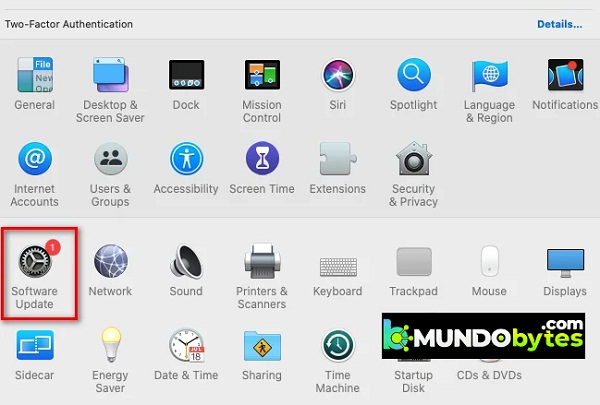
- Now check for operating system updates and if an update is available you have to click on Update Now, or for a newer version of macOS, you can click Update Now.
- Then, waiting until the latest update is applied to your Mac and then check if Adobe Photoshop is working properly.
Increased memory usage in Adobe Photoshop preferences
If Adobe Photoshop does not have enough memory allocated in its Preferences, you may not be able to complete the Save for Web command. In this context, increasing the memory usage in Adobe Photoshop Preferences may resolve the issue. Before proceeding, close all applications on your system, including system tray applications.
- Starts Adobe Photoshop and expands its menu Edit.
- Now hover over the Preferences and select Unlimited.
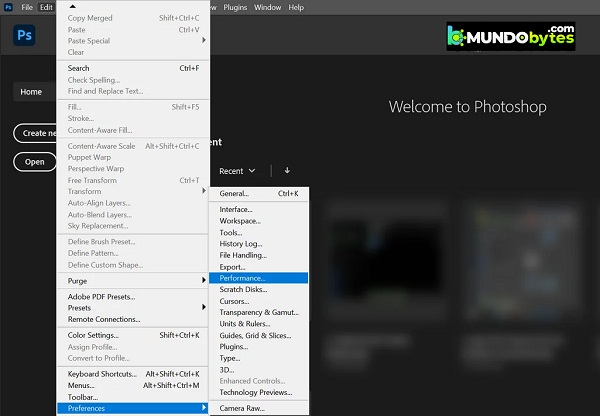
- Then, in the section Use of la the memory, click on the sign traditional to increase memory usage until the memory is allocated 90 % of the memory.
- Now ceiling lamp the changes and restart Adobe Photoshop to check if Adobe Save for Web is working properly.
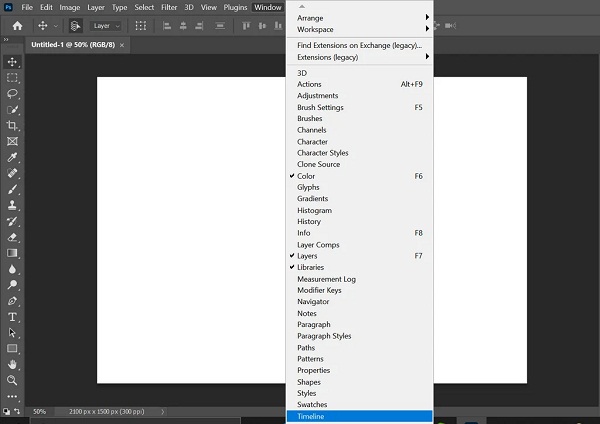
- If that didn't work and you're trying to export an animation, check to see if you enable the Line de tiempo on the menu Window solves the problem.
- If the problem persists, check if the smart object conversion at layers in Photoshop remove the save for web error.
Enables optimized export as Adobe Photoshop technology previews
Various Adobe Photoshop features are being rolled out via Adobe Technology Preview to check compatibility of new features and one of them is Optimized Export, which is intended to replace Save for Web technology.
If you have disabled optimized export as a feature, Adobe Save for Web may not work properly. Here, enabling optimized export as a feature may resolve the issue.
- Starts Adobe Photoshop and expands its menu Edit.
- Now place the cursor over the menu Preferences and select Technology Previews.
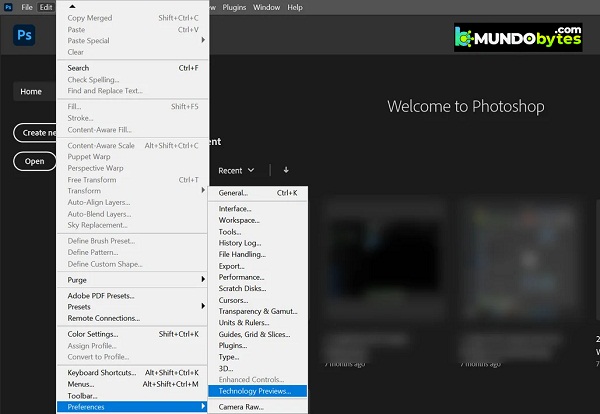
- Then enables optimized export as y restart Adobe Photoshop to check if the Save for Web feature is working properly.
- If the problem persists, check if the reduce image size during export the error is fixed.
- If that is not an option, check to see if you can reduce the bitness of the image. 32-bit to 16-bit or 8-bit in Image mode >> solves the problem.
- In case that doesn't work, open the problematic file in Adobe Photoshop and expand the menu Archive.
- Now place your cursor over Export and select Save for Web (Legacy).
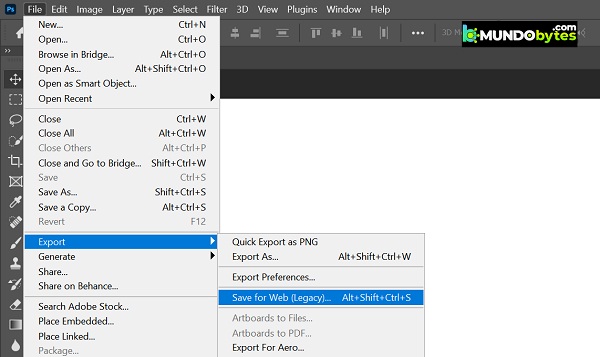
- Then hold down the key Alt which will convert the buttons Cancel y Ready on the buttons Resetting y Remember.
- Now you need to click on the buttons Resetting, Remember and then check if Save for Web is working fine.
If the problem persists, check if using File >> Export >> Export As meets the requirements, as this function is intended to replace Save for Web. The keyboard shortcut for Export As on Windows is Alt + Shift + Ctrl + W, and on Mac, it's Shift + Option + Command + W. Note that this option has fewer features and may not be useful for files containing animations.
Reset Adobe Photoshop preferences to default values
Adobe Photoshop may show the Save for Web error if its preferences are corrupted. In such a scenario, resetting Adobe Photoshop to default settings may clear the Save for Web error.
Before continuing, be sure to back up your custom brushes, presets, and actions, as they will be deleted when you reset Preferences.
Reset preferences on exit
- Starts Adobe Photoshop and open your menu Edit.
- Now expand Preferences and in the submenu, select General.
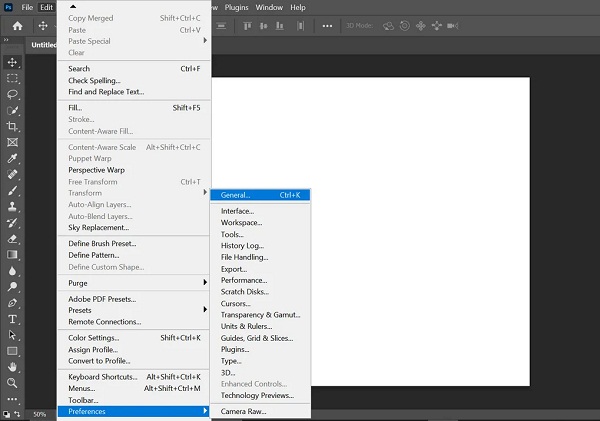
- Then click Resetting preferences when leaving and when you are I requested, confirms to reset preferences on exit.
- Now restart the Photoshop application and check if the Save for Web error is cleared.
Reset preferences via keyboard shortcut
- Exit the Adobe Photoshop application and hold the following buttons depending on the operating system:
Mac: Command + Option + Shift
Windows: Alt + Ctrl + Shift
- Now launch Adobe Photoshop, either from the shortcut or from the applications list, and click on Yes when prompted Reset Adobe Photoshop Preferences.
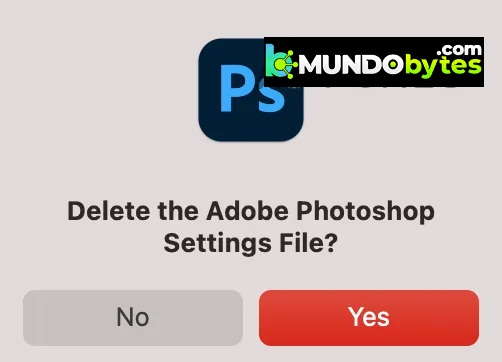
- Next, check if Adobe Save for Web is working properly.
- If that didn't work, check if delete preference files of the following routes depending on the operating system solves the problem:
For Mac: Users / [username] / Library / Preferences / Adobe Photoshop Settings [version]
For Windows: %AppData%/Adobe/Adobe Photoshop [version]/Adobe Photoshop [version] Setup
Disable the app's backup and sync operation on the cloud
If you are trying to save to a folder that is added to cloud backup and sync (such as Dropbox) or are backing up your desktop and documents via the cloud app, the cloud app's permission requirements may hinder Adobe's Save for Web feature. In such a scenario, disabling the cloud app or exempting the folder in the cloud app's preferences may resolve the issue.
- Expand the system tray y click in your cloud application (e.g. Dropbox).
- Now click on your profile icon and select Preferences.
- Then go to the tab Backups and click Manage backup or you can select Selective synchronization on the Sync tab.
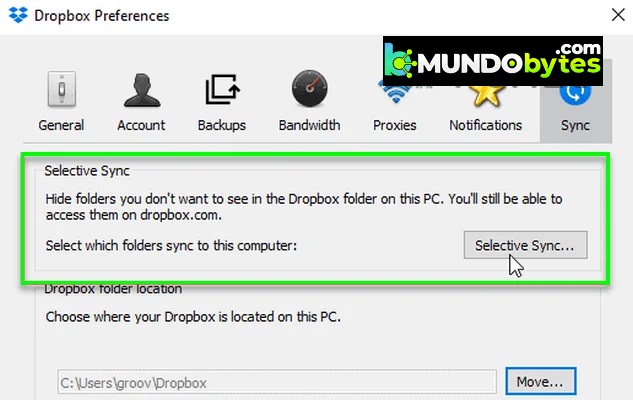
- Now uncheck the folders that you don't want to sync online, especially the Desktop and Documents folders.
- then ceiling lamp changes and launches Adobe Photoshop.
Afterwards, try to save the problematic file to the folder and check if Adobe Photoshop is working fine. Note that you may be asked to grant permissions to write to the folder; if so, enable write permissions for Adobe Photoshop.
Reinstall Adobe Photoshop
Adobe Photoshop may show the error if the application installation is corrupted. Here, reinstalling the application may resolve the issue. For clarification, we will guide you through the process of reinstalling Adobe Photoshop on a Windows machine.
Before you continue, make sure to back up your custom presets, brushes, actions, etc. If you're using the Adobe Creative Cloud app, uninstall it and reinstall Photoshop through it.
- Click on Windows, writes Adobe Photoshop y click with el right button in it.
- Then select uninstall y sigue on-screen instructions to uninstall Adobe Photoshop.
- After uninstalling Photoshop, restart your PC and when you restart, click Right click on Windows and open Run.
- Now browse to the following folder:
/ Program Files / Adobe
- Remove the Adobe Photoshop folder y repeat the same for the following folders:
/ Program Files (x86)
%appdata%/Adobe/
- Now reinstalls Adobe Photoshop and hopefully you will be free from the Save for Web error.
If reinstalling the latest version of Photoshop didn't work, check if reinstalling an older version of Photoshop resolves the web saving issue.
If the problem persists, try creating a new Mac or Windows user account to see if it resolves the web save error. If the problem persists, check if increasing your system's RAM or reinstalling your operating system resolves the Adobe error. If the problem remains after trying these steps, you can try using another Adobe tool that can open PSD files, such as Adobe Illustrator, or a different application.

My name is Javier Chirinos and I am passionate about technology. Ever since I can remember, I have been interested in computers and video games, and that passion has turned into a job.
I have been publishing about technology and gadgets on the Internet for over 15 years, especially in mundobytes.com
I am also an expert in online marketing and communication and have knowledge in WordPress development.