
Some Windows users are reporting a strange problem where their PC freezes indefinitely after being left idle for a few minutes. The screen remains off (as if the computer were in sleep mode) but won't wake up no matter what they do.
When investigating the memory dump within the Event Viewer, most affected users discover a cryptic hardware failure ; it is the LiveKernelEvent 193 error.
If you want to know what causes it and what you should do to fix it, be sure to read this post.
What causes LiveKernelEvent 193 error?
After thoroughly investigating this issue, it turns out that this particular problem is not exclusive to a specific version of Windows. We have seen user reports of the LiveKernelEvent 193 error occurring in Windows 7, Windows 8.1, Windows 10, and even Windows 11.
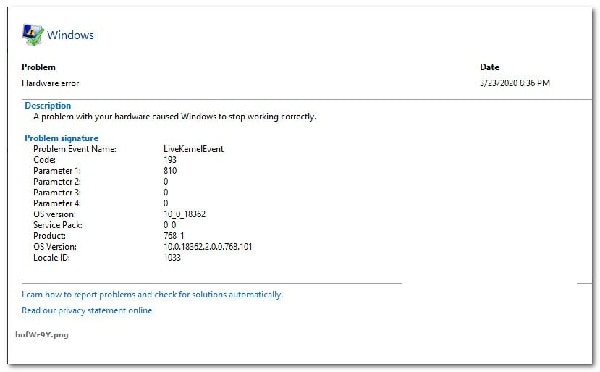
In addition to this, there is evidence that there are several common causes that are often responsible for this system crash. Here is a list of the most commonly mentioned culprits:
- Controller Intel Outdated or damaged Wi-Fi: One of the most common causes that can be behind this behavior is an inconsistency with the dual-band wireless driver. Some users experiencing LiveKernelEvent 193 error crashes have confirmed that the issue was completely resolved after updating their Intel Wi-Fi driver to the latest supported version.
- Common hardware inconsistency: It is not uncommon to start facing this problem immediately after connecting a new peripheral. This issue is reported to occur mostly with new external drives that are only connected to a Windows 11 computer.
You can usually resolve these issues by running Hardware and Devices TroubleShooter and applying the recommended solution to enable your PC's ability to automatically update itself with the latest drivers on all newly connected devices.
- Incompatibility with NordVPNIf you have NordVPN installed and set to open every time you start your Windows 11 computer, please note that these unexpected system interruptions may be caused by an incompatibility between NordVPN and a kernel thread.
In this case, the only viable solution is to uninstall the conflicting software (there may be other similar VPN tools that will produce the same behavior on Windows 11).
- Outdated chipset driver: Another indirect cause that could be a potential cause of these unexpected system crashes is an outdated chipset driver. If you only recently upgraded to Windows 11 and started experiencing this issue right away, you need to update your chipset driver to the latest version compatible with Windows 11 – the instructions will be different depending on whether you need the AMD or Intel drivers.
- System file corruption: In more severe circumstances, you can expect to see this error code due to some sort of system file corruption that is affecting the stability of your operating system. Several affected users have confirmed that the issue was eventually resolved after they initiated a clean install or a repair installation operation (in-place repair).
How to fix LiveKernelEvent 193 error?
Now that you are more familiar with all the possible culprits that could be responsible for the LiveKernelEvent 193 error, let's go over some of the methods that other affected users have successfully used to get to the bottom of this problem.
Update Intel Wi-Fi Driver (Windows 10 ONLY)
If you're using Windows 10, the first thing to check is whether you're using the latest version of your dual-band wireless driver. These types of freezes that occur during periods of inactivity are usually associated with an outdated dual-band wireless driver. This issue is almost exclusively found on laptops and ultrabooks.
If you are using a generic dual-band wireless driver, we recommend installing the latest stable version of the Intel Dual-Band Wireless-AC 3160 driver and seeing if it improves your system's stability.
Several users facing the same type of issue have confirmed that after installing this wireless driver, the LiveKernelEvent 193 system crashes have completely stopped.
Follow the instructions below to install the Intel Dual Band Wi-Fi driver:
- Open your default browser and visit the official download page of controller Intel® Dual Band Wireless-AC .
- Once you are inside this page, you have to click on the button See details associated with Family & Intel Dual-Band Wireless-Ac 3160 controller.
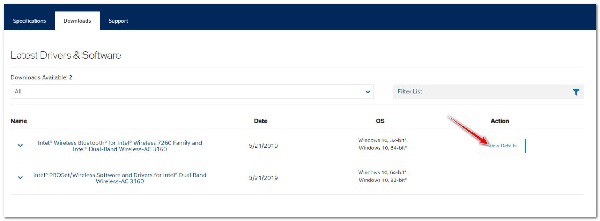
- Within the download page, click on the button Download associated with the architecture compatible with your operating system (32 bits y 64-bit).
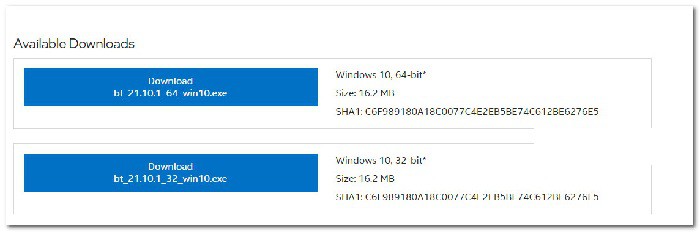
- On the next screen, click I accept the terms of the license agreement, then wait until the download is complete.
- Once the driver is downloaded locally, double click on it, then click on it, followed by this click on Yes in the window User account control to grant administrator access.
- Follow the on-screen instructions to install the driver, then restart your PC and see if the problem is resolved once the next startup is complete.
If the problem is still not resolved or if you were already using the latest version of the driver, continue with the next method shown in the next section.
Run the troubleshooter for hardware and devices
Please note that the reason behind the appearance of this LiveKernelEvent 193 error is a scenario where your Windows installation is not currently configured to check for the most updated drivers for any device that is installed.
If you have recently connected an additional peripheral or a new external drive, this is likely the reason why you are seeing the LiveKernelEvent 193 error .
In this scenario, the easiest way to solve the problem (plus a couple of additional possible scenarios) is to run the hardware and devices troubleshooter and apply the recommended solution.
Note: This tool is equipped with the automatic repair re-selection feature, which can be applied automatically if a familiar scenario is identified.
Make sure to follow the instructions below so you can run the hardware and devices troubleshooter :
- Opens a dialog box Run by clicking Windows key + R. Then write 'ms-settings: troubleshoot' inside the text box and press Log in to open the Hardware and Device Troubleshooter.
- Once you are inside the tab Problem solving, Click on Other solvers de problems in the right panel menu.
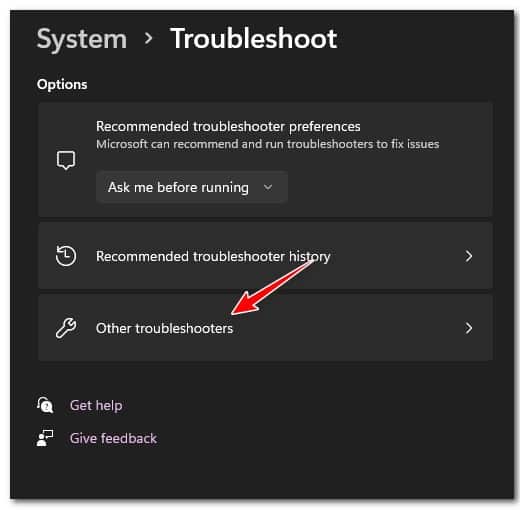
- Next, once you see the full list of additional troubleshooters, scroll down to Search and solve other problems, then expands the list associated with Hardware and Devices, followed by this click on Run the troubleshooter.
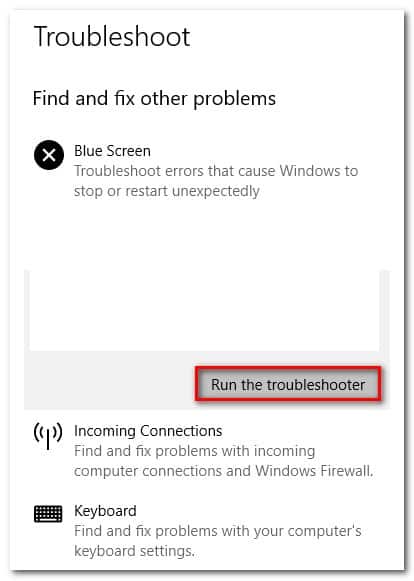
- Inside the troubleshooter hardware and devices, please wait patiently until the initial scan is complete.
- If the utility discovers the same problem that we suspect, you will need to click on Enable to configure your Windows installation to always check for new driver signatures when new hardware is connected.
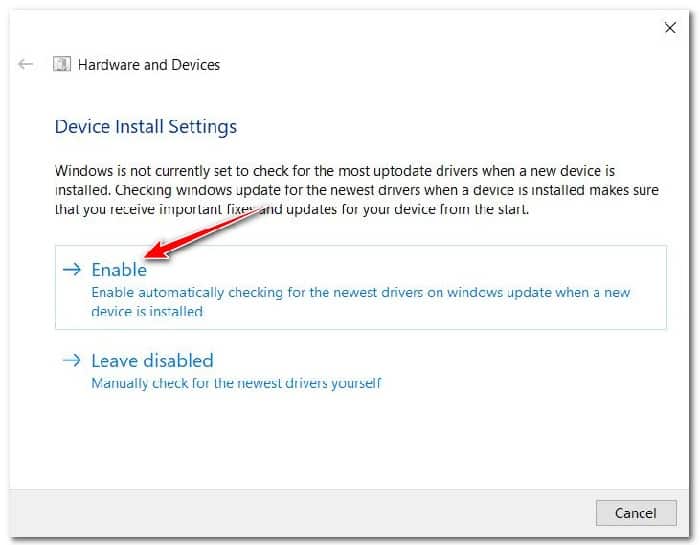
Note: If a different solution is recommended, click Apply this solution or follow the on-screen instructions to apply the solution.
- Once the solution has been applied successfully, restart your computer and see if the problem is fixed after restarting your PC again.
In case you are still facing the same LiveKernelEvent 193 error, then continue with the next method below.
Uninstall NordVPN (if applicable)
As a result, you can also expect to encounter LiveKernelEvent 193 failure type in a scenario where your network driver conflicts with a NordVPN background process. This issue is typically associated with 100% CPU usage from the system interrupts process while the computer hangs indefinitely.
In case the above scenario sounds familiar to you and you have NortVPN installed and configured to open with every system startup, you are probably dealing with the same type of conflict.
To fix this issue, you will need to uninstall your current version of NordVPN and install the latest version (after a system reboot):
- Press the Windows key + R to open a dialog box Run. After this, you must write the following command: 'appwiz.cpl' inside the text box and press the key Log in to open the menu Programs and Features.
- Once you are inside the menu Programs and Features, scroll down the list of installed programs and locate the entry associated with NordVPN.
- After locating the correct listing, right-click on NordVPN and select uninstall in the context menu.
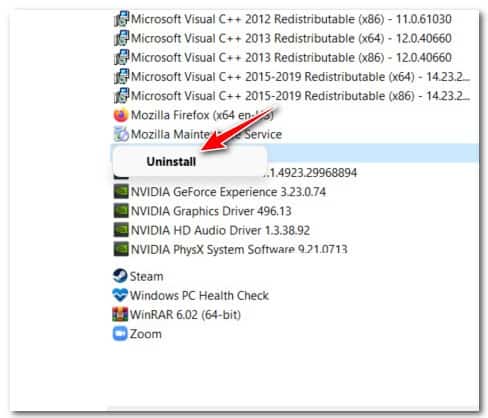
- Follow the uninstallation instructions to uninstall NordVPN and get rid of your custom network settings, then restart your PC.
- Once your Windows computer restarts, see if the same LiveKernelEvent 193 error still occurs.
If the problem is still not resolved or this method is not applicable, please follow the instructions below.
Update chipset drivers
Another possible culprit that could indirectly cause the LiveKernelEvent 193 error is an incompatible or outdated chipset driver.
Note: Chipset controllers are primarily responsible for controlling and managing communications between the processor, GPU, hard drive, and system memory.
Incorrect chipset drivers can make your system unstable for resource-intensive tasks, which might end up causing the LiveKernelEvent 193 error. As a result, this issue is reported to occur mostly with laptops, ultrabooks, and notebooks.
Fortunately, if this scenario is applicable and you are indeed dealing with a bad chipset driver, you should be able to fix the problem by updating your chipset drivers to the latest supported version.
But keep in mind that the process of updating your chipset drivers will be different depending on whether you are using AMD or Intel compatible hardware.
To cover both potential scenarios, we have created two separate guides that will walk you through the process of updating your chipset driver with AMD or Intel equivalents.
Update AMD Chipset Driver
- Start by opening your default browser and accessing the download page of the website. drivers and support de AMD.
- Next, scroll down to the Find your product section.
- Once you are inside the section Find your product, choose Chipsets from the left column, then choose the appropriate processor socket from the right column.
- Select your processor from the third column, then click Submit for a list of supported chipset drivers.
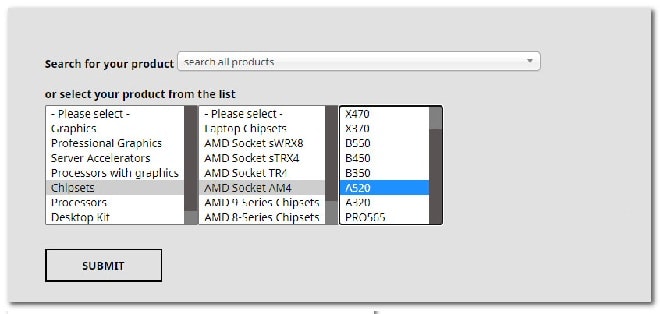
- After pressing the Submit button, you will be redirected to a page where you can download the chipset driver. Once you are inside, expand the drop-down menu associated with your supported OS architecture and click on the button Download in the newly displayed menu.
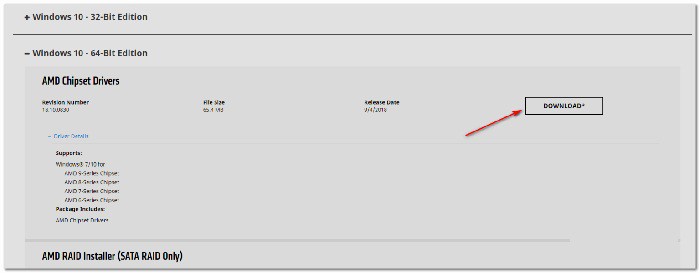
- Once the download is finally complete, go ahead and double-click on the chipset driver installer, then click on Yes Once the window asks you User account control.
- Within the chipset driver installer window, follow the on-screen instructions to update the chipset drivers to the latest available version.
- Follow the on-screen instructions to complete the installation, then restart your computer one last time and see if the LiveKernelEvent 193 error is now fixed.
Update Intel Chipset Driver
- Open your browser and visit the download page of Chipset INF Utility.
- Within the correct download page, click on the button Download (upper right corner of the screen).
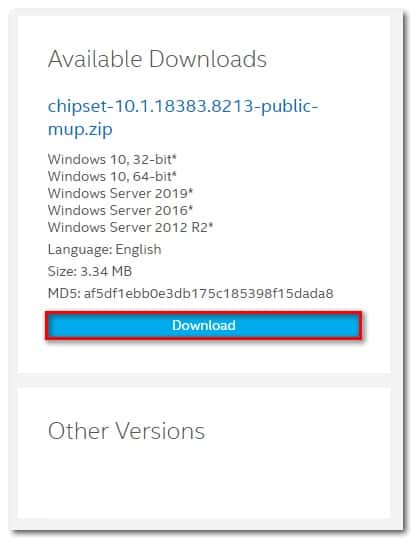
- Once you get to the next screen, click on I accept the terms of the license agreement to accept the License Terms.
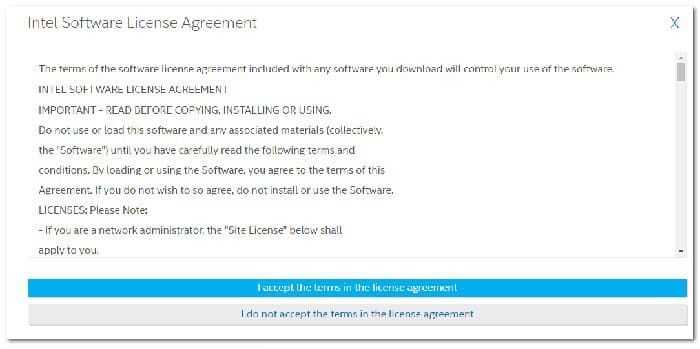
- After a few seconds, the download should start automatically: wait until the file is downloaded locally, then use an extraction utility (such as 7Zip, WinZip or Winrar) to extract the contents of the chipset driver update software.
- Once the contents of the archive are extracted, double-click the executable SetupChipset.exe, then follow the on-screen instructions to install the latest chipset driver.
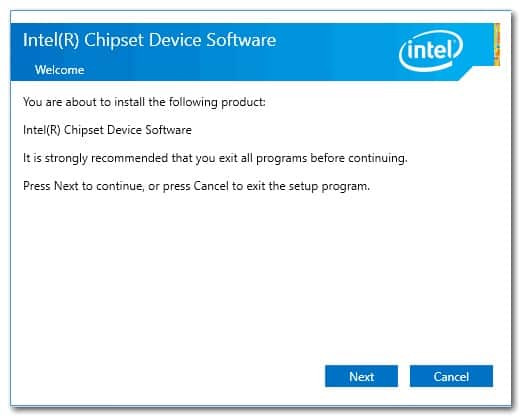
- After the chipset driver has been installed, restart your PC and see if the error is fixed starting with the next system startup.
In case you are still experiencing system crashes that point to the same LiveKernelEvent 193 error, continue with the next method described below.
Update BIOS drivers
Another possible scenario (especially if you've just upgraded to Windows 11) is an outdated BIOS driver that hasn't yet been updated to match the new operating system.
System instability caused by an outdated BIOS version is not that uncommon, especially on legacy motherboards.
Please note that updating the BIOS version on your motherboard is not as difficult as it used to be; as of now, all major motherboard manufacturers have developed an update utility that will help you update the BIOS without getting too technical.
The best course of action is to go to the motherboard manufacturer's website and check the driver download page for a BIOS update utility: ASUS has EZ Flash, MSI has MFlash, Gigabyte has @BIOS Live Update, etc.
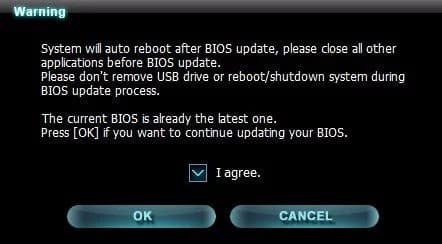
Note: Regardless of your BIOS manufacturer, be sure to read the official documentation carefully before starting the BIOS update process. Performing this process incorrectly could result in bricked hardware, requiring intervention from a qualified technician.
Follow the on-screen instructions to update your BIOS to the latest version, then restart your PC and see if the LiveKernelEvent 193 error is fixed.
In case you already have the latest BIOS version for your motherboard or this method was not applicable, please proceed to the final solution below.
Clean install or repair install
If none of the above methods have proven effective in your case and you have ruled out the possibility of a hardware issue, the only possible explanation for this LiveKernelEvent 193 error leading to a system crash is underlying system file corruption.
Since there are literally tens of thousands of potential culprits, the most efficient way to ensure your system doesn't crash with this error due to system file corruption is to replace every Windows file with a healthy equivalent.
When it comes to doing this, you have two ways to go:
- Clean installation- This operation is the easiest of all, but you should be prepared to lose any personal data present on the operating system drive. This is the equivalent of installing Windows from scratch, so be sure to back up your data if you are currently storing any sensitive data on the operating system drive before starting this operation.
- Repair facilityIf you have the time to use this method, you should do so; this operation will only replace the Windows system files and allow you to keep everything else. By repairing the installation (in-place repair), you can keep your personal files, applications, games, and even some user settings that are currently stored on the operating system drive.
I hope you find our recommendations very useful. Hopefully, we'll read each other in a future post. Thank you for visiting our portal.
