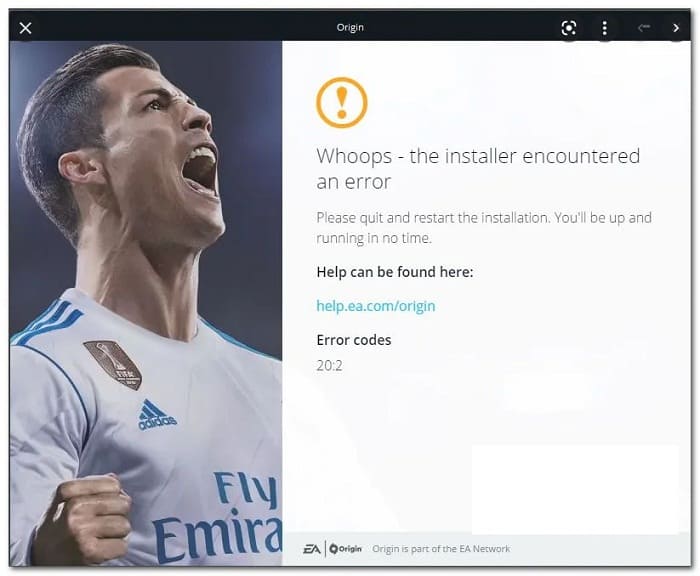
Some users of Windows report that every time they try to install Origin on their Windows computer, they end up with the Error code 20: 2 (Oops, the installer encountered an error. {Please exit and restart the installation. You'll be up and running in no time.).
But by following the error instructions, nothing has changed as the same error code returns quickly. This issue is confirmed to occur on Windows 7, Windows 8.1, Windows 10 and Windows 11To learn more about this topic, I invite you to continue reading this post.
What causes error code 20:2?
After investigating this issue thoroughly, we found that there are different underlying scenarios that can ultimately be responsible for the error code 20:2 on different versions of Windows.
Here is a short list of scenarios where you can expect to encounter this type of error:
- Missing administrator rights: Before trying any of the other fixes in this article, you should make sure that you are opening the installer with administrator rights. Some affected users have confirmed that once they forced administrator access to the Origin installer, they were finally able to complete the installation.
- Insufficient disk space: Although the installer won't tell you this specifically, this type of error is often encountered when the system partition has less than 10GB of free space. If this scenario is applicable, you should start by freeing up some space on your system before reinstalling the game launcher from the official download page.
- Interference in third party processes: It turns out that there are a lot of different apps that can conflict with the Origin installer (especially on Windows 11). You can avoid most of these nasty scenarios by installing Origin after booting into Safe Mode with network functions.
- Overprotective antivirus/firewalls: As many affected users have confirmed, you can expect to face this issue as a result of interference caused by your third-party antivirus or firewall. In most cases, you can avoid the error by disabling your active antivirus or firewall or uninstalling it completely (at least until you manage to install Origin).
- Interference caused by Windows security: if you are using Windows Security (Windows Defender + Windows Firewall) as the default security suite and has stopped updating virus signatures, Origin installation is likely stopped as a security measure. In this case, you can fix the problem by installing all pending Windows security updates or temporarily disabling real-time protection.
- installation error when unpacking- Another reason you might expect this particular error to occur is due to an unpacking error. This issue seems to be restricted to the lightweight versions of the Origin installer. If this is the cause of the error, you can bypass it entirely by installing the app via the non-light client installer.
- Cache files left over from the previous installationIf you previously had Origin installed on this PC and are now getting this error when trying to reinstall the game launcher, you're likely dealing with this issue due to some pesky remnant cache files that weren't cleared along with your installation. To fix this issue, you'll need to perform a series of manual steps to clear the cache files.
- Interfere with the program VPN- As many Origin users report, this launcher seems to hate any kind of VPN-related software. You can expect to see the 20:2 error appear when trying to install Origin if the installer detects an active VPN, tunneling, or ping boosting app. Unfortunately, the only way to fix it is to temporarily uninstall the VPN software (at least until you complete the installation).
How can I fix error code 20:2?
Now that we have gone through all the causes of this strange error, let’s move on to the actual fixes. You just need to follow each of the methods described below to troubleshoot and fix the root cause of Error Code 20:2.
Run the source installer with administrator rights
Before trying any of the other fixes below, you should start this troubleshooting guide by making sure the Origin installer has administrator rights. This is primarily an issue with Windows 10 users who use aggressive settings. User Account Control (UAC).
If your operating system denies administrator rights to the Origin installer, you can expect the installation to fail with error code 20:2.
Follow these simple steps to download the latest version of the Origin installer and run it with administrator rights:
- Open your default browser and open the Origin official download page.
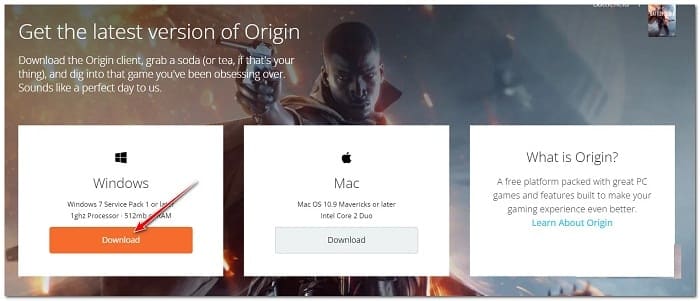
- Once you are inside the download page, scroll down to the Windows section and download the latest version of the Windows installer.
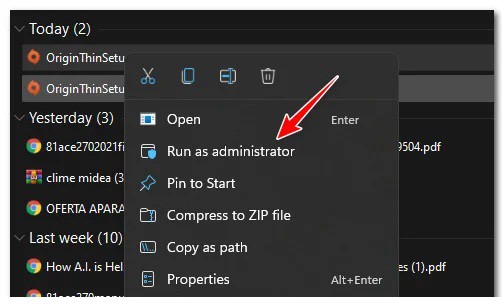
- Once the installer has been downloaded, you need to navigate to the locations where it was downloaded (folder Downloads), right click on it and click Run as administrator in the context menu.
- Follow the remaining installation steps normally and see if you can complete the operation without seeing the same error code.
If Origin installation fails with the same 20:2 error, you can try to fix it with the following method described below.
Free up enough disk space
When troubleshooting this particular issue, you should start by making sure you have enough disk space on the system partition.
Nota: Even if you plan to install the game on a secondary partition, Origin will refuse to install if your system partition drive is full to the brim.
Other affected users recommend at least 10GB of free space, but our recommendation is to always keep a buffer of at least 30GB of free space on your system partition (probably the C: drive) at all times.
When it comes to freeing up space, you can do it manually or automatically (via the Windows Cleanup Utility).
We recommend the automated approach as it is much easier and will save you from accidentally deleting files you shouldn't delete.
If you have large games or applications that you no longer use installed on the Windows partition, start by uninstalling them first.
But if that's not enough, follow these instructions for a step-by-step guide on using the utility. Liberator of space en disco To free up space on your system:
- Press the Windows key + R to be able to open a dialog box Run. After this, you have to copy and paste the command 'cleanmgr' inside the text box and press the key Log in for the utility to open Space Liberator en disco.
- Depending on the configuration of User Account Control (UAC), you may be prompted to grant administrator access at this point. If you see this message, just make sure to click Yes to grant administrator access.
- In the first message of Disk Cleanup, Select your Windows drive (the one with the Windows logo) using the drop-down menu.
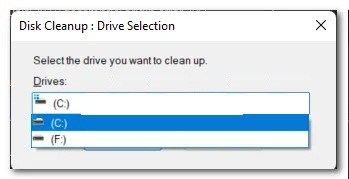
- Once you are inside the utility Disk Cleanup, start by checking the following boxes while leaving everything else unchecked:
Downloaded Program Files Files
Internet temporary
Recycle Bin
- Then click Clear system files and click Yes in the indicator of User account control.
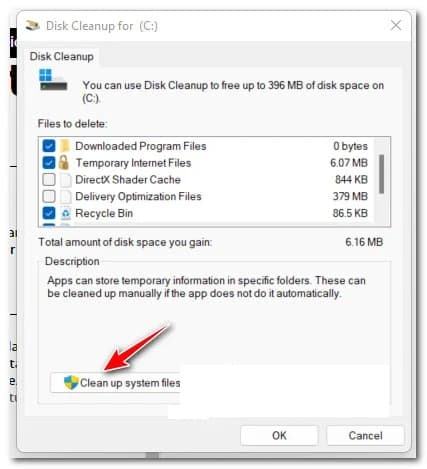
- Wait until the initial scan is complete, then confirm the removal of temporary files by clicking OK.
- Once enough files have been deleted, restart your PC and wait for the next startup to complete.
- Try installing Origin once again using the official download page and see if you still get the same error code during installation.
If you are still seeing the error code 20:2 during the installation of the Origin game launcher, you can try the method we describe below.
Install Origin in Safe Mode with Networking
It turns out there are a lot of different third-party processes that can interfere with your Origin installation, especially if you're using Windows 11.
You can bypass most of these scenarios by forcing your PC to boot in Safe Mode with network functions.
Information: Booting into safe mode will force your system to boot with only the items in the system. Boot minimal and the processes that are necessary for your operating system. This will ensure that nothing conflicts with the Origin installation.
Follow the instructions below for a step-by-step guide on installing Origin after booting into Safe Mode with Networking:
- Press the Windows key to open the menu Home, then click on the power icon and hold the key Shift while you click Restart.
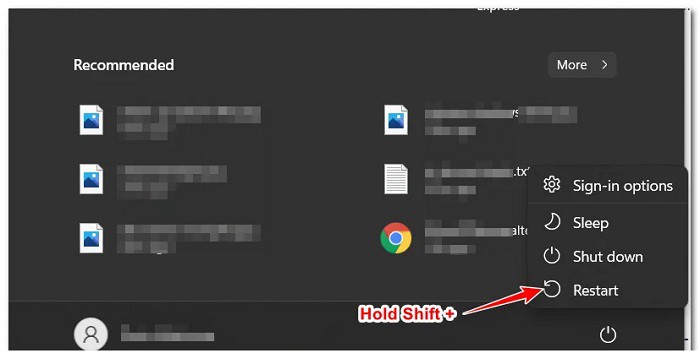
Nota: This will force your PC to reboot directly into the recovery menu, allowing you to enable a safe mode boot.
- Wait until your PC boots into the menu. advanced recovery. Once you are inside, click on Solve problems of the available options.
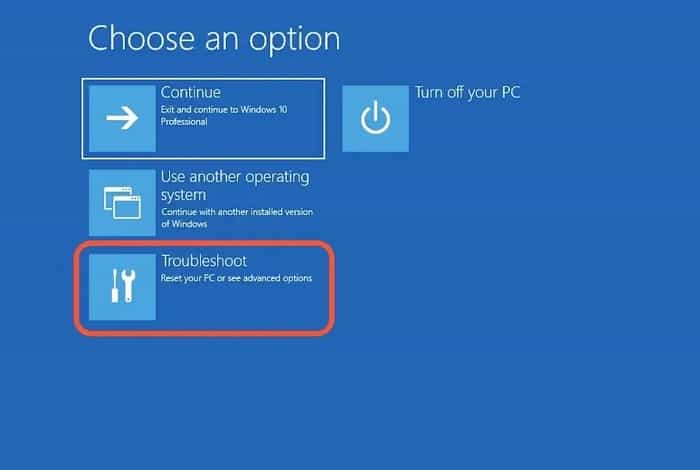
- Once you are inside the menu Solve problems, Click on Advanced Options, then click Startup settings.
- You will then be asked to confirm the restart option within the Startup settings. You can do this by clicking on Restart when prompted.
- After clicking Restart, your PC will reboot directly into the menu Startup configuration. Once you are inside, press the key F5 to start your Windows installation in Safe Mode (with Networking)
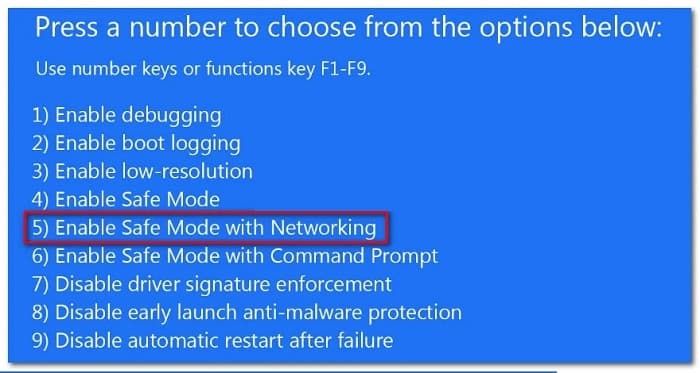
- When the following boot sequence is complete and your PC successfully boots into Safe Mode with Networking, open your browser and visit the official Origin download page.
- Scroll down and click on the button Download associated with Windows, then double-click the installer (once the download is complete) and follow the on-screen instructions to complete the installation.
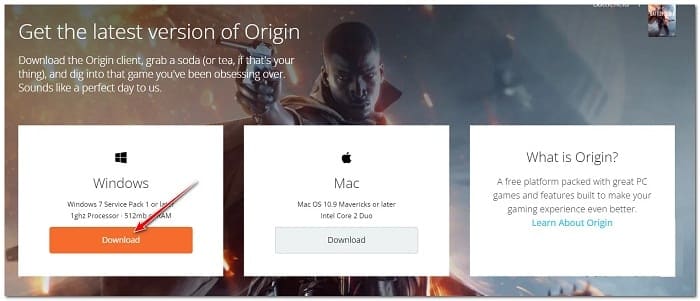
If installing from Safe Mode results in the same error code 20:2, move on to the next solution.
Disable or uninstall third-party antivirus/firewall (if applicable)
Another popular culprit that could contribute to the 20:2 error when installing Origin is an overprotective antivirus or firewall suite.
This issue is mostly reported with security suites that have a firewall component attached. In most cases, the third-party firewall ends up blocking the connection between your PC and Origin servers.
In certain situations (if you are using an antivirus without a firewall component), you should be able to avoid this type of conflict by temporarily disabling real-time protection.
You can do this by accessing the menu Configuration from your AV or by right-clicking on the taskbar icon and disabling active shields.
If this is not applicable to you or you are using a third-party security suite with a firewall component, it is likely that the same security rules that block Origin from being installed will remain in place even with active shields disabled.
In this case, the only option to eliminate the conflict is to temporarily uninstall the overprotective security suite (until you manage to install Origin).
Follow these recommendations to learn the steps to do this:
- Press the Windows key + R to open a dialog box Run. Inside the dialog box Run, writes 'appwiz.cpl' and press Log in to open the menu Programs and Features.
- Once you're inside the menu Programs and Features , scroll down through the list of installed programs and locate the security package that you suspect is interfering with the Origin installation.
- After you locate the security package you want to uninstall, right-click on it and choose uninstall in the context menu that just appeared.
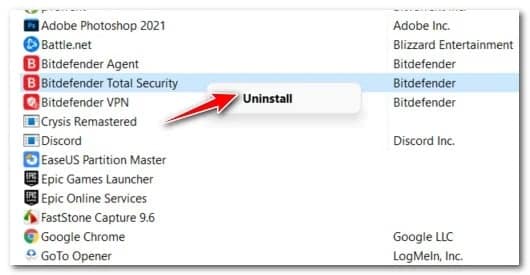
- Follow the on-screen instructions to complete the uninstallation, then restart your PC and wait for it to reboot.
- Try installing Origin from the official download page and see if you still see the same 20:2 error.
If the problem is still not fixed, you have no choice but to try the next solution.
Temporarily disable Windows Defender and Windows Firewall (if applicable)
If you are using Windows Security (Windows Defender + Windows Firewall) and choose not to update security signatures (for whatever reason), your active security suite is likely treating Origin as a potential security threat.
In this case, the simplest solution would be to simply install all virus signature updates via Windows Update.
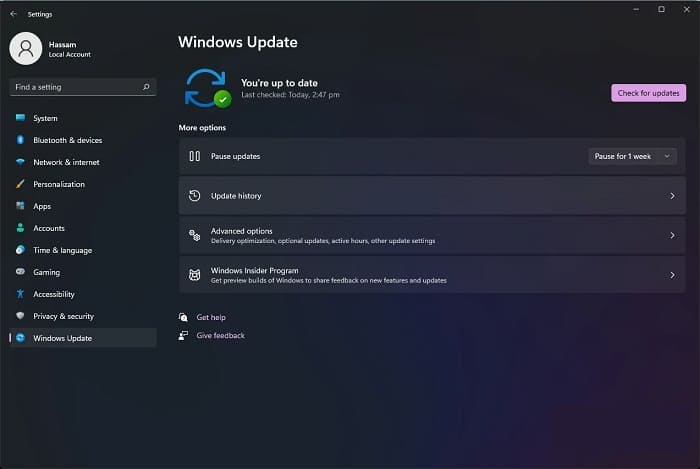
If this is not an option (you cannot update virus signatures for whatever reason), the only solution to eliminate this type of interference is to disable Windows Firewall real-time protection:
- Press the Windows key + R to open a dialog box Run. Then, inside the run box, type 'ms-settings:windowsdefender' and press Log in to open the Windows Defender Security Center.
- Once you are inside the tab Windows security, go to the section on the right and click on Open Windows Security.
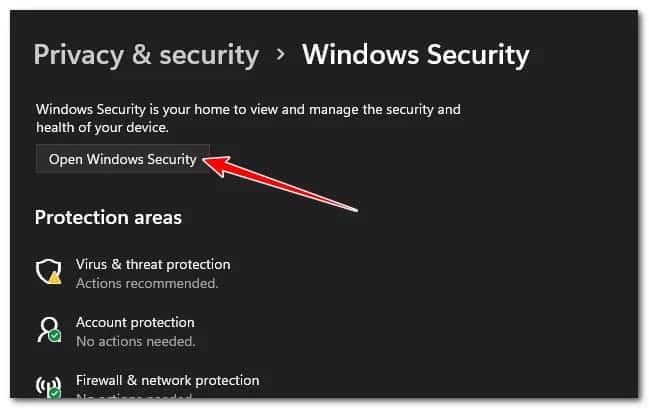
- From the next group of options, click Protection against viruses and threats.
- Next, scroll down to the virus and threat protection settings and click Manage settings in the context menu.
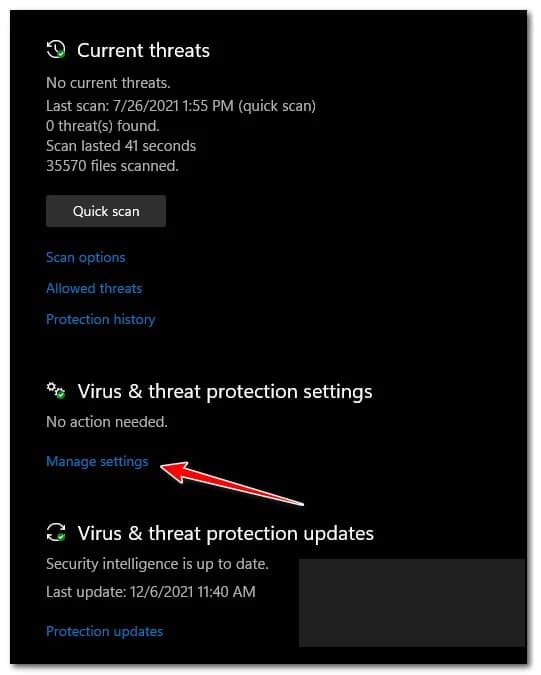
- Once you are inside the custom virus and threat protection settings, scroll down to the real-time protection settings and flip the switch to OFF.
- After real-time protection is disabled, return to the initial menu of windows security Again, move to the right section and click on Firewall and network protection.
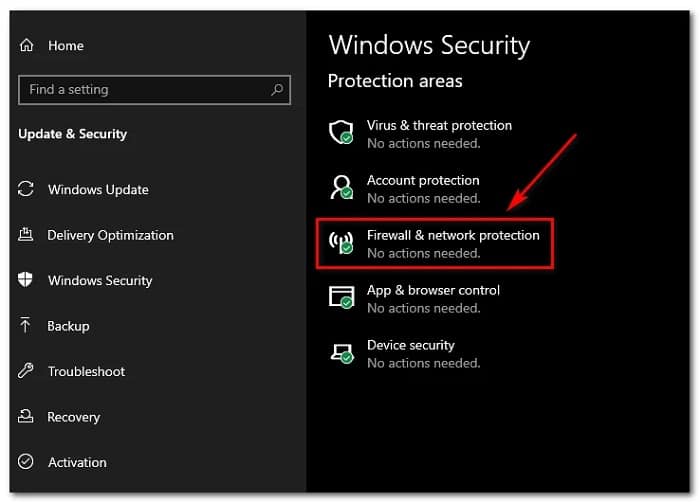
- After you get to the next menu, click on the network you are currently using (work or home).
- Next, scroll down the list of items and turn off the toggle that belongs to Windows Defender Firewall. Make sure it's disabled.
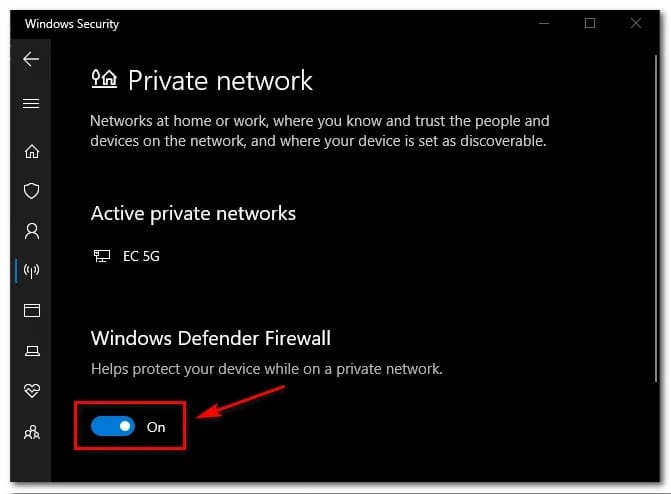
Once both the Antivirus and Windows Security firewall are disabled, try installing Origin again and see if you can complete it without encountering the same 20:2 error.
Clear Origin cache from previous installation
If you had Origin installed on this PC and you're getting the 20:2 error now when you try to reinstall the client, you're likely experiencing this issue because of some leftover files left over from the previous installation.
In the vast majority of cases we have investigated, this type of problem will originate in the cache folder of Origin (located within AppData).
Several affected users who are also dealing with this issue have confirmed that the issue was finally fixed once they accessed the AppData folder and directly deleted the Origin cache folder. By doing this and running the setup once again, the installation was completed successfully.
Please follow the instructions below for specific instructions on how to do this:
- Press the Windows key + R to open a dialog box Run. Inside the text box that just appeared, write '%AppData%' and press Log in to open the hidden application cache folder of your Windows installation.
- Once you're inside the AppData folder, scroll down the list of cache folders and locate the one called Origin.
- When you finally see it, right click on it and choose Delete in the context menu that just appeared.
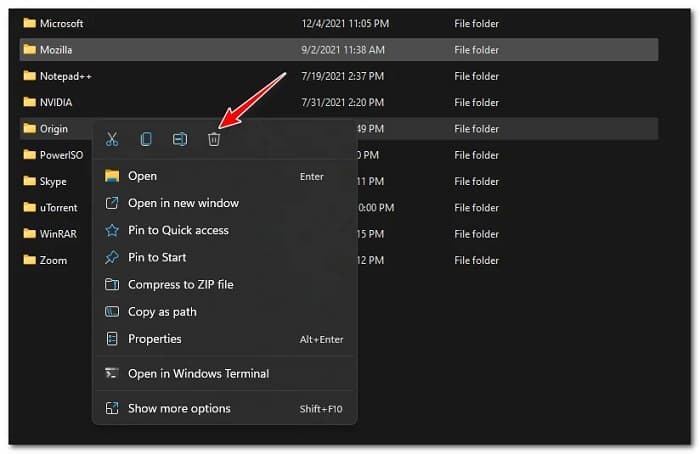
- Restart your PC and wait for the next startup to complete.
- Install the latest version of Origin from the official download page and see if you managed to fix the Origin installation error 20:2.
If the problem is still not resolved, you can try the following solution.
Install via non-thin client source installer
If you've come this far without a viable solution, you also need to address a potential unpacking issue.
This issue appears to only affect the lighter Origin installer clients. Several affected users have reported that they managed to avoid the 20:2 error entirely by installing Origin via the non-light client installer.
Follow these steps to successfully install the Origin launcher via the non-thin client installer:
- Open your default browser and download the latest version of the Origin non-thin client installer from the official download page.
- Once the download is complete, right-click on the new installer you just downloaded and click Run as administrator in the context menu.
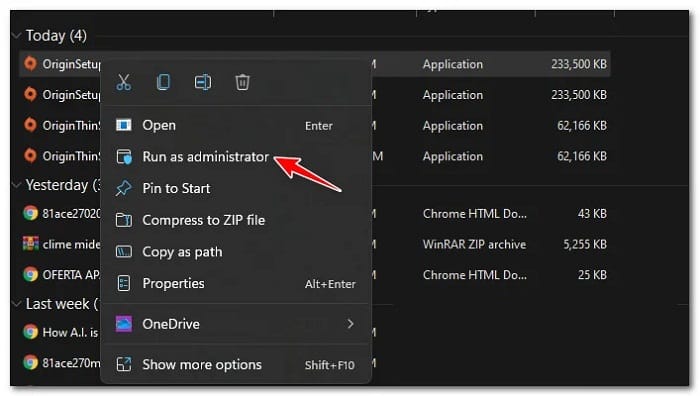
- Once you're inside the installation window, click Install Origin, then follow the on-screen instructions to complete the installation and (hopefully) skip the 20:2 error.
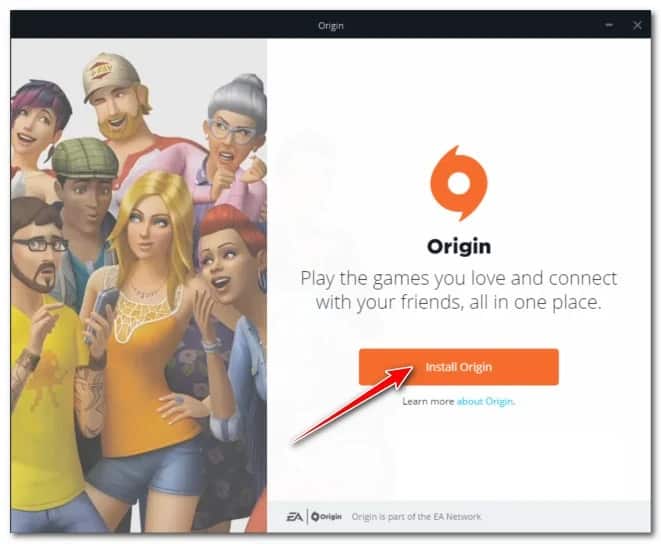
Wait until the installation is complete, then restart your PC if the operation is completed successfully.
Uninstall the conflicting VPN software (if applicable)
If you are using VPN software, a tunneling app, or a ping booster, it is very likely that the Origin installer is refusing the connection because it detects a leaked connection.
Unfortunately for you (if this scenario is applicable), there is no proper solution for this scenario. All you can do if you are affected by this issue is to temporarily uninstall the conflicting VPN software, install Origin, and then reinstall the Origin launcher once again (to avoid the 20:2 error).
This is not an ideal solution, but it is a method that many affected users have found effective.
Follow these simple steps below to uninstall the conflicting VPN software:
- Press the Windows key + R to open the dialog box Run. After this, you just have to write 'appwiz.cpl' and press Log in to open the menu Programs and Features.
- If you are asked in the menu User Account Control (UAC), you will have to click where it says Yes to be able to grant administrator access.
- Once you are inside the menu Programs and Features, scroll down the list of programs and locate the software VPN in conflict.
- After locating it, right-click on the VPN tool and click uninstall in the context menu.
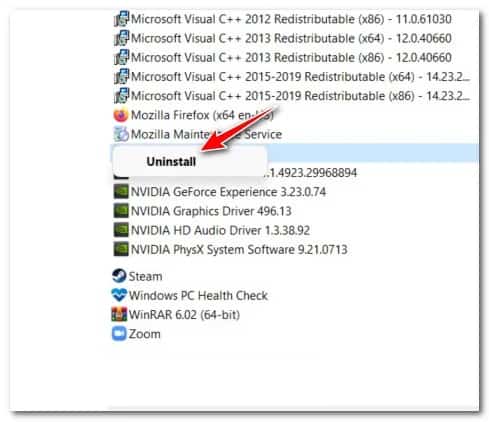
- Follow the remaining steps to complete the uninstallation process, then run the Origin installer (with administrator access) once more and see if it can complete the installation.
I hope these tips will help you put an end to this error code. Thanks for visiting. See you in the next post.

My name is Javier Chirinos and I am passionate about technology. Ever since I can remember, I have been interested in computers and video games, and that passion has turned into a job.
I have been publishing about technology and gadgets on the Internet for over 15 years, especially in mundobytes.com
I am also an expert in online marketing and communication and have knowledge in WordPress development.