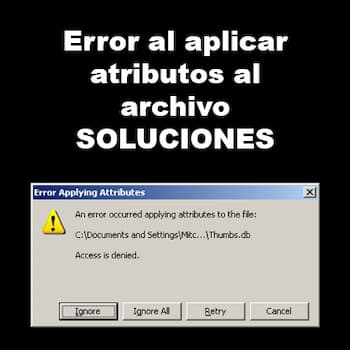
If you try to access or modify a file hosted on a remote server, you may encounter the error message "An error occurred while applying attributes to the file or folder ." This problem usually occurs due to discrepancies in permissions or incorrect security settings for the particular file.
If you don't know why the error appears or how you can fix it, we have some alternatives you can try to resolve this issue on your system.
What is causing the “An error occurred while applying attributes to the file” issue?
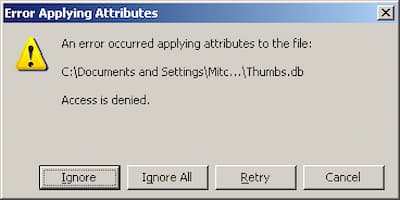
- The file or folder is not owned by the active user: In the vast majority of cases, this message occurs because the currently active user does not have permissions to manage the file. This usually occurs after an update of Windows 10, where the user chooses to keep some old files.
- Insufficient permissions: It turns out that the problem can also occur in situations where the user needs to modify certain attributes, but the currently configured permissions are not sufficient. If this scenario is applicable, you can easily solve the problem by opening the Properties screen and adjusting the permissions.
- The file is encrypted: If the file came as an email attachment or you downloaded it from the Internet, you're probably seeing the error message because the file in question is encrypted.
- System File Corruption: File corruption is another possible culprit that could lead to the appearance of this error. In this case, you can resolve the issue by resetting all the components of the operating system.
How to fix error when applying attributes to file
Below we show you 4 possible ways in which you can solve the error when applying attributes to the file:
Solution 1: Take ownership of the file
The problem of incorrect ownership of a file can cause the error when applying attributes to the file, in fact, it is the most common cause.
- Go to the location where the file is on your remote computer/server.
- Once you have located the file, right click on it and then click «Properties».
- In the Properties window, you need to click on "Security".
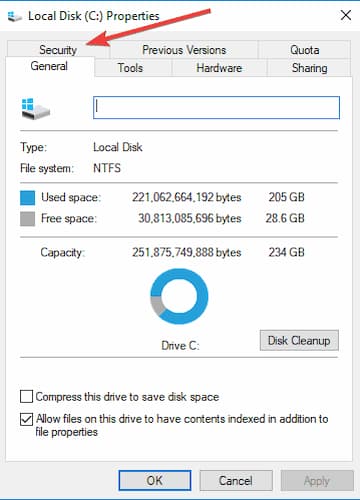
- On the Security tab, click "Advanced".
- Then click "Change" next to the option "Owner:".
- After that, write "Everyone" in the frame.
- To validate the name, click on «Check names».
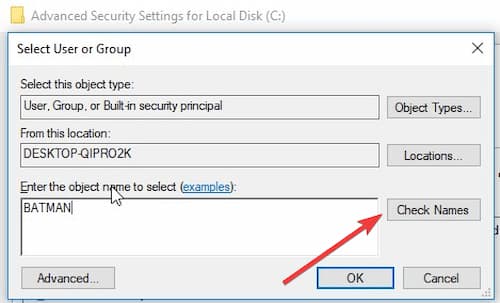
- Then what you need to do is click on "To accept".
- Click on "Apply" to save it.
- Then click "To accept" and ownership of the file is granted to everyone who uses the system.
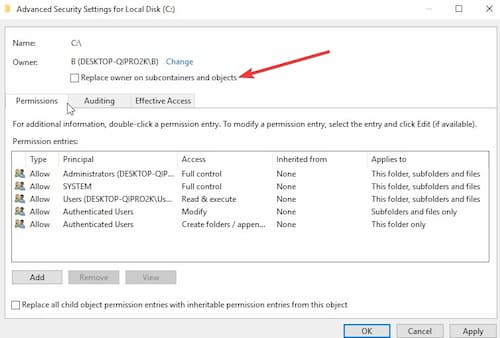
NOTE : As soon as you click "Apply," you'll see a warning message appear. Simply click "OK" if the message appears on your screen.
Solution 2: Give full control to your account
The error when applying attributes to the file can also occur if your account does not have full control of the file. To fix this, follow the steps below:
- Take the right click on the file.
- Then click «Properties» to access the properties settings.
- When the Properties window appears, you again need to go to "Security".
- Then click "Edit".
- In the section Group or user names, choose your administrative account.
- Then click "Let" along with "Total control".
- Finally, click on "Apply" and then click "To accept".
- Please try to access the file again.
Don't miss: Error Code 16 | Why It Appears and How to Fix It
Solution 3: Check if the file is encrypted
An encrypted file may also result in the error applying attributes to the file when you try to open it. Fix this problem as follows:
- Again, you must do right click on the file and then click «Properties».
- Go to the tab "General".
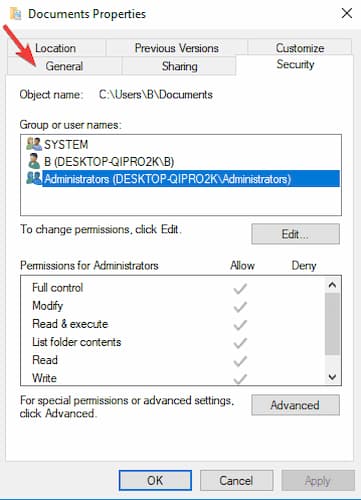
- After that, click "Advanced".
- When the Advanced Attributes window appears, Uncheck “Encrypt content to protect data”. NOTE: In case the “Encrypt contents to protect data” box is checked but you cannot uncheck it, ask the original owner of the file to share the encryption certificates. After installing the encryption certificates, you will be able to access the files.
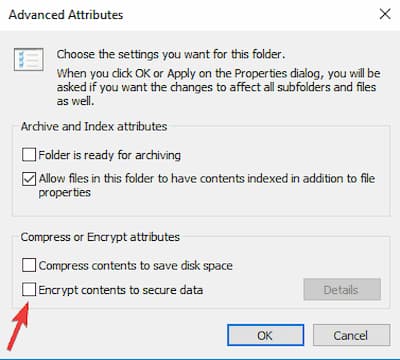
- Then click "To accept".
Solution 4: Copy the Windows.old file
If you have recently upgraded your PC, there is a chance that the original file has remained in the previous location.
- Press the key Windows + E.
- After that, you need to click on «Local disk C:».
- When Local Disk (C:) opens, scroll down to find "Windows.old".
- Double click on it.
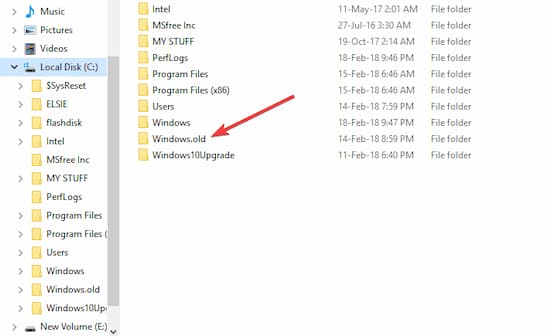
- Then double click on the folder «Users».
- You will see a set of user folders.
- Just do it Double click on your username folder.
- Now go to the location where the file is located (for example, if you have that file in the folder
- images. Then you need to go there).
- Take the right click in the file and then click "Copy".
- Go to any directory Windows 10. (For example, you can go to the “Documents” or “Pictures” folder.)
- Paste the file there simply by pressing Ctrl + V.
- Now try to access the file again
Final words
The error message when applying file attributes can be annoying; however, knowing the possible causes of this message and, above all, how to fix it, might be just what you need. The solutions we've shown you are designed to resolve the possible causes of this error on your system when you try to open a particular file.

My name is Javier Chirinos and I am passionate about technology. Ever since I can remember, I have been interested in computers and video games, and that passion has turned into a job.
I have been publishing about technology and gadgets on the Internet for over 15 years, especially in mundobytes.com
I am also an expert in online marketing and communication and have knowledge in WordPress development.