You might encounter the "Apple SharePlay not working" error primarily due to an outdated operating system on your device or some issues with the FaceTime modules . This is a very common problem and occurs across all FaceTime platforms. The problem may affect the entire operating system or prevent you from using SharePlay with a specific app, such as Apple Music.

There can be many reasons why SharePlay might not work, but according to our findings, aside from some FaceTime module glitches , the main reason SharePlay isn't working is the outdated operating system of the devices involved, as this can make the devices incompatible with SharePlay.
1. Sign back into FaceTime
A temporary FaceTime glitch might be preventing SharePlay from working correctly, causing the issue being discussed. Re-signing into FaceTime may resolve the problem. For clarity, we'll discuss the process for a Mac . If the problem is limited to a specific app, ensure that app supports SharePlay.
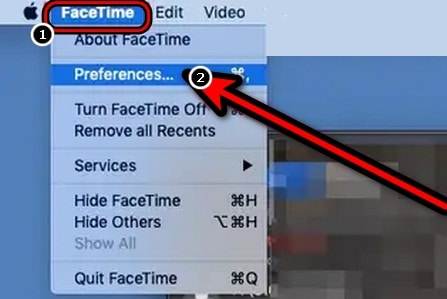
- Start the application FaceTime on the Mac and open your Preferences.
- Now head to the Settings tab and then click on the Sign Out button.
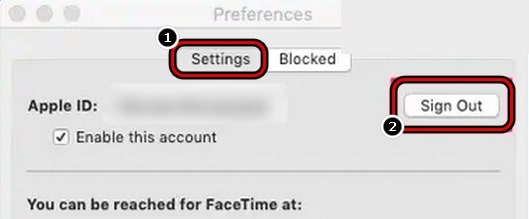
- Then, confirms to sign out of FaceTime, and then repeat to sign out of FaceTime on the other devices that will receive the SharePlay stream.
- Now restart facetime e log in with your Apple ID/password.
- After this, you must click on Next and then check if SharePlay has started working normally.
- If that fails, check if Connect AirPods (if possible) and then starting the FaceTime call fixes the SharePlay issue.
- Otherwise, you have to check if start la FaceTime call without any external device (such as a BlueTooth headset or AirPods) solves the problem.
2. Restart the problematic devices
A temporary glitch in the device's operating system might be preventing FaceTime from loading essential modules like SharePlay, thus causing the problem. Restarting the affected device may resolve the SharePlay issue. For clarity, we'll discuss the process for an iPhone.
- hold down the button lateral from the iPhone until the slider ignition.
- Now use the slider on to off the iPhone and then turns off el network equipment (like a router).
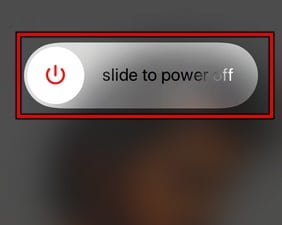
- then turn on el router and once turned on, turn on el iPhone.
- Now repeat on the other device where SharePlay will be shared.
- Then check if SharePlay is working properly.
- On the contrary, press and release immediately the button to increase the volume of the iPhone.
- Then, press and release immediately press the iPhone's volume down button.
- Now press y hold down the button lateral of the iPhone.
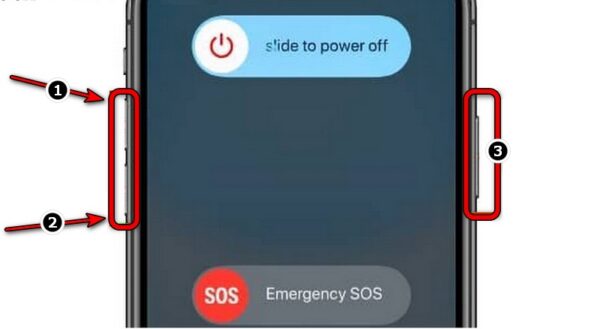
- Wait until the iPhone restarts and displays the apple logo on the screen.
- then loose the side button on the iPhone and once the iPhone is properly turned on, check if it works fine. You may need to force restart of the other devices that will receive the SharePlay stream.
3. Update the devices to their latest operating system version
SharePlay may not work if the operating system of the devices is outdated as it may cause incompatibility with FaceTime modules and therefore the devices may not be able to load the SharePlay modules.
In this context, updating the device's operating system to its latest version can resolve the issue. For illustrative purposes, we will analyze the process of updating an iPhone's iOS to the most recent version.
- First, make sure your iPhone is fully charged and connected to a Wi-Fi network.
- Then start iPhone Settings and open General.
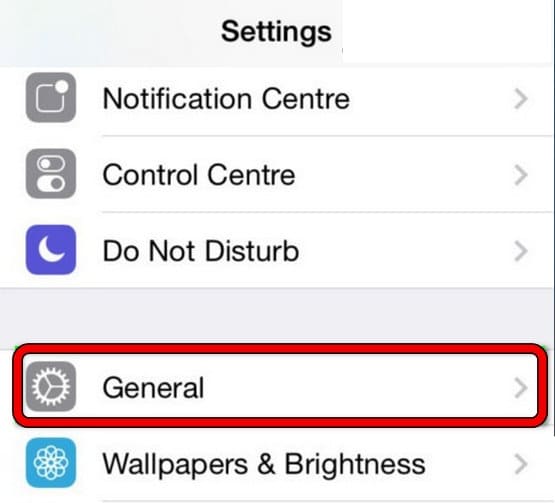
- Now play Software update and if there is an iOS available, install la update.
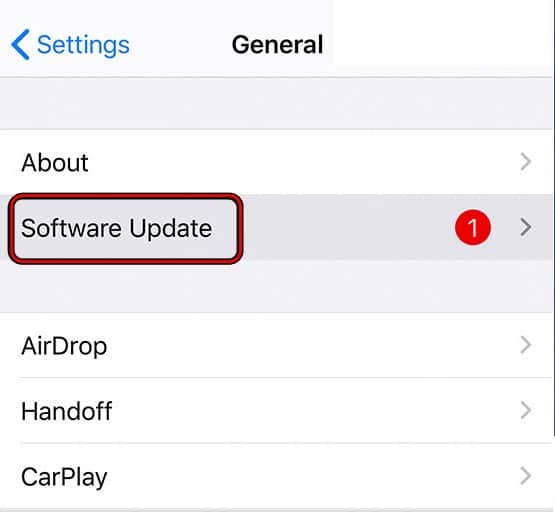
- Once the iPhone is updated, restart your phone and after restarting, check if SharePlay is working properly. You may need to repeat the same on other devices as well.
- If that fails and the problem only occurs with one particular application (as TikTok), check if create another account that application solves the problem.
A temporary glitch in the SharePlay or FaceTime modules on your device could cause SharePlay to stop working and cause the issue being discussed. In this case, disabling/enabling FaceTime and SharePlay may resolve the issue. For clarification, we will discuss the process for an iPhone.
- Start the setting from the iPhone and opens FaceTime.
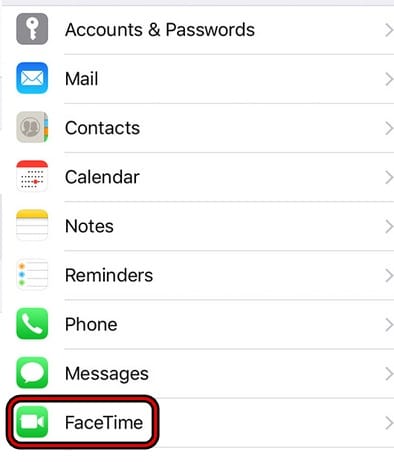
- Now select shareplay y disable it switching your switch to the off position.
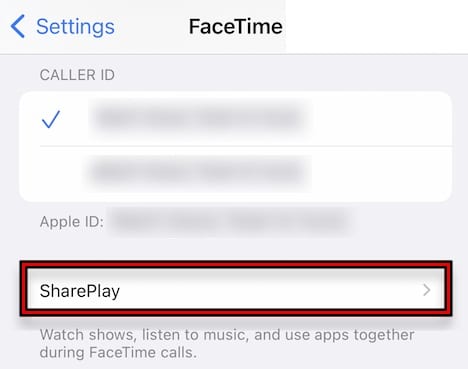
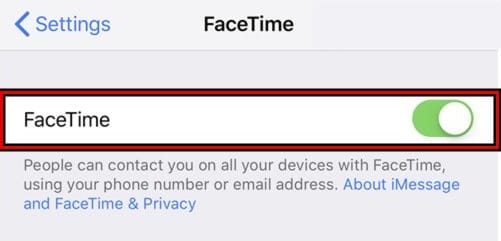
- Then press the button Back and disable FaceTime switching your switch to the off position.
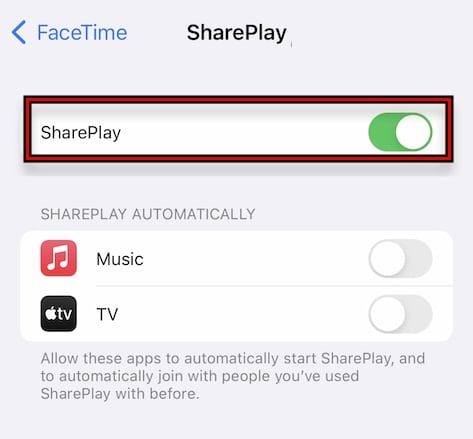
- Now restart the iPhone and when restarting, enable FaceTime.
- Then open shareplay y enable SharePlay.
- Alternatively, start a FaceTime call and hopefully SharePlay will work fine. You may need to repeat the same on the other devices as well.
If you got this far, I have nothing left to say but that I hope that each of the methods described in this post will help you solve the Apple SharePlay Not Working Error. If you liked it, don't hesitate to share this content with the rest of your acquaintances. Thank you for your visit, see you in a next post.

My name is Javier Chirinos and I am passionate about technology. Ever since I can remember, I have been interested in computers and video games, and that passion has turned into a job.
I have been publishing about technology and gadgets on the Internet for over 15 years, especially in mundobytes.com
I am also an expert in online marketing and communication and have knowledge in WordPress development.
Table of Contents