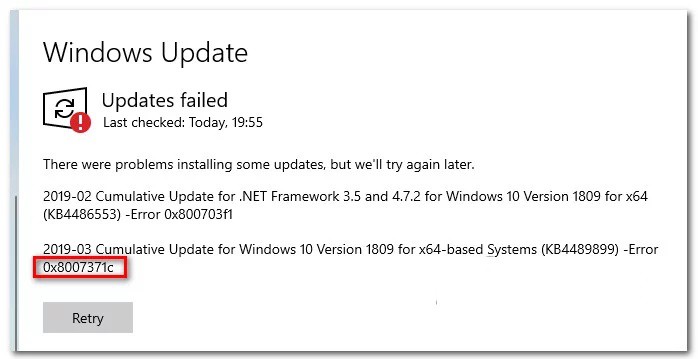
Some Windows 10 users are reporting that they encounter error 0x8007371C whenever they attempt to install any pending Windows cumulative update. Most affected users report that only certain updates fail with this error, while others install successfully.
It turns out that there are several different underlying causes that could be responsible for this particular error code. Here is a short list of the possible culprits:
- Common WU mistake: It turns out that there are certain common scenarios that can produce an error that disrupts the functionality of Windows UpdateIn most cases, simply running the Windows Update troubleshooter and applying the recommended solution is enough.
- WU dependency temporary data corrupted: If the Windows Update troubleshooter cannot resolve the problem automatically, you should try to resolve the problem manually by cleaning up the Temporary files stored within the SoftwareDistribution and Catroot2 errors.
- Windows Update component broken: Once you have ensured that both the Windows Update troubleshooter and you were unable to repair the WU component, one way to fix the problem (other than reinstalling the OS) is to bypass the local WU component by downloading and installing the failed update through the Microsoft Update Catalog.
- Third-party software is interfering with WU: Please note that a new driver update, installing a new driver from a third-party application can also interfere with the Windows Update component. In this case, you can simply use the System Restore troubleshooter to revert your operating system state to a time stamp when the WU component was working properly.
- System file corruption: In certain circumstances, you can expect this error code to occur due to an underlying system file corruption case that cannot be fixed conventionally. In this case, the only viable solution at this point is to perform a repair installation or a clean install.
How to fix Windows Update error 0x8007371C
Now that you're familiar with all the possible culprits that could be responsible for the Windows Update error 0x8007371C , here's a list of verified fixes that other affected users have successfully used to resolve the issue:
1.- Set the Windows Update troubleshooter
Since the issue is most likely related to a known WU inconsistency that Microsoft is already aware of, you should start this troubleshooting guide by checking if your operating system is not able to identify and fix error 0x8007371C automatically.
Note: Windows 10 includes many built-in repair strategies capable of resolving the vast majority of errors and inconsistencies related to the update.
Some users who encountered this exact problem have managed to fix error 0x8007371C by running the Windows Update troubleshooter and applying the recommended solution.
This built-in utility is present in all recent versions of Windows and contains dozens of repair strategies that will be automatically applied if a familiar scenario is found. In case the scan finds a viable repair strategy, the utility will automatically recommend a viable solution that you can easily apply.
Here is a quick guide on how to implement the Windows Update troubleshooter to resolve error code 0x8007371C on Windows 10:
- To start, open a dialog box Run You must press the Windows key + R. Inside the text box, type the following command: ms-settings-troubleshoot and press Log in to open the tab A satisfactory solution de problems of the application Configuration.
- Inside the tab Problem solving, move to the right section of the screen Configuration, then go down to the section Get going.
- Then click Windows Update before clicking Run the solver de problems from the newly appeared context menu.
- Within the Windows Update Troubleshooter, it will automatically start scanning your system for inconsistencies. Wait patiently until the initial scan is complete.
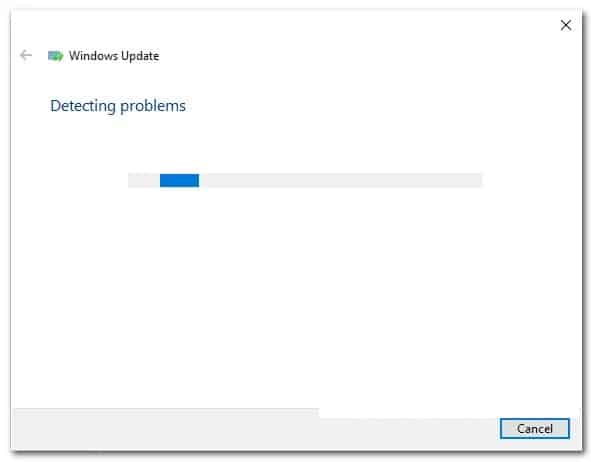
Note: This analysis helps determine if any of the included repair strategies are compatible with the update problem you are currently experiencing.
- After finding a viable repair strategy, you will be presented with a new window where you can click on Apply this fix to apply the appropriate correction for this particular scenario.
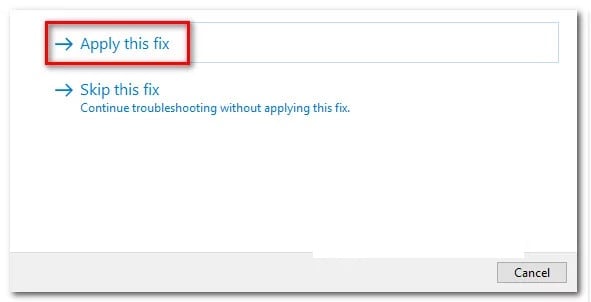
Note: Depending on the type of correction recommended, you may need to follow the on-screen instructions to apply the recommended correction.
- Once the solution has been successfully applied, restart your computer and see if the issue is resolved once the next startup is complete.
If the 0x8007371C error is still occurring when you try to install the pending update (or the troubleshooter didn't find a viable repair strategy), proceed to the next potential solution below.
2.- Reset all WU dependencies
If the Windows Update troubleshooter was unable to identify and fix the problem automatically, you should further this troubleshooting attempt by manually resetting the entire Windows Update component.
To fix this problem, use an elevated command prompt to stop all relevant Windows Update configurations before cleaning up temporary files stored in the SoftwareDistribution and Catroot2 folders.
After doing this and restarting all relevant services, you should try to install pending updates again and see if the problem is now fixed.
If you haven't tried this particular solution yet, follow the instructions below to reset all Windows Update dependencies in an attempt to fix error 0x8007371C.
- Start by pressing the Windows key + R on your keyboard to open a dialog box Run. After doing this, type the command cmd inside the text box and press Ctrl + Shift + Enter to open an elevated command prompt.
Note: Once you see the User Account Control (UAC) message , click Yes to grant administrative privileges.
- Within the elevated command prompt, type the following commands in order and press Log in after each one for stop all WU related services: sc config wuauserv start=auto / sc config bits start=auto / sc config cryptsvc start=auto / sc config trusted installer start=auto
Note: Use these commands to configure Windows Update Services, MSI Installer, Cryptographic Services, and BITS Services to Automatic Startup.
- After all relevant services have been stopped, run the following commands to delete and rename the folders software distribution y Catroot2: ren C:\Windows\SoftwareDistribution SoftwareDistribution.old or ren C:\Windows\System32\catroot2 Catroot2.old
Note: These two folders contain files that are up-to-date and use Windows Update components. Renaming these folders will force your operating system to create new, healthy equivalents that will not be affected by the corruption.
- Restart your computer once more and see if the problem is now fixed.
If your attempts to install pending updates still end with the same 0x8007371C error, continue to the next potential fix below.
3.- Install the failing Windows update manually (via the Microsoft Update Catalog)
Since the Windows Update troubleshooter didn't allow you to identify any underlying problems with the Windows Update component, a quick fix that should allow you to bypass error 0x8007371C is to use the Windows Update Catalog to find the update that isn't installing and install it manually (most commonly when trying to upgrade to Windows 10 build 1903).
A lot of users who have encountered this error have confirmed that this method works. While it is a tedious process (especially when you have to run multiple updates that fail with the same error), it is worth it if you want to effectively bypass the dependency on the Windows built-in update component.
Note: If you have many pending updates (more than 10), it might be better to skip this method and go directly to Method 3.
If you decide to proceed with this solution, please follow the step-by-step instructions below:
- Open your favorite browser on the affected computer and access the root address of the Microsoft Update Catalog.
- Next, take advantage of the search function in the top left corner of the screen to look for the update that is failing with error code 0x8007371C.
- Once the results are displayed, decide on the appropriate upgrade based on your current operating system architecture and the version of Windows you are using.
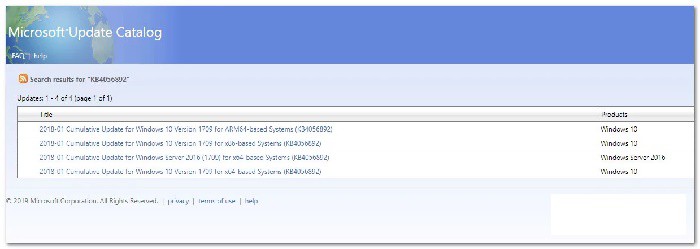
- After you decide which update is compatible with your machine, go ahead and click the button Download associated with the correct driver.
- Finally, select the File Browser and manually navigate to the location where the driver was downloaded. When you reach the location where the previously failing driver was downloaded, right-click the file . Inf and choose Install in the context menu that just appeared.
Note: If multiple updates fail with the same error code, repeat steps 3 to 5 for each Windows update that failed previously (if more than one pending update fails).
In case you are still seeing the same error code when trying to install updates through the Windows Update Catalog, move on to the next potential solution below.
4.- Use System Restore
If you only notice that pending Windows updates have started to fail after a certain change (driver update, new driver installation, new feature update, etc.), you might be dealing with a rogue element that conflicts with the Windows Update component.
In this case, you may be able to fix the problem by using System Restore to restore your computer to a healthy state.
Note: Keep in mind that, by default, System Restore is configured to create and save new restore snapshots at significant system events. Unless you have modified this default behavior, you should have many restore snapshots to choose from when attempting to fix the SiHost.exe Unknown Hard Disk Error.
- Use a previously saved system restore point to revert your computer to a previous point in There when this problem was not occurring.
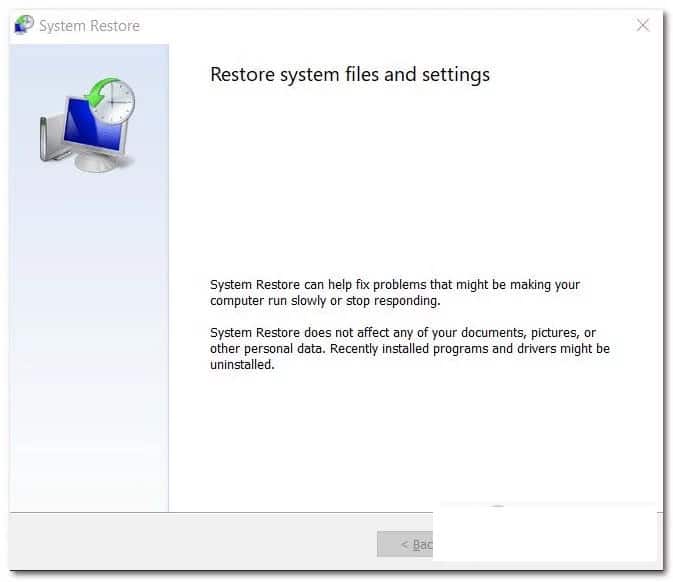
- If you were able to use a restored snapshot to revert your PC to a healthy point, try installing the previously failing Windows Update once again.
- If the issue is still not resolved and you are still seeing the same error 0x8007371C after an update fails, continue to the next potential fix below.
5.- Repair of the installation or cleaning of the installation
If none of the above possible fixes have worked for you so far, there is a high chance that you are dealing with some kind of system file corruption that is affecting the local component of Windows Update.
If this scenario is applicable, the only thing you can do at this point is to reset all components and subcomponents of your Windows installation to ensure that you completely remove all corrupted instances that could be triggering error code 0x8007371C.
If you have no choice but to do it at this point, you really only have 2 ways to move forward:
- Installation cleaning: If you're looking for a quick solution, opt for a clean install, as you can deploy it without having to use compatible installation media. This will effectively replace your existing line of Windows files from the operating system drive and remove any corrupted instances. But keep in mind that unless you back up your personal data in advance, you should be prepared to lose all personal data from your operating system drive (C:\).
- Installation of reparación: This procedure takes much longer and requires you to insert a compatible installation media and use it to trigger an in-place repair procedure. But the repair installation will allow you to keep your personal files, including apps, games, documents, photos, etc.
With these simple solutions you can successfully fix error 0x8007371C. If you know of another method to fix this error, please let us know. Thank you for visiting us, see you in our next post.

My name is Javier Chirinos and I am passionate about technology. Ever since I can remember, I have been interested in computers and video games, and that passion has turned into a job.
I have been publishing about technology and gadgets on the Internet for over 15 years, especially in mundobytes.com
I am also an expert in online marketing and communication and have knowledge in WordPress development.