According to reports, a large number of Windows 10 users see the Direct3D11 error 0X087A0001 (Unable to configure video mode) when trying to run certain resource- intensive games or when running various benchmark tools.
After having investigated this particular issue, it turns out that there are several different underlying scenarios that could be triggering this error code. Here is a list of possible culprits that could be creating this specific error code:
- Unstable/outdated GPU driver version: According to many affected users, this particular issue is often related to an outdated or beta version of a GPU driver that is not equipped to render the application that is throwing the error. In this case, you should be able to resolve the issue by using driver update software Nvidia or dedicated AMD to install the latest available version.
- Windows 10 optimization settings are not used: If you see this error when trying to launch a legacy game on Windows 10, make sure you are doing it through the launcher (GoG, Steam, Epic Games, etc.) to ensure that parameters are being used that make the game playable on Windows 10.
- The app does not support system color mode: If you encounter this issue with a game that was not originally designed to support 32-bit color depth, you may be able to avoid the error entirely by forcing the game executable to run in reduced color mode (16-bit).
- The application does not support scaling DPI high- It turns out that certain legacy applications will trigger this error because the application's graphics engine does not support high DPI scaling. Several users who encountered a similar situation have resolved the issue by changing the high DPI scaling to System instead of Application.
- Default resolution not supported: According to some affected users, you can also expect to see this issue if you try to launch a game that supports a maximum resolution lower than the one you are currently using. In this case, you can prevent this issue from appearing by changing the Properties menu of the game executable so that it is forced to run at the lowest supported resolution.
- The game is incompatible with Windows 10: Many legacy games are incompatible with Windows 10 by default, unless you take the time to There to use compatibility mode and make it appear as if they are running on an older version of Windows.
How to fix Direct0D087 error 0001X3A11
Now that you have a clearer idea about all the possible culprits that could be triggering this particular issue, here is a list of verified methods that other users going through the same thing have tried with complete success and managed to fix this error:
Method 1: Install the latest stable GPU driver version
According to many affected users who were encountering this error when trying to run certain resource-hungry games, you may be dealing with a driver issue.
In most cases, the problem is caused by an outdated version of the graphics card driver or an unstable GPU driver. If this scenario is similar to your case, you may be able to resolve the error by reinstalling the GPU drivers that you are currently actively using.
Note : The steps to do this will differ depending on your GPU manufacturer. To accommodate AMD and Nvidia users, we've created two separate guides to help you uninstall and reinstall your GPU, whether you're using AMD or Nvidia graphics cards.
Follow the guide provided by your GPU manufacturer to resolve the Direct3D11 error 0X087A0001 in Windows 10:
A. Reinstalling GPU Drivers on NVIDIA
- Start by pressing the key Windows + R to open a dialog box Run. Then, write the section inside the text box appwiz.cpl and press Log in to open the menu Programs and files.
- Inside the menu Programs and Features, proceed by clicking on the tab Editor to sort the list of programs installed by your publisher.
- Next, your job is to find the entries posted by NVIDIA Corporation and systematically right-click on them and click uninstall each item using the context menu.
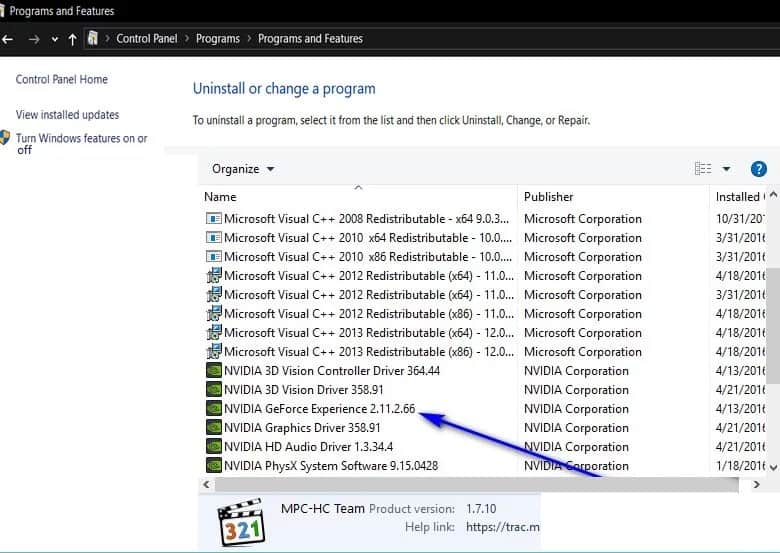
- The next thing you need to do is follow each of the instructions that appear on the screen so that you can solve the uninstallation process.
Note: Do this systematically with every driver that appears published by Nvidia Corporation.
- After you finish uninstalling each of the Nvidia drivers, you must restart the computer and wait for the next startup to complete.
- Once the next startup is complete, visit the Nvidia GeForce download page and install GeForce Experience by clicking the button download now and follow the instructions on the screen.

Note: This utility will automatically find and recommend the drivers you need to install according to your GPU model.
- Next, open Nvidia Experience, sign in with an account, and then install the recommended drivers from the page. Controladores.
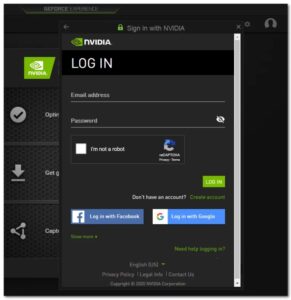
- After installing all the recommended drivers, restart your computer once again and see if the issue is resolved at the next computer startup.
- Launch the game that was previously triggering the 0X087A0001 error and see if the issue is now resolved.
B. Reinstalling GPU drivers for AMD
- visit this Download page links for AMD Cleanup utility and download the latest version.
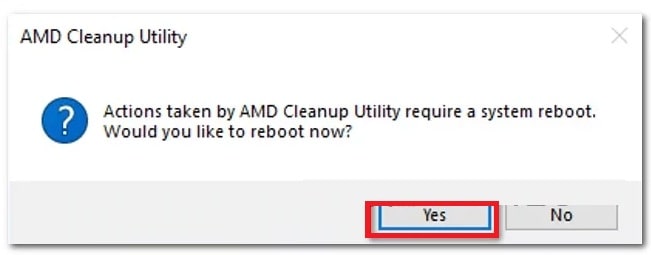
- After you download the AMD Cleanup utility, you need to make sure to press the executable, then click Yes to have the utility run. safe mode and AMD drivers can be uninstalled.
Note: This utility is designed to completely remove installed AMD drivers, registry entries, and driver store signatures, saving you the trouble of manually locating and uninstalling each driver file. To ensure no files remain, it is important to run the utility in safe mode.
- In order to start the utility, you must make sure to click on the button Accept found in the second message. This will allow you to start the AMD cleaning process. Once you do this, the utility will be able to run in the background.
Note: Keep in mind that when this operation is performed, the screen may flicker or go black for a few seconds. This is more normal than you might think, as the screen components are being removed.
- Once the message confirming the successful operation appears on the screen, you must click on Finalize. After this, you must restart your order manually if it does not ask you to do so automatically.
- After your computer restarts, visit the Auto-Detect GPU Download Page, then scroll down to the option Auto-Detect and Install Radeon Graphics Drivers for Windows and make sure you click where it says download now.
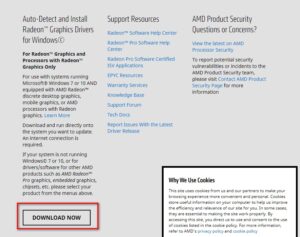
- Once the executable downloads, open it by double-clicking it and follow the on-screen instructions to install Radeon Adrenalin.
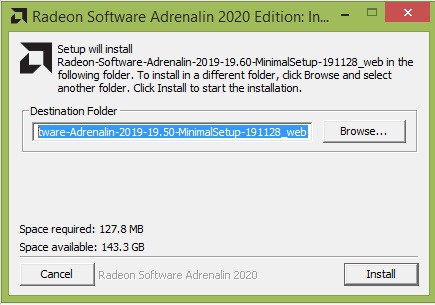
Note: You can change the default destination folder back if you wish, but it is not recommended.
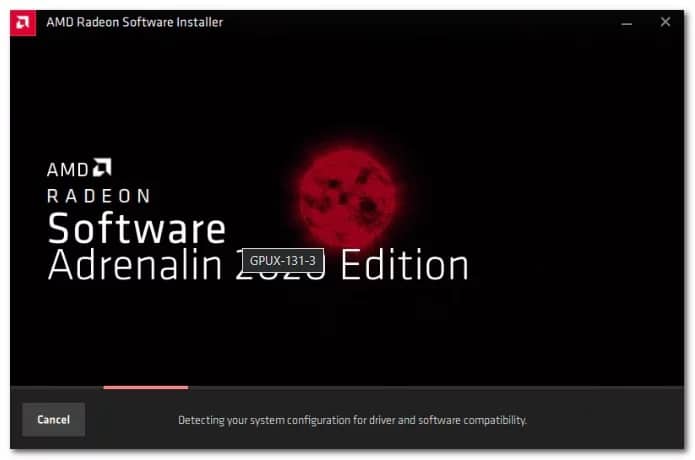
- Once you've made sure the download is complete, the utility should launch automatically in an attempt to detect your AMD graphics product and installed operating system. Please wait patiently for this process to complete.
- After the tool successfully detects your system configuration and the drivers it needs, it installs the drivers packages. Recommended and optional drivers selecting both and clicking on Install.
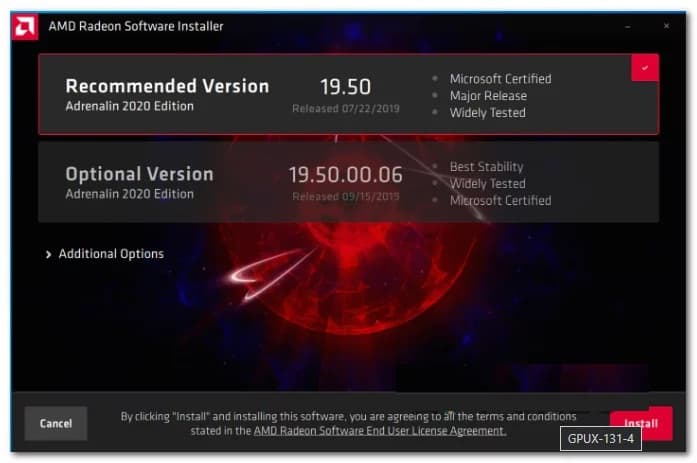
- After this, you must accept the EULA after reviewing each of the terms and conditions. Then you have to click where it says install so that the installation can begin.
- After installing all necessary drivers, restart your computer and try launching the game once the next startup is complete to see if the issue is resolved.
In case you still encounter the same Direct0D087 error 0001X3A11 even after making sure you are using the latest GPU drivers, move down to the next potential fix below.
Method 2: Launch the game via the launcher (if applicable)
If you encounter this issue when trying to launch a legacy game that is officially supported on Windows 10, you should make sure to launch the game through the launcher you purchased it from (e.g. from Steam, GoG, Origin, Epic Games, etc.)
This is important because the launcher usually makes the game playable on Windows 10 through a series of settings that stabilize the game for the latest version of Windows.
So, if you find yourself in this particular scenario, open Steam, GOG Galaxy, or Epic Games and launch the game that was triggering the 0X087A0001 error through the library menu.
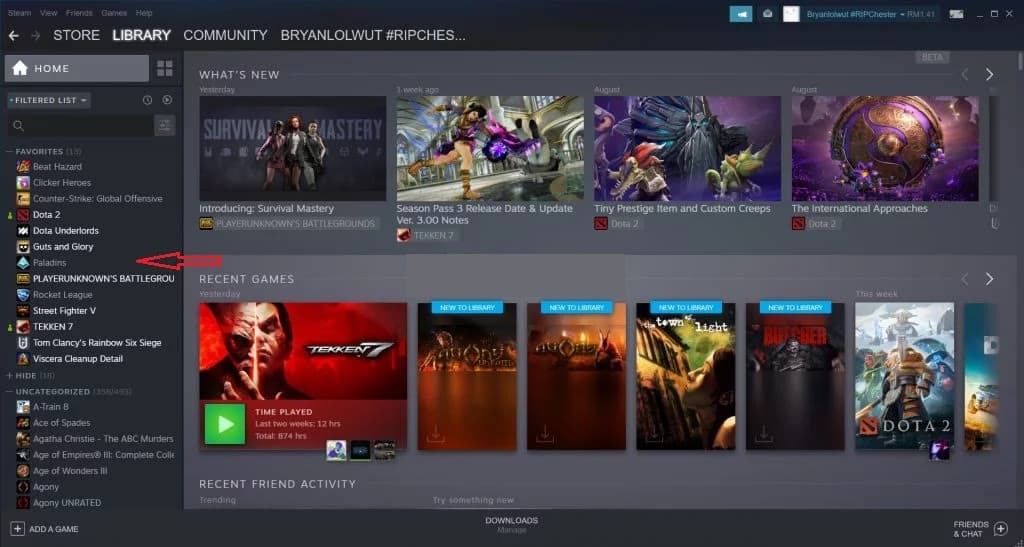
Once you locate the game within the Library menu of your launcher, open it and see if the issue is now resolved.
If you still see error code 0X087A0001 even when you start the game through the launcher, go to the next potential solution below.
Method 3: Enable reduced color mode (if applicable)
It turns out that another fairly common instance that will trigger the Direct3D11 Error 0X087A0001 is a scenario where the game was not originally designed to support 32-bit color depth (which is usually forced by default in Windows 10).
Several affected users who were also dealing with this issue when trying to launch legacy games have reported that they finally managed to fix the problem by modifying the properties screen of the executable they use to launch the game so that Reduced Color Mode: 16 bits is enabled.
Note: This workaround has been confirmed to be effective by many users who encounter this problem with Red Alert 2, Yuri's Revenge, and many legacy games.
If you're looking for specific instructions on how to enable reduced color mode for the game that's crashing with error 0X087A0001, skip to the next potential solution below:
- Open the File Browser and navigate to the location that contains the executable you use to launch the game.
- When you are inside the correct location, you have to right click on the executable and select the option Properties within the context menu that appears on the screen.
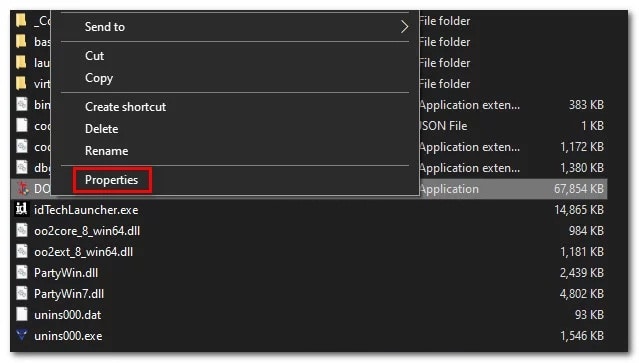
- After you are inside the screen Properties, select the tab Compatibility in the menu at the top, then check the box associated with the reduced color mode (available in Configuration) and set the dropdown below to 16-bit.
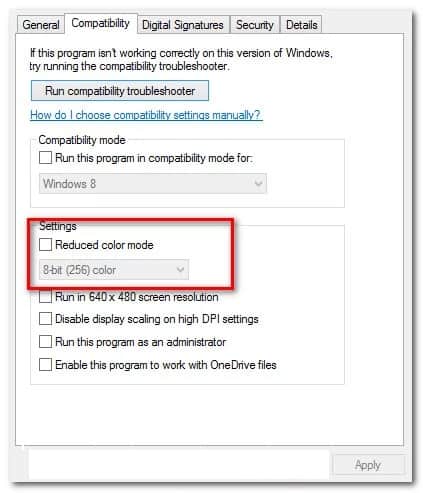
Note: Keep in mind that newer apps will not support changing the default color mode; in this case, the option will be grayed out.
- Save changes by clicking Apply to save the changes, then launch the legacy game once again and see if the issue is now fixed.
If this method is not applicable or you are still encountering the same error code 0X087A0001 even after changing the default color mode, move on to the next potential solution below.
Method 4: Override High DPI Scaling (if applicable)
In case lowering the color bit mode did not produce an effect or the game architecture does not allow you to apply this type of change, the next thing you need to do is modify the behavior of the game's high DPI settings.
Several affected users who were also dealing with this issue reported that they were finally able to resolve the problem and launch the game without the same error code by using the Compatibility tab to force the override of high DPI scaling to be performed by the system instead of the application.
- If you haven't tried this solution yet, please follow the instructions below:
- Open File Explorer and navigate to the location where the game executable is located.
- As in previous steps, when you are inside the correct location, you have to right click on the executable and then press the option Properties which, as you already know, is located within the contextual menu that appears on the screen.
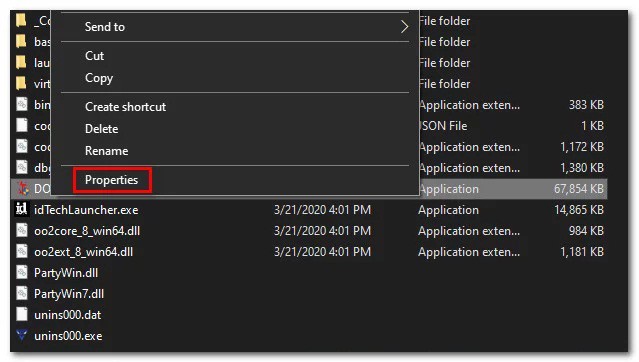
- When you are inside the screen Properties from the game executable, go to the tab Compatibility from the menu at the top, then click the button Change High DPI Settings (available in Configuration).
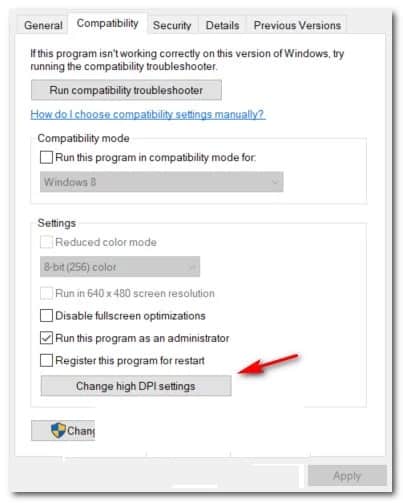
- Within the High DPI Call Override window, check the box associated with the Override high DPI scaling behavior.
- Then change the Scale made by the drop-down menu to System (Improved) and click To accept, after Apply to save the changes and make them permanent.
- Launch the game or app again normally and see if the error is now fixed.
If you continue to see the same error code 0X087A0001 ( Unable to configure video mode) when starting the game or application, check if the problem has already been resolved.
Method 5: Change the app resolution (if applicable)
It turns out that another fairly common instance that will produce the 0X087A0001 error code is an instance where the legacy application was not originally designed to support the resolution your system is currently set to run the game at.
Several affected users who encountered a similar situation reported that the issue was eventually resolved after they modified the behavior of the legacy application executable to force the lower resolution on startup.
If you think this scenario might be applicable, please follow the instructions below to force the game to initiate application resolution:
- Open File Explorer and navigate to the location where the legacy app is installed.
- Once you get to the correct location, right click on the executable you use to launch the game and click Properties in the context menu.
- Inside the screen Properties, click on the tab Compatibility from the menu at the top, then check the box associated with Run on a screen resolution of 640 x 480.
- After checking the correct box, click Apply To save the changes.
- Start the legacy application normally and see if the issue is now resolved.
In case the same error code still occurs after trying this solution or this method is not applicable, continue with the final potential solution below.
Method 6: Run the program in compatibility mode
If none of the above methods have proven effective in your case, you should start considering that the game's age is the problem due to incompatibility with Windows 10. This is an even bigger problem if the Anniversary Update is installed on Windows 10.
Fortunately, by using compatibility mode, you can change the way Windows feels about how the game runs. Some users have recommended using Windows 95 as a compatibility operating system when running legacy games developed in the 2000 era.
Follow the steps to see how to change it:
- Right click on Diablo 2 icon on your desktop and open the menu Properties.
- Choose Compatibility, then go to compatibility mode and check the box that says 'Run this program in compatibility mode for:'.
- After checking the box, a list of other versions of Windows will be unlocked, select the list and click Windows 95.
- Finally, click Apply and launch the game to see if the error code has been resolved.
Hopefully, some of the methods outlined in this guide will help you solve this problem. Don't hesitate to share this guide with the rest of your acquaintances. In a future post we will bring you more helpful tips for you.

Table of Contents
- 1 How to fix Direct0D087 error 0001X3A11
- 1.1 Method 1: Install the latest stable GPU driver version
- 1.2 Method 2: Launch the game via the launcher (if applicable)
- 1.3 Method 3: Enable reduced color mode (if applicable)
- 1.4 Method 4: Override High DPI Scaling (if applicable)
- 1.5 Method 5: Change the app resolution (if applicable)
- 1.6 Method 6: Run the program in compatibility mode