- Controlling the mass allocation of licenses in Office 365 prevents duplication and reduces costs.
- Azure AD groups allow you to automate the granting and revocation of licenses by role.
- PowerShell is essential for auditing, removing, and updating licenses for many users at once.
- Defining clear profiles between plans like E3 and F3 helps optimize license usage.
Manage licenses in Office 365 This can become a real headache when the organization grows, new departments are created, or work models change. It's very common for users to accumulate subscriptions they don't need over time, for different plans to overlap, or for licenses to remain active for people who should no longer have access to certain services.
In that context, the mass removal and updating of user licenses in Office 365 This becomes a key task for saving costs, avoiding duplication, and ensuring that each employee has only what they truly need for their role. In many companies, for example, E3 licenses have been assigned indiscriminately, when in reality a large part of the staff is better suited to more basic plans like F3, designed for frontline employees.
Why is it crucial to control licenses in Office 365
Assign licenses properly It's not just a matter of internal organization; it also has a direct impact on the monthly Microsoft 365 bill. If plans are combined incorrectly or unnecessary licenses are maintained, the IT budget skyrockets without providing any additional value to the company.
Typical cases are those in which Users have an assigned E3 license in addition to another license that is actually the one they need.such as F3 or other specific plans. This results in users having redundant services, applications they will never use, and storage they don't need, while the finance department wonders why the subscription is increasing month after month.
Furthermore, from a governance perspective, centrally control which licenses apply to each type of user It helps to standardize the environment, to apply consistent security policies and simplify technical support. A well-defined profile for each role allows for much faster employee onboarding and offboarding.
That's why many organizations create containers or groups in Azure Active Directory (AAD) so that licensing is automatic. Depending on the department, position, or assigned group, the user receives a specific combination of licenses. This greatly simplifies the onboarding of new employees, but it also makes it more apparent when something has gone wrong in the past and needs to be corrected across the board.
When it is detected that, for example, An entire group has been using E3 licenses for some time now, when they should be F3 licenses.It's no longer enough to manually remove and add licenses user by user. It's time to consider mass removal and upgrade strategies, leveraging Microsoft 365 tools and automation through PowerShell, group-based assignment rules, or tools like Copilot for management.
Typical scenario: E3 and F3 licenses incorrectly assigned
A problem that is repeated in many companies is the following: For a while now, E3 licenses have been given "by default" to almost everyone.without any in-depth analysis of what services each employee actually needed. Years later, when reviewing the costs, it was discovered that a large part of the staff could have worked perfectly well with F3 licenses, designed for frontline users or employees who only use basic services.
In parallel, they have been created groups or containers in Azure AD To improve the automatic allocation of licenses by role or department. For example, one group for offices, another for store staff, another for logistics, etc. Each of these has a specific license associated with it (E3, F3, Business Premium, etc.) to make user registration easier.
The result is that there are people with dual assignment: the old E3 license and the new F3 license This is applied automatically based on group membership. This results in unnecessary license consumption and an unclean configuration, complicating any subsequent audits or changes.
The question many people ask at this point is clear: Can the E3 license be massively removed from all users who should now only have F3, and vice versa if the opposite has occurred? The answer is yes, but several strategies and tools must be considered to do it safely and without leaving anyone without critical services.
Before touching anything, it is essential analyze in detail which groups assign which licensesHow legacy allocations are configured and what plan combinations are occurring. A quick audit using the admin portal, Azure AD, and, if necessary, PowerShell queries, helps avoid errors and design an orderly cleanup plan.
Native options in the Microsoft 365 admin portal

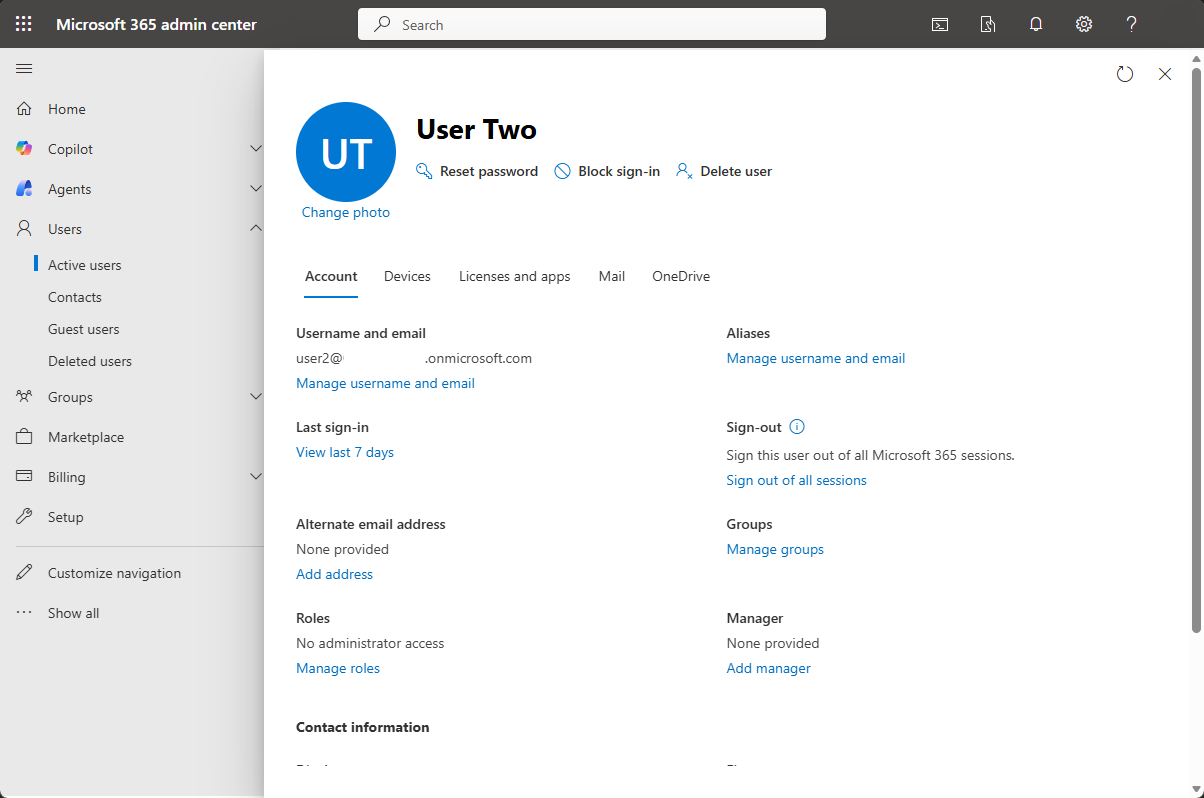
The starting point for many administrators is the Microsoft 365 admin centerwhere user licenses can be reviewed and modified relatively easily. While not the most powerful tool for truly massive changes, it does allow for a first approach and is useful for minor adjustments.
From the active users section, You can filter by license type and select in bulk the users who have, for example, E3. From there, the portal allows you to modify the allocation and deselect certain plans or services. However, this approach has clear limitations when you want to perform a thorough cleanup or when combining group-granted licenses with directly assigned licenses.
Another aspect to keep in mind is that Licenses applied through groups in Azure AD take priority in how they are managed.If a user is assigned a license for belonging to a group, that specific part of the license cannot be manually removed in the Microsoft 365 portal without also modifying their group membership or the group's settings.
For organizations with many users, the web portal falls short. Real mass management requires relying on PowerShell and group-based allocation capabilitiesEven so, the portal is useful for quickly verifying the results of changes, checking the status of a specific user, or acting on small groups of people with very specific needs.
In short, although The Microsoft 365 admin center is a good control point.This is usually not enough to address a large-scale license removal and upgrade, especially when it is necessary to distinguish between various allocation sources and combine different types of plans such as E3 and F3.
Azure AD group-based license allocation and removal
Azure Active Directory (today Microsoft Enter ID) It has long included the option of group-based license assignment. This functionality allows users to be automatically granted one or more licenses when added to a group, and to lose those licenses when removed from the group. It is a very effective way to standardize configurations by role.
If they have already been created two containers or groups in Azure AD to automatically assign licenses (for example, one for E3 users and another for F3 users), the key is to review which users belong to each group and how those memberships overlap with licenses assigned manually in the past.
The recommended strategy usually involves decide on a clear objective modelThis map defines which licensing plans correspond to each job type, which groups will represent those jobs, and which users should be in each group. Once this map is defined, the next step is to adjust group memberships and let Azure AD automatically apply and remove licenses.
To solve the problem of the duplicate licenses between E3 and F3The standard procedure is to identify users who should have F3 licenses, ensure they are in the correct group, and remove any excess E3 licenses. Conversely, if there are staff members who should be upgraded from F3 to E3, they are moved to the appropriate group and their old assignments are removed.
A major advantage of this approach is that The rules remain the same over time.This is not a one-off change, but a permanent way to ensure that any new hire, termination, or job change is automatically reflected in the assigned license type, thus preventing the progressive accumulation of incorrect licenses that we often see after several years of using the platform.
Using PowerShell for bulk removal and updates
When the volume of users is large Or, if the scenario is complex, PowerShell becomes an indispensable tool for managing Office 365 licenses on a large scale. Through Microsoft 365, Azure AD, or MSOnline modules, it's possible to query, assign, and revoke licenses for hundreds or thousands of users with just a few well-designed commands.
The typical approach consists of Connect to the Microsoft 365 environment via PowerShellExtract a list of users and their current licenses and, based on that information, build rules that detect duplicates. For example, you can generate a report with all users who have an E3 license and, at the same time, belong to a group that grants them an F3 license.
Based on that report, a script is designed that Remove the E3 license from all users who shouldn't have it.ensuring they maintain their F3 license and therefore don't lose access to the services they truly need. Similarly, the opposite can be done: identifying users whose functionality is insufficient and who should upgrade from F3 to E3, assigning the new license and revoking the old one.
PowerShell also allows document and audit the entire operationIt's possible to export data to CSV before and after the changes, allowing you to compare how many licenses have been released, how many users have changed plans, and the approximate economic impact of the cleanup. This traceability is essential for justifying the work to management and for reverting changes if necessary.
However, when working with scripts that modify licenses en masse, it is crucial Always test first with a small subset of usersA small pilot group allows us to validate that the script logic is correct, that no one is being left without critical services, and that the changes are reflected as expected in the administration portal and in the user experience.
Best practices before making mass license changes
Before rushing into messing with licenses like crazyIt's advisable to follow a series of recommendations to minimize risks and avoid unpleasant surprises. While the temptation to release licenses and reduce costs may be strong, a poorly executed cleanup can leave people without access to email, Teams, or other key tools in the middle of the workday.
The first is perform a complete inventory of current licensesWhat types of plans are being used (E3, F3, Business, etc.), how many licenses of each plan have been purchased, and how many are actually being used? This initial overview is essential to understanding the problem, assessing the potential savings, and defining the ultimate goal.
After that, it is advisable classify users by usage profilesAdministrative staff, store personnel, technicians, managers, etc. Each of these groups typically has different needs, and this is reflected in the licensing plans that best suit them. This classification will form the basis of Azure AD group-based allocation.
It is also important communicate the changes to the affected departmentsWhile ideally users shouldn't notice anything (because they're simply switching licenses while maintaining essential services), there's always a chance of losing access to a minor application someone was using. Keeping the relevant personnel informed helps manage any issues.
Finally, it is advisable to prepare a reversal plan: copies of previous license listings, allocation scripts that allow specific licenses to be returned to a group of users if something goes wrong, and a reasonable time window to conduct initial testing during off-peak hours for the organization.
By applying these best practices, the bulk removal and updating of licenses in Office 365 It ceases to be a risky operation and becomes a controlled project, with clear goals and an easily measurable return on investment.
Avoid duplication and optimize costs with E3 and F3
One of the main objectives of reviewing licenses It's about ensuring everyone has the right plan, without overpaying. Specifically, with E3 and F3, there's often significant potential for savings, because E3 is a much more comprehensive and expensive plan, while F3 is geared more towards workers who don't need all those advanced features.
To optimize, it is often useful define clear criteria to decide who should have E3 and who should have F3For example, E3 is for staff who use desktop applications intensively, need expanded storage, or require advanced security and compliance features; and F3 is for frontline workers, mobile staff who only access email, Teams, and some basic applications.
Based on these criteria, the current situation is reviewed and relocate licenses en masseThis involves replacing E3 with F3 for users who don't need the full plan. In many cases, this simple adjustment, when done carefully, frees up a large number of E3 licenses that can be reassigned to more critical profiles or, even better, reduces the number of licenses purchased.
The key is in do not leave old licenses “hanging”If a user is now controlled by an Azure AD group that assigns them F3, it doesn't make sense for them to also maintain a direct E3 assignment. Eliminating these inconsistencies is what truly delivers cost optimization results.
With a combination of Initial analysis, intelligent use of groups, and automation with PowerShellIt is perfectly possible to make the Office 365 licensing environment much cleaner, more consistent, and more economical, without compromising user productivity or security.
By following this structured approach, organizations can turning a legacy licensing mess into a reality in an organized system where each user has exactly what they need. This translates into fewer incidents, simpler administration, and consistent savings on the Microsoft 365 bill that, over time, become hard to ignore.


Passionate writer about the world of bytes and technology in general. I love sharing my knowledge through writing, and that's what I'll do on this blog, show you all the most interesting things about gadgets, software, hardware, tech trends, and more. My goal is to help you navigate the digital world in a simple and entertaining way.