In case your cell phone quantity has modified, you additionally want to vary the Telephone Quantity in your WhatsApp Account. You could find under the steps to Change WhatsApp Telephone Quantity on iPhone & Android.
Change WhatsApp Quantity With out Dropping Contacts
Identical to Telegram, Sign and different VOIP Apps , WhatsApp identifies Accounts by registered Telephone Numbers and never by e-mail or different strategies.
This makes it essential to appropriate your Telephone Quantity in WhatsApp, in case the Telephone Quantity that was used to register your WhatsApp Account has modified and does not belong to you.
Since, it's common for folks to vary Telephone Numbers, WhatsApp makes it very easy to change your Account to New Telephone Quantity, with out dropping any of your Contacts, Messages, Images and Movies.
Change WhatsApp Quantity on iPhone & Android
Before going forward with the steps to Change WhatsApp Telephone Quantity, make it possible for your New Telephone Quantity is lively and you can obtain Calls and SMS Textual content Messages in your New Telephone Quantity.
That is necessary, as a result of WhatsApp will likely be sending a 6-digit verification code to your Telephone Quantity by way of SMS Textual content Message or by making an automatic name to your New Telephone Quantity.
1. Open WhatsApp and faucet on Settings tab in backside menu.
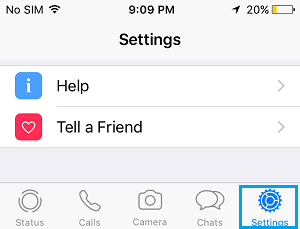
In case you are on an Android Telephone, faucet on 3-dots icon (top-right nook) and choose Settings choice within the drop-down menu.
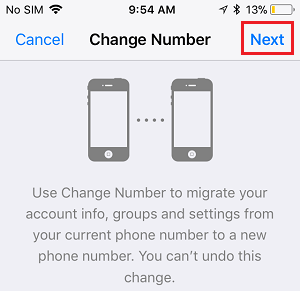
2. From the Settings display screen, go to Account > Change Quantity and faucet on the Subsequent choice, positioned at top-right nook.
3. On the subsequent display screen, enter your Previous Telephone Quantity , New Telephone Quantity and faucet on Subsequent.
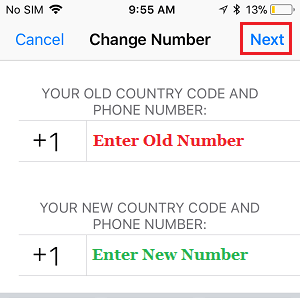
WhatsApp will now send a verification code to your New Telephone Quantity.
4. On the subsequent display screen, enter the Verification Code and watch for WhatsApp to confirm the New Telephone Quantity.
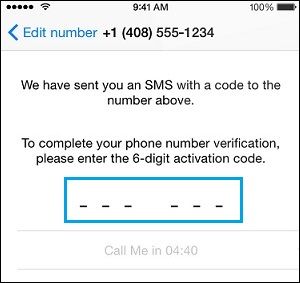
Note: You may also faucet on the Name Me choice to obtain verification code by way of an automatic name from WhatsApp to your New Telephone Quantity.
As soon as the verification course of is completed, all of your WhatsApp Messages and Contacts will likely be transferred to New Telephone Quantity.
What Occurs When You Change WhatsApp Quantity
As soon as your New Telephone Quantity is verified by WhatsApp, all the knowledge out of your outdated Account will likely be migrated to New Telephone Quantity.
- Your WhatsApp Account related to the Previous Telephone Quantity will likely be deleted.
- Your WhatsApp Contacts will not give you the option to see your Previous Telephone Quantity of their lists of WhatsApp Contacts.
- All of your WhatsApp Information together with your Profile, Teams, Chat history past and your Account Fee Standing will likely be migrated to your New WhatsApp Account.
- Easy methods to Export WhatsApp Chat on iPhone & Android
- Easy methods to Test If WhatsApp Hyperlink is Protected to Open
