
Technically, in PowerPoint you can link an Excel file to a PowerPoint presentation. However, that won't make the chart dynamic, and it's sometimes hard to tell when the chart will update. But what if we want even more? What if we want the chart to update during a presentation?
Imagine wanting to present a series of dynamic slides in an Office environment, each slide displaying the latest charts from an updated Excel spreadsheet. Alternatively, you might want to avoid any direct links to Excel files and simply use a dynamic reference to your source file(s). Today, we'll explore how to create dynamic charts in PowerPoint using VBA.
You might also be interested in: Advantages of PowerPoint over other presentation tools
A historical overview of PowerPoint charts
When we started with PresentationPoint and went on to create DataPoint, which was officially released in 2003, PowerPoint 1997, 2000, and 2003 used the Microsoft Graph engine to display graphs on your slides. With the release of PowerPoint or Office 2007, a new graphing engine was introduced in PowerPoint. It looked exactly like the best graphing engine in Microsoft Excel.
Why not use linked charts?
Before we begin, we want to clarify that you don't need to use the approach described below to simply link an Excel chart to a PowerPoint presentation. The purpose of this exercise is to avoid linking and make it completely flexible, allowing you to update your charts and even update the Excel files beforehand, depending on your preferences.
Creating dynamic charts in PowerPoint
Below is a step-by-step tutorial on how to set up PivotCharts in PowerPoint and the macro:
Step 1: Create the PowerPoint and shapes
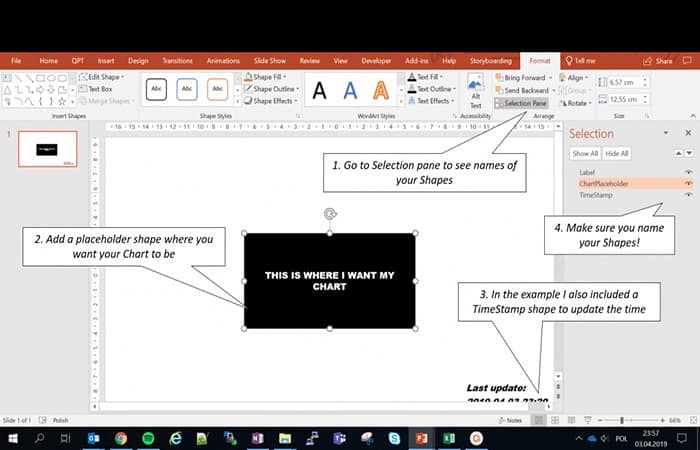
First, we need to create a PowerPoint shape that will be used as a placeholder to mark the location and size of our chart. Click on the image below for a reference.
Step 2: Create an Excel chart
Next, we need to create and name an Excel chart. This will be copied and pasted as an image into our PowerPoint to prevent linking and ensure the formatting is identical to how it is displayed in your Excel file.
Step 3: Create the PivotChart VBA Macro in PowerPoint
If you don't know how to access the Developer tab , you can proceed similarly to how you do it in Excel. Next, create a new VBA module and copy the following VBA code:
| 1
2 3 4 5 6 7 8 9 10 11 12 13 14 15 16 17 18 19 20 21 22 23 24 25 26 27 28 29 30 31 32 33 34 35 36 37 38 39 40 41 42 43 44 45 46 47 |
#If VBA7 Then
Public Declare PtrSafe Sub Sleep Lib «kernel32» (ByVal milliseconds As LongPtr) 'MS Office 64 Bit #Else Public Declare Sub Sleep Lib «kernel32» (ByVal milliseconds As Long) 'MS Office 32 Bit #EndIf
Function CopyChartFromExcelToPPT(excelFilePath As String, sheetName As String, chartName As String, dstSlide As Long, Optional shapeLeft As Long, Optional shapeTop As Long, Optional shapeWidth As Long, Optional shapeHeight As Long) As Shape On Error GoTo ErrorHandl 'Handle Errors
'Set Variables and Open Excel Dim eApp As Excel.Application, wb As Excel.Workbook, ppt As PowerPoint.Presentation, ws As Excel.Worksheet Set eApp = New Excel.Application eApp.Visible = False Set wb = eApp.Workbooks.Open(excelFilePath) Set ppt = ActivePresentation 'Copy Chart in Excel wb.Sheets(sheetName).ChartObjects(chartName).Copy
'Paste into first slide in active PowerPoint presentation ppt.Slides(dstSlide).Shapes.PasteSpecial ppPasteBitmap Set CopyChartFromExcelToPPT = ppt.Slides(dstSlide).Shapes(ppt.Slides(dstSlide).Shapes.Count) 'Close and clean-up Excel wb.Close SaveChanges:=False eApp.Quit Set wb = Nothing: Set eApp = Nothing
'Move the new shape if left/top provided If Not (IsMissing(shapeTop)) Then With CopyChartFromExcelToPPT .Left = shapeLeft .Top = shapeTop End With End If If Not (IsMissing(shapeWidth)) Then With CopyChartFromExcelToPPT .LockAspectRatio = False .Width = shapeWidth .Height = shapeHeight End With End If Exit Function ErrorHandl: 'Make sure to close the workbook and Excel and return False On Error Resume Next If Not (eApp Is Nothing) Then wb.Close SaveChanges:=False eApp.Quit End If Set CopyChartFromExcelToPPT = Nothing End Function |
Let me break this down. Earlier, we first defined the VBA function Sleep , since we'll be using it as a mechanism for delaying updates. Next, we defined the CopyChartFromExcelToPPT function , which basically does the following:
- Opens an Excel file defined with excelFilePath.
- Copy chart chartName from sheet sheetName.
- Paste it in ActivePresentation on the slide dstSlide and the location shapeTop and shapeLeft, with the size of shapeWidth and shapeHeight
As you can see, this is a generic function that you can reuse for your own purpose, regardless of what usage example you are going to use.
Step 4: Automatically update the chart
Now let's create a simple scenario using the generic function to copy a chart from Excel to PowerPoint:
- Step 1: runs in mode Presentation.
- Step 2: every second refreshes the excel chart and updates the timestamp.
- Step 3: exit presentation mode.
The VBA code below does exactly that:
| 1
2 3 4 5 6 7 8 9 10 11 12 13 14 15 16 17 18 19 20 21 22 23 24 25 26 27 28 29 30 31 |
Sub TestAutoUpdate()
Dim shp As Shape, shp1 As Shape, shpTxt As Shape Dim chartPlaceholder As Shape, timeShape As Shape, slideNumber As Long 'Get placeholder shapes, hide ChartPlaceholder slideNumber = 1 Set chartPlaceholder = ActivePresentation.Slides(slideNumber).Shapes("ChartPlaceholder"): chartPlaceholder.Visible = msoFalse Set timeShape = ActivePresentation.Slides(slideNumber).Shapes("TimeStamp")
'Start the presentation! ActivePresentation.SlideShowSettings.Run
'Update the Chart and set time stamp Set shp = CopyChartFromExcelToPPT(ActivePresentation.Path & «\Test.xlsx», «Sheet1», «Chart 1», slideNumber, chartPlaceholder.Left, chartPlaceholder.Top, chartPlaceholder.Width, chartPlaceholder.Height) timeShape.TextFrame.TextRange.Text = Format(Now(), «YYYY-MM-DD HH:MM») DoEvents Sleep xnumx For i = 0 To 3 'Update the Chart, delete old shape and set time stamp Set shp1 = CopyChartFromExcelToPPT(ActivePresentation.Path & «\Test.xlsx», «Sheet1», «Chart 1», slideNumber, chartPlaceholder.Left, chartPlaceholder.Top, chartPlaceholder.Width, chartPlaceholder.Height) shp.Delete: Set shp = shp1 timeShape.TextFrame.TextRange.Text = Format(Now(), «YYYY-MM-DD HH:MM») 'Sleep for 1 second DoEvents Sleep xnumx Next i 'End of presentation! ActivePresentation.SlideShowWindow.View.Exit 'Delete the chart and make the ChartPlaceholder visible again shp.Delete chartPlaceholder.Visible = msoTrue End Sub |
Use cases for dynamic charts in PowerPoint
For us, animating Excel charts in PowerPoint opens up a whole new range of options, further expanding the boundaries of what we can do with PowerPoint. Here's a short list of ideas to help you imagine how useful it can be:
- Create a dynamic Office presentation with automatically updating charts from multiple Excel files.
- Create a button to manually refresh one or all charts in your PowerPoint deck.
- Create an easy way to link your PowerPoint charts to Excel files that might be moved (for example, linking to Excel files in the same directory).
Choose between tables and dynamic charts in PowerPoint
You can still use the new chart object to display real-time charts on your slides. However, you'll see a data sheet flashing each time DataPoint opens the chart's data content. For online presentations—in other words, when you're running a PowerPoint slideshow on a dedicated computer or TV screen for your audience and want to avoid seeing that worksheet—then you have to use the older charts.
You might also like to know: How to Use VBA in PowerPoint: A Beginner's Guide
How to insert a chart into your slide
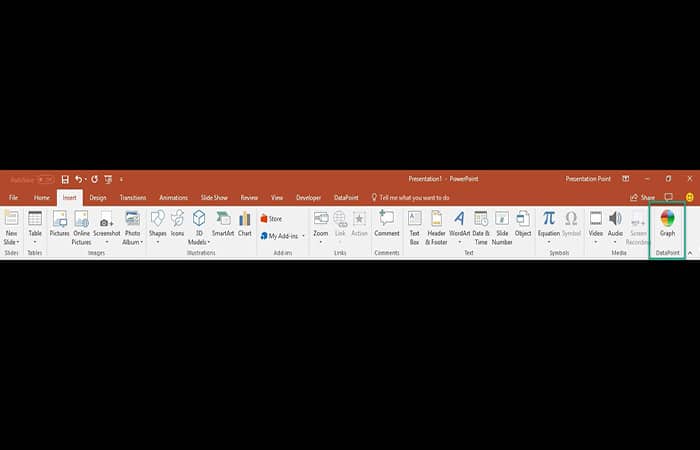
With the latest version of DataPoint, simply click to open the Insert menu in your PowerPoint. At the end of the original buttons, you'll find a new DataPoints group with a Chart button . When you're on a slide, simply click the Chart button , and it will insert a new, default chart object for you. This works just like the new Insert > Chart option.
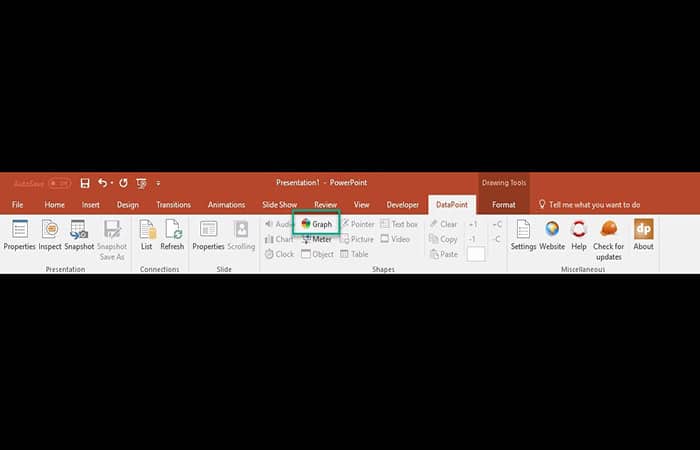
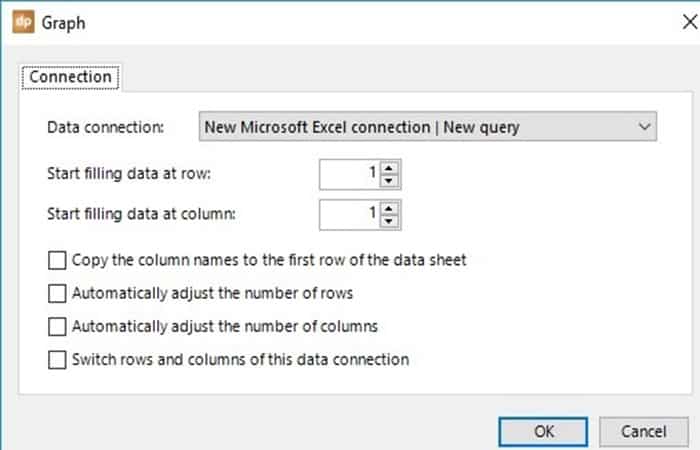
Once you have set up a data connection to a data source of your choice and selected this chart object, click Data Point and then the Chart button to assign the data from the data connection to this chart/graph.
This chart object is perfect for use in your slideshow to display real-time information, like a bar or pie chart. But the biggest advantage is that you won't see a data sheet with your information flashing across your screen.
When you edit the chart
Each time you click to edit a chart object, PowerPoint will tell you the following: 'To edit your chart using the latest PowerPoint features, you'll need to convert it to the newest format .' Choose Edit Existing Here to continue using the Microsoft Graph object.
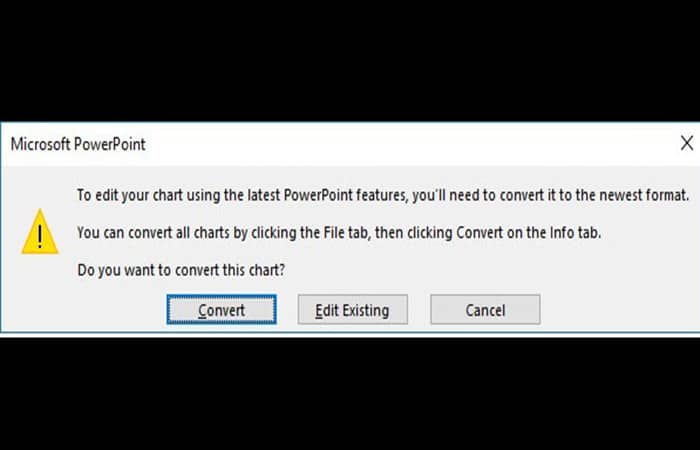
PowerPoint will ask you this every time. If you find this annoying and want to continue using charts, then you might want to disable this prompt. To do so, go to the registry and add a new DWORD key named MSGraphEnable to the path below, and set its value to 1.
\HKEY_CURRENT_USER\Software\Microsoft\Office\16.0\Common\Charting
The value 16,0 here represents the PowerPoint 2016 version . Use 15,0 for PowerPoint 2013 and 14,0 for PowerPoint 2010.
How to create a dynamic presentation
If you have a presentation with charts and reports, you never know how often you'll need to update it. For example, you create a quarterly performance report and receive new data every hour. In this case, instead of PowerPoint charts and graphs, it's better to embed an Excel object . The information will automatically update after any changes are made to the Excel table.
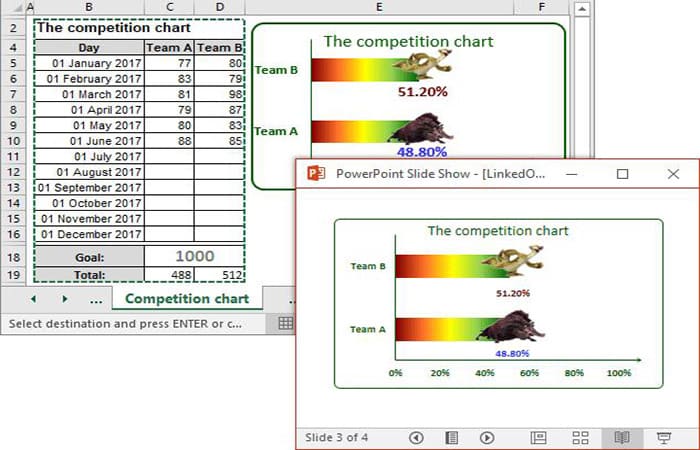
To create a slide in your PowerPoint presentation with automatically updated data, do the following:
Step 1: Select a chart or table in Excel that you want to add to the presentation and do one of the following:
- Click on Ctrl + C.
- In the Home, in the group Clipboardclick the button Copy.
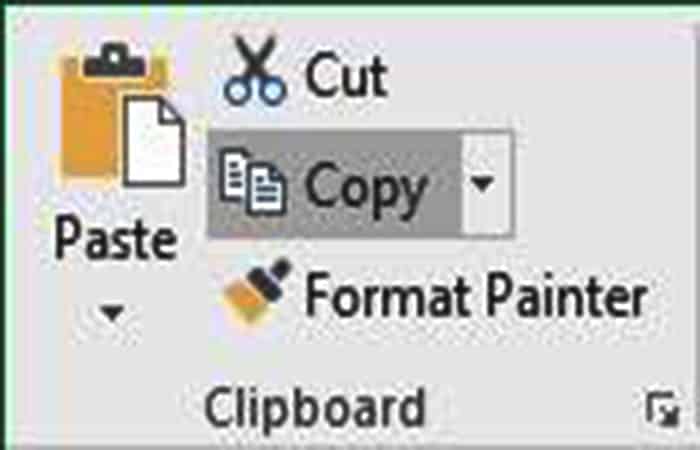
- Right click on the selected object and then choose Copy from the pop-up menu.
Step 2: Open the presentation slide where you want to insert the Excel object, and then, on the Home tab , in the Clipboard group , choose Paste from the drop-down list.
- 1. If you try to paste a graph.
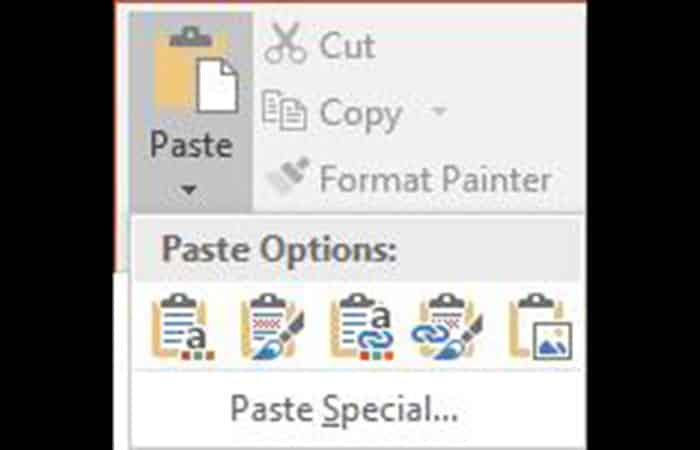
In the Paste Options list, choose:
- Use target topic and link data.
- Maintain source formatting and link data.
Using the destination theme will adopt the colors, fonts, and effects of the theme in the destination presentation you're pasting into. The source colors , fonts, and effects will be changed. Keeping the source formatting will maintain the colors, fonts, and effects of the theme in the presentation you're copying from. All colors, fonts, and effects will be the same as in the source workbook.
Link Data is what you'll use if you want the information in the chart or spreadsheet to update automatically when the source data is updated. A link is created to the original, and changes in the source will make the changes in the destination document.
Caution ! Because this method creates a link to a specific Excel spreadsheet, if you move or delete the source file, you will not be able to update the chart.
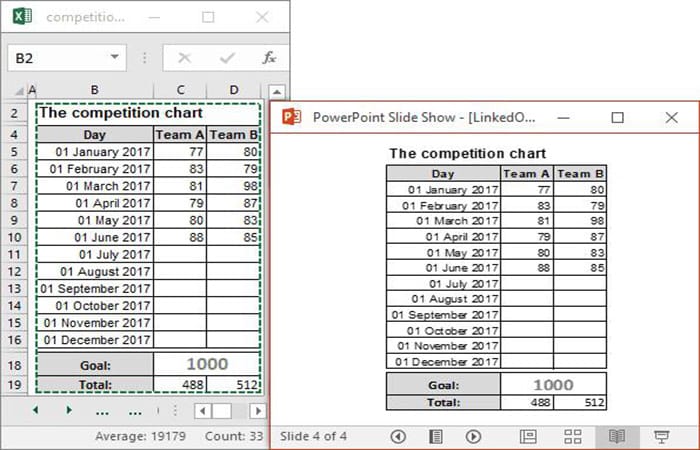
2.2. If you want to insert a table , click on Paste Special:
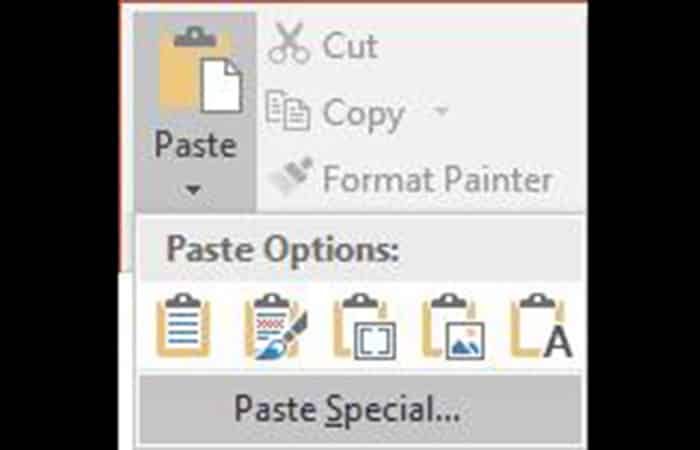
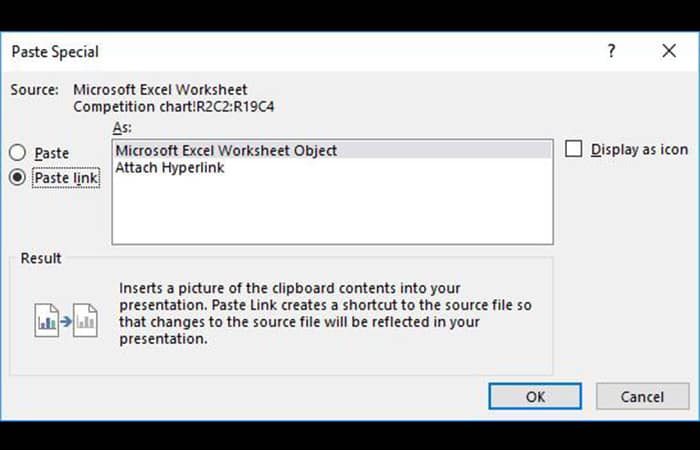
Note: Any other paste option does not create a link to the source file, so any changes to the Excel table will not update the table in PowerPoint.
In the Paste Special dialog box , select the Paste Link check box and click OK.
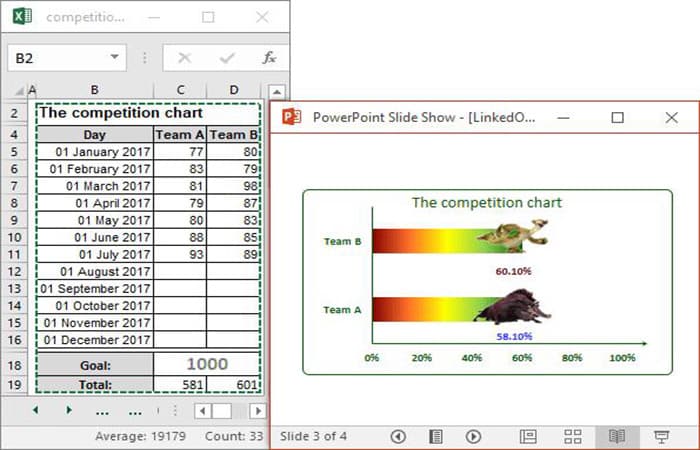
Now, if you change anything in the chart or table, you'll see the changes in the PowerPoint presentation:
Other options for pasting an Excel chart:
- Use target theme and embed workbook.
- Keep source formatting and embed the workbook.
Embed Workbook will create a copy of the data and embed it in the target document. Future changes to the source data will not be reflected. You can manually edit the chart by double-clicking it and making changes in the mini-spreadsheet that opens within the target document.
Changes you make in the target document will also not affect the source data. Embedding the chart and your source data is useful for sharing documents between the viewer's computer and your own.
However, you can create very large files. The source file object will be displayed as an image . Any changes to the source will not affect this image. You can then edit the image like any other, but you will not be able to change or open the source data or modify the chart.
Check out: How to Use the Laser Pointer in PowerPoint (Green, Red, and Blue)
Final thoughts
There you go, you now know how to work with dynamic charts in PowerPoint. We are sure that the new way of charting that was introduced in PowerPoint and that Microsoft developed for the newer versions of PowerPoint is much better for all of us, compared to the older Microsoft Graph object. But, as we have learned, updating the datasheet without flashing the datasheet is technically impossible at the moment and causes corruptions. We hope that this tutorial was useful for you and that you will visit us again.

My name is Javier Chirinos and I am passionate about technology. Ever since I can remember, I have been interested in computers and video games, and that passion has turned into a job.
I have been publishing about technology and gadgets on the Internet for over 15 years, especially in mundobytes.com
I am also an expert in online marketing and communication and have knowledge in WordPress development.