
The Discord application is a popular VoIP (Voice over Internet Protocol) application that can be downloaded for free to your computer. It's widely used in the gaming community, allowing players to interact via voice chat, video chat, and text. Downloading the Discord application is fairly simple; however, there are instances where a Discord download error may occur.
There have also been reports from users where the Discord app won't install or the Discord installation has failed. Here, we'll discuss recommended solutions you can try to fix the Discord download error on Windows 10.

Fix Discord download error on Windows 10
There are several possible reasons that may have caused this Discord download error , such as a corrupted system file or problems with a Windows update. If you're experiencing a Discord download or installation error, try the solutions below to fix the problem.
But before you perform the recommended solutions, I suggest you first restart your computer. This action refreshes the computer system and removes any corrupted temporary data that may be causing an error. As surprising as it may seem, restarting sometimes fixes problems on the computer.
Method 1: Run DISM and SFC tool
A corrupted or missing system file can cause issues with Windows drivers that may cause errors when downloading an application. To fix this, you may need to run the DISM (Deployment Image Servicing and Management) tool and SFC (System File Checker) to scan for corrupted or missing files.
To run DISM:
- In the Windows search bar located at the bottom left, type Symbol of the systemYou can also just type 'cmd'.
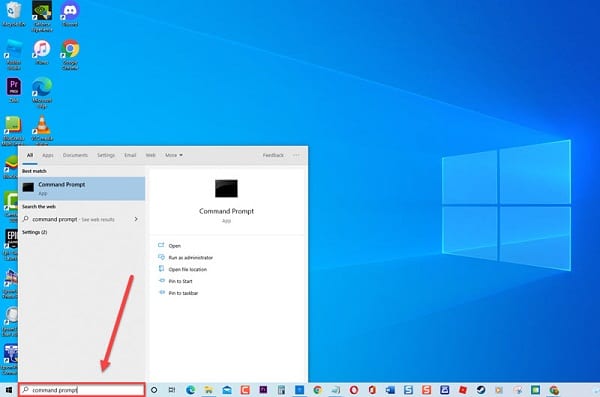
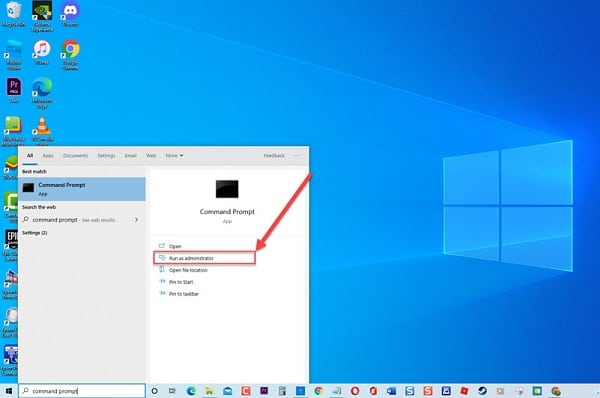
- Right-click the Command Prompt result and click Run as administrator from the drop-down menu. This is required for administrative access. If a User Account Control (UAC) prompt appears, click Accept.
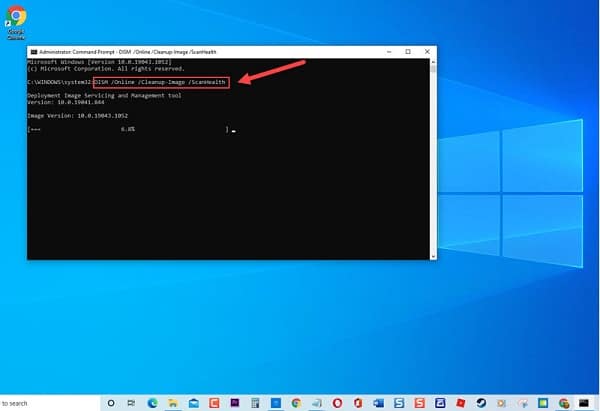
- Inside the Command Prompt window, you need to type the command: DISM /Online /Cleanup-Image /ScanHealth and press Enter. Wait for the command to complete.
- Type the command: DISM /Online /Cleanup-Image /Restorehealth and press Enter. Wait for the command to complete.
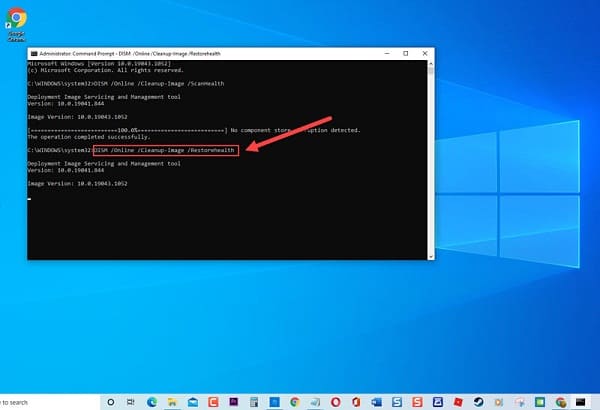
- Once the DISM scan is complete, check if the Discord download error or Discord installation failed on Windows 10 still occurs.
If after running the DISM tool to update files and download an error on Discord or Discord installation failed error message still appears on Windows 10, try running an SFC scan.
To run the SFC scan:
- In the Windows search bar at the bottom left, type Command Prompt.
- Right-click the Command Prompt result and click Run as administrator from the drop-down menu. This is required for administrative access. If a User Account Control (UAC) prompt appears, click OK.
- In the Command Prompt window, type the command sfc /scannow and press Enter. Windows will now scan for corrupted or missing update files. Do not cancel the process and wait for it to complete.
After running SFC and completing the update files, check if the Discord download error or Discord installation failed error message still appears on Windows 10.
Method 2: Uninstall Discord
If the above-mentioned solution didn't help you fix the download and installation failed error on Discord, you may need to uninstall the app and reinstall it. Most of the time, when installing an app that is already installed on your computer, you should first uninstall it completely before installing a new one as it may result in an error message.
The first thing you need to do is stop the Discord process completely, then follow these instructions:
- Start by simultaneously pressing the CTRL + Shift + Esc keys on your keyboard to open the Windows window. Task Manager.
- Now, inside the task manager, you will scroll to the bottom of your screen and locate the Discord application, which is located within Application Processes.
- Continue to right-click on the Discord process and click on End Task within the drop-down menu.
- Finally, I exited the Task Manager window.
To uninstall Discord:
- The first thing you need to do is press the Windows key + R on your keyboard to open the RUN dialog box.
- Once you are inside the RUN dialog box, you need to type control panel and press the Enter key or click OK.
- Now, inside the Control Panel, you need to make sure that View is set to Large icons.
- Then, you need to click on Programs and Features.
- To proceed, you need to scroll down to locate the Discord app.
- Right click on Discord and then click on the Uninstall option.
- Finally, restart your computer.
Method 3: Delete Discord folders and other related files
One of the easiest and considered to be the best way to fix the issue and continue with the download and installation process without experiencing the same error is to delete the Discord folder and other related files as well. The Discord files might be corrupted, which may have caused this problem in the first place.
To do this:
- First of all, you need to press Windows key + R from your keyboard to successfully open the RUN dialog box.
- Now, inside the RUN dialog box, you just need to type the command %AppData% and press the Enter key or click OK. This will open the file explorer window.
- When you are inside the Roaming folder, you need to scroll down and locate Discord
- Now, right click on Discord and click Delete from the drop down menu
- At this point, you need to press the Windows key + R on your keyboard to open the RUN dialog box.
- In the RUN dialog box, you need to type %LocalAppData% and press the Enter key or just click Accept. After this, the file explorer window will open, but this time in the Local folder.
- Now, inside the local folder, you must scroll down and locate Discord.
- Afterwards, you have to right click on Discord and click Delete in the drop-down menu
- To finish, you just have to restart your computer
Method 4: Install Discord
After uninstalling Discord and deleting Discord related files, you need to reinstall the Discord app.
To do this:
- You go first Web navigator
- Now, you have to go to the Discord website from here
- After this, click on the Download for Windows tab. This will download the latest version of the Discord app.
- Once the download is complete, right-click on setup.exe and then select the Run as administrator option from the drop-down menu. If User Account Control (UAC) appears, click OK.
- Finally, run the Discord executable and then follow each of the on-screen instructions on how to install Discord.
Method 5: Uninstall Windows Update
If none of the solutions mentioned above helped you fix the download error on Discord, try uninstalling and restoring recent updates using Windows.
There are times when new versions interfere with the download of Discord and sometimes cause conflicts which can also cause the installation to fail. Although this is considered the last resort to fix this problem as updating to the latest version of Windows helps with security improvements that protect your computer.
To uninstall the Windows update, follow the steps below:
- First you need to press the Windows key + I on your keyboard to open the Windows Settings section.
- Then, within Windows settings, you need to click on Update & Security.
- After this, right on the left panel, you must click on Windows Update.
- Now, on the right panel, you just need to click on View update history
- Click on the Uninstall and Update option. A new window opens.
- In a new window, find the recent update you just installed. Right-click on the update and click Uninstall from the drop-down menu.
After uninstalling the Windows update, try reinstalling Discord and then check if you still get a download error or if the Discord installation failed.
