Have you encountered a "media disconnected" error message when running Command Prompt in Windows 10? Well, you're not alone, and we're here to help.
Several Windows 10 users complained that whenever they run the ipconfig /all command in the command prompt to check their internet connection settings, they get an error message stating that the media is disconnected. Through this concise guide, we will help you fix the media disconnected error on Windows 10 system.
What causes the media disconnected error in Windows 10?
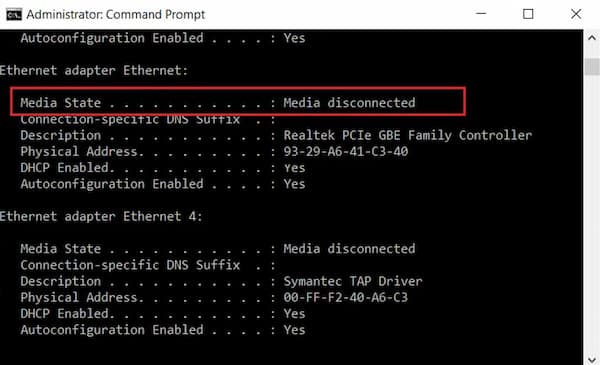
You may receive this error message due to:
- Internet connection problems.
- Inappropriate network settings on your computer
- Outdated/corrupted network adapters on your system.
Media Disconnected in Windows 10. Solutions
In this article, we have gathered several methods to fix the media disconnected error while running ipconfig /all command in Command Prompt. So, continue reading until you find a possible solution for this problem.
Method 1: Reset your Internet network
When you perform a network reset, your system will remove and reinstall the network adapters. This will reset the system to its default settings. Resetting the network can help you fix the media disconnected error messages on the Windows 10 system.
Follow these steps to do so:
- Write setting in Windows Search. Open the Settings app from the search results. Alternatively, press the keys Windows + I to start the setup.
- Go to section Network and Internet.
- En Status, scroll down and click Reset network.
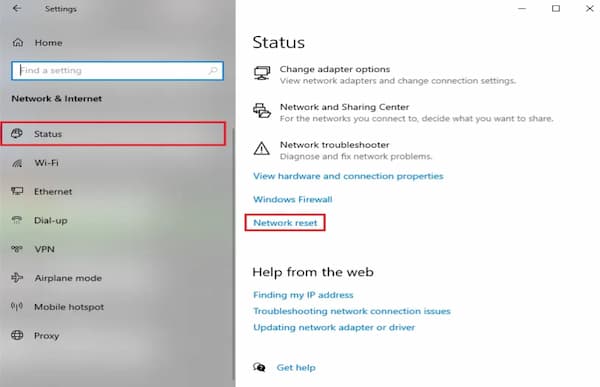
- Then click Reset now and follow the on-screen instructions to complete the process.
- Restart your computer and check if the media disconnected error still persists.
Method 2: Enable the network adapter
You might have accidentally disabled your network adapter, and this could be the reason behind the media disconnected error message on Windows 10. Clearly, you need to enable the network adapters on your system to fix it. What you need to do is follow the steps below:
- Look for the run dialog Windows. Launch the Run dialog box from the search results. Or by pressing the keys Windows + R.
- here, write devmgmt.msc and press the Enter key.
- The window of the device administrator will appear on the screen. Find and double-click on Network adapters from the given list.
- Now, right click on the network driver and select Activate device.
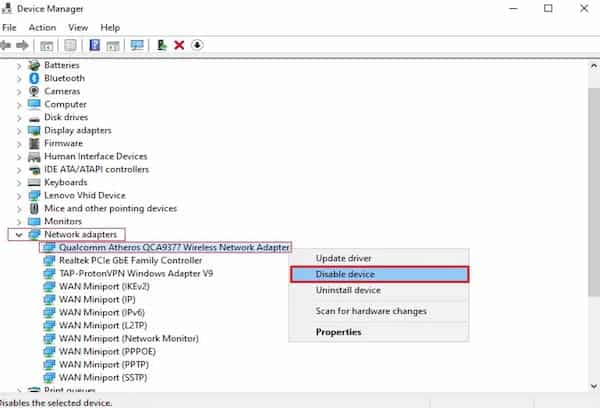
- If you see the option Disable device, means that the driver is already enabled. In this case, re-enable it by first disabling the driver.
- Confirm if you can run commands at the command prompt without a media disconnected error message.
Method 3: Update network adapter drivers
If you are using outdated network adapter drivers, you may encounter a media disconnected error message while running the ipconfig /all command prompt. So, updating your network adapter drivers to the latest version can help you fix the media disconnected error on Windows 10.
Note: Before starting the update process, make sure you have a stable internet connection.
There are two ways to update network drivers:
A. Manually update drivers, which takes more time.
B. Automatically update drivers – recommended
Follow these steps to update network adapter drivers in Windows 10 automatically:
- Start Device Manager as explained in the previous method.
- Find and double click on Network adapters to expand it.
- Right click on the network adapter driver and select Update Driver.
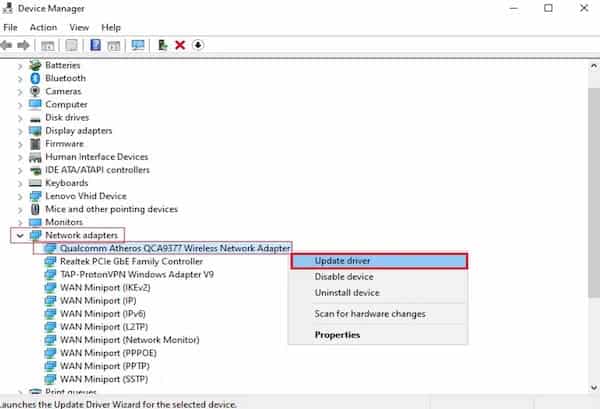
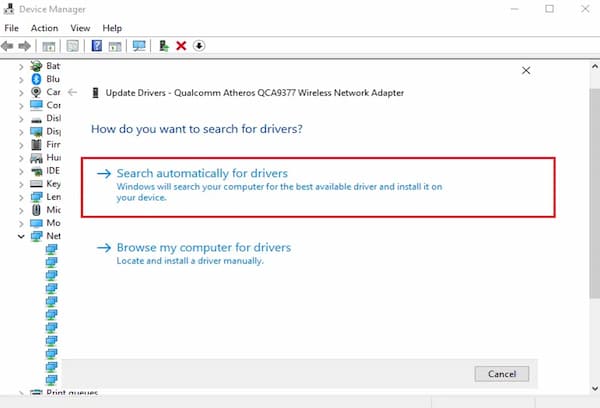
- A new window will appear on the screen. Here, click on Search for drivers automatically.
- Your system will automatically update the driver.
- Repeat the previous steps and Update network adapters individually.
- After updating all network adapters, restart your computer.
If this did not work, we would try to troubleshoot network adapters in the next method.
Method 4: Run the Network Adapter Troubleshooter
Windows 10 comes with a built-in troubleshooter that detects and fixes hardware errors in the system. Therefore, if you encounter a "Media disconnected" error message in Windows 10, you can also run the troubleshooter for your network adapter. Here's how:
- Start the run dialog box as indicated in Method 2.
- Write Control panel in the Run dialog box and press Enter to launch it.
- Choose the option Problem solving from the given list.
- Click on Network and Internet.
- Choose Network adapter of the list.
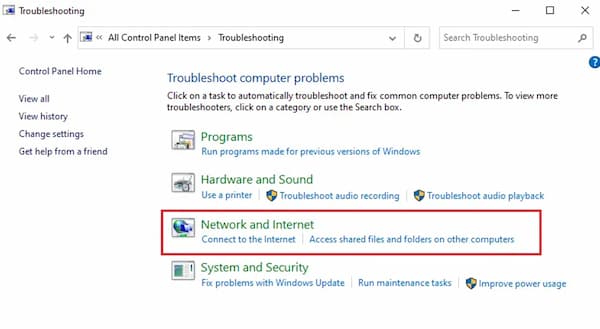
- A new window will appear. Click Next at the bottom of the screen.
- Follow the instructions on screen to complete troubleshooting.
- Finally, restart your computer and check if the error is corrected.
Method 5: Disable network sharing
Some users use the Network Sharing feature on Windows 10 system to share their internet connection with other devices. When you enable Network Sharing, you may experience Media Disconnected errors while running the ipconfig /all command in the Command Prompt. Disabling Network Sharing on Windows 10 is known to fix Media Disconnected errors for many users. Here’s how you can try it:
- Start the Control panel using the Windows search option.
- Click on the option Center network and sharing from the given list.
- Select the link Change adapter settings in the left panel.
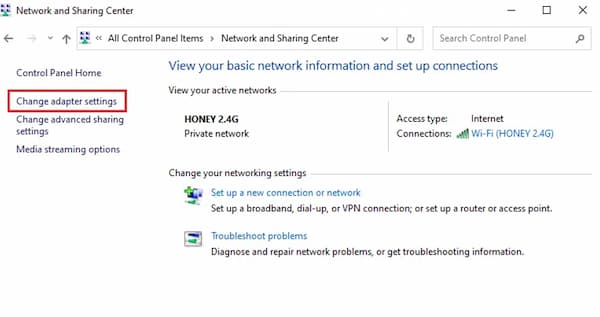
- Right click on your current network connection and select Properties.
- The window will appear Wi-Fi properties on the screen. Switch to Share
- Uncheck the box next to the option titled Allow other network users to connect through this computer's Internet connection.
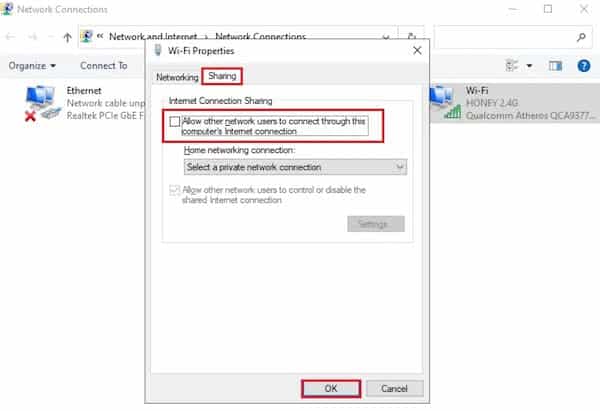
- Finally, click on Accept y restart your computer.
If you are still getting the media disconnected error message on Windows 10, we will now discuss the more complex methods to reset the IP and TCP/IP stack to resolve this issue.
Method 6: Reset WINSOCK and IP stack
You can try resetting WINSOCK and IP stack, which will, in turn, reset network settings in Windows 10 and potentially fix the media disconnected error.
Follow the steps given to execute it:
- Go to the Windows search bar and type the symbol of the system.
- Now, open the command prompt with administrator rights by clicking on Execute as an administrator.
- Click on Yes in the confirmation pop-up window.
- Type the following commands one by one and press Enter after each one.
- netsh winsock reset catalog
- netsh int ipv4 reset reset. log
- netsh int ipv6 reset reset. log
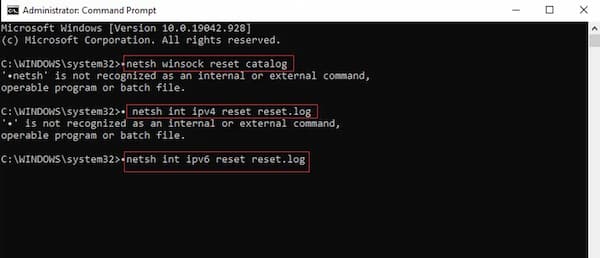
- Please wait patiently for the commands to be executed.
These commands will automatically reset the Windows Sockets API entries and IP stack. You can restart your computer and try running the ipconfig /all command.
Method 7: Reset TCP/IP
It was also reported that resetting TCP/IP fixed the media disconnected error while running ipconfig /all command in command prompt.
Simply implement these steps to reset TCP/IP on your Windows 10 desktop or laptop:
- Start the command prompt with administrator privileges according to steps 1-3 of the previous method.
- Now write netsh int ip reset and press the Enter key to execute the command.
- Wait for the command to complete, then restart your computer.
If you still get a disconnected media error message on Windows 10, read the following method to fix it.
Don't miss: Windows 10 Device Not Migrated Error | Solutions
Method 8: Reset Ethernet
Often, resetting Ethernet by disabling it and then enabling it again has helped resolve the media disconnected error in Command Prompt. Reset Ethernet on your Windows 10 computer by following the steps below:
- Start the run dialog box as we did in Method 2.
- Write ncpa.cpl and press Enter.
- The window will appear Network connections on your screen. Right click on Ethernet and select Deactivate.
- Please wait a while.
- Again, right click on Ethernet and select Enable this time.
Final words
All of these methods can help you fix the " media disconnected" message in Windows 10. Start by trying the first one, and one of them will surely help you solve this problem.

My name is Javier Chirinos and I am passionate about technology. Ever since I can remember, I have been interested in computers and video games, and that passion has turned into a job.
I have been publishing about technology and gadgets on the Internet for over 15 years, especially in mundobytes.com
I am also an expert in online marketing and communication and have knowledge in WordPress development.