- A good network analysis combines equipment inventory, traffic measurement, security, and continuous monitoring.
- There are mobile tools, desktop tools, and enterprise platforms that cover everything from home Wi-Fi to complex business networks.
- Modern observability solutions unify metrics, logs, and traces to anticipate problems in networks, servers, and applications.
- The concept of network analysis also extends to the study of relationships in social networks using graphs and centrality metrics.

Today's networks are a true ecosystem full of devices, applications, cloud services, and connected users From anywhere. Keeping all of that under control is no longer optional: if the network fails, the business stops. That's why more and more system administrators need very detailed analyses of their equipment and tools that go beyond simply "I ping it and that's it".
In the following lines you will find a very complete guide, written in an accessible language, which reviews What is network and equipment analysis, what types of tools exist, what does each one do, and in what scenarios do they excel?We're going to combine solutions for wired networks, Wi-Fi, enterprise environments, mobile, and also professional planning and observability platforms so you have a global view.
Inventory and basic analysis of equipment on the network

Before you start optimizing and securing anything, the first thing is to know which devices are actually connected to the network and what information can we obtain from themThat's what the network inventory covers.
A simple network inventory is limited to listing equipment, servers, routers, switches, printers and other devices connected. However, when we have administrator credentials things improve considerably: we can even collect installed software, patches and hotfixes applied, serial numbers, configuration changes, and asset management data.
Having good inventory software helps to manage licenses, avoid compliance issues, reduce IT audit time, and prevent information leaksBased on that inventory, it is much easier to know what needs to be monitored and which equipment is critical.
What is network analysis and why is it so important?
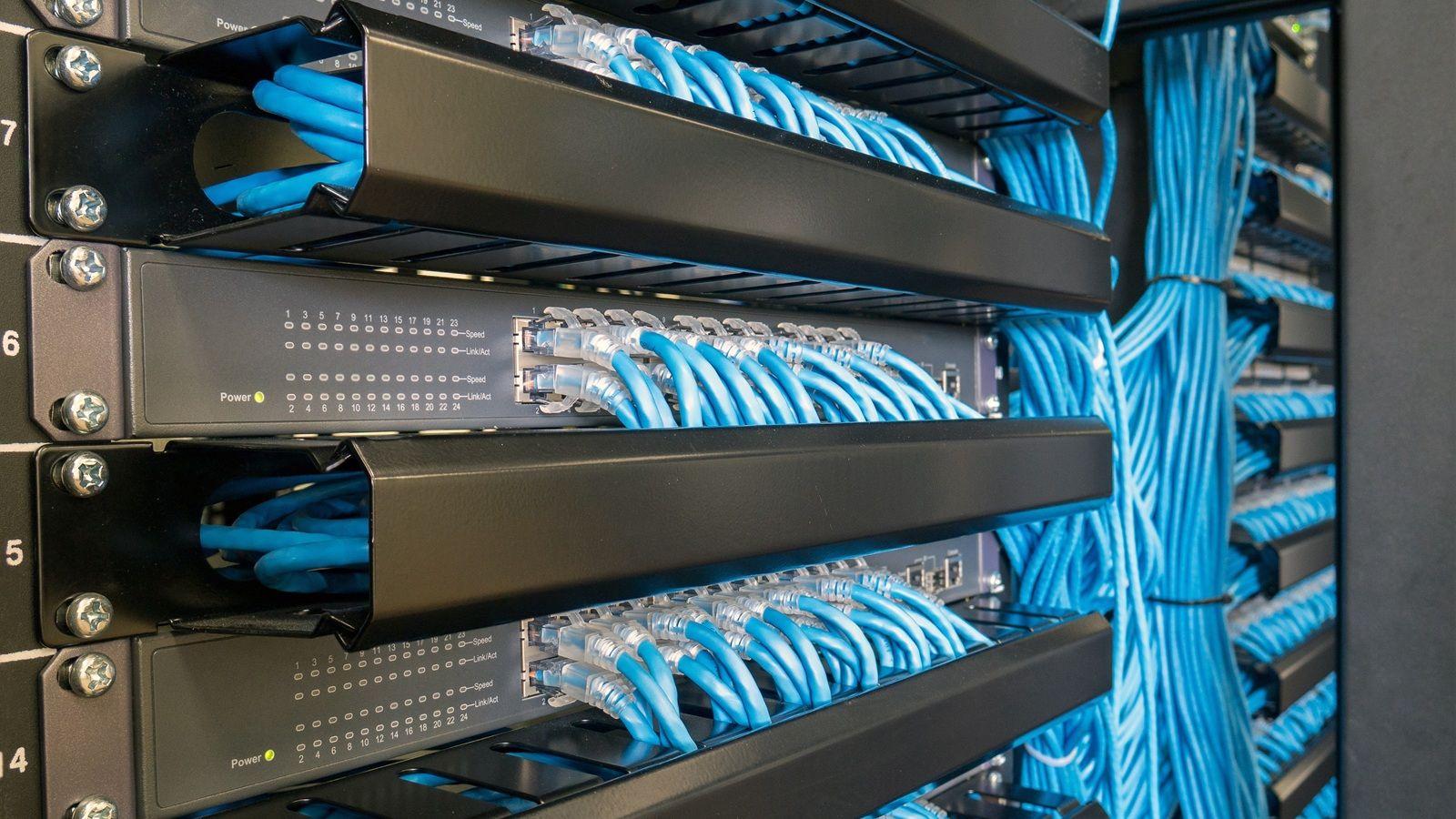

Thousands of actions occur daily in a corporate network: users accessing applications, backups, internet traffic, video calls, IoT, remote devices… For a network administrator, trying to understand all of that without the right tools is virtually impossible.
When we talk about network analysis, we are referring to collect and examine key traffic data in real time, for example:
- Traffic volume by origin (IP, user, VLAN).
- Traffic by destination (internal servers, external websites, public clouds).
- Protocols used (HTTP/HTTPS, DNS, VoIP, etc.).
- Apps and services that take up the bandwidth.
With that information, they can be detected abnormal spikes, congestion, suspicious activity, or excessive consumptionTo achieve this, tools are needed that can collect flows (NetFlow, sFlow, IPFIX…), analyze the data, and display understandable reports.
In addition to visualizing traffic, a serious network analysis should help to diagnose performance problems, locate bottlenecks, identify internal and external threats, detect intrusions, see who is talking to whom, and monitor latency and availability both on LAN and WAN.
NetFlow Analyzer and flow-based analyzers
Among professional tools, one of the most comprehensive is the family of flow-based analyzers, such as NetFlow AnalyzerThese types of solutions leverage technologies such as NetFlow, sFlow, J-Flow, IPFIX, NetStream or AppFlow for Understanding the “who, when, and what” of traffic.
An analyzer of this type monitors devices, interfaces, source and destination IPs to provide highly detailed, real-time visibility. It analyzes every flow that crosses the network to discover behavioral patterns, main transmitters, most intense conversations, and most resource-intensive applications.
This type of software usually includes a control panel with graphs, predefined reports and threshold-based alarmsThus, when bandwidth usage spikes or unusual behavior is detected, an alert is generated and the problem does not go unnoticed.
In networks with VoIP, video, or critical applications, these tools enable monitor latency, jitter, packet loss and quality of service (QoS)They also validate the effectiveness of policies like Cisco CBQoS. They even have bandwidth projection calculations to anticipate when more capacity will be needed.
In large organizations with many locations, the Enterprise versions of these analyzers are capable of scale to tens of thousands of flows per second and centralize monitoring across all offices on a single console.
Network analysis and security: threat detection and forensics
A good network analysis system is also a kind of guard dog that watches 24/7/365It is always collecting data and can be used for both detect intrusions in real time for forensic analysis when something has gone wrong.
Advanced attacks are usually capable of bypass classic perimeter defenses, such as firewallsTherefore, specialized security analysis modules work on historical flows to detect patterns typical of DDoS attacks, botnets, mass scans, or covert malicious traffic.
This approach allows us to see traffic behavior anomalies that would otherwise go unnoticed and link incidents to devices, users, applications, source and destination IPs and even geographical locations.
Mobile apps for detailed analysis in local networks
In addition to corporate platforms, there is a veritable “toolbox” in the form of apps for Android and iOS These tools allow you to audit and diagnose networks from your mobile device. They are especially useful for field technicians and administrators who need Quick information about Wi-Fi, cabling, or connected devices.
All-in-one suites for mobile network diagnostics
Some apps integrate features such as: into a single location
- Consultation of ARP (IPv4) and NDP (IPv6) tables of the device itself.
- Exploration of Bonjour services on the local network.
- Verification of DNS records (A, AAAA, MX, NS, PTR, SOA, TXT).
- Network scans to discover active devices.
- IP subnet calculators to plan direction.
- Performance tests with iperf2 and iperf3.
- Manufacturer identification from a MAC address.
- Generation TOTP codes as a second authentication factor.
- Classic tools of ping, traceroute, TCP port scanning, SSL/TLS scanning and whois.
These types of applications are practically essential for any systems and network administrator that works often with local networks, since they allow you to always have a small diagnostic laboratory at hand.
IP Tools, Fing, NetX and other network scanners
Among the best-known apps are IP Tools, Fing and NetX Network Toolsall with network scanning and basic analysis functions:
- IPTools It allows you to view IP configuration, perform whois, pings, traceroutes, port scans, DNS lookup, and Wi-Fi network exploration.
- Fing It focuses on scanning Wi-Fi networks, discovering devices, measuring internet speed, detecting intruders, and running ping, traceroute, port scans, and Wake on LAN, as well as providing alerts if you create an account.
- NetX Network Tools It combines a network scanner with very practical features such as Wake on LAN (WoL) and SSH clientIn addition to monitoring the Wi-Fi signal, mobile operator information, and notifying when a new device connects.
With these apps it's easy to see What devices are connected, what IP addresses they have, what ports are open, and what is the wireless coverage like in different areas? from the house or the office.
Specific tools for analyzing Wi-Fi networks
Beyond equipment inventory, understanding the wireless environment is fundamental. channels, interference, signal strength, and access point distributionThis is where a lot of apps designed for Wi-Fi networks come into play.
Wi-Fi Analyzer and WiFi Analyzer and Surveyor
Applications like Wi-Fi Analyzer They allow scanning of surrounding networks, showing SSID, BSSID (AP MAC), security type, channel used, and signal levelThey also help in selecting the optimal channel at 2,4 GHz or 5 GHz showing which channels are most saturated.
In environments with multiple access points under the same SSID or Wi-Fi Mesh systems, these tools list all the MAC addresses associated with that network namewhich makes it easier to see how the coverage is distributed.
WiFi Analyzer and SurveyorFor its part, it adds a more polished interface and capabilities of survey with plansclassifying networks according to interference, signal strength and band, and allowing operation in both 2,4 GHz and 5 GHz.
Wi-Fi heatmaps: WiFi Heatmap, WiFi ARCore, NetSpot
For installers or administrators who need something more visual, apps that generate Wi-Fi heat maps. tools like WiFi Heatmap, WiFi ARCore, and even the mobile version of NetSpot allow:
- Load a building plan or draw it from scratch.
- Explore the rooms while the app records signal strength and speed.
- See on a map where the signal is strong, where it drops, and at what points it would be a good idea to place an additional access point.
- Working both indoors and outdoors outdoor GPS, something very useful for urban public Wi-Fi.
- In the case of WiFi ARCore, use augmented reality to literally paint the coverage onto the camera image.
NetSpot for Android also offers advanced filtering by encryption type (open, WEP, WPA, WPA2, WPS) and by bandSignal fluctuation schedules and channel graphs for both 2,4 GHz and the different 5 GHz blocks.
Network scanners and signal meters on Android
For those who want to control both the Wi-Fi and wired LAN connections from their mobile device, there are apps like Network Scanner, Wi-Fi Signal Meter or Network Analyzer (the mobile app, not to be confused with other desktop apps).
Network Scanner
First Row Network Scanner detects It displays hosts within an address range, shows IP, MAC, and hostname, identifies the manufacturer by MAC address, and offers a port scanner.It also allows:
- Customize device icons and names.
- Run ping, traceroute, and port scanning about a specific team.
- View current network information: Public IP, SSID, link speed, channel, etc..
- Use extra tools such as IP calculator or remote scanner.
It includes interface configuration options (light/dark mode, device sorting, scanning parameters), making it quite convenient for daily use.
Wi-Fi signal meter
Apps like Wi-Fi signal meter They focus on showing very clearly the signal strength of your own network and neighboring networksThey usually indicate the level both as a percentage and in dBm, highlighting that above a certain threshold (for example, around 60%) the experience is usually good, while below 50% complaints begin.
A typical test is Measure next to the router and then at 15-20 meters, passing through wallsto visualize how the signal drops and decide where to place an additional AP or repeater.
Mobile Network Analyzer
The mobile app Network Analyzer It combines several advanced tools:
- Wi-Fi signal meter with graphical representation of channels and signal strength, encryption type and AP data.
- LAN scanner Quick to discover network devices, including names obtained by NetBIOS, mDNS, LLMNR, or DNS.
- Utilities of ping, traceroute, port scanning, whois, and DNS queries for A, AAAA, MX, NS, SOA, TXT, etc.
All of this with support for both IPv4 and IPv6, which is very useful in modern dual-stack environments.
Desktop tools for in-depth Wi-Fi analysis
When working from a laptop or desktop computer, especially on Windows, there are very powerful tools for Analyze Wi-Fi networks in depth, choose channels, view interference, and even export data to Wireshark.
WirelessNetView
WirelessNetView It's a small Windows program that monitors all nearby networks and displays the following for each one:
- SSID, BSSID (AP MAC) and channel/frequency.
- Instantaneous and average signal quality, with detection counter.
- Authentication protocols (PSK, 802.1X with RADIUS) and encryption (AES/CCMP, etc.).
It doesn't have sophisticated graphics, but it's very useful for sort networks by RSSI and choose the channel furthest from the strongest neighboring networksThis reduces interference and significantly improves performance, especially in the congested 2,4 GHz band.
WinFi for Windows
WinFi It is one of the most comprehensive tools for Windows 7/10/11. It allows you to view in real time:
- Detailed list of networks with Name, manufacturer, RSSI, channels, channel width, 802.11 standards, security modes, number of clients, channel utilization, and much more.
- Detailed views by network: historical signal strength, SNR, channel usage, quality, country, AP uptime, minimum and maximum speeds supported.
- Graphics of Spectrum, channel overlap, signal evolution over time, and dashboards with clear indicators.
In addition, it allows Filter by network type, band, signal level, or manufacturer, record complete sessions and play them back later, export data and even send captures to Wireshark for protocol analysis.
Tools for macOS and other systems
macOS also offers a good range of options for analyzing wireless networks and devices in great detail, combining technical information with fairly user-friendly interfaces.
Some of the most used are:
- Wi-Fi explorer, focused on displaying SSID, channel, band, signal strength, security and other relevant data for each network.
- netspot, very popular for professional surveys and Wi-Fi heat maps in domestic and corporate environments.
- iStumbler, which in addition to Wi-Fi displays information about nearby Bluetooth devices.
- AirRadar, aimed at finding and prioritizing the best available network.
- Wi-Fi Signala lightweight app that shows connection status and signal quality from the menu bar.
These tools are perfect for Mac users who want fine-tune the home network or conduct small coverage studies in offices without resorting to overly complex solutions.
Comprehensive monitoring of networks, servers, and applications
When we talk about larger companies, the picture changes: it's no longer enough to just look at the Wi-Fi or list the equipment. They need... unified monitoring platforms that cover network, servers, applications, cloud services and user experience.
Manufacturers like Solarwinds They offer very spacious suites, with rooms such as:
- Network Performance Monitor (NPM): monitors availability, latency, downtime, critical paths, and topology maps network, both in on-premises and hybrid environments.
- Network Traffic Analyzer (NTA): focuses on the traffic and bandwidth, detecting bottlenecks, validating QoS, locating noisy applications and alerting before the user notices anything.
- Server and Application Monitor (SAM): watch services, processes, server resources, databases, and business applications, offering detailed diagnostics and user experience testing.
Combining these pieces creates a vision of End-to-end: from the switch and WAN link to the application used by the employee or customerAdding other modules such as Network Configuration Manager or User Device TrackerConfiguration policies, changes, and device traceability are also covered.
From classical monitoring to observability
With the explosion of digital transformation, infrastructures have become more distributed, complex, and dynamicTraditional metrics (CPU, RAM, ping) are no longer sufficient to anticipate problems, hence the rise in the concept of observability.
Observability combines metrics, logs and traces To understand the internal state of modern systems deployed in public clouds, private clouds, containers, microservices, and hybrid environments. Platforms such as SolarWinds Observability They try to offer:
- An unified view of performance network, applications, databases and user experience.
- Ability to detect problems proactivelynot just react when something falls.
- Tools of root cause analysis and correlation between failures in different layers.
This allows us to move from a purely reactive approach to a model in which Incidents are anticipated, resources are optimized, and SLAs are improved. with fewer scares for IT teams.
Specialized tools for network planning
For large-scale deployment projects, it is not enough to measure what already exists; you have to be able to simulate coverage, size capacity and choose optimal locations before installing anything.
Google Network Planner
Google Network Planner It is a solution focused on plan outdoor wireless networks (such as LTE or long-distance links) using Google geospatial data. It allows:
- View heat maps of potential coverage depending on the location and height of the antennas.
- Consider relief, buildings and obstacles to adjust the layout.
- To assess at a glance which areas would have a good signal, which would be just adequate, and where there would be shadows.
It is especially interesting for operators or projects that require Coverage in large areas, parks, rural areas or entire cities.
UniFi Network Planner
In the corporate Wi-Fi world, UniFi Network Planner Ubiquiti's simulator is another very practical one. It uses data such as:
- Number of wired and wireless customers.
- Expected traffic level (high, medium, low).
- Surface area to be covered, type of walls and obstacles.
- Businesses PoE devices necessary.
The system recommends How many UniFi access points, switches, and routers would be needed? and how to structure the network. Although the recommendations are geared towards Ubiquiti, they serve as a basis for sizing projects with other professional-grade manufacturers.
Find free Wi-Fi networks and control intruders
In the more end-user sphere, but closely linked to security, there are two types of interesting tools: those that allow connect to public Wi-Fi networks provided by the community and those that help to see who is connected to our network.
WiFi Map It is an example of the first type: an app where users share public access points and their passwordsso that anyone can connect to these places (cafes, bars, etc.). It's important to remind people that, in these cases, using Wi-Fi is almost mandatory. VPN to protect traffic.
On the other hand, apps like Who's on my WiFi allow for quick listing all devices connected to our home networkCheck its IP address, MAC address, manufacturer, and other details. If any unknown device appears, you should... Change your Wi-Fi password and check your router's security..
Specific tools for managing networks in Windows
For Windows users who want quick control over their connections, there are utilities such as Wifiniandesigned to manage Wi-Fi networks and their signal strength.
This tool shows the networks we have connected to, the signal strength percentage of each, the encryption used and allows:
- mark a minimum signal acceptable to connect.
- Activate automatic changes to the network with the best coverage (Auto Switch).
- Schedule periodic refreshes of available networks.
- Rename networks to our liking to better identify them.
It is ideal for environments with multiple access points or repeatersbecause it prevents you from being stuck on a network with a poor signal when a better one is available.
Social network analysis and relational data
Although most of the content has focused on communication networks, there is also the network analysis in the social and relational data fieldsWhat is analyzed here is not IP packets, but nodes (people, organizations) and relationships (follow-ups, interactions, links).
Social network analysis seeks represent, measure and extract patterns from structures like Twitter, LinkedIn, online communities, or even scientific collaboration networks. It works with concepts such as centrality, density, betweenness and proximity to understand who has the most influence, how information spreads, or which groups are more cohesive.
Tools like Gephi y NodeXL They are widely used in this field. Gephi is a graph exploration and visualization software that allows you to manage networks of up to tens of thousands of nodes and hundreds of thousands of edges, with multiple import formats (GDF, GML, GEXF, GraphML, etc.) and integrated statistics.
NodeXL, for its part, is a Microsoft Excel add-in designed for graph and social network analysisIt integrates direct connectors with Twitter, Flickr, and YouTube APIs, automates data collection, and allows you to discover patterns and communities directly within spreadsheets.
Both tools have Extensive documentation, tutorials, usage examples, and active communities which facilitate its adoption even for users without prior programming experience.
With this arsenal of solutions, from lightweight mobile apps to observability platforms and deployment simulators, IT teams and analysts have a wealth of options at their fingertips. Everything you need to thoroughly understand your equipment and networks, optimize performance, strengthen security, and make decisions based on real data.whether in physical networks, wireless networks, or even in the complex webs of relationships in social media.

Passionate writer about the world of bytes and technology in general. I love sharing my knowledge through writing, and that's what I'll do on this blog, show you all the most interesting things about gadgets, software, hardware, tech trends, and more. My goal is to help you navigate the digital world in a simple and entertaining way.