- The DRIVER_IRQL_NOT_LESS_OR_EQUAL error is usually caused by corrupted or incompatible drivers and system failures. hardware.
- Update Windows, drivers and analyzing system files is key to solving the problem.
- Hardware diagnostics and system restores help identify and resolve persistent errors.
- Regular maintenance and prevention avoid future occurrences of the BSOD in Windows.
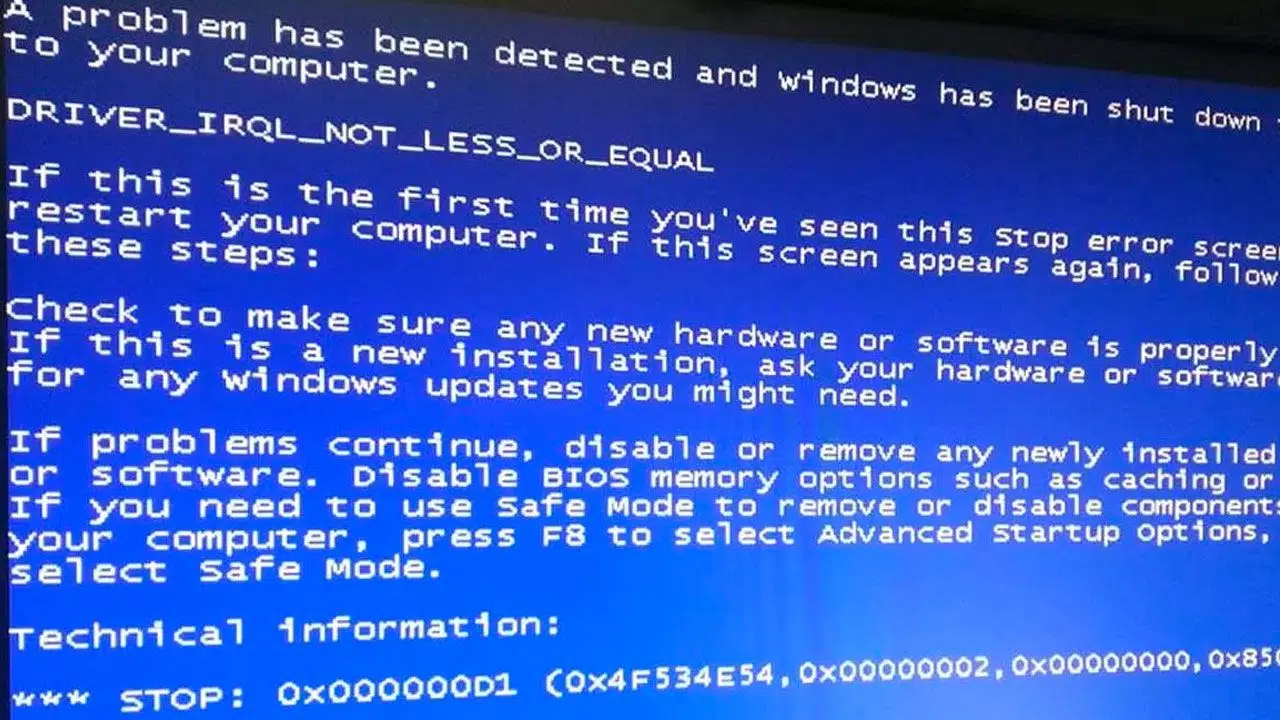
Has your computer displayed a blue screen with the dreaded message "DRIVER_IRQL_NOT_LESS_OR_EQUAL"? If this error sounds familiar, you're not alone. Every day, thousands of users encounter this serious problem that can turn a productive day into a real nightmare. Although at first it may seem like a cryptic mystery reserved only for experts, the truth is that understanding the causes and possible solutions is within reach of anyone who follows a few clear and well-explained guidelines.
In this article, you'll find all the relevant information, practical tips, and best methods to fix the DRIVER_IRQL_NOT_LESS_OR_EQUAL error in Windows. From understanding why it occurs to how to inspect your computer like a pro, here's a complete and up-to-date guide to tackle this problem with confidence. And yes, we'll cover drivers, hardware, software, Windows utilities, diagnostics, and best practices to prevent it from happening again.
What does the DRIVER_IRQL_NOT_LESS_OR_EQUAL error really mean?
The appearance of the DRIVER_IRQL_NOT_LESS_OR_EQUAL error always indicates that something serious is happening in the system. It usually manifests as a blue screen, known as the "Blue Screen of Death" (BSOD). The message may also include the name of a file ( ndis.sys , nvlddmkm.sys , or ntoskrnl.exe ), which provides clues about the affected component.
The main reason is usually related to hardware drivers , the programs that enable communication between Windows and the computer's physical components. When one of these drivers tries to access a memory address it shouldn't, a critical conflict arises, and Windows decides to stop to prevent further damage.
Why does this happen? Usually, it's due to incorrectly installed, corrupted, outdated, or incompatible drivers. It can also be caused by hardware failures, corrupted system files, or power issues.
Main causes of the DRIVER_IRQL_NOT_LESS_OR_EQUAL error
The reasons that can trigger this failure are varied. Some causes are more frequent than others; here are the main ones:
- Damaged or incompatible drivers: The most common cause. A faulty driver can cause serious conflicts. Diagnose errors in Windows with Dependency Walker
- RAM memory problems: Bad modules can cause memory access errors that result in a BSOD.
- Hardware failures: Not only RAM, but also the processor, motherboard, power supply, or hard drive may be involved.
- Corrupted system files: Windows may have corrupt files that cause the error.
- Malware or virus: The infection can alter critical files or basic drivers.
- Pending or incompatible Windows updates: Failure to keep your system updated can lead to incompatibilities with drivers and hardware.
- Conflicts with third party software: Applications, especially antivirus or recent programs, may be responsible.
Ignoring this error can increase the instability of the equipment , put your data at risk, and complicate subsequent repairs.
How to find out what causes DRIVER_IRQL_NOT_LESS_OR_EQUAL?
Identifying the exact cause is crucial to avoid wasting time trying random solutions. Some ways to narrow down the problem are:
- Check the message on the blue screen: Many times it shows the file name (xxx.sys) or the stop code, which helps identify the driver or component involved.
- Using the Windows Event Viewer: Tool that logs errors and critical events. Opens with Win + R, writes
eventvwr.mscand press Enter. Navigate through Windows Logs → System and filters for errors related to Kernel Power o BugCheck. - Analyze the dump files: When a BSOD occurs, Windows saves a file with technical data. Programs such as Diagnose errors in Windows with Dependency Walker help interpret these files and detect which driver or hardware failed.
- Disconnect newly installed peripherals or hardware: If the problem occurs after connecting a new component, disconnect it to see if it resolves.
These methods make it easier to identify the source of the error , saving time and avoiding frustration.
Solutions and steps to resolve DRIVER_IRQL_NOT_LESS_OR_EQUAL
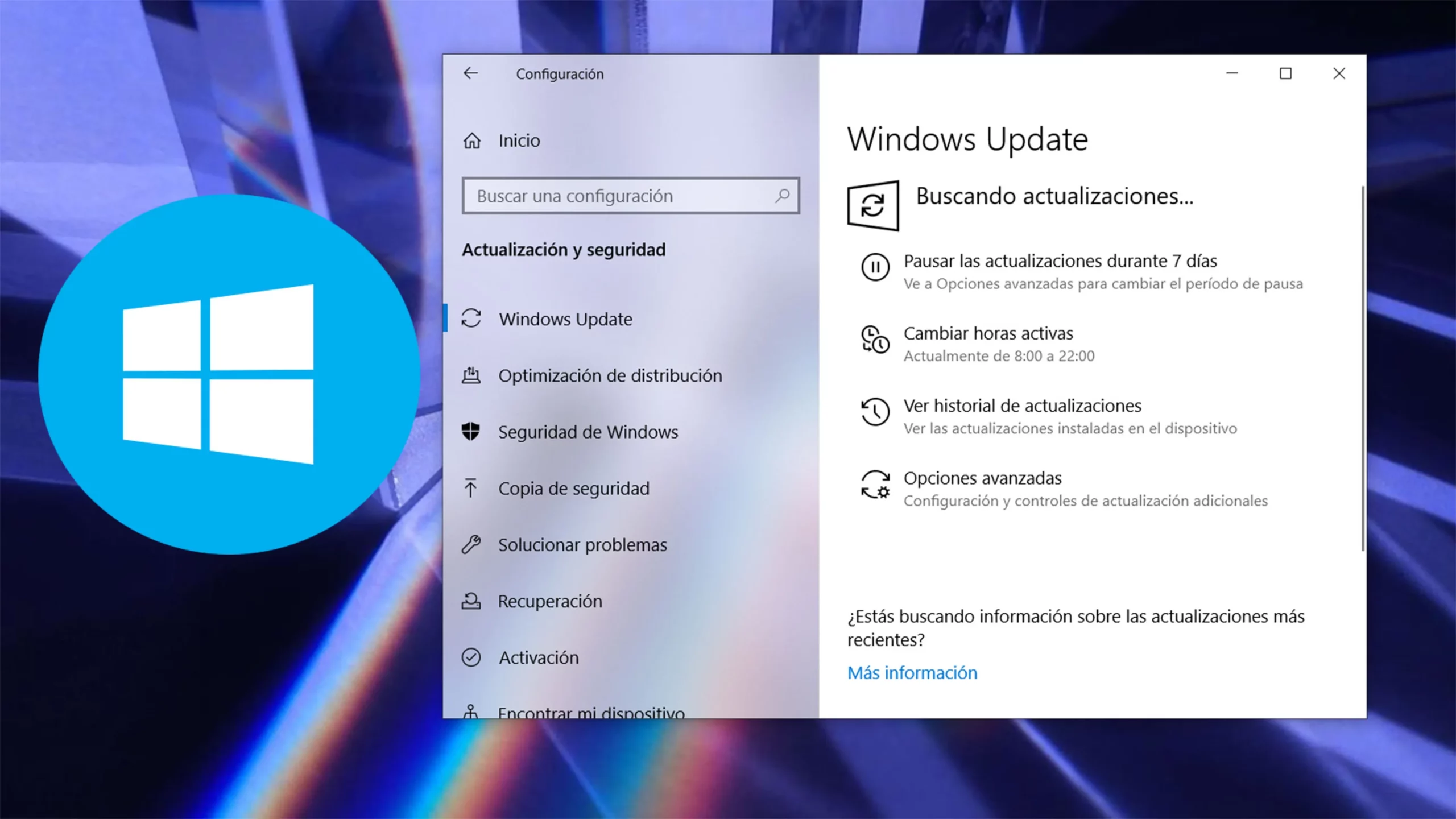
Once the cause is known, it's time to apply solutions. Here's a list of steps, from the simplest to the most technical, in order, checking after each one if the problem disappears.
1. Always keep Windows and drivers updated
Driver and operating system incompatibility is a primary cause of this error. First, check for pending Windows and hardware driver updates.
- To update Windows: Accede to Settings → Update & security → Windows Update and check for updates. Install all available updates.
- To update drivers: From the Device administrator (right click on Start), check the key drivers: graphics card, network, chipset and storage. Right click and select Update DriverYou can also download them from the manufacturers' official websites.
Using reliable tools to update drivers can help, but avoid programs from unknown or dubious sources.
2. Scan and repair system files with SFC and DISM
Windows has tools to detect and repair corrupted files. The main ones are SFC and DISM.
- Open the start menu, search cmd, right click and run as administrator.
- Write
sfc /scannowand press Enter. The process may take a while. When it's finished, reboot. - If the problem persists, in CMD as administrator run these commands one by one:
dism /online /cleanup-image /scanhealth
dism /online /cleanup-image /checkhealth
dism /online /cleanup-image /restorehealth
After finishing, restart the computer and check if the error has disappeared after a few minutes of use.
3. Check and replace problematic drivers
The message in the BSOD usually indicates the problematic file ( xxx.sys ). If you identify it, take action against it:
- Start Windows in safe mode (hold Shift and select Restart, then Safe Mode option).
- From Device Manager, locate the related hardware and uninstall it.
- Download and install the compatible and updated version from the manufacturer's website.
If the error persists, try older versions of the driver , as some recent updates cause incompatibilities.
4. Diagnose the physical hardware
If the error persists after formatting and reinstalling Windows, it may be a hardware failure. Check:
- RAM: Use the tool mdsched.exe or Memtest86 to detect errors. Change modules or slots and see if the problem reappears.
- Processor and motherboard: Check for overheating or voltage issues. If the device restarts without warning, consider specialized diagnostics.
- hard drive or SSD: Tools like chkdsk or CrystalDiskInfo allows you to check its status. Read/write errors can cause a BSOD.
- Power supply: Electrical problems affect the entire system. Try another source if you suspect them.
Disconnecting new hardware helps determine if it's the culprit. If the error disappears, that component may be responsible.
5. Remove recent software or applications
A recent installation, especially of demanding programs or third-party antivirus software, can cause this error. If you noticed the error after installing something new, try the following:
- Uninstall the program from Control Panel or Settings → Applications.
- Reboot and check if the problem persists.
- If it persists, perform a system restore to a previous point:
- Search Windows for “Recovery” and select “Open System Restore.”
- Choose a previous point and follow the wizard.
Restoration usually fixes errors caused by incompatible software or drivers.
6. Perform a full malware scan
Viruses and malware can cause strange errors, including blue screens. Scan with your regular antivirus software and, for added security, use tools like Malwarebytes or Microsoft Defender.
If you use two antivirus programs, uninstall one to avoid conflicts.
7. Clean temporary files and system junk
Excessive temporary files can slow down and slug your system, causing errors. Use Disk Cleanup or other applications to remove these unnecessary files.
8. Adjust hardware settings and compatibility
The problem can occur after installing new components, especially RAM or hard drives. Check:
- Make sure the memory is compatible and in the correct slot. Swap modules or use different slots.
- If you made changes to dual channel, restart your computer to stabilize the system.
- For older components, consult the manufacturer's manual and update the BIOS if required.
Windows Memory Diagnostics helps confirm if RAM is the cause.
9. Reinstall Windows only if strictly necessary
If the error persists after trying all the above, reinstalling Windows may be your last resort. Back up your files and perform a clean installation using the official Microsoft tool.
If the BSOD persists after reinstalling, the problem is likely hardware-related. In that case, you'll need to check each hardware component individually to locate the culprit.
Table of Contents
- 1 What does the DRIVER_IRQL_NOT_LESS_OR_EQUAL error really mean?
- 2 Main causes of the DRIVER_IRQL_NOT_LESS_OR_EQUAL error
- 3 How to find out what causes DRIVER_IRQL_NOT_LESS_OR_EQUAL?
- 4 Solutions and steps to resolve DRIVER_IRQL_NOT_LESS_OR_EQUAL
- 4.1 1. Always keep Windows and drivers updated
- 4.2 2. Scan and repair system files with SFC and DISM
- 4.3 3. Check and replace problematic drivers
- 4.4 4. Diagnose the physical hardware
- 4.5 5. Remove recent software or applications
- 4.6 6. Perform a full malware scan
- 4.7 7. Clean temporary files and system junk
- 4.8 8. Adjust hardware settings and compatibility
- 4.9 9. Reinstall Windows only if strictly necessary
