- Microsoft Forms Integrates surveys and questionnaires in PowerPoint (desktop and web) with analytics on forms.office.com.
- Wooclap and ClassPoint add advanced interactivity, varied question types, and multimedia options.
- ParticiPoll allows you to vote from your browser without apps no controls, with real-time results.
If you want your audience to truly participate in your presentations, setting up a voting system within PowerPoint is a straightforward, visual, and highly effective solution . These days, there's no need to overcomplicate things: you can integrate native Microsoft forms or use sophisticated add-ins that instantly transform any slide into a poll or quiz. The key is choosing the tool that best suits your context (class, meeting, or event) and the type of response you're seeking.
In this guide, we'll review, in detail and without beating around the bush, four viable ways to vote in PowerPoint: Microsoft Forms (both desktop and web), Wooclap, ClassPoint, and ParticiPoll . You'll see what each one offers, how to configure it, what types of questions it allows (including multimedia options), and how to share and review the results. We'll also provide best practices to ensure everything runs smoothly during live voting.
Real options for voting without leaving PowerPoint
PowerPoint supports voting in several ways, from native integration with Microsoft Forms to third-party add-ins that greatly enhance interactivity . Broadly speaking, these are the most robust options: Forms (native and very convenient if you use Microsoft 365 ), Wooclap (ideal for inserting interactive questions into your presentation), ClassPoint (powerful for varied quizzes and formative assessments), and ParticiPoll (simple polls where the audience votes from their browser without installing anything).
The choice depends on whether you need live responses, offline data collection, automatic scoring, multimedia support, or simply a clear histogram of results . Let's go through the steps and the specifics of each option.
Microsoft Forms integrated into PowerPoint (desktop application)
Integrating Forms into the PowerPoint desktop app lets you insert forms or quizzes without leaving your slides . You'll access creation, insertion, and tracking from a side panel within the presentation itself.
- Sign in with your Microsoft 365 account (work or school) to display the Forms option in the ribbon. Without that session, the integration is unavailable.
- Open your presentation and go to the slide where you want to place the form or questionnaire.The vote will be embedded right into that sheet.
- On the ribbon, go to Insert > FormsThe Microsoft Forms-specific panel will open on the right.
- In the panel, go to My Forms and press New form o New questionnaire depending on what you need to create.
- A window will open with a blank form with the initial title “Untitled Form”From there, add questions and configure options just as if you were in Forms.
- When finished, the form/quizz is automatically embedded in the slide. and also appears at the top of your list my forms from the panel, below the creation buttons.
This flow is perfect for preparing a quick vote before presenting or even for creating one on the fly . If you see references like "Back to top" in the original article, they simply refer to internal navigation; it's not necessary here, but the content is the same.
Microsoft Forms in PowerPoint for the Web

If you use PowerPoint in your browser, you can also embed Forms directly into your slides . The process is just as simple and very practical for remote meetings.
- Sign in to Microsoft 365 with your credentials (work or educational account) and enter Applications > PowerPoint.
- Open your presentation and select the slide where the form will go.This ensures that the module appears where it should.
- On the Home tab, choose Add-ins > Forms. If you don't see it, use the search. If it's not installed yet, tap Add.
- You will see a Forms module embedded in the slideYou can paste the URL of the form/questionnaire you want to insert or locate it from the module itself.
- Choose the insert view: Present for interactive meetings (ideal for live participation) or Collect responses offline (to collect feedback even when they are not connected).

Insert an existing form or questionnaire
If you already have the form created in Forms, inserting it into PowerPoint takes only seconds . This method saves you from having to rebuild it from scratch.
- Find the form or questionnaire in My Forms within the PowerPoint side panel.
- Hover over the title and press Insert. This way you embed it directly into the current slide.
- Done: the form is embedded and ready to present or share.
This reuse feature is incredibly convenient if you work with templates or question banks . You centralize the forms in Forms and place them in the presentations you want.
Share, collect, and review responses with Forms
Once you've inserted the form into your presentation, you can share the slides so others can respond without leaving PowerPoint . It works seamlessly with Microsoft tools like Mail, OneNote, and Teams.
To view the results, sign in to forms.office.com with your Microsoft 365 account , open the relevant form, and go to the View responses tab at the top. From there, you can analyze, export, and share data with your team or class.
If you want to send feedback to Microsoft about Forms, open the form and go to More form options > Feedback . This is a direct way to suggest improvements or report issues.
As additional resources, Forms offers guides for creating forms and quizzes, frequently asked questions, and usage in Microsoft 365 apps . These materials help you get the most out of the PowerPoint integration.
Wooclap: voting within your presentation
Wooclap lets you upload your PowerPoint presentation and add interactive questions directly to the slides . It's a very natural way to blend content and engagement without having to switch between tools.
First, upload your presentation to the Wooclap event , click " Add presentation," select the file, and wait for the conversion. Keep in mind the size limit: 50 MB maximum . If your PPT is larger, divide it into parts smaller than that limit.
Once converted, click on the presentation to view it and then click Insert Questions in the right-hand column . From there, drag the type of activity you want to the desired slide (quiz, word clouds, etc.).
When you're finished entering questions, click Save at the bottom to save all your changes. It's easy to miss this step if you're in a hurry.
To present, return to the event and find your PowerPoint in the right-hand column . Clicking " Start" will display the presentation on your screen and the participants' screens , with the activities ready for them to complete from their devices.
ClassPoint: Interactive quizzes (text and multimedia) and assessment
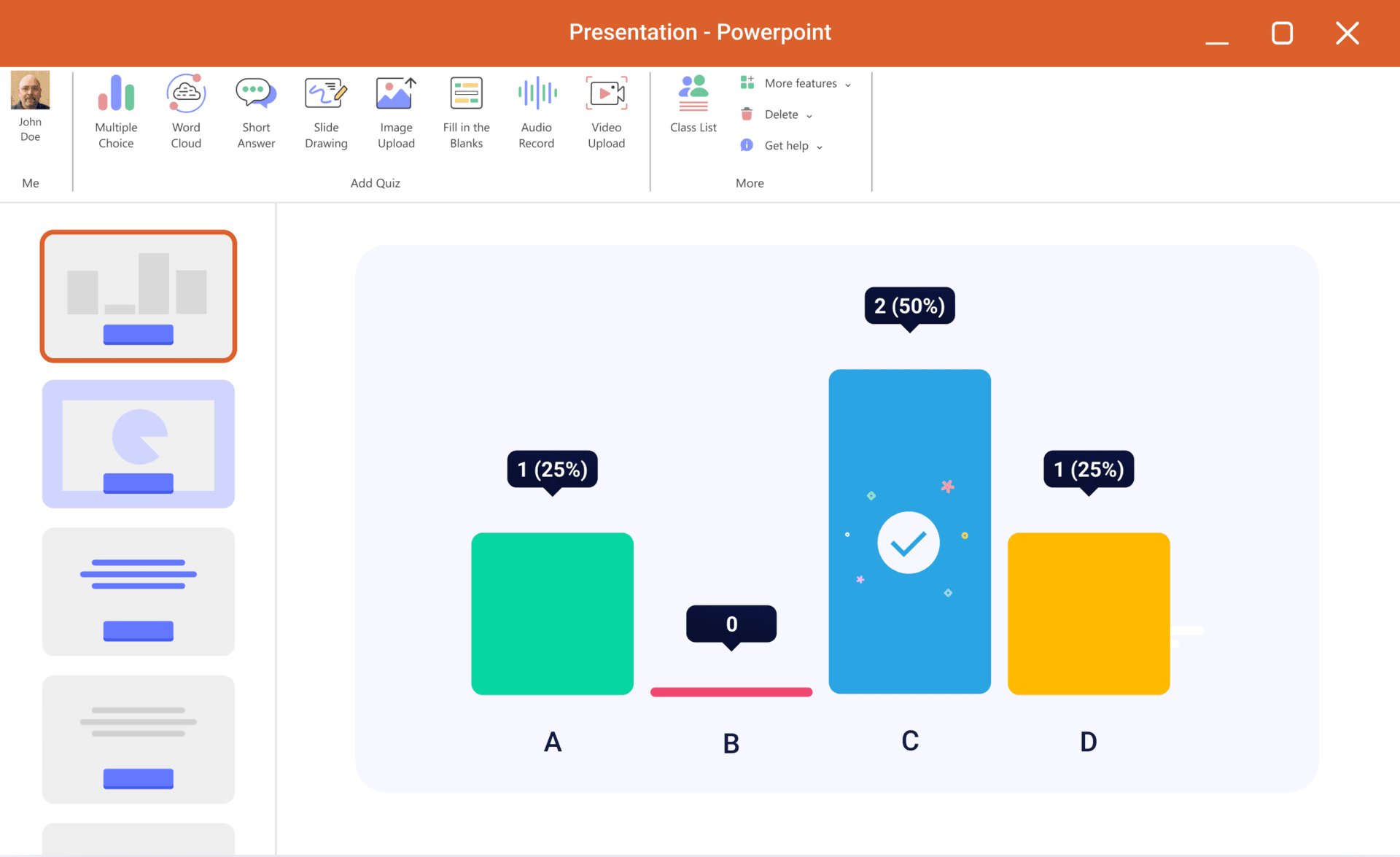
ClassPoint is a PowerPoint add-in that turns your slides into interactive activities in three steps , and its free plan includes five types of quizzes . If you're looking for variety and quick assessment, it's a strong contender.
Basic Plan (free) : Includes Multiple Choice , Short Answer , Word Cloud , Slide Drawing , and Image Upload . Pro Plan : Adds Fill in the Blanks , Audio Recording , and Video Upload.
3-step workflow : 1) Add an activity button to the slide to turn it into a question; 2) Run the quiz during the presentation; 3) Review submissions after class. Everything is managed from the Inknoe ClassPoint tab on the ribbon.
For text-based questions (multiple choice, short answer, fill in the blanks, word clouds), select the type on the ClassPoint tab and follow the execution and review workflow . These are quick formats for measuring comprehension, brainstorming, or reinforcing vocabulary.
When to use text-based questionnaires
- Multiple choice
- Knowledge Assessment when you need objective and comparable answers.
- Formative evaluation mid-session to take the pulse and reinforce.
- Quick reviews at the beginning or end of class.
- Objective correction with a key defined for each item.
- Short answer
- Application of concepts asking for examples or your own definitions.
- Explanation and justification to see students' reasoning.
- Conflict resolution with a brief and focused answer.
- Word cloud
- Creative expression with key terms of a topic.
- brainstorming collaborative and visual.
- Vocabulary and associations to fix concepts.
- Startup dynamics and agile icebreakers.
- Emotional control with words that describe how they feel.
Bonus: Contest mode with automatic grading
ClassPoint includes a "Quiz Mode" that automatically grades multiple-choice questions . It also assigns stars , allows you to set difficulty levels , and generates a test summary with an exportable report . It's perfect for turning a quiz into a formative assessment on the fly.
Multimedia questionnaires: drawing, image, audio and video
Beyond text, ClassPoint allows for responses such as drawings, images, audio recordings, or videos . This opens the door to much richer learning evidence and live, hands-on activities.
Advantages of using multimedia questionnaires :
- Superior Engagement by allowing dynamic and creative responses.
- Diverse evaluation of visual, auditory and presentation skills.
- Personalization. so that each student can express themselves in their best way.
- actual application bringing evaluation closer to situations in the professional world.
- Inclusion and accessibility by offering multiple avenues for expression and support.
ParticiPoll: Browser-based surveys, no remote controls or apps
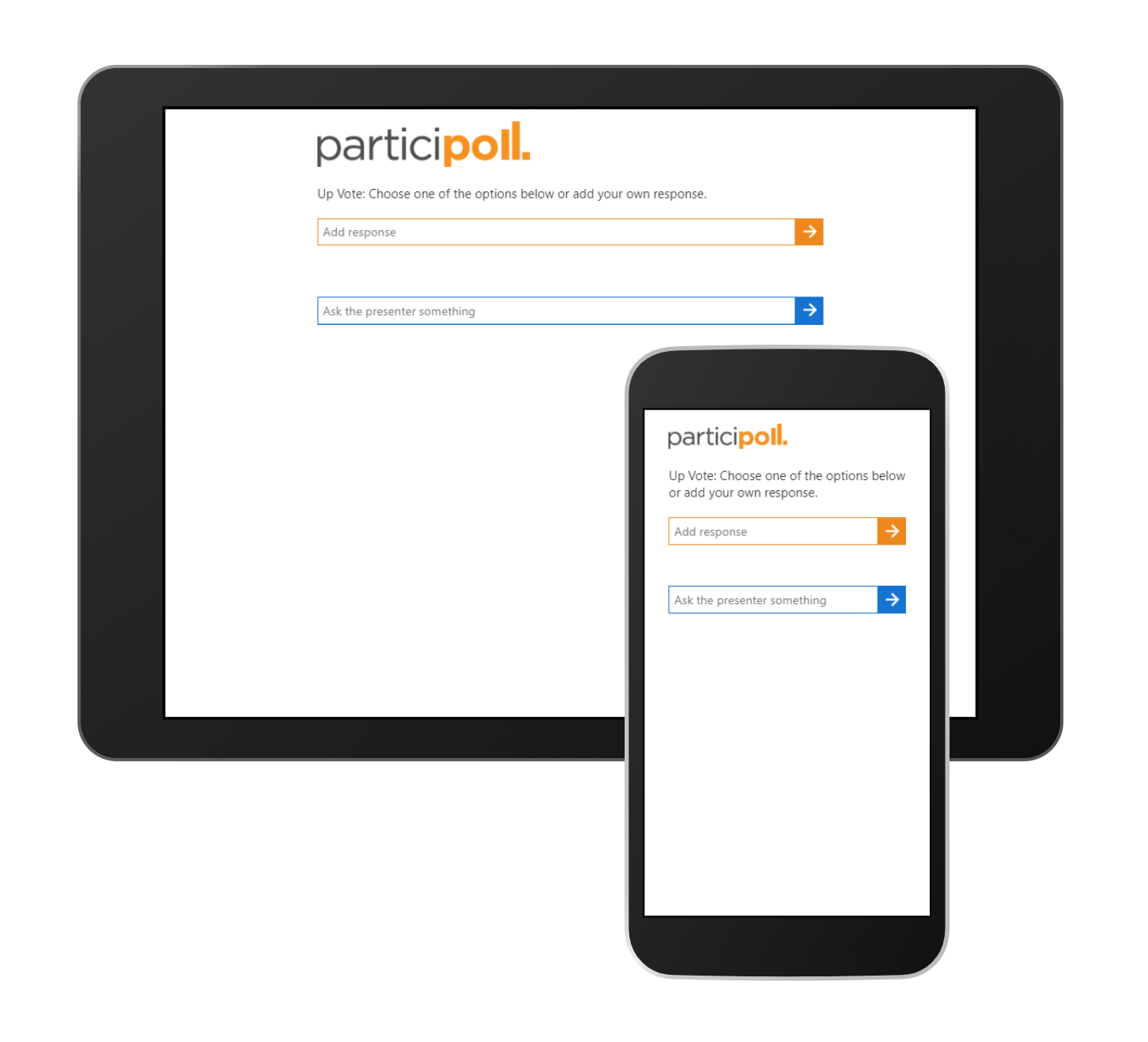
ParticiPoll is a PowerPoint add-in (2010 and 2013) that adds interactive polls to your slides . Attendees vote from a browser on their mobile phone, laptop, or tablet: no clickers or apps to install.
After installing the add-in, a "ParticiPoll" tab appears in the ribbon . From there, you create polls with up to 6 options (for example, A, B, C...). Click Insert Poll , specify the number of responses, and confirm to insert the poll into the slide.
In the corner of the slide, you'll see colored bars that rise and fall in real time based on the votes . To activate the voting process, click " Start Polling" and log in with your ParticiPoll account (registration required). A unique URL , such as yourname.participoll.com, will be generated for the audience to access and vote.
To make access easier, the plugin creates a QR code with your link with one click, which you can insert into the slide and attendees can scan it instantly.
Important : Launch the presentation in full-screen mode (press F5 ) to activate the tally. When you advance to the next slide, the bars transform into a histogram with final percentages , perfect for discussing results.
Pricing model : the basic version is free and unlimited , and if you need advanced statistics or audience feedback, there is a Pro plan (€99 per year).

Quick tips and best practices
The success of a poll depends not only on the tool itself, but also on how you prepare and execute it . These tips make all the difference in the eyes of your audience.
- define the goal: knowledge validation, decision-making, brainstorming… Choose the type of question based on what you want to measure.
- Test the flow before going live: Microsoft 365 authentication, permissions, Wi-Fi network, and student access to avoid surprises.
- Take care of accessibility: State clear questions, allow sufficient time, and avoid walls of text in options.
- Optimize the file: With Wooclap, keep your presentation below 50 MB or divide it into parts for a faster conversion.
- Communicate how to participate: Visible URL, large QR code and step reminder (especially with ParticiPoll).
- Manage data and privacy- Review collection settings in Forms and usage rules in third-party add-ons.
If you need additional training materials, there is a training document in Spanish on presentations that can help you refine your sessions . You can take a look at this resource: Download PDF.
You've seen how to create, run, and review polls and quizzes in PowerPoint using Forms, Wooclap, ClassPoint, and ParticiPoll . These options cover everything from basic participation with histograms to multimedia activities and automatic assessments; choose the one that best suits your needs and transform your slides into engaging, interactive experiences that captivate from the very first minute.


Passionate writer about the world of bytes and technology in general. I love sharing my knowledge through writing, and that's what I'll do on this blog, show you all the most interesting things about gadgets, software, hardware, tech trends, and more. My goal is to help you navigate the digital world in a simple and entertaining way.