- Word It does not include automatic conditional formatting like Excel, but there are methods to simulate it.
- Table styles, IF fields, bookmarks, and macros can be used to automate formatting.
- Knowledge of tools such as Mail and VBA expands the possibilities for customization.
If you've ever worked with tables in Word, you've probably wondered if it's possible to apply conditional formatting to Word tables , just like in Excel. While there isn't a direct, automated function as advanced as in Excel, it is possible to achieve different effects and automate processes to highlight data or format it according to specific conditions.
Let's explore how you can automate table formatting in Word by combining the program's built-in tools with some tricks and, for advanced users, even a bit of programming with macros and IF fields. The goal is that, after reading this article, you'll master all the options and be able to optimize your Word documents, making your tables much more visually appealing and functional.
What is conditional formatting and why is it important in Word?
Conditional formatting involves changing the appearance of cells, rows, or columns based on certain criteria or values, allowing you to automatically highlight relevant information. It's one of Excel's key features, but Word doesn't have a dedicated tool for conditional formatting in tables.
This does not mean it is impossible: Word provides manual options and combinations with IF fields, bookmarks or even VBA code , which allow you to define certain "conditions" to change the format in tables.
Why might you be interested? Well, for example, for:
- Highlight rows or cells based on content
- Display messages depending on an entered value
- Visually differentiate states, categories, scores or results
- Automate professional reports and communications
Limitations compared to Excel and alternatives in Word
It's worth clarifying that, although Word and Excel are similar in their handling of tables , Word doesn't have a "pure" conditional formatting option like its spreadsheet counterpart. However, this doesn't prevent us from achieving similar effects using different methods, which we'll explore in detail throughout this article.
Among the most common forms are:
- Manually modify styles and formats in cells
- Configure table styles and combine them with colors, borders, and formats
- Using IF fields to display text or formats based on conditions
- Combine macros to automate formatting changes
- Use the Matching tool to apply conditions
Applying conditional formatting manually in Word tables
The most straightforward way is to use it manually, especially useful if the table isn't excessively large or if we only need a few highlighted formats. Word's basic tools allow you to:
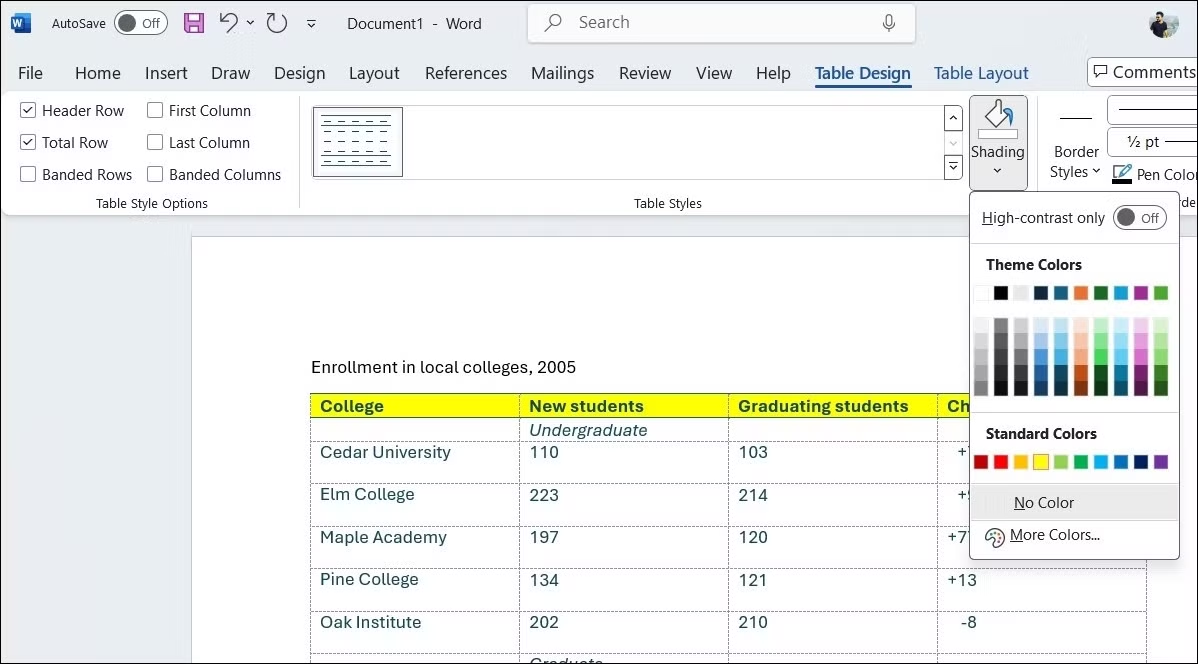
- Select cells, rows, or columns and apply background color, bold, italics, underline, colored fonts, strikethrough, and other common formatting.
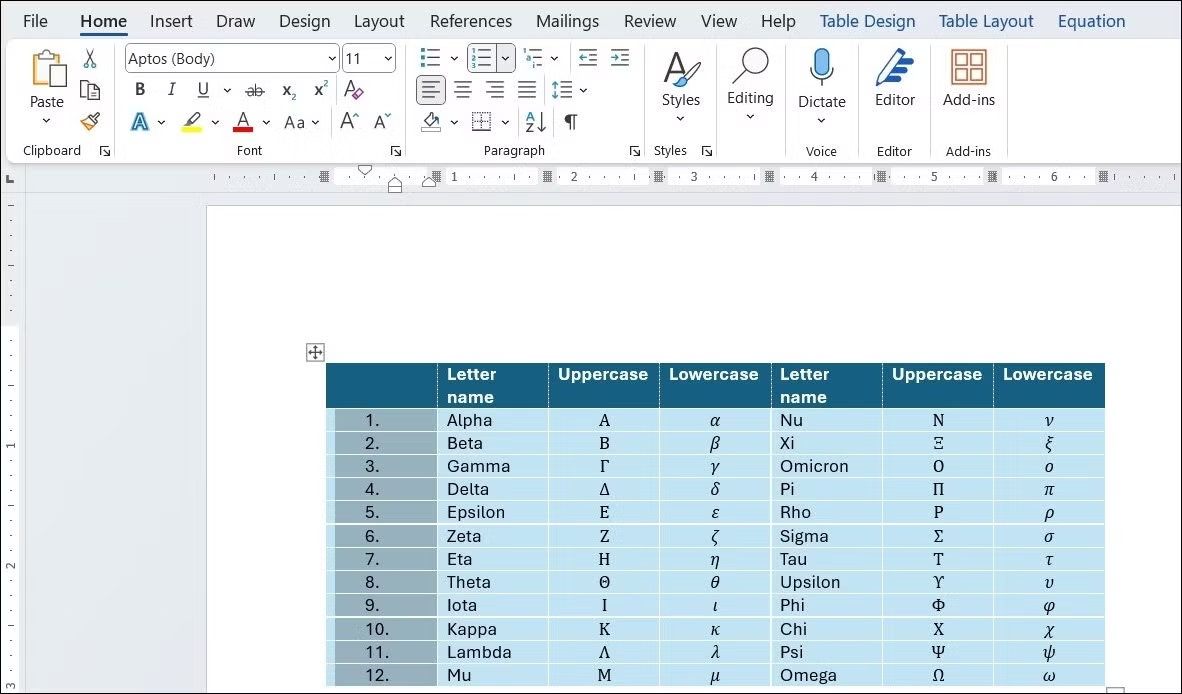
- Use the menu Table styles to apply global formatting combinations.
- Add and remove borders, subdivide or merge cells, etc.
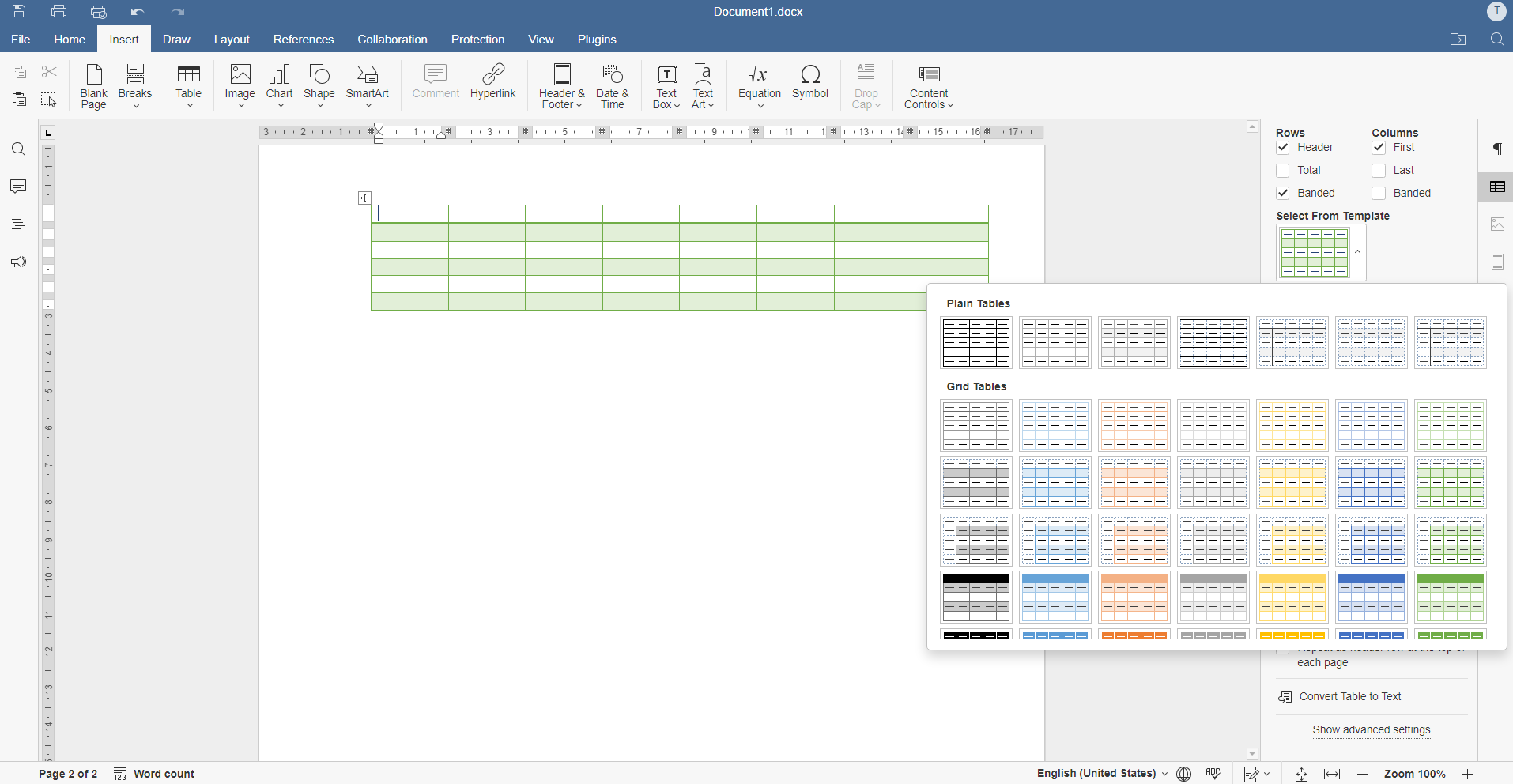
To format a table, simply select the desired cells and use the Table Formatting options from the "Table Design" tab. Here you can color alternating rows, highlight headers, apply different colors to columns, and much more.
Another option is to create custom table styles . You can save your preferred formats and apply them to future tables with a single click.
Advanced Conditional Formatting Simulation: IF Fields in Word
For more advanced users, Word allows the use of IF fields . These are instructions that, like the IF function in Excel, evaluate a condition and display one result or another depending on whether it is met or not.
How does it work? Imagine you have a table with grades, and you want the text " Fail " to appear in red and bold if someone gets less than 5, and " Pass " to appear in blue and bold if they get 5 or more.
These would be the steps:
- Select the table cell where you want to display the conditional text.
- Press Ctrl + F9 to insert a field.
- Inside the field, write the IF statement. Example:
{ IF { REF calif } < 5 «Wall hung""Approved» } - The "calif" marker must have been inserted in the cell with the grade.
- Updates the fields with F9.
Warning : You can only force color and bold formatting by editing the formatting after displaying the result, as Word does not allow embedding visual formatting within the IF field. However, you can apply formatting to the resulting text. You can learn more about conditional formulas in Excel to better understand how conditions work in general.
In this way, your Word tables can simulate basic conditional formatting ideal for reports, grades, statuses, and the like.
Automating with macros for conditional formatting in Word tables
For scenarios involving large tables or complex conditions, using macros (VBA) allows you to automate conditional formatting in Word. Let's see how to do this, for example, so that the text color in one cell depends on the formatting of another cell in the same row.
Suppose you have a table with a marker (for example, "mytable") that identifies it. You want to ensure that, when you enter text in a cell in column 2, it is written in red if the cell in column 1 of that row is bold, and in black if it isn't. All of this is done automatically.
This is achieved by creating a class module in VBA and adding the following code: Learn how to protect and restrict editing in Excel.
- In the Word VBA editor, create a class module and insert the following block:
Option Explicit Public WithEvents appWord As Word.Application Private Sub appWord_WindowSelectionChange(ByVal Sel As Selection) Dim myrow As Long Dim mycolumn As Long If Sel.Tables.Count = 1 And Sel.Bookmarks.Count = 1 Then If Sel.Bookmarks(1).Name = "mytable" Then myrow = Sel.Cells(1).RowIndex mycolumn = Sel.Cells(1).ColumnIndex If mycolumn = 2 Then If Sel.Tables(1).Cell(myrow, 1).Range.Font.Bold = True Then Sel.Cells(1).Range.Font.ColorIndex = wdRed Else Sel.Cells(1).Range.Font.ColorIndex = wdBlack End If End If End If End If End Sub
And then, in ThisDocument add two procedures so that when the document is opened the macro is initialized:
Option Explicit Dim myapli As New Class1 Public Sub AutoNew() Set myapli.appWord = Application End Sub Public Sub AutoOpen() Set myapli.appWord = Application End Sub
With this, every time you select a cell in column 2 of the "mytable" table, the color will automatically adjust according to the condition in column 1. Remember: you must have macros enabled for this to work.

Using the Mailing Tool for Conditional Formatting
Another interesting option if you work with highly repetitive documents is using the Mailings tool . Although it's designed for mail merges in letters and mass mailings, you can take advantage of the "Step-by-Step Mail Merge" wizard to link external data and apply conditions based on the content.
The steps would be:
- Access the tab Correspondence and select “Start Mail Merge.”
- Select the wizard and follow the steps, customizing the columns and conditions.
- Link table cells to contact list fields or external data to apply conditions.
This way, you can condition the formatting and content of cells or paragraphs in a table based on the data provided.
Bookmarks and custom fields to improve automation
Using bookmarks in Word is essential for identifying exact positions within a document or table, allowing you to set conditions and further automate formatting.
To use markers:
- Select the text or cell you want to mark in the table.
- Go to the tab Insert and click Marker.
- Assign a name and click on Add.
With these markers, you can reference IF fields or macros, making conditional formatting more flexible and customizable.
Additional formatting options in Word tables
Beyond conditional formatting, Word allows many other ways to customize your tables:
- Apply table styles: Using the “Design” tab in Table Tools, you can apply visual templates to the entire table or specific parts.
- Add or remove borders: Select cells or the entire table and use the border options in the Table Styles group.
- Merge or split cells: Merge multiple cells for titles or split cells to separate data.
- Add rows and columns: Insert cells, rows, or columns at any position from the Rows & Columns group.
- Show or hide grid lines: Useful to better see the table structure without printing borders.
- Repeat table titles on each page: Very practical in long tables that occupy several sheets.
- Controlling page breaks in tables: Decide where to split rows or the table itself between pages to maintain readability.
Practical use cases and examples of conditional formatting in Word tables
To apply the techniques described, some practical examples include:
- Grade reports: Automatically highlight fails and passes based on grades.
- Expense tables: Highlight in red those expenses that exceed the budget and in green those that are within the budget.
- Task lists: Show completed tasks in green and pending tasks in yellow or red.
- Follow-up forms: Hide or show sections based on the value of a box (e.g., shipping address).
- Filter rows with critical values: Use IF fields to display only rows that meet certain conditions (although with limitations compared to Excel).
The biggest advantage is that we can visually automate the presentation of information in reports, minutes, or any document that uses tables, helping to quickly identify key values.
However, the main limitation is that, since it is not as developed as Excel, some processes are more laborious and require intermediate-advanced knowledge of Word and even VBA.
Even so, using the tools seen (styles, macros, IF fields, correspondence, bookmarks...), you can achieve very professional results.
If you're looking for even more advanced options, it's worth knowing that other applications in the Microsoft ecosystem, such as Power BI , also allow you to work with conditional formatting, and in some cases with a much more visual and powerful approach than Word.
For example, in Power BI, conditional formatting is even more versatile: you can define logical rules, apply color gradients, icons, and conditional labels to tables, and prioritize rules.
In Power BI, conditional formatting is even more versatile: you can define logical rules, apply color gradients, icons, and conditional labels to tables, and prioritize rules.
However, in the purely Word context, none of these external tools replace the direct customization that Word allows by combining its advanced options.
As you've seen, although Word doesn't have a magic button for "conditional formatting in tables," you can achieve very similar effects by taking advantage of all the options we've detailed. If you give it a try, your tables will quickly look more professional and dynamic, making data easier to understand and saving time when highlighting the most relevant information.


Passionate writer about the world of bytes and technology in general. I love sharing my knowledge through writing, and that's what I'll do on this blog, show you all the most interesting things about gadgets, software, hardware, tech trends, and more. My goal is to help you navigate the digital world in a simple and entertaining way.