- Several apps allow you to use your mobile phone as a controller or gyroscopic steering wheel on your PC with gyroscope, vibration, and customizable designs.
- HandyGamePad and Monect stand out for their compatibility with Windows, use of sensors, and specific modes for racing and FPS.
- There are solutions linked to Steam, emulators or browsers, with limitations in compatibility, updates and ecosystem.
- The key is to choose active apps that are compatible with your system and offer the level of customization and movement you need.
Turn your mobile phone into a gyroscopic steering wheel controller for PC It's become one of those ideas we've all had at some point while playing games: "If I could use my phone to steer like a steering wheel, that would be awesome." The good news is that not only is it possible, but there are several highly polished apps that let you do it without spending money on an expensive physical controller.
Over the past few years, increasingly comprehensive solutions have emerged: from simple apps that only simulate a basic gamepad to authentic Advanced controllers with gyroscope, vibration, and custom designsIn this article you will see, point by point, how to use your smartphone as a gyro steering wheel controller for PC, which applications are worthwhile, what limitations they have and in which scenarios they shine the most (racing, FPS, emulators, Steam, etc.).
Why use your mobile phone as a controller with a gyroscopic steering wheel
When we talk about playing on PC, the typical setup is to use a keyboard and mouse or a traditional controller, but in many situations a phone as main or support controller It can get you out of a tight spot or even improve the experience if you configure it properly.
One of the most obvious reasons is cost savings: a good controller with gyroscope, vibration, and good ergonomics can be quite expensive, while Your smartphone already has an accelerometer, gyroscope, and wireless connectivitySo, using it as a steering wheel or complete controller is almost like "playing for free".
There's also a point of convenience and pure technological curiosity: many of these apps allow change the interface according to the game (racing, FPS, fighting, etc.), activate motion control, use the mobile as a PC touchpad or even as a light gun trigger by moving the phone.
Another advantage is that, if you get together with friends one day, you can connect multiple mobile phones to the same computer (in apps that allow it) and set up local games without needing a collection of physical controllers at home. However, always keep this in mind: in terms of ergonomics, a dedicated controller usually wins, but using your phone as a gyroscopic steering wheel is a more than worthy alternative.
HandyGamePad: Turn your mobile phone into a steering wheel, classic controller, or advanced gamepad
One of the most popular solutions for using your mobile phone as a PC controller is HandyGamePadThis app is designed to transform your smartphone into a fully functional virtual controller. While it's not intended for consoles (manufacturers block this type of use), it works exceptionally well on PC and integrates seamlessly with games that support controllers.
The premise of HandyGamePad is simple: you install the application on PC and mobileand the phone then behaves like a standard gamepad. You can connect it via USB and WiFiThis gives you plenty of room to adapt to your setup: wired connection for maximum stability or wireless for playing from the couch.
In tests with demanding titles such as Elden Ring, Vampire Survivors, Hogwarts Legacy or Dragon's Dogma and in racing games like Project Motor RacingThe virtual controller's performance has been surprisingly good. In games requiring many quick button combinations, the touch interface might be slightly less comfortable, but in titles with more direct controls, the experience is very similar to a physical controller, ergonomics aside.
One of the most interesting aspects of this app is that, if your phone has a gyroscope, you can activate a motion steering modeYou rotate your phone, and the game interprets those rotations as if you were using a real steering wheel. Furthermore, the controller interface can be changed depending on the use, switching from a classic controller-style design to one more geared towards driving.
On an economic level, HandyGamePad offers a free mode with limited usage sessions (by default about 10 minutes of gameplay per connection(extendable to 20 minutes if you watch an ad) and a paid Pro version with Unlimited time and the option to connect multiple mobile phones to the same PC. With the paid version, you can easily set up local games with friends without any hassle.
Step by step: how to use HandyGamePad as a gyro steering wheel on PC
For those who want something specific, HandyGamePad follows a fairly straightforward installation process, designed so that any user can configure your mobile phone as a controller or gyroscopic steering wheel without too much complication.
The first thing to do is go to the official HandyGamePad website from your PC and download the installerThis file includes both the desktop application and the drivers needed for Windows to recognize the virtual controller correctly, so you won't have to look for separate drivers.
Once installed on the computer, it's time to move on to the phone: you open Google Play Store (or the corresponding store if it has a version for your system) and download the HandyGamePad app on your smartphone. It doesn't require root access or any special permissions beyond those necessary to function as a controller.
On the PC, the desktop application opens, where you will see a window with a “Free Slot” availableThere you simply press the "Start" button that appears at the bottom to prepare the server that will receive the mobile connection and simulate the controller with Windows.
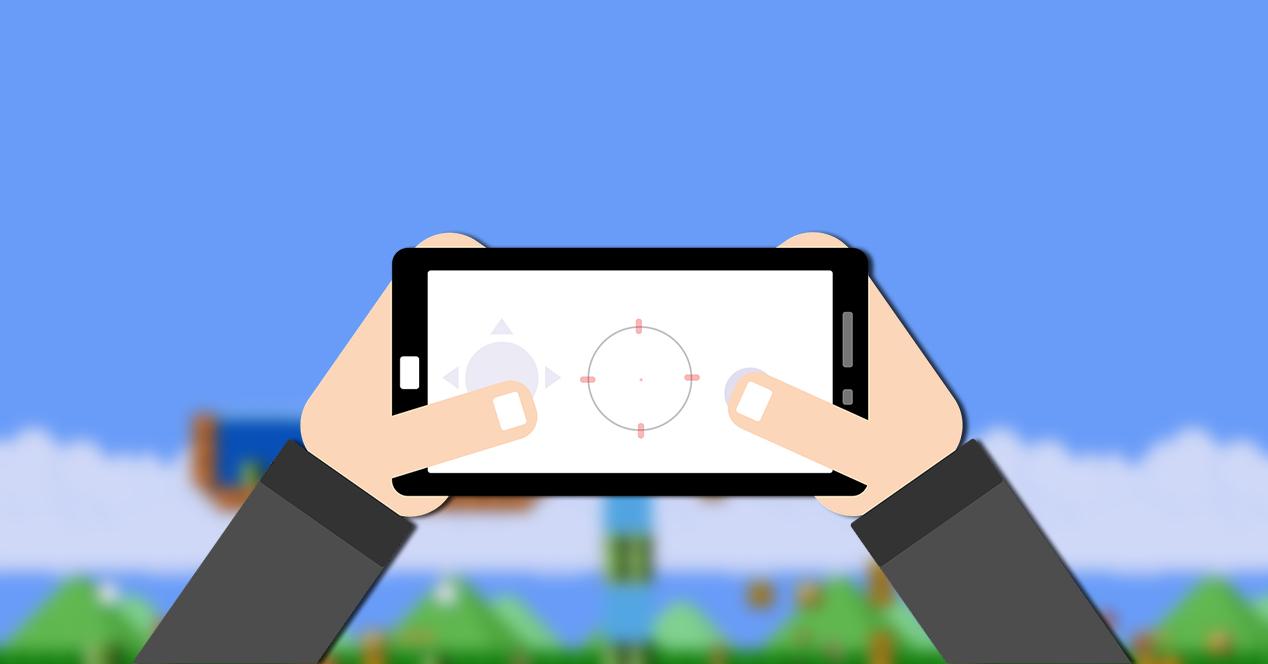
On your mobile device, launch HandyGamePad and you'll see a virtual controller on the screen. In the center, you'll see the button with the app's logo: tap it and select the option. "Connect"A short tutorial will be shown explaining the two available connection methods: via WiFi (mobile and PC on the same network) or via USB.
You choose the type of connection, you establish the session usage time (10 minutes free, 20 if you watch an ad, or unlimited with the Pro version), and the app will automatically try to locate the PC. If both devices are on the same Wi-Fi network or the USB cable is properly connected, you'll see the computer in the list: select it, confirm, and the controller will be activated.
From that moment on, the phone acts as a standard game controller, and if your smartphone includes a gyroscope, you can change the profile within the app to activate it. motion steering mode and start rotating your phone to control the car in your favorite driving games.
Other solutions include gyroscopes, custom designs, and serverless operation.
Beyond HandyGamePad, many alternatives with very varied features have appeared in recent years. Some focus on offering fully customizable controller designsOthers prioritize not depending on a server installed on the PC and use Bluetooth HID directly, and still others opt to work from the mobile browser, without a dedicated app.
There are options that stand out for allowing gyroscope (motion control) and game-responsive rumble, along with editable button layouts to customize the controller to your style. The downside of several of them is that they often include in-app purchases (for example, about $3) or the need to watch ads every so often to maintain the free session.
We also found projects that opt for the "serverless" approach: instead of installing an app on the PC, the phone communicates as native Bluetooth HID deviceThis allows Windows, Linux, and even other systems to detect it as if it were a physical controller. This greatly simplifies setup, although in some cases some customization or advanced features are lost.
At the other extreme are the solutions with clients in the browserYou access a URL from your mobile device, a web-based control interface loads, and your PC receives the signals via a server that can take up considerable space (around 600 MB in some projects). They typically offer gyroscope, vibration, and even a steering wheel mode, but sometimes fall short in features like analog joysticks.
In any case, the combination most appreciated by the community usually includes four key things: a functional gyroscope, the possibility of custom designs, haptic feedback (rumble), and, if possible, compatibility with iOS in addition to Android, so as not to leave anyone out.
Apps focused on gyroscope and motion control
Within the ecosystem of mobile devices as PC controllers, there is a group of applications specifically focused on the motion controlThese are the ones that are most interesting if what you want is precisely a gyroscopic steering wheel or to use your phone to point by moving it.
Some solutions only work with certain emulators like Cemu, Citra or DolphinIn these cases, developers have created specific clients so that the mobile phone acts as a Wii Remote, a Wii Classic Controller or an Xbox 360-type controller depending on the design you choose, with a gyroscope included for games that take advantage of it.
These apps often even include iOS versionThis makes things much easier for those who want to emulate consoles that made intensive use of motion controls, such as the Wii or certain Nintendo 3DS features. The downside is obvious: they only work for those emulators, not for every game on your PC.
Other options allow you to use your phone as a steering wheel with tilt control, but they fall short in the number of joysticks or updates. In some cases, they barely offer any functionality at all. two virtual sticks and they haven't received new versions since 2019, which limits their compatibility with current systems or the necessary server software.
In short, if your priority is having good motion control in specific racing games and emulators, these specialized solutions can be fantastic; but if you're looking for something more general-purpose for all your PC games, you might want to consider more versatile apps like HandyGamePad or similar alternatives.
Monect: the multitasking gyro controller for PC
One name that has been making waves in forums and communities like XDA Developers for some time is MonectThis app turns your smartphone into a highly versatile game controller that connects to your PC via Bluetooth or WiFi, and can also function as a touchpad to control the mouse pointer.
The main difference between Monect and other proposals is its intensive use of Phone sensors: accelerometer, gyroscope, and G-sensorDepending on the mode you choose, the mobile adapts to what you are playing: racing, FPS, fighting, etc., adjusting the way it interprets your movements.
For example, in FPS mode, the following is enabled: gyroscope for aiming By moving the phone, similar to what we see in some modern motion-sensing controllers. In racing mode, the accelerometer and G-sensor detect tilt and changes in position to use as steering and speed, turning the phone into a fairly convincing steering wheel.
Monect's architecture is based on two components: the Android clientThe app, which you install from Google Play, and the server application for Windows, which runs in the background on your PC and translates the mobile data into keyboard, mouse, or controller input. Currently, there is no official version for Mac OS X or Linux, a feature frequently requested in its community threads, but which is not yet available.
To configure it, once the server is installed on the computer and the mobile app, simply Enter the IP address of the PC you want to control into the phone.From there, and after establishing a WiFi or Bluetooth connection, you can move between the different profiles (racing, FPS, classic controller, touchpad, etc.) and take full advantage of the phone's sensors.
A small warning is in order: the download of the server application has occasionally generated malicious code alerts in certain browsers. According to developers and users on XDA, this is due to the inclusion of advertising to monetize the project, and tests with antivirus software like G DATA have not detected any real threats. Even so, it's always a good idea to check with your own antivirus software as a precaution.
Options linked to Steam and game streaming
Another branch of solutions for using a mobile phone as a gyroscope controller on a PC is closely linked to the ecosystem of Steam and game streamingThese apps usually allow custom button designs, vibration, and in some cases, even streaming the game image to the smartphone.
There are tools that let you create fully customized layoutsThese controllers feature buttons, touch zones, virtual pads, and triggers tailored to the specific game you're launching from Steam. The full version typically costs around $7,99, and many are not open source or compatible without the Steam component, limiting their use to that platform.
A very interesting aspect of these solutions is the possibility of play on your mobile device while streaming your PC screenusing your phone as a controller. It's a good idea if you want to play lying in bed or on the sofa, provided your home network can handle the bandwidth needed for smooth streaming.
On the other hand, their dependence on Steam and the fact that they are paid apps or have more closed development means they are not as flexible or reusable outside of its ecosystem. Furthermore, some of these tools have not been updated since 2021, so there may be problems with new games or recent versions of the Steam client.
Old projects and common limitations
Along the way, many projects have emerged that, while interesting at the time, have become somewhat outdated. It's common to find apps that promise custom designs and motion control But they haven't received an update since 2019 or earlier, which makes them less than ideal today if you're looking for stability and compatibility.
Another recurring flaw in some older solutions is that They send the button presses sequentially. instead of holding them down while you touch the screen. This is a real headache for games that require holding down a button (accelerator, aim, run, etc.), because the behavior is nothing like a real controller.
There are also projects designed only for very specific games or for their own platform, such as services that allow the use of the phone as a remote control only in titles from its catalog online. In these cases, besides needing a permanent internet connection, you have no way of using that system as a gyroscopic steering wheel in the rest of the games in your PC library.
Some experimental developments add curious features, such as moving the cursor as if it were a light gun They use phone movement, but they don't offer comprehensive support for turning your phone into a full game controller. Furthermore, many of them aren't open source, and despite announcements of future improvements, these haven't materialized.
Therefore, when choosing the app to turn your smartphone into a gyroscopic steering wheel controller, it's important to pay close attention to the date of the latest version, user reviews, and active supportavoiding abandoned solutions that may cause you more problems than joy.
Compatibility, operating systems, and small print
Before you start configuring anything, it's important to be clear about the compatibility restrictionsMost of these applications are focused on Windows, especially when they require a specific server that emulates an Xbox 360 controller or similar to the system.
In the case of Monect, for example, the server is compatible with Windows (including Windows 8 and later versions)However, there are no official builds for Mac OS X or Linux. The situation is usually similar with HandyGamePad and other modern apps, which primarily target the Microsoft platform.
If you use iOS, things get a little more complicated because not all solutions offer version for iPhone or iPadSome of the best options with custom designs and gyroscopes do have iOS apps, but others are limited to Android only. It's crucial to check this detail in the app's information before making any payment.
Many of these tools are not open source, which means that You depend on the developer for future updates. and adaptations to new systems. It's not necessarily a bad thing, but it is something to keep in mind if you're concerned about the project's longevity.
Finally, it's worth remembering that, although console manufacturers close their ecosystem and don't allow these apps to be used directly on their machines, on PC there's much more freedom, and practically any solution that emulates a standard controller or sends keyboard/mouse events can be integrated with your game library without too many problems.
Given all this, it's clear that using the mobile phone as a gyroscopic steering wheel controller for PC It's a more than viable option nowadays, with several mature apps like HandyGamePad or Monect that take advantage of the smartphone's sensors, add features like vibration, custom designs and specific modes for racing or FPS, and allow you to play both casually and a bit more "hardcore" without needing to spend money on a dedicated controller, as long as you accept its limitations in ergonomics, updates and compatibility.


Passionate writer about the world of bytes and technology in general. I love sharing my knowledge through writing, and that's what I'll do on this blog, show you all the most interesting things about gadgets, software, hardware, tech trends, and more. My goal is to help you navigate the digital world in a simple and entertaining way.