
Have you ever noticed your Mac behaving erratically, or worse, refusing to turn on properly? Don't worry, it's more common than you might think, especially after a system update or if you've left your computer in a drawer for a while. Sometimes, the computer gets stuck on the Apple logo or simply doesn't respond, which can be incredibly frustrating when you have work to do.
For these cases, Apple has included a diagnostic tool called safe modewhich is basically a minimalist version of the operating system. This feature allows you to boot your computer loading only what's strictly necessary, leaving out third-party applications and extensions that might be causing problems. It's the first essential step for rule out software failures before thinking that some physical component of the computer has broken.

What exactly is safe mode and what is it used for?
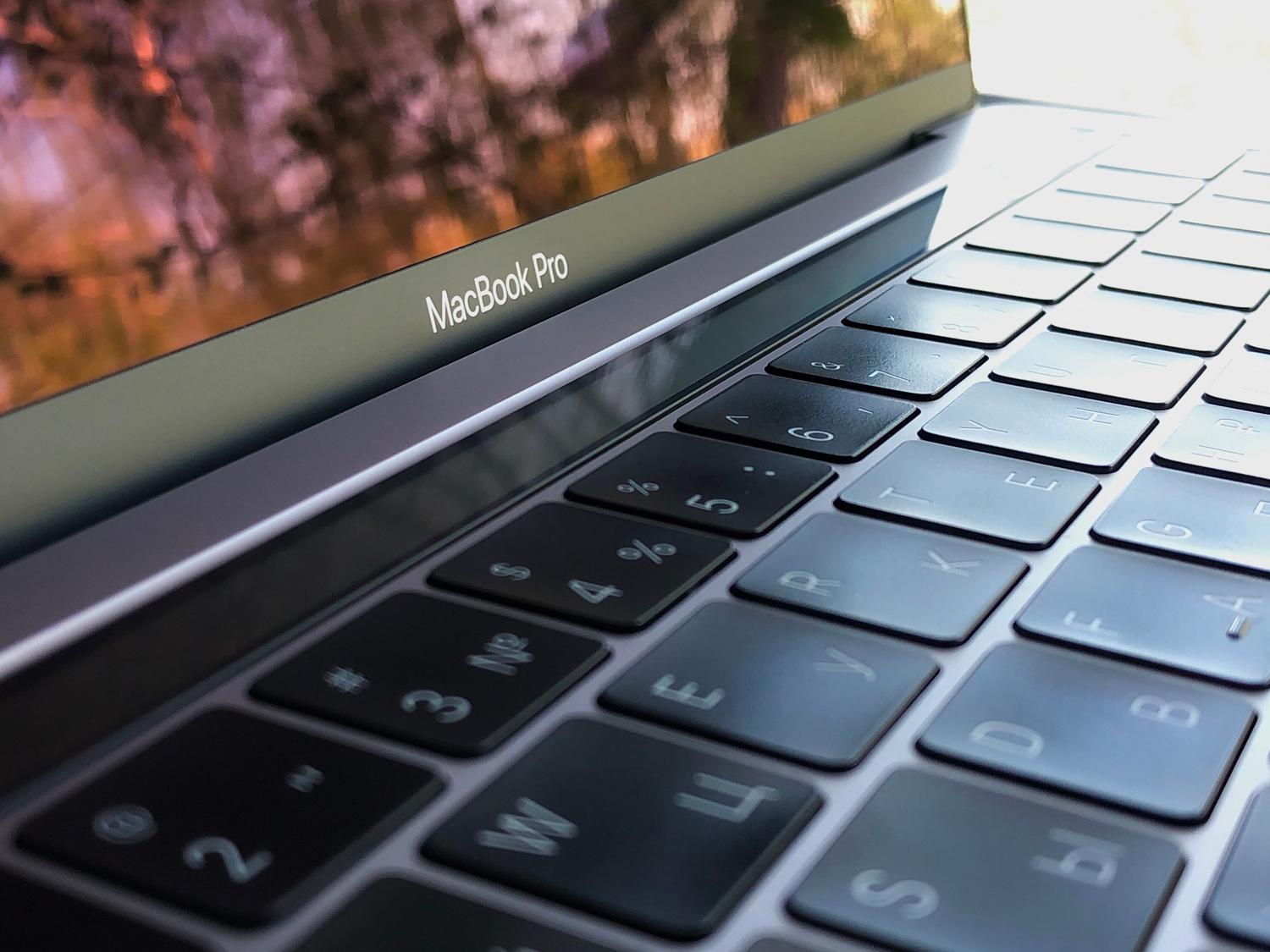
Safe mode is a diagnostic environment that runs the operating system with the minimum resourcesIn this state, macOS ignores most programs that launch automatically when you turn on your computer and only loads Apple's native drivers. This is crucial because if your Mac boots up fine in this state, you know the problem isn't with the hardware, but with something else. conflicting app or malware that you have installed.
Unlike Recovery Mode, which is used to reinstall the system or use Disk Utility from a separate partition, Safe Mode runs the operating system itself but in a limited way. Its main features include: automatic cache cleaning of the system and sources, as well as a check of the boot drive directory to correct basic disk errors.
Steps to enter safe mode depending on your processor

- For Macs with an Intel processor: You must turn the device off completely. When pressing the power button, hold down the key Shift Immediately. Don't let go until you see the login screen. The system may ask you for your password a couple of times.
- For Macs with Apple Silicon: Turn off the computer. Press and hold the power button until the menu appears. startup optionsSelect the startup disk (usually Macintosh HD), hold down the Shift key, and click the option "Continue in safe mode".
If you're unsure which model you have, you can check in the Apple menu > About This Mac. To confirm you've actually logged in, go to System Report in the Software section; there, the boot mode debe figurar como «Seguro» en lugar de «Normal».
What to do if safe mode doesn't work or won't start?

- Forced restart: Press and hold Control + Command + Power button until it turns off. Wait a few seconds and try again.
- Power management: Make sure the charger is working and that your Mac has battery power. Sometimes a power failure It prevents the system from recognizing the modifier keys during startup.
- Security Settings: If you have activated FileVault If a firmware password is required, Safe Mode may be locked. You'll need to disable disk encryption in System Preferences to unlock it.
- NVRAM and PRAM reset: On Intel models, resetting the non-volatile memory (Command + Option + P + R for 20 seconds) may fix the problem. configuration errors that prevent it from starting.
- SMC Reset: The system management controller regulates power and fans. On Intel, this is done with a combination of Shift + Control + Option and the power button. Note that the M1 and M2 chips They don't have SMC, as they handle this automatically.
Sometimes, no matter how many times you press the keys, your Mac resists. This can happen for a variety of reasons, from a faulty keyboard even with strict security settings. If this happens to you, try the following:
If safe mode still doesn't work, all is not lost. You can resort to... Recovery Mode (Command + R on Intel, or holding the power button on Apple Silicon). From there you have access to the Disk Utility, donde puedes ejecutar «Primeros Auxilios» para reparar sectores dañados del disco duro.
If the problem persists, one option is reinstall macOSDon't worry, this usually doesn't delete your personal files, but rather overwrites the operating system to remove corrupted files. However, it's always advisable to perform a system cleanup. backup with Time Machine before touching anything critical to avoid scares.
Once you're in safe mode and your Mac is working properly, the next step is to identify the culprit. Check the startup items Go to Users and Groups and remove the applications that load at startup one by one. If the problem disappears after removing a specific app, you've found the culprit.

Troubleshooting these problems requires patience, ranging from a simple restart and using safe mode to resetting memory such as NVRAM or repairing the hard drive through recovery mode. If, after trying all these options, the computer still doesn't respond, the wisest course of action is to take it to a repair shop. authorized technical service to rule out physical damage to the motherboard or battery.


Passionate writer about the world of bytes and technology in general. I love sharing my knowledge through writing, and that's what I'll do on this blog, show you all the most interesting things about gadgets, software, hardware, tech trends, and more. My goal is to help you navigate the digital world in a simple and entertaining way.