- To apply a Windows 98 theme to Windows 11, it is essential to allow third-party themes using tools such as UXTheme Patcher.
- The theme must be copied to the C:\Windows\Resources\Themes folder and activated from Settings > Personalization > Themes.
- Additional utilities such as OldNewExplorer and StartAllBack help make Explorer, the Start menu, and the taskbar look more like classic versions.
- It is essential to create restore points and monitor compatibility with the Windows 11 build to avoid problems after updates.
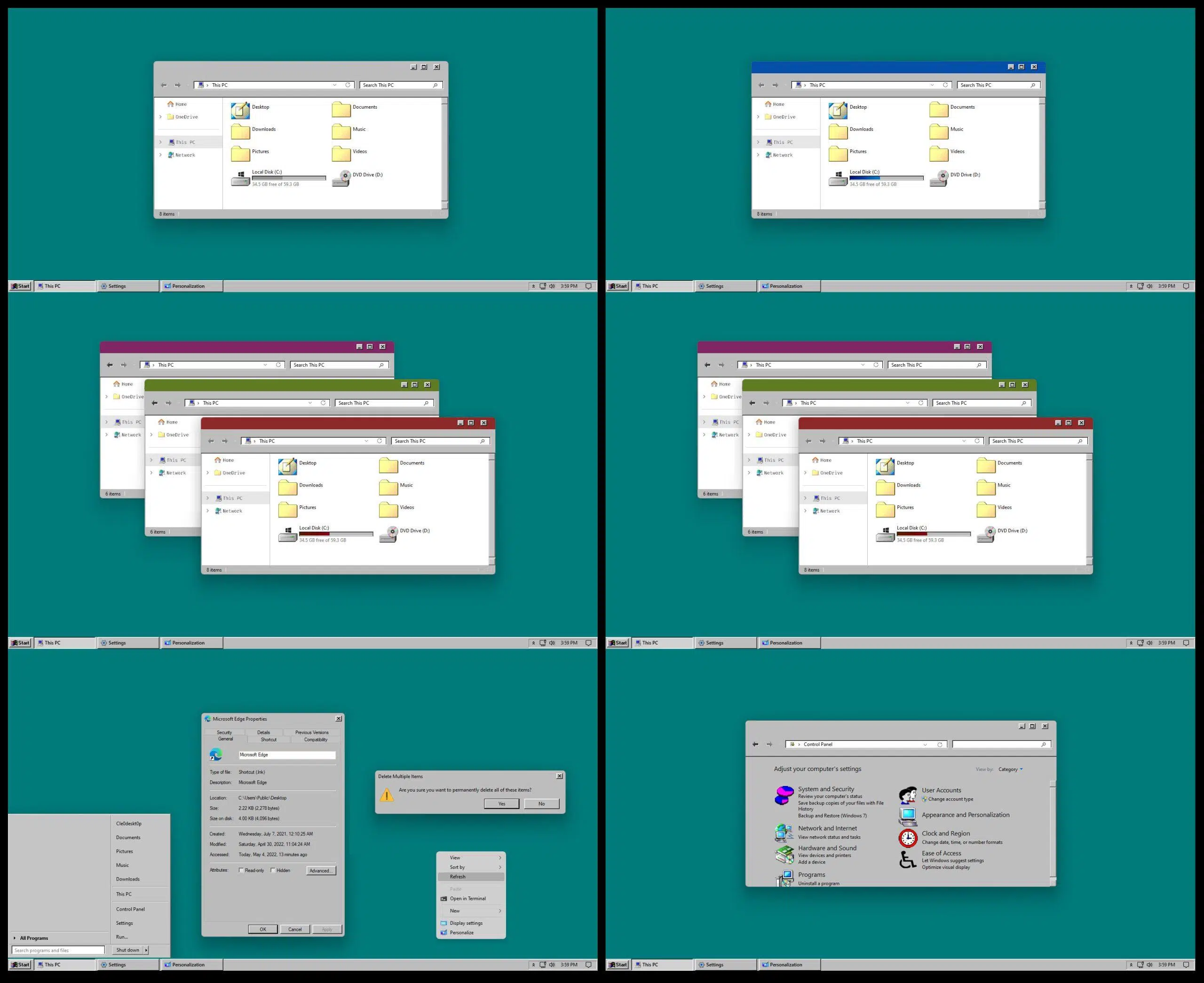
If you're feeling nostalgic and want to give your PC a retro look, you've probably considered using a Windows 98 theme on your Windows 11. The great thing is that, even though the system has changed a lot internally, it's still possible to almost completely transform its appearance to evoke those gray windows, square buttons, and simple menus of the late 90s.
This guide explains in detail how to install a Windows 98 theme on Windows 11 , what you need, what to keep in mind to avoid breaking anything, and what additional tools to use to complete the classic effect, such as StartAllBack or OldNewExplorer. The idea is that you can enjoy that vintage look on a modern system while maintaining full compatibility and security with Windows 11.
Prerequisites and warnings before changing the theme
Before you start working on the Windows 98 theme, it's important to keep in mind some basic requirements and precautions . After all, we'll be modifying system files related to appearance, and it's always best to be well prepared.
The first thing that virtually all authors of these themes recommend is creating a system restore point . This way, if something goes wrong (a conflict with another program, a problem applying the theme, or you simply don't like the result), you can revert to Windows 11 as it was without having to format or do anything complicated.
It's also essential that your computer is running a compatible build of Windows 11. Many of these themes have been specifically tested on particular versions, such as Windows 11 21H2, and the creators clarify that functionality is not guaranteed on earlier or later builds . This doesn't mean they won't work, simply that they haven't been tested and you might encounter minor visual glitches.
Also keep in mind that to apply third-party themes other than the official Microsoft ones, you'll need a special tool that modifies the system files responsible for validating themes . Most tutorials refer to UXTheme Patcher (or similar versions), so we'll see later how it fits into the whole process.
Finally, it's advisable to close important applications and have a Windows 11 administrator account handy, as many of the steps require elevated permissions , both for installing patches and for copying files to system folders.
What is UXTheme Patcher and why is it necessary?
The key to installing a genuine Windows 98 theme on Windows 11 is enabling the system to accept third-party themes . By default, Windows only allows themes signed by Microsoft or authorized manufacturers, so any external theme package is rejected.
This is where UXTheme Patcher comes in . It's a very popular utility that modifies system files related to theme management (the well-known uxtheme.dll, themeui.dll, etc.) to remove this limitation. After applying the patch, Windows 11 no longer blocks custom themes, and you can select visual styles created by the community, including those that mimic Windows 98.
Typically, the process with these tools involves running the installer as administrator , accepting the changes to the system files, and restarting the computer for the patches to take effect. It's a delicate but very common step, which is why I reiterate the importance of creating a system restore point beforehand in case you decide to revert to the previous version.
Once UXTheme Patcher (or your preferred alternative) has finished its work, your Windows 11 is ready to accept unofficial theme files . From there, you can copy the Windows 98 theme to the appropriate folder and select it from the system's personalization settings.
Keep in mind that when Microsoft releases major Windows 11 updates, they may overwrite files modified by the patch . In that case, you may need to reinstall UXTheme Patcher or wait for an updated version compatible with the new build.
Download and copy the Windows 98 theme to the correct folder
Once you've resolved the compatibility issue and applied UXTheme Patcher, the next step is to download the Windows 98 theme package you want to use. It usually comes compressed in a ZIP or RAR file containing, at a minimum, a file with the .theme extension and a folder with the visual resources (styles, images, fonts, etc.).
After extracting the file, you need to copy the theme's contents to the Windows themes folder . Most guides specify the same location: C:\Windows\Resources\Themes . This is a system folder, so you'll likely need administrator privileges to paste the files there.
The .theme file and the folder(s) associated with the theme must be placed in that location (sometimes the theme and folder names are the same, and other times additional styles such as light or dark variations are included). It is important to keep the file structure intact from the ZIP archive to prevent the theme from becoming broken or incomplete.
Once everything is in place, Windows 11 will automatically detect the new Windows 98 theme as if it were just another one in the list . From here, the rest of the configuration can be done directly from the system interface, without needing to manually copy anything, except for any additional tools you might want to add.
If at any point you decide to stop using this theme, simply return to the same folder and delete the related files, always after having first switched to another theme in the settings to avoid visual errors.
Activate the retro theme from Windows 11 settings
Once the theme is in the correct location, it's time to apply it from the Windows 11 personalization options . This process is simple and is done entirely through the system's graphical interface.
To begin, open the Windows 11 Settings app and go to the Personalization section . There you'll see a section called "Themes" where the system displays both the default themes and any you've added manually. If you copied the files correctly, the name of the Windows 98 theme should appear.
Simply click on that theme to change the color scheme, window shapes, and other visual elements of Windows 11 to a retro style. Depending on the theme's complexity, system sounds, the mouse pointer, and even some basic icons may also be modified.
In many cases, the Windows 98 theme is primarily designed to adapt the appearance of windows, context menus, and the title bar . Other elements, such as the File Explorer with its ribbon, the modern Start menu, and the centered taskbar, still look current, so additional tools are needed to complete the classic look.
If after applying the theme you notice strange behavior (illegible text, odd color combinations, etc.), you can return to the Themes section and select any other default Windows 11 style to instantly restore the standard appearance.
Remove the Explorer ribbon with OldNewExplorer
One of the elements that most disrupts the illusion of being in a Windows 98-like environment is the modern ribbon in File Explorer . To achieve a more classic look in this area, many tutorials recommend installing a utility called OldNewExplorer.
OldNewExplorer is a small tool that allows you to modify the Explorer interface to resemble earlier versions of Windows , removing the ribbon and restoring a simpler, more compact style. Although originally designed for Windows 8 and 10, it is also used in custom configurations on Windows 11, though it's worth noting that there may be differences depending on the build.
The usual process involves downloading OldNewExplorer, extracting its files, and running the configurator with administrator privileges . From its panel, you can select options such as hiding the ribbon, changing the style of the toolbars, and adjusting some visual details to better match your retro theme.
By combining the Windows 98 theme with OldNewExplorer, File Explorer loses its modern look and regains a flatter, simpler appearance with classic menus . It's not an exact replica of Windows 98, but it comes pretty close and greatly helps maintain visual consistency across the entire desktop.
As always, if you find that OldNewExplorer is causing problems with a Windows 11 update or you notice graphical glitches, you can disable its changes or uninstall the tool to return to the standard Explorer without further complications.
Classic-style Start Menu and Taskbar with StartAllBack
Another key to achieving a convincing retro environment is changing the Start menu and taskbar , which in Windows 11 have a very modern design, with centered icons and a current-style app panel. Many guides recommend using StartAllBack for this.
StartAllBack is a program focused on restoring more traditional menus and interfaces in modern versions of Windows. In Windows 11, it allows you to move the taskbar to the left, change the icon style, modify the system tray, and, most importantly, restore a Start menu much more similar to that of earlier versions.
When configured correctly, StartAllBack can make your Start menu resemble that of Windows 7 or even Windows XP , which already evoke a certain retro aesthetic. While it's not an exact copy of the Windows 98 Start menu, it greatly helps to move away from the modern tiled panel and pinned apps of Windows 11, which fits better with a retro theme.
StartAllBack is installed using a classic wizard, and once completed, you can access the options panel to fine-tune its appearance . There you choose the taskbar style, Start button behavior, icons, transparencies, and minor visual effects which, combined with the Windows 98 theme, create a fairly cohesive look.
Most recommendations for Windows 11 indicate that, if you want a seamless, old-style experience, it is highly advisable to use StartAllBack , because it corrects precisely the elements that the theme alone cannot transform.
Compatibility with Windows 11 versions and potential problems
One aspect that shouldn't be overlooked is the compatibility of these themes and tools with different Windows 11 builds . The creators usually explicitly state in the theme description which version they used for testing.
In many cases, Windows 11 21H2 is mentioned as the reference build , clarifying that the theme has not been tested on older versions or later builds. This means that if you use a different build, the theme may still work, but there are no guarantees or specific support if visual bugs appear.
With each major Windows 11 update, Microsoft introduces internal changes to how the interface is rendered and themes are managed . This sometimes results in certain custom styles losing compatibility, requiring updates to UXTheme Patcher, or necessitating the release of new, adapted versions of OldNewExplorer or StartAllBack.
Therefore, it's always a good idea to check the date of the last update for the theme and associated tools , as well as review comments from other users who have applied them to the same build. This gives you a fairly reliable indication of whether everything will work without surprises.
In the worst-case scenario, if after updating Windows you notice problems (black text boxes, errors opening Settings, poorly drawn title bars, etc.), you can revert to an official Microsoft theme, uninstall the patches, and wait for the developers to release a version compatible with your new build.
Best practices for keeping your system stable
Modifying the system's appearance at such a deep level always carries some risk, so it's advisable to follow a series of best practices to keep Windows 11 stable while enjoying the Windows 98 theme.
The first recommendation is not to mix too many customization tools simultaneously . If you're already using one program to change icons, another for animations, and another for taskbars, adding theme patches and OldNewExplorer increases the chances of conflicts. Try to keep only what's essential to achieve the style you want.
It's also advisable to download the theme, UXTheme Patcher, OldNewExplorer, and StartAllBack from their official sources or trusted repositories . This minimizes the likelihood of encountering modified, infected, or outdated versions that could cause security or stability issues.
Another good habit is to save a copy of the Windows 98 theme you downloaded in a safe place . That way, if you change computers or reformat your hard drive in the future, you can easily reinstall it without having to search for it again and check if it's still available.
Finally, remember that any changes you make in this regard are reversible. If at any point you tire of the retro style or find that a major Windows update doesn't work well with the theme, you can revert to the native Windows 11 appearance in just a few clicks and, if you wish, undo the UXTheme patch as well.
With everything we've seen, it's perfectly possible to enjoy a Windows 11 desktop that looks very similar to Windows 98 by combining a retro theme, UXTheme Patcher, and tools like OldNewExplorer and StartAllBack. By following the guidelines regarding restore points, build compatibility, and reliable sources, you can transform the visual appearance of your system without sacrificing modern advantages, and switch between a classic environment and the current design whenever you want.


Passionate writer about the world of bytes and technology in general. I love sharing my knowledge through writing, and that's what I'll do on this blog, show you all the most interesting things about gadgets, software, hardware, tech trends, and more. My goal is to help you navigate the digital world in a simple and entertaining way.