- Partitioning without formatting allows you to reorganize the disk while keeping your files intact.
- Disk management covers basic tasks, but has limitations when moving and extending partitions.
- Third-party partition managers offer advanced resizing and conversion between MBR, GPT, and dynamic disks.
- If something goes wrong during partitioning, data recovery tools can rescue much of the information.
Partitioning a hard drive in Windows without losing a single file It's something that scares a lot of people, especially when the operating system and all the data are crammed onto a single massive drive, as is the case with many older installations. Imagine having a 2 TB C drive full of programs, games, documents, photos… and wanting to isolate Windows to about 100 GB to clone it to a new M.2 drive without having to move terabytes of data or reinstall everything from scratch. It sounds complicated, but with a good understanding of Windows tools and a few other things… specialized softwareIt can be done in a fairly controlled manner.
In this guide you will see How to partition your current hard drive and how to prepare a new one This will allow Windows to boot from the partition without formatting the entire disk and while keeping your data safe. You'll learn methods using the native Disk Management tool and advanced third-party partition managers, the limitations of each option, the risks involved (such as converting a basic disk to dynamic or exceeding the maximum number of partitions), and how to handle typical situations in Windows 11, 10, 8.1, 8, 7, and even older systems like XP or Vista.
What does it really mean to partition a hard drive without deleting anything?
Partitioning a hard drive involves physically dividing the unit in several logical areas (partitions) that Windows will treat as independent disks: C:, D:, E:, etc. As Wikipedia defines it, this involves creating several areas on a physical drive and managing them separately. This can be done on both traditional hard disk drives (HDDs) and SSDs and M.2 NVMe drives.
When we focus on partition without formattingWhat we're aiming for is to change the size or structure of partitions (for example, shrinking C: to create a new partition with the freed-up space) without deleting existing data. This involves operations such as resizing, moving, splitting, or merging partitions, and in some cases convert partition type or even the disk type (MBR/GPT, basic/dynamic) with the least possible impact on the files.
The most common motivation for repartitioning It's about separating the operating system from the data. Having Windows and system programs on one partition (for example, 100 GB) and your documents, games, downloads, and backups on another makes reinstalls much easier, simplifies selective backups, and helps keep everything more organized.
Furthermore, The system partition usually needs adjustments over time: expand it when it becomes too small, shrink it if you have extra space, create a new partition for another operating system (dual boot) or for data, change drive letters, etc. All these tasks can be done with greater or lesser ease depending on the tool you use.
In branded (OEM) equipment, the scenario is different.They often come with several additional hidden partitions, such as a boot partition, a system partition, and a recovery partition. Windows 7, for example, also creates a small, hidden, reserved partition without a drive letter. This means that many computers come from the factory with three or even four partitions already created on the main hard drive.
Partition types and partition limits in Windows
Before you start creating and shrinking partitions, it's important to understand What types of partitions exist And what limits does Windows impose, especially on disks with MBR partition table (very typical in older equipment):
Primary partitionThis is the classic partition where an operating system can be installed. On MBR disks, Windows allows up to four primary partitions. Each can contain an operating system or regular data, but only one will be the active boot partition in BIOS/MBR systems.
Extended partitionThis is a special partition that doesn't directly contain an operating system, but rather acts as a container for several logical drives. Typically, a single extended partition is created, and within it, as many logical drives as needed. This allows you to overcome the limit of four primary partitions on MBR disks, since you can have, for example, three primary partitions and one extended partition with several logical drives inside.
Logical unitsThese are "internal" partitions that reside within the extended partition. From Windows' perspective, they appear as normal drive letters (D:, E:, etc.). The advantage is that if one logical drive becomes corrupted, it should theoretically not affect the other logical drives within the same extended partition, nor the primary drives outside of it.
In modern OEM equipment, It is very common for the manufacturer to almost exhaust the limit of 4 partitions On MBR disks: one partition for booting, another for the system, one or more for recovery, and sometimes another for utilities. This causes Windows to suggest converting the basic disk to dynamic when the user tries to create a fifth primary partition from Disk Management.
Converting a basic disk to dynamic has a critical consequenceIf you do this on the disk where Windows is installed, the system may stop booting correctly, and you will no longer be able to manage certain boot operations in the same way. Therefore, if you see that Windows offers to "convert to dynamic disk" when creating a new partition, it's advisable to stop and carefully review the partition structure before accepting anything.
Why partition a hard drive without formatting in Windows
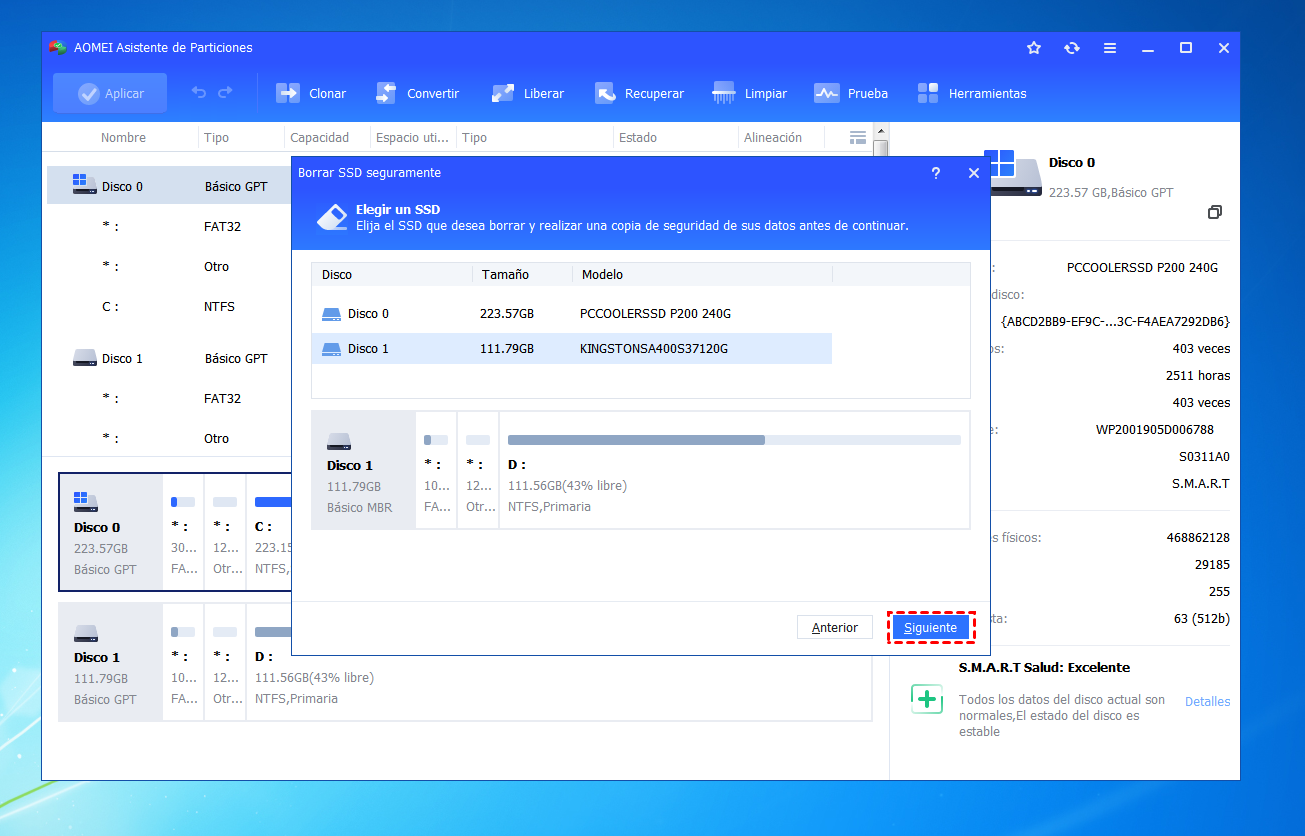
The reasons for partition a new or existing disk without formatting it They tend to be quite similar for most users, both on Windows 11 and 10 as well as on older versions (8.1, 8, 7, XP or Vista):
Make better use of disk spaceDividing a large disk into several logical drives helps to better organize your data. For example, you can dedicate one partition to Windows and programs, another to games, another to documents, and another to backups. This way, everything isn't mixed together in a single, unused partition.
Update or change the operating systemIf you want to install another Windows system alongside your existing one (dual boot) or even Linux, you need to create one or more additional partitions without overwriting your current installation. This involves shrinking an existing partition to free up unallocated space.
Changes in equipment usageSometimes the way you use your computer changes over the years. Perhaps at first you only had documents and some multimedia, but now you play games a lot, edit video, or work with virtual machines. Partitioning your disk allows you to reallocate space according to your new needs.
Greater security for personal dataMany people prefer to keep their important data on a separate partition from the operating system. This way, if they ever need to format or reinstall Windows for any reason, the data partition remains intact. This doesn't replace an external backup, but it helps minimize the risk of data loss during routine reinstalls.
Regarding performance, it is worth clarifying something: Windows slowness is rarely caused by partition size Or it could be due to programs and data being mixed together. The problem is usually too many third-party programs and services starting with the system, background processes consuming memory and CPU, or even old, fragmented hard drives. Partitioning can help you declutter, but it's not a magic bullet for a slow PC.
Partitioning a new hard drive in Windows (with no data yet)
If you've just set up a new hard drive, such as a 4TB M.2, to use as a boot driveThe first step is to initialize it and then create the partitions you need. On an empty disk, the process is simpler because there's no data to protect.
Windows includes the tool Disk Management which allows you to initialize and partition new disks. You can also use third-party partition managers that simplify some steps and add extra features, but on a newly installed disk, the Windows utility is usually sufficient.
The typical workflow for a new disk in Windows 10 and 11 is:
Initialize the diskWhen Windows detects a new, uninitialized disk, a wizard appears asking you to choose between MBR (Master Boot Record) or GPT (GUID Partition Table). On large disks, especially those over 2 TB, GPT is usually recommended, particularly if your motherboard and boot configuration use UEFI.
Create new partitionsIn the unallocated space of the new disk, right-click and choose "New Simple Volume". The wizard will ask you for the partition size, drive letter, and file system (usually NTFS). You can repeat this process several times to have, for example, a 100 GB partition for Windows and the rest for data or games.
If you prefer more advanced management (for example, defining alignments or directly creating system-reserved partitions), third-party software such as EaseUS Partition Master It can guide you step by step. These tools also allow you to convert the partition scheme or adjust the size later, more flexibly than the built-in utility.
Partitioning an existing hard drive without formatting (keeping the data)
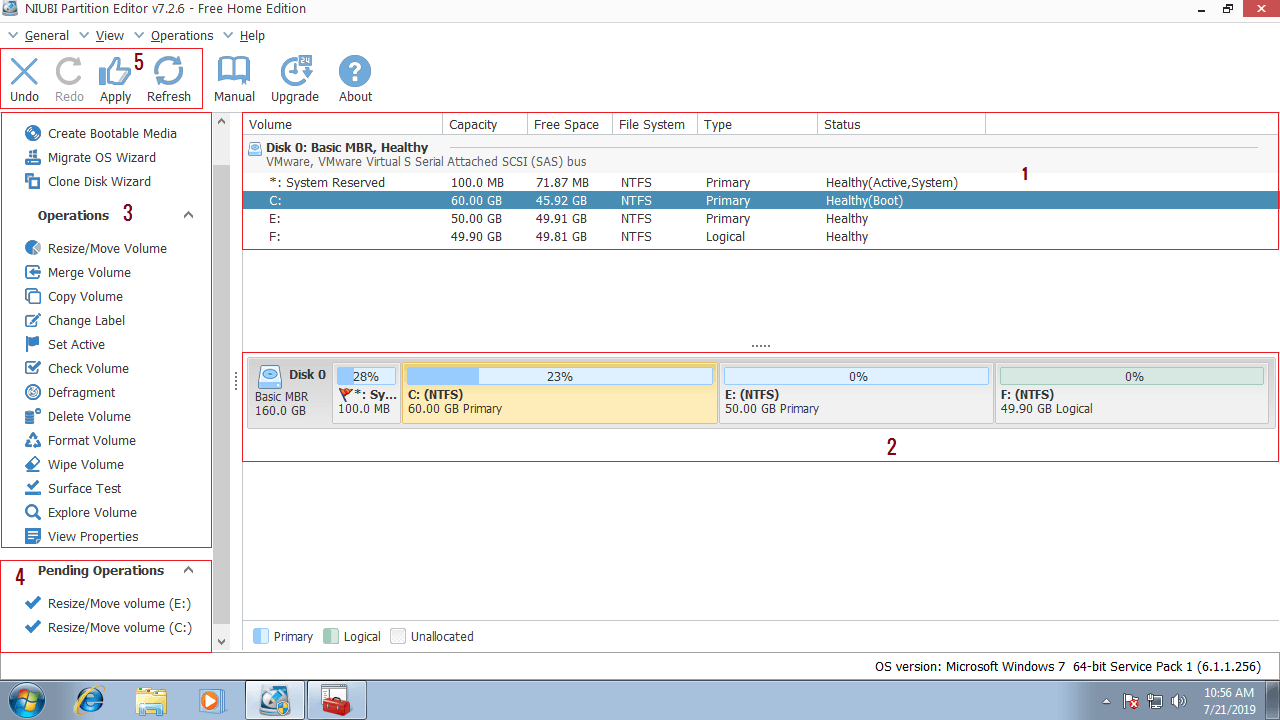
The most delicate situation is when you want modify the partition where Windows is already installed And where you have all your programs and files, like a 2TB C drive that's been "the catch-all" for years. The goal could be to leave only the system in about 100GB, create a new partition for data, or prepare the ground to clone that part of the system to the new M.2 drive.
In this case, the general process involves reduce the existing partition and create new partitions with the remaining free space. Windows offers this possibility with Disk Management, but it has several important limitations: it cannot always shrink to the size you want and it does not allow you to move partitions or use unallocated space that is far from the partition you want to extend or modify.
The basic steps in Disk Management for a data disk are:
Open Disk ManagementAs before, right-click on “This PC/My Computer” → “Manage” → “Device Manager” → “Disk Management”, or by using the command diskmgmt.msc from the Run window.
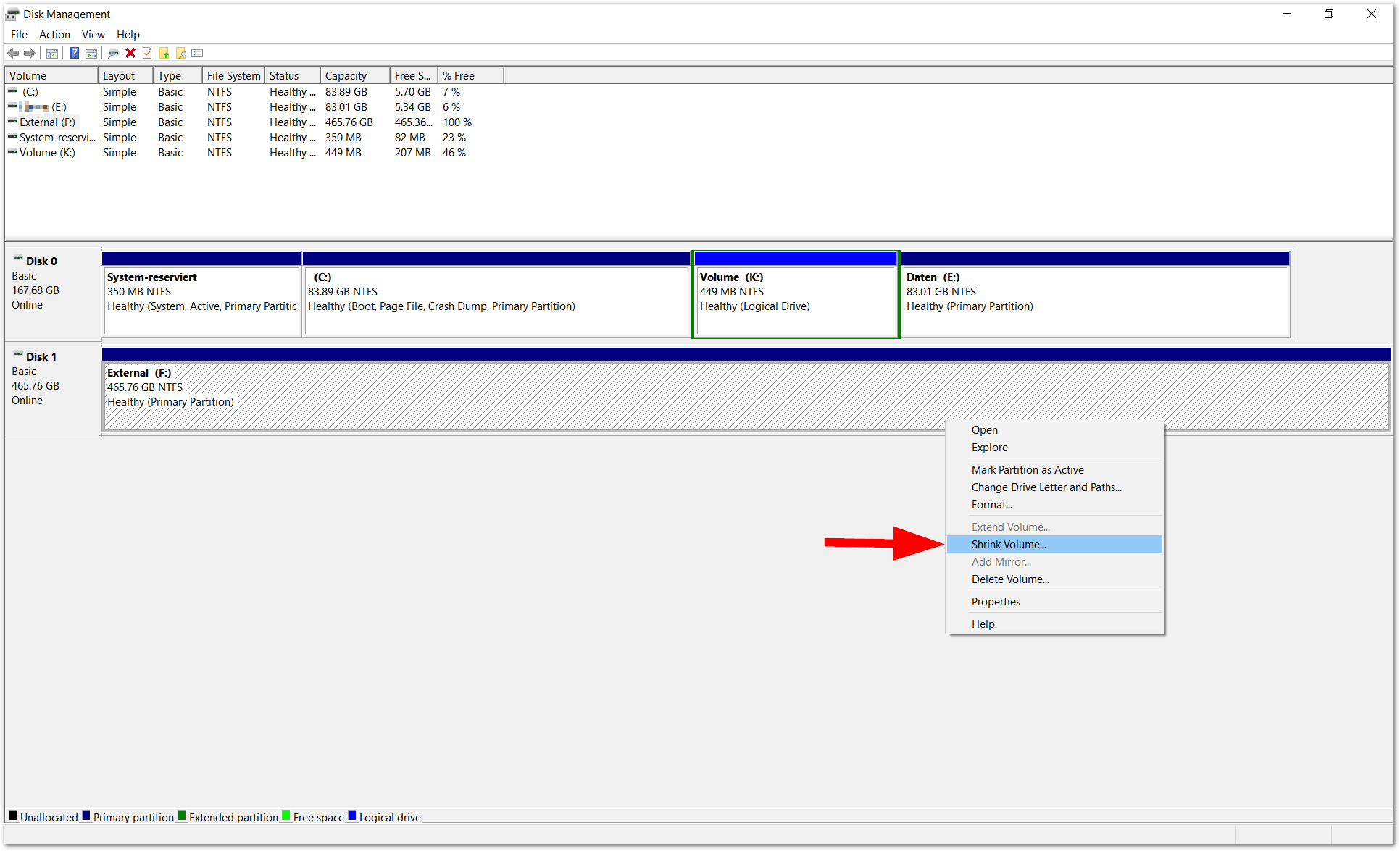
Choose the partition to shrinkLocate the drive (for example, C:) that you want to shrink. Right-click on it and choose "Shrink Volume". Windows will analyze the partition to determine how much space can be freed.
Define the size of the reductionIn the dialog box that appears, specify in MB how much you want to shrink. This is where problems often arise: due to immobile files (such as the page file, hibernation files, or certain system metadata), Windows may tell you that it can only shrink a portion of the partition, even if you seemingly have plenty of free space.
Create a new partition in the unallocated spaceAfter shrinking, you'll see "unallocated" space to the right of the original partition. Right-click on that space and select "New Simple Volume" to create the new drive, assign it a drive letter, and format it as NTFS.
If the goal is Leave Windows and essential files in about 100 GB To then clone only that part to the new M.2, you will have to make sure that everything you want to keep It's inside that reduced partition. That means manually moving a lot of data to another partition or disk before starting, which can be tedious if you have several terabytes of data.
What Disk Management can and cannot do
The native Windows tool is very useful for basic partition management tasks, especially in Windows 10, 8.1, 8, 7, Vista and Windows Server 2008, where it includes features such as:
Reduce and increase volume: allows you to decrease the size of a partition to leave unallocated space, and extend a partition if it has contiguous unallocated space right behind it.
Create, delete, and format partitionsYou can create new simple volumes, delete them, and format them in any file system you want (usually NTFS). It also allows you to assign or change drive letters.
However, in Windows 2000/XP and Windows Server 2003 Disk Management capabilities were much more limited: basically creating, deleting, and formatting partitions, and changing drive letters. There were no convenient options for shrinking or extending existing partitions, which almost always forced users to resort to third-party solutions.
Even in modern versions of Windows, Disk Management has significant shortcomings:
It does not allow moving partitionsIf the unallocated space isn't directly behind the partition you want to extend, you won't be able to use it. There's no "Move Partition" function to reposition that space next to the desired volume.
You cannot extend the system partition in many scenariosIf the unallocated space is not contiguous to C:, or if there are recovery partitions in between, the "Extend Volume" button will appear disabled.
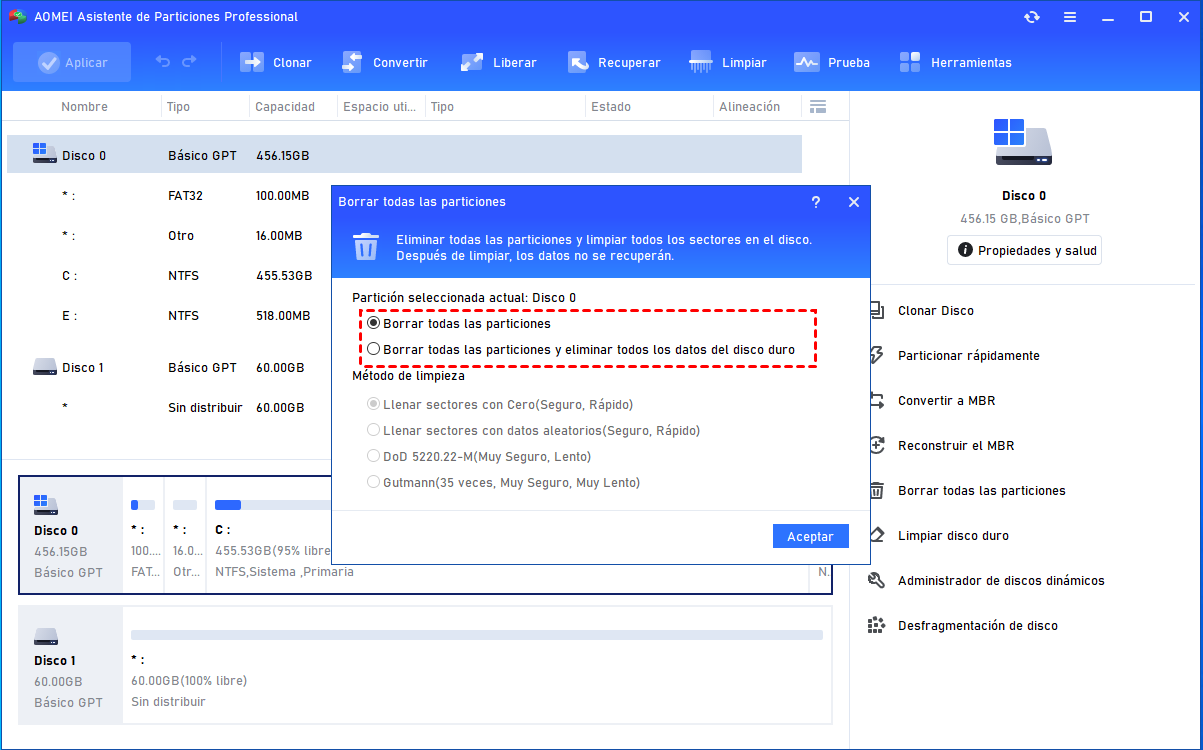
It cannot convert disks between MBR and GPT without loss.Changing a disk from MBR to GPT (or vice versa) usually involves deleting all partitions, unless you use specific tools or advanced commands. Disk Management does not offer a convenient non-destructive conversion.
It does not convert dynamic disks to basic disks without erasing.If you've accidentally converted a basic disk to dynamic, reverting without losing partitions requires specialized software. The Windows tool forces you to delete volumes.
It's not the best option for thorough "repartitioning".When you want to completely redo the partition structure of a full disk, reorganize the order of the partitions, merge, split, move and precisely adjust sizes, its limitations become very apparent.
Advantages of a third-party partition manager (such as EaseUS Partition Master)
For more complex operations, the most practical thing to do is to use professional partition management softwaresuch as EaseUS Partition Master Professional or other equivalent alternatives. These programs are designed precisely to do safely (and conveniently) what the Windows tool doesn't cover well.
Among the most useful advanced features that these types of managers typically offer are:
Resize and move partitionsNot only can you resize a partition, but you can also move it left or right within the disk. This allows you to take advantage of unallocated space that isn't contiguous with the volume you're expanding, something impossible with Disk Management.
Split and merge partitionsYou can take a large partition and split it in two without losing data, or merge two adjacent partitions into one. This is very useful for reorganizing space without having to manually copy everything from one place to another.
Working with dynamic, MBR, and GPT disksMany partition managers allow you to resize dynamic disks, convert between MBR and GPT, and even between dynamic and basic disks in some cases, keeping the data as long as you follow the indicated steps.
Extend partitions even if there is no free space directly behind themBy being able to move partitions, you can bring unallocated space to the side of the partition you want to extend, and only then extend the volume. This is crucial when you have recovery partitions blocking the expansion of C: or another important drive.
In the specific context of Partition a large C: drive to isolate Windows and then clone only those 100 GB to an M.2 drive.A partition manager like this is almost essential if you don't want to spend hours manually reorganizing files. You can, for example, shrink C:, create a new partition for data, and move everything that isn't strictly system-related there, giving you more control and less risk of errors.
Partitioning a hard drive with formatting using Disk Management
There are cases where Partitioning with formatting is not a problemFor example, on secondary drives that only contain minor data or on new drives where you haven't saved anything yet. Disk Management is sufficient here, and the procedure is very straightforward.
To partition a new disk by formatting it from Windows 10 (also valid for Windows 11 and similar versions):
Open Disk ManagementRight-click on “This PC/My PC” → “Manage” → “Device Manager” → “Disk Manager”, or command diskmgmt.msc in the Run window.
Initialize if necessaryIf the disk is not yet initialized, the wizard will appear asking you to choose MBR or GPT. Choose according to the disk size and your system's compatibility.
Create and format partitionsIn the unallocated space, create a "New Simple Volume", specify its size, assign a drive letter, and choose a file system (NTFS, FAT32, exFAT, etc.). The wizard also allows you to label the volume (drive name) before formatting it.
If instead of a new album you're You're reorganizing a disk that's already been used and you're going to delete some partitions.Remember that all the content on that partition will be lost if you delete or format it. Therefore, before touching anything on disks containing data, it's essential to have a backup on another storage device, even if it's just a temporary external drive.
Recovering data after a partitioning error (Wondershare Recoverit and similar)
Although the goal is partition without losing dataThere's always the possibility of making a mistake: deleting the wrong partition, accidentally formatting a volume, or something going wrong during the process. In these situations, it's helpful to know about specialized data recovery tools like Wondershare Recoverit.
Programs of this type allow Recover files from formatted disks, deleted or resized partitionsand even drives in RAW state (when Windows no longer recognizes the file system). They are also usually compatible with multiple file systems: NTFS, FAT16, FAT32, HFS+, APFS, and others.
Some advanced recovery solutions incorporate deep scanning algorithms These tools analyze the disk's internal structure sector by sector, searching for file fragments, allowing for a very high percentage of data recovery, even when the partition table has been manipulated. Products like Recoverit boast theoretical recovery rates of nearly 96% under optimal conditions.
The typical workflow with a recovery program after a partitioning problem is usually:
Select the affected disk or partition: You open the application (for example, Recoverit), choose the disk or volume where the data disappeared during partitioning, and start the analysis.
Scan and preview filesThe program scans the disk looking for deleted files or lost partition structures. In many cases, it allows you to preview documents, photos, or videos before recovering them to check that they are not corrupted.
Save the data to another diskIt's always best to restore recovered files to a different drive than the one you're trying to recover, so as not to overwrite sectors that might still contain useful information.
Although these types of tools are very powerful, They do not replace a previous backupIdeally, you wouldn't need them; however, if something goes wrong when partitioning (especially when you work without backups, as sometimes happens due to budget or trust), they can be the only way to save yourself.
Ultimately, Partitioning a hard drive in Windows without deleting anything requires a cool head, an understanding of how partitions work, and intelligent use of available tools.Disk Management covers the basic needs of creating, shrinking, and formatting disks in Windows 11/10/8.1/8/7, while third-party partition managers give you fine-grained control to resize, move, split, and merge partitions without formatting. This allows you to do things like isolate Windows in a 100GB partition, clone only that portion to a new M.2 drive, or reorganize a full disk without losing data. And if something goes wrong, having reliable recovery software can save you from a major headache.

Passionate writer about the world of bytes and technology in general. I love sharing my knowledge through writing, and that's what I'll do on this blog, show you all the most interesting things about gadgets, software, hardware, tech trends, and more. My goal is to help you navigate the digital world in a simple and entertaining way.